The Ohio Supercomputer Center (OSC)

Practical Computing Skills for Omics Data (PLNTPTH 5006)

Jelmer Poelstra

August 31, 2026


Introduction

Introduction

This session introduces high-performance computing and the Ohio Supercomputer Center (OSC)

  • Why? You will do all your coding and computing for this course at OSC!
  • This is a brief overview before we get started with OSC, and you’ll learn more later in the course.

You will learn:

  • What supercomputers are and why they are useful
  • What resources OSC provides
  • What nodes are and which two types exist
  • The file system at OSC and how to navigate it
  • How to use the “OSC OnDemand” web portal

The Ohio Supercomputer Center logo.


High-performance computing

Supercomputer basics

What is a supercomputer?

A supercomputer, also known as a “cluster”:

  • Consists of many computers connected by a high-speed network.
  • Can be accessed remotely by its users.

What does it provide?

High-Performance Computing (HPC) resources — which have two main aspects:

  • Compute: computing power to run your data processing and analysis.
  • Storage: space for storage of your data and results.

Why use a supercomputer?

Can you think of any reasons to use a supercomputer instead of your own computer?
  • It mostly comes down to scale — e.g., your analysis may:
    • Take a long time to run
    • Need large numbers of processors or a large amount of memory
    • Involve too much data to store on your computer
  • Additionally, your analysis may require:
    • Linux-only software
    • Specialized hardware, such as advanced GPUs

When working with omics data, many of these reasons often apply. This can make it hard or impossible to run all your analyses on your computer, and supercomputers provide a solution.

What is OSC?

  • The Ohio Supercomputer Center (OSC) is a supercomputer facility provided by the state of Ohio.

  • OSC has:
    • Three supercomputers
    • Lots of storage space
    • Excellent infrastructure to access these resources
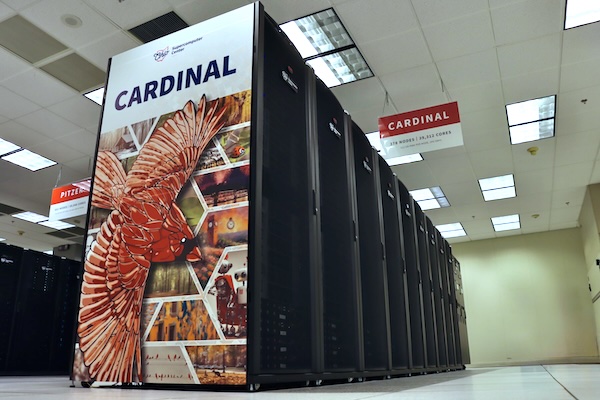
A photo of the Cardinal OSC cluster

Cardinal, one of OSC’s supercomputers.

The structure of a supercomputer center

Nodes, clusters, and supercomputer centers

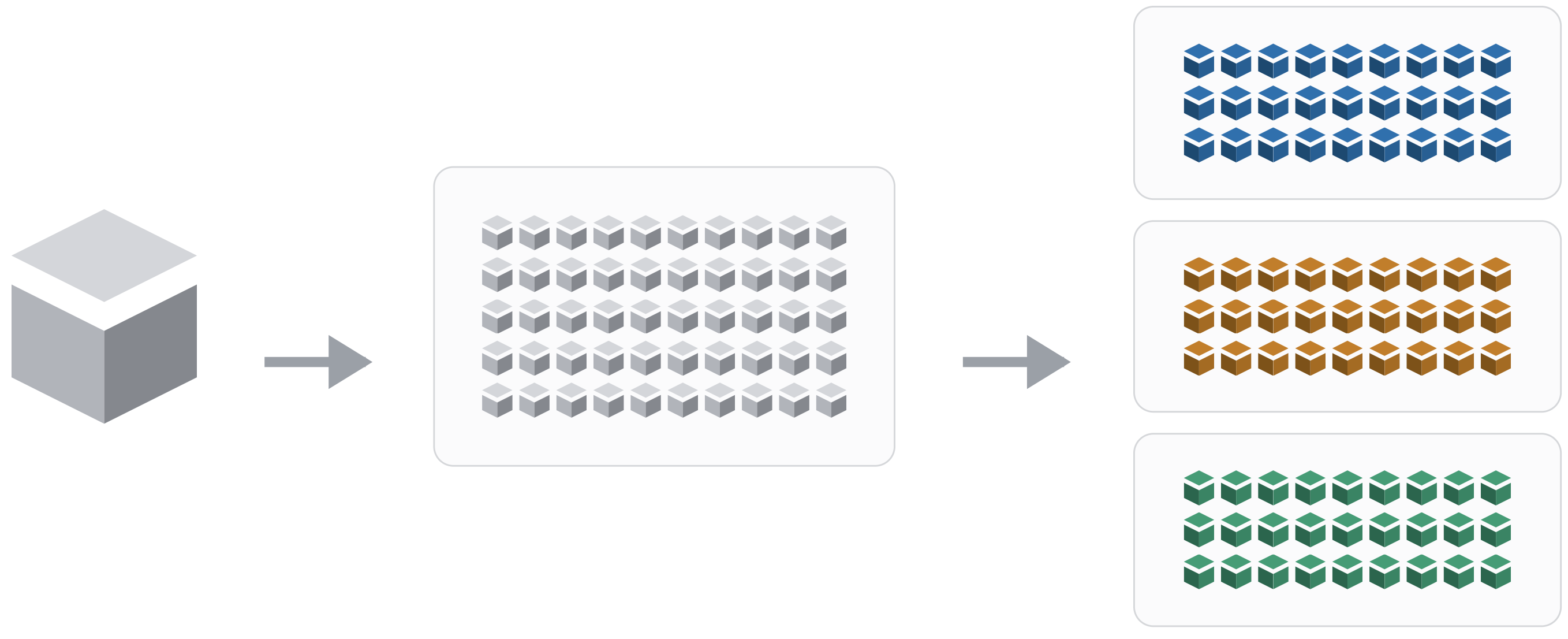
A diagram showing the structure of a supercomputer center with three main components: file systems, login nodes, and compute nodes

Node
A single computer that is a part of a supercomputer.

Nodes, clusters, and supercomputer centers
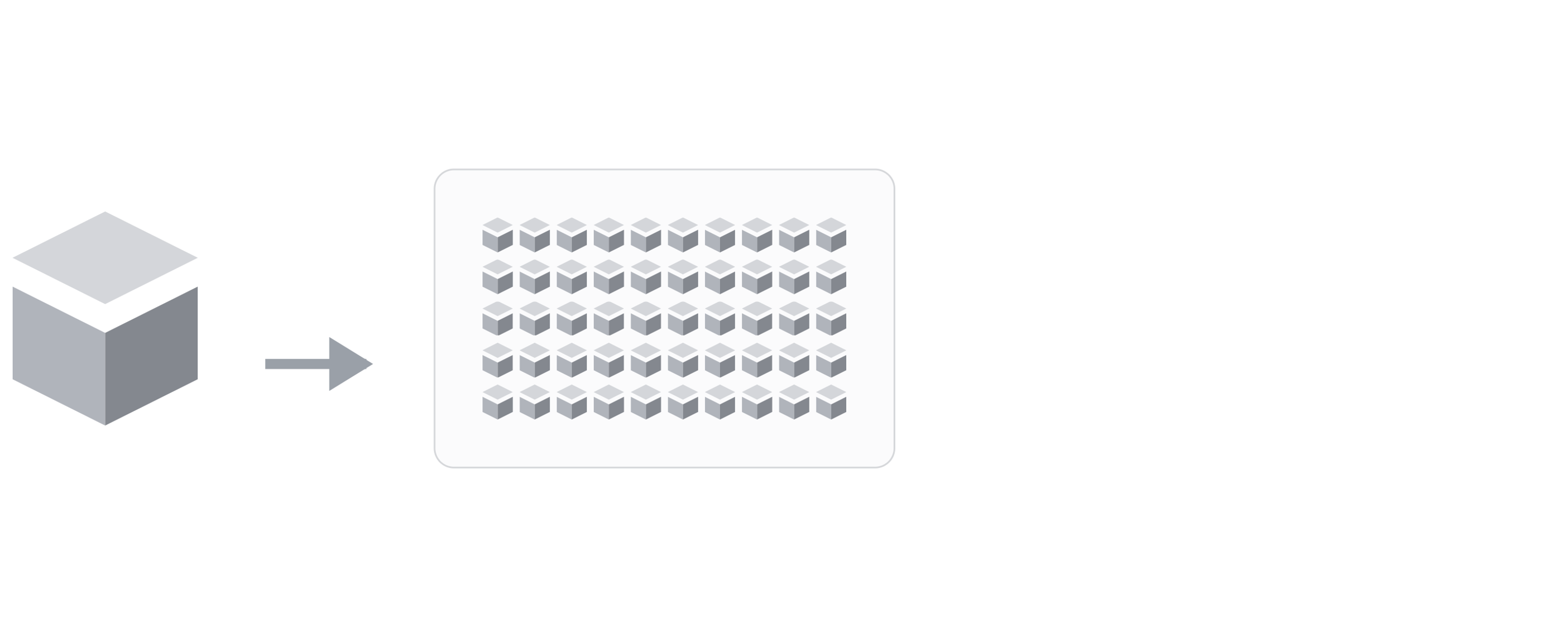
A diagram showing the structure of a supercomputer center with three main components: file systems, login nodes, and compute nodes

Node
A single computer that is a part of a supercomputer.

Supercomputer / Cluster
A collection of connected computers/nodes.

Nodes, clusters, and supercomputer centers
A diagram showing the structure of a supercomputer center with three main components: file systems, login nodes, and compute nodes

Node
A single computer that is a part of a supercomputer.

Supercomputer / Cluster
A collection of connected computers/nodes.

Supercomputer Center
A facility like OSC with one or more supercomputers. OSC has three: “Ascend”, “Cardinal”, and “Pitzer”.

Terminology

Or, shown in another way:

Supercomputer Center

Supercomputer/Cluster

Node

Supercomputer components

Main parts of a supercomputer:

  • Login nodes
    The handful of computers that everyone lands on when logging in.

  • Compute nodes (for compute)
    The many computers you can reserve to run your analyses.

  • File system (for storage)
    Where files are stored — one system shared across all clusters.
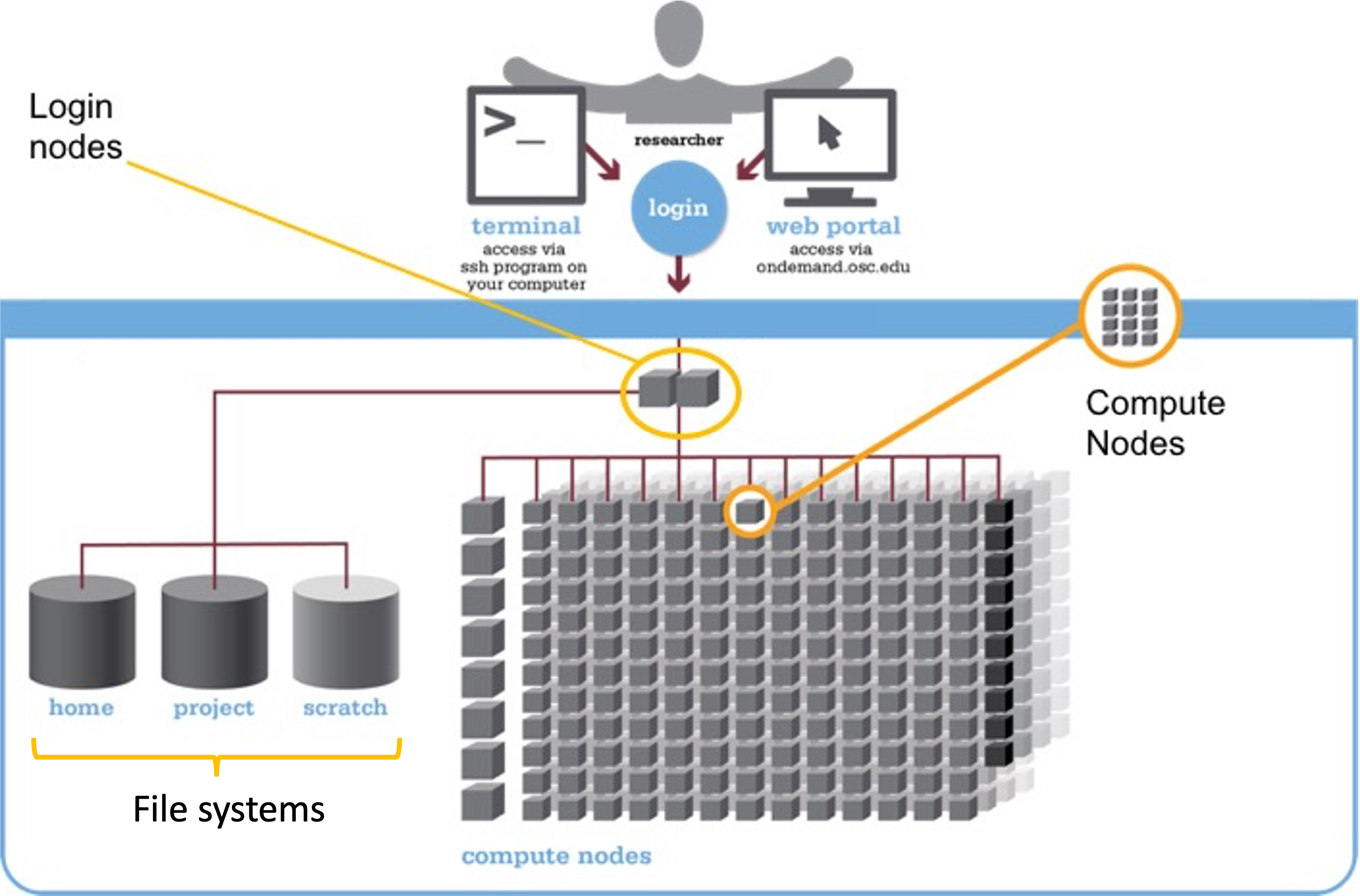
A diagram showing the structure of a supercomputer with three main components: file systems, login nodes, and compute nodes

Login versus compute nodes

Login nodes

An initial landing spot when you log in to a supercomputer:

  • There are only a handful of them on each supercomputer.
  • They are shared among everyone, and cannot be reserved for exclusive usage.

Login nodes are meant only for light tasks such as organizing files and creating scripts for compute jobs, and not for serious computing.

Compute nodes

This is where serious computation, such as data analysis, takes place:

  • To access compute nodes, you need to request a “compute job”.

  • A job scheduler program then assigns the requested resources — for example, access to a specific compute node for two hours.

File system — background

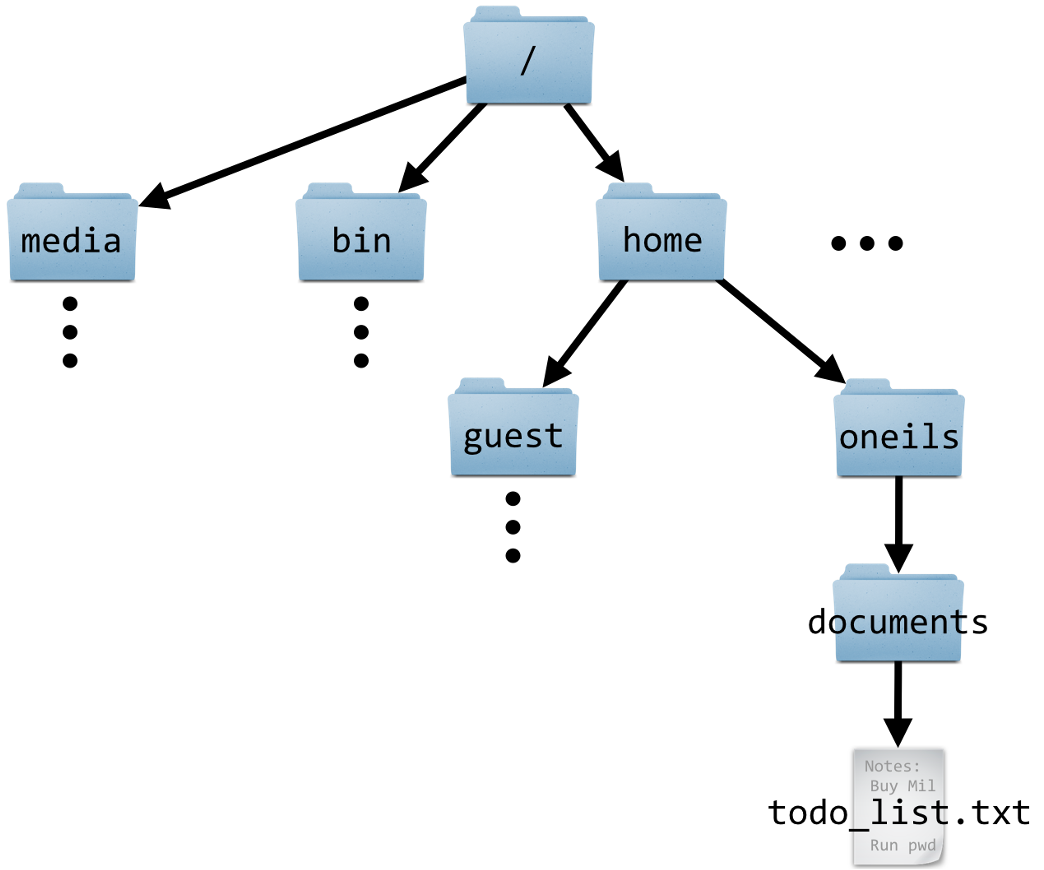
A diagram of an example file structure on a Mac computer.

Example file structure on a Mac (O’Neil 2019).
  • Mac and Linux computers (OSC runs on Linux) have a single starting point to the entire file structure: the root folder, /.
  • A path specifies the location of a file or folder — /home/guest is the path to the “guest” folder.
  • In paths, / is also used to separate folders.

Windows is the odd one out: it has multiple file system starting points and uses backslashes \ instead of forward slashes.

File system — background

A diagram of an example file structure on a Mac computer.

Example file structure on a Mac (O’Neil 2019).

Is the guest folder inside the home folder, or vice versa? guest is inside home. In other words, guest is a subfolder of home, and home is the parent folder of guest.

What is the path to todo_list.txt?

/home/oneils/documents/todo_list.txt

File system at OSC

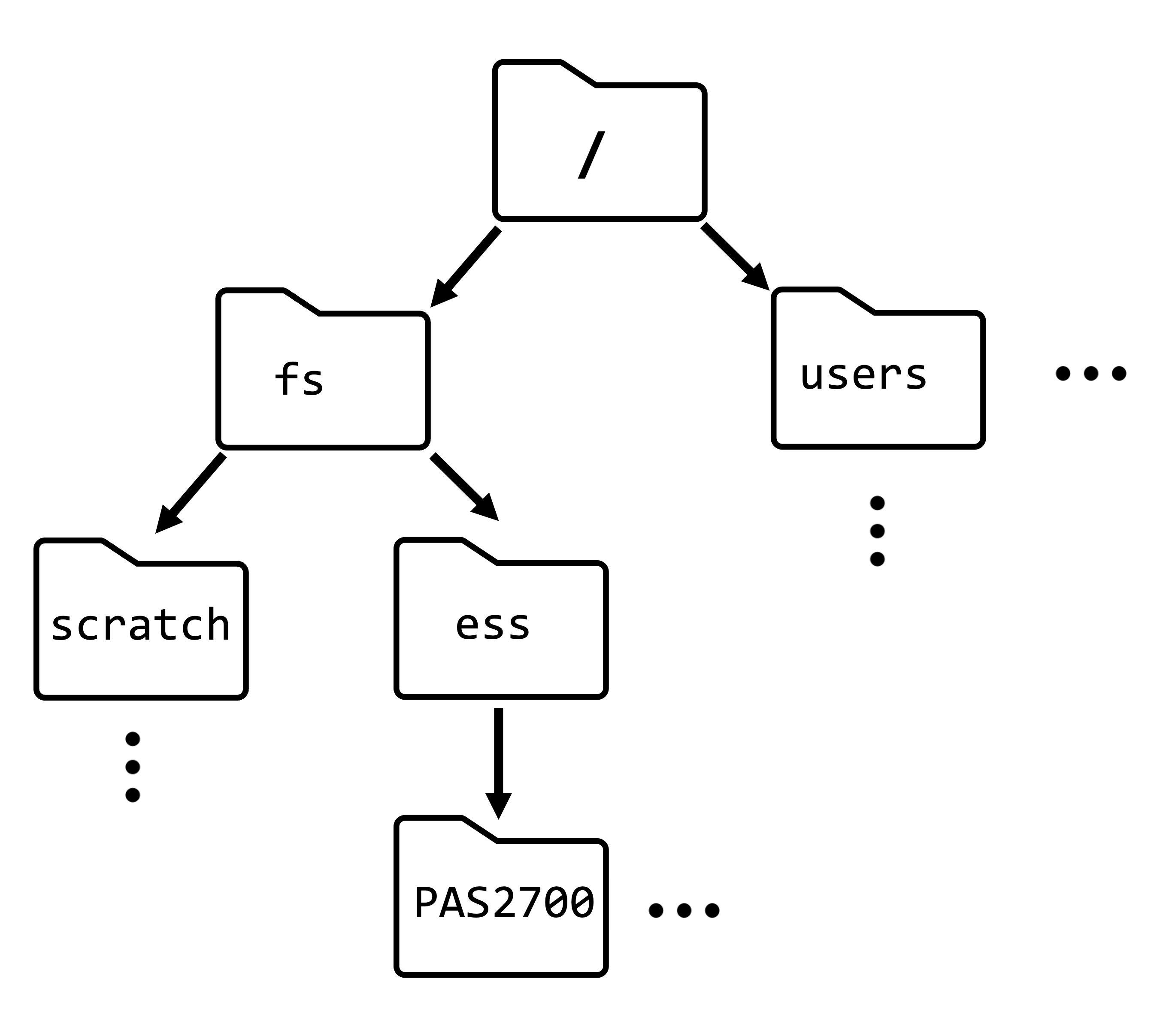
Like a regular computer (left), OSC (right) has a single file structure:

A diagram of an example file structure on a Mac computer.

Example file structure on a Mac (O’Neil 2019).

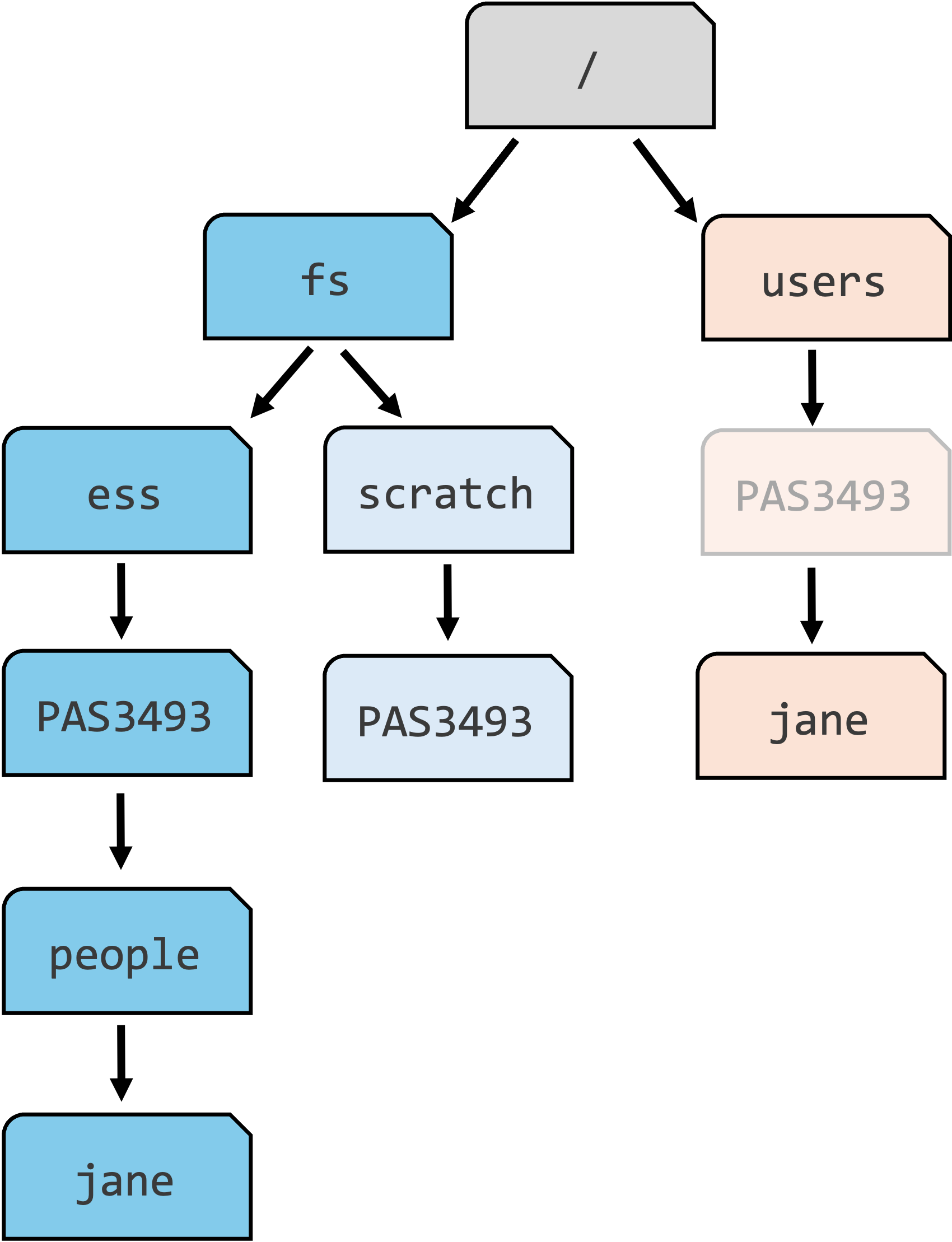
A diagram of the high-level file structure at OSC.

Some key folders in OSC’s file structure.

Intermezzo: OSC Projects

Access to and usage of OSC goes through OSC “Projects”.


Scope of a project

  • A project is usually tied to a lab, research project, or course.

  • The OSC Project for this course is PAS3493.

Projects are the billing units

  • OSC charges for “compute hours” and storage space.

  • It does so at the level of a project (not individual users).

From a user perspective

You can be a member of any number of projects, so you’ll need to:

  • Specify the appropriate project when requesting compute.
  • Store your files in that project’s storage locations.

OSC storage areas

Area Main purpose One for each Location
Project Main project storage Project /fs/ess/
Scratch Additional, temporary project storage Project /fs/scratch/
General, personal files not tied to projects

OSC storage areas

Area Main purpose One for each Location
Project Main project storage Project /fs/ess/
Scratch Additional, temporary project storage Project /fs/scratch/
Home General, personal files not tied to projects User /users/

OSC storage areas

Where should each of these go, Project (/fs/ess), Scratch, or Home?

  1.   Your files for this course.

  2.   A copy of a manuscript draft, unrelated to any project.

  3.   200 GB of intermediate files that you can regenerate, and won’t need next month.


  Click for the answers
  1.   Project — for this course, /fs/ess/PAS3493

  2.   Home — personal files not tied to a project

  3.   Scratch — temporary storage for large, regenerable files


OSC file structure in more detail

A diagram showing paths on OSC and navigating upwards with relative paths

Key folders for fictional student jane —
Project-related folders:

  • For this course, the main data storage location is /fs/ess/PAS3493.

  • jane has created a personal folder in the PAS3493 project, with the folder name the same as her OSC username, and you will soon do the same.

What will be the path to your soon-to-be created personal folder?

For example: /fs/ess/PAS3493/people/jane

OSC file structure in more detail
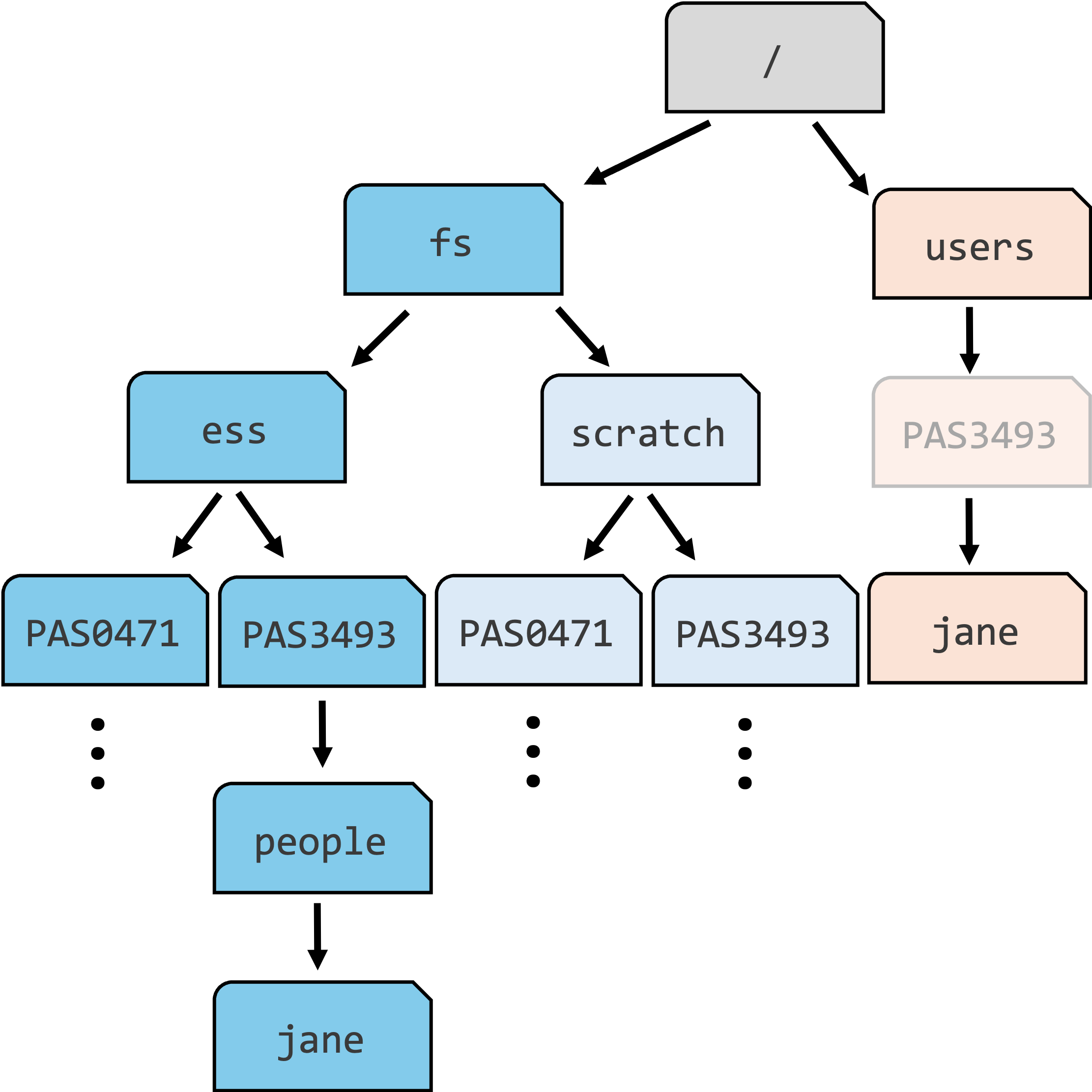
A diagram showing paths on OSC and navigating upwards with relative paths

Key folders for fictional student jane —
Project-related folders:

  • For this course, the main data storage location is /fs/ess/PAS3493.

  • jane has created a personal folder in the PAS3493 project, and you will do the same in just a minute.


When you join other projects, you get access to additional /fs/ess and /fs/scratch folders.

All of these can contain many subfolders!

OSC file structure in more detail

A diagram showing paths on OSC and navigating upwards with relative paths

Key folders for fictional student jane —
Home folder:

  • Recall: you’ll only ever have one Home folder.

  • You typically don’t want to store (active) course or research files here.

On the left, the PAS3493 box in the Home branch is faded because:

  • Your Home location may be elsewhere: this is merely the project that jane’s account was created under.

  • Despite appearances, your Home folder is not meaningfully associated with a project!

OSC OnDemand

OSC websites

OSC has three main websites:


Website Purpose Login?
https://ondemand.osc.edu Web portal: use OSC resources in your browser Yes
https://my.osc.edu Account and project management Yes
https://osc.edu General public-facing website with information No


Our main access point during the course is OSC OnDemand, which offers access to, for example:

  • A file browser/explorer
  • A Unix shell
  • “Interactive Apps”: programs such as RStudio and VS Code

Let’s log in

Go to https://ondemand.osc.edu and log in. You should then see a page like this:
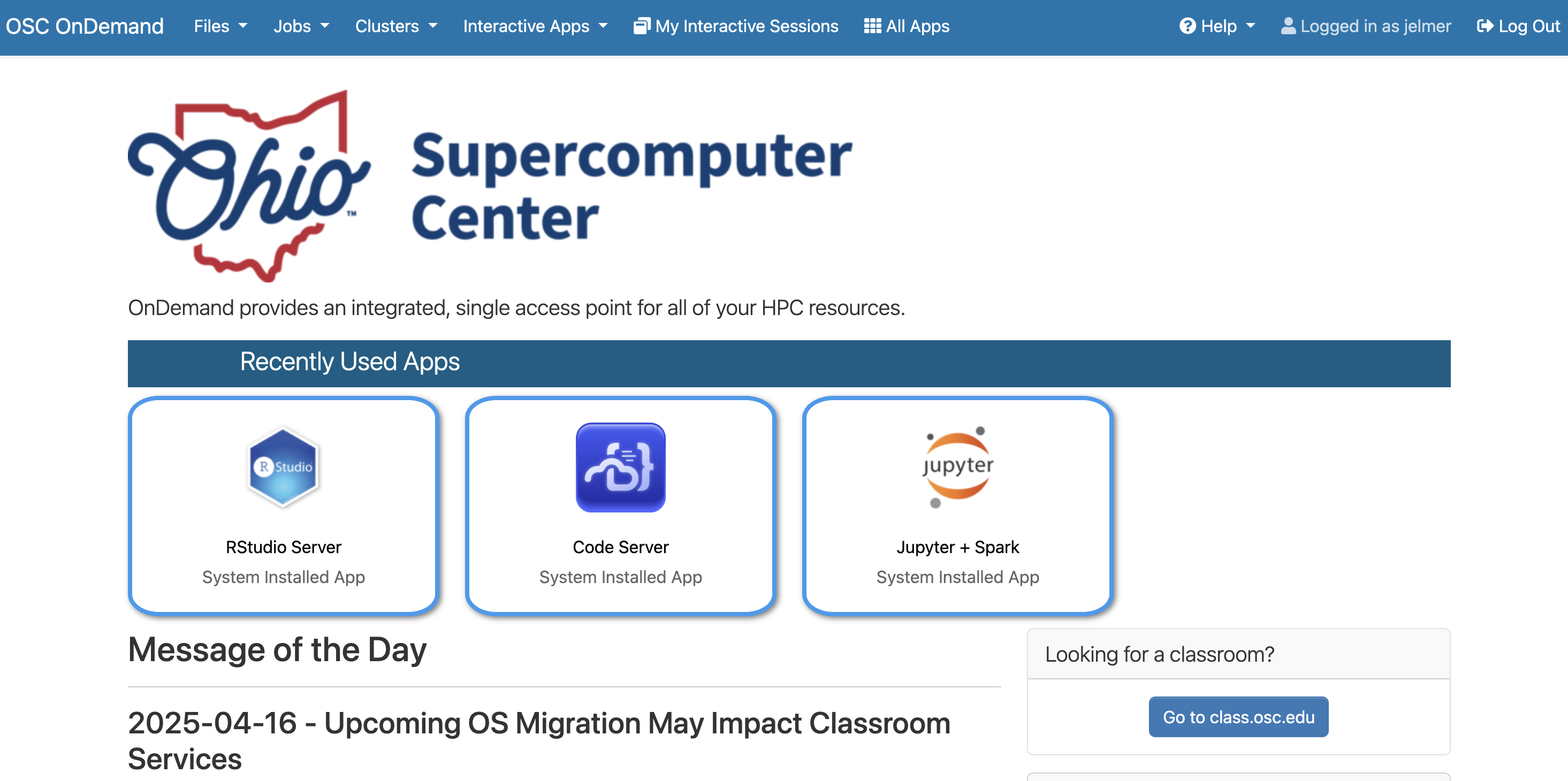

A screenshot of the OSC OnDemand landing page

The OSC OnDemand landing page

Do not go to class.osc.edu!

That is a separate OSC portal for some classroom accounts, and it is not the one we use.

Files menu

In the top blue bar, hover over the Files dropdown menu.

You’ll see a list of folders you have access to — if your account is brand new, these three:

  1. A Home folder, listed as “Home Directory”
  2. The PAS3493 project’s “project” folder (/fs/ess/PAS3493)
  3. The PAS3493 project’s “scratch” folder (/fs/scratch/PAS3493)

In the screenshot on the right, the user is a member of two projects, PAS0471 and PAS3493, so two pairs of /fs/ess and /fs/scratch folders are shown.

Directory, or “dir” for short, is another word for folder.
We’ll use these terms interchangeably.
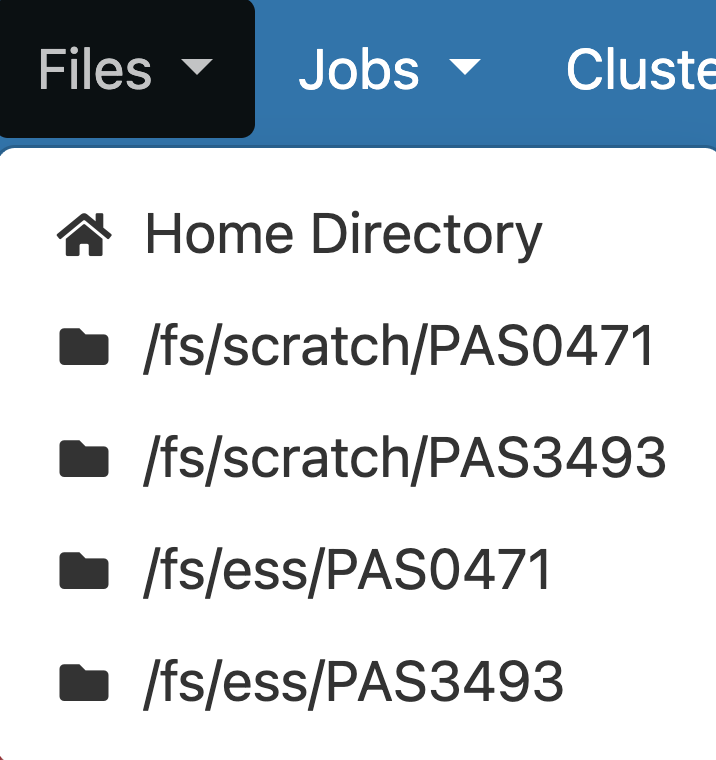
A screenshot of the OSC OnDemand file browser.

Files menu

Click on /fs/ess/PAS3493 to see what folders and files are there:
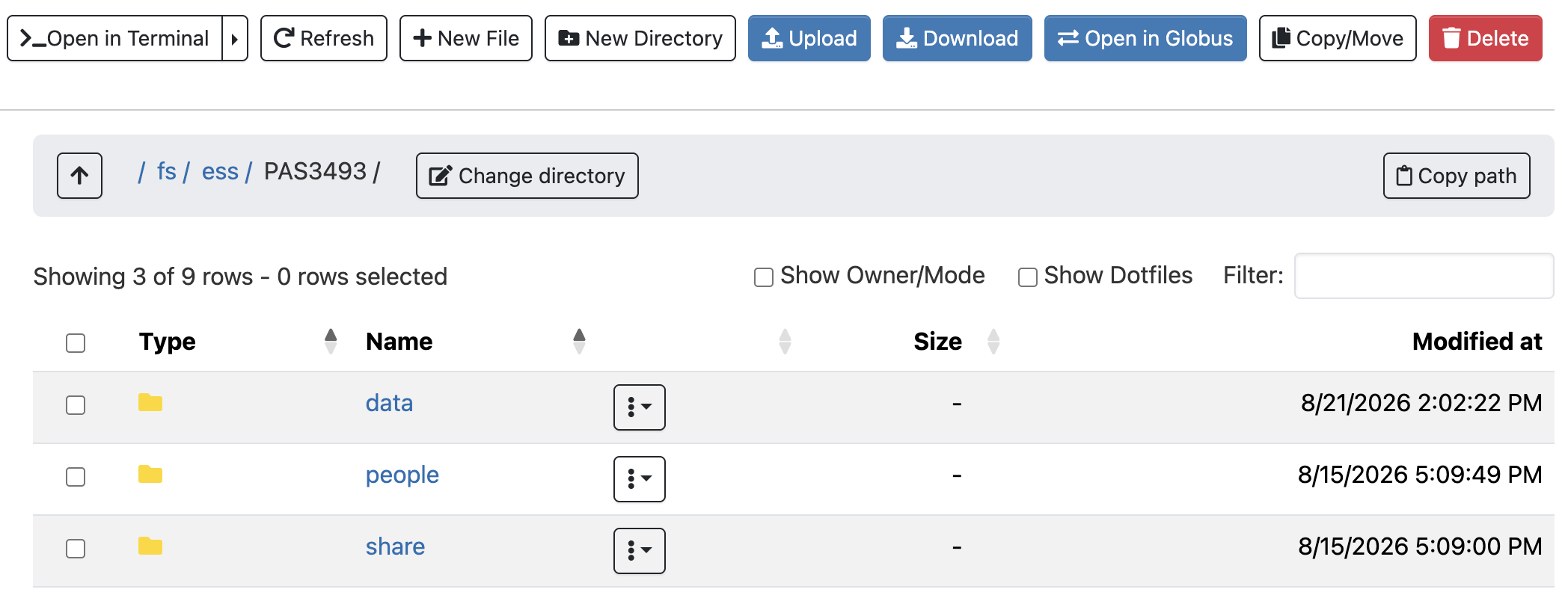
A screenshot of the OSC OnDemand file browser.

This interface is much like the file browser on your own computer: you can create, delete, move, and copy files and folders, and even upload and download files.

Create a personal folder

  1. Click on the people folder.
  2. Click the “New Directory” button at the top.
  3. Give the new folder the exact same name as your OSC username.
  4. Click on the new folder and within it, create two more folders:
    • one called week02
    • one called week03

You will be using this personal folder to store all your files for this course!

Interactive Apps menu

Via the Interactive Apps dropdown menu, you can access programs with Graphical User Interfaces (GUIs; point-and-click interfaces):


  • You’ll soon start using the VS Code text editor, listed here as Code Server, to write Markdown files and work in the Unix shell.

  • Later, you’ll use RStudio Server to code in R.


Click on Code Server, and we’ll pick up from there in the next lecture.
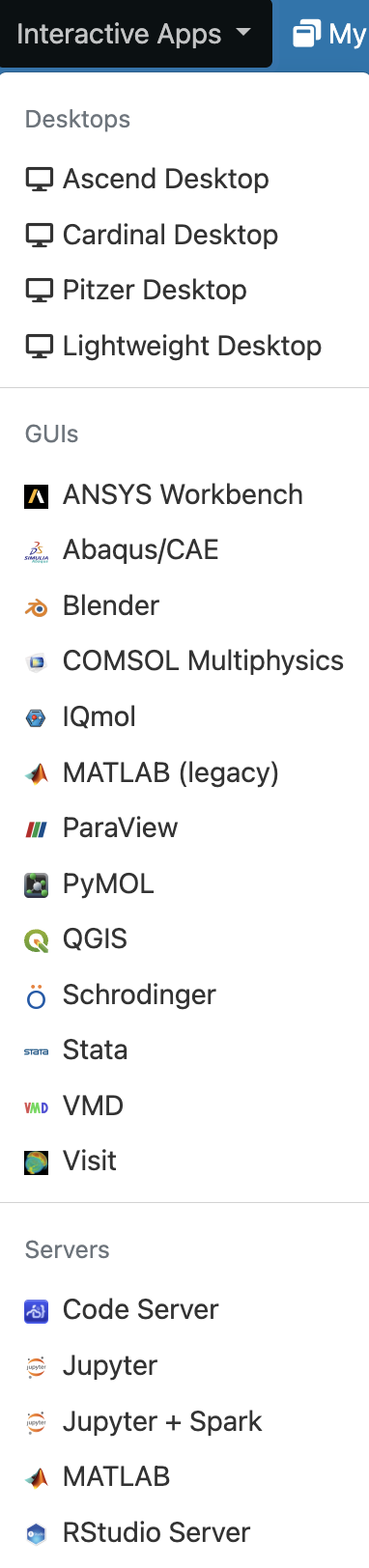
A screenshot of the options in the OSC OnDemand Interactive Apps dropdown menu.

Recap

Supercomputers

Provide shared compute and storage resources, accessed remotely.

The two main types of nodes are login vs. compute nodes.

OSC Projects

OSC access is organized through Projects.

The course’s Project is PAS3493.

OSC OnDemand

https://ondemand.osc.edu is how you’ll access all of this, including “Interactive Apps” like Code Server.

Questions?


Click here to go to the next lecture, VS Code


References

O’Neil, Shawn T. 2019. A Primer for Computational Biology. Oregon State University. https://open.oregonstate.education/computationalbiology/.