An introduction to Markdown

Practical Computing Skills for Omics Data (PLNTPTH 5006)

Jelmer Poelstra

September 02, 2026


Introduction

Context

This session introduces Markdown for research documentation.

  • Now you’ll learn the Markdown mini-language, a great option for writing that documentation — and more.

The Markdown logo.

Learning goals

You will learn:

  • What Markdown is and why it’s useful.
  • How to preview “rendered” Markdown files in VS Code.
  • The most common Markdown “syntax” elements.
  • Some quirks in how Markdown treats whitespace.

The Markdown logo.

First steps with Markdown

What is Markdown?

A simple markup language

  • Markdown is a lightweight “markup language”. You write in plain text, adding simple formatting instructions using visible characters.
  • Your plain-text source Markdown file can be converted into various output formats, like HTML or PDF.
  • This process of conversion is called “rendering”, during which the formatting instructions are applied (and the visible characters are removed).

A first example

Surrounding text with single or double asterisks (*) applies italic and bold formatting, respectively:

  • *italic example* produces italic example
  • **bold example** produces bold example

We refer to these constructs (* for italic, etc.) as the “syntax” of the language.

Markdown in VS Code

Markdown files have extension .md, and when you save a file with that extension in VS Code:

  • Some formatting is automatically applied in the editor.
  • You can open a live Preview of the rendered version, using the icon in the top-right of the editor (shown on the right).

A screenshot of the Markdown preview icon in VS Code.

A side-by-side screenshot of a source Markdown document and its VS Code preview.

Markdown source (editor) on the left, rendered preview on the right.

Your turn

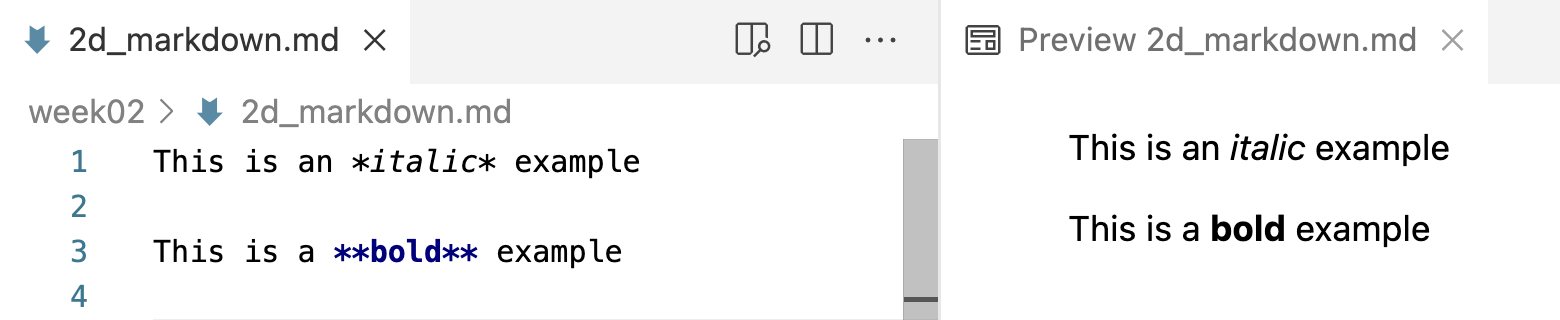
  • In the previous session, you created a file 2d_markdown.md.
    Type the following text in this file, then open the Preview:

    This is an *italic example*
    
    This is a **bold example**

  • As shown in the previous slide, that should look as follows in VS Code:

A side-by-side screenshot of a source Markdown document and its VS Code preview.

Markdown source (editor) on the left, rendered preview on the right.

Why use Markdown? It is:

Easy to use

  • Easy to write: you only need to know a dozen or so syntax constructs to get started.
  • Easy to read in source form (and VS Code applies some formatting even there).

Widely used

  • The de facto standard for documentation in computational fields.

  • Has become even more prevalent with the rise of GenAI: chatbots write responses in Markdown, and AI coding tools are configured with Markdown files (e.g., CLAUDE.md).

Powerful and versatile

  • One source file can be converted to many output formats.
  • Markdown extensions enable:

    • Executable code in documents, such as in Quarto (covered in weeks 12 and 14)

    • Creating slides (such as these!) and websites (such as this one!)

The most common Markdown syntax

Headers

To create headers, use one or more # characters, followed by a space:

Type:


# Markdown intro

This is an *italic example*

This is a **bold example**

## Lists

### Warblers

### Sparrows

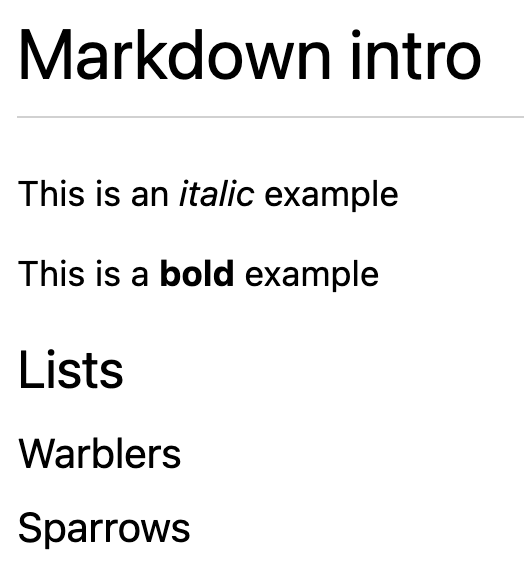
Rendered as:


A side-by-side screenshot of a source Markdown document and its VS Code preview.

Header levels

  • One # makes a level-1 header
    (largest; use only for document titles)
  • Two ## makes a level-2 header
  • Three ### makes a level-3 header —
    and so forth for smaller headers

Headers

Let’s build a complete skeleton of a Markdown document,
using the following headers:

# Markdown intro

This is an *italic example*

This is a **bold example**

## Lists

### Warblers

### Sparrows

## Hyperlinks and blockquotes

## Exercise

## Code formatting

## Whitespace

Auto save in VS Code

In this version of VS Code, changes to files are automatically saved.

If you don’t like that, you can open the Settings and search find the “Files: Auto Save” option.

Lists

Type (under the headings from the previous slide):


- Pine Warbler
- Palm Warbler

Rendered as:


  • Pine Warbler
  • Palm Warbler


1. Swamp Sparrow
2. Tree Sparrow
2. Field Sparrow
  1. Swamp Sparrow
  2. Tree Sparrow
  3. Field Sparrow

Automatic numbering

In the second example, the last two items are rendered as “2.” and “3.” even though they are both numbered “2.” in the source. Markdown automatically numbers ordered lists, so you don’t have to worry about numbering them correctly in the source.

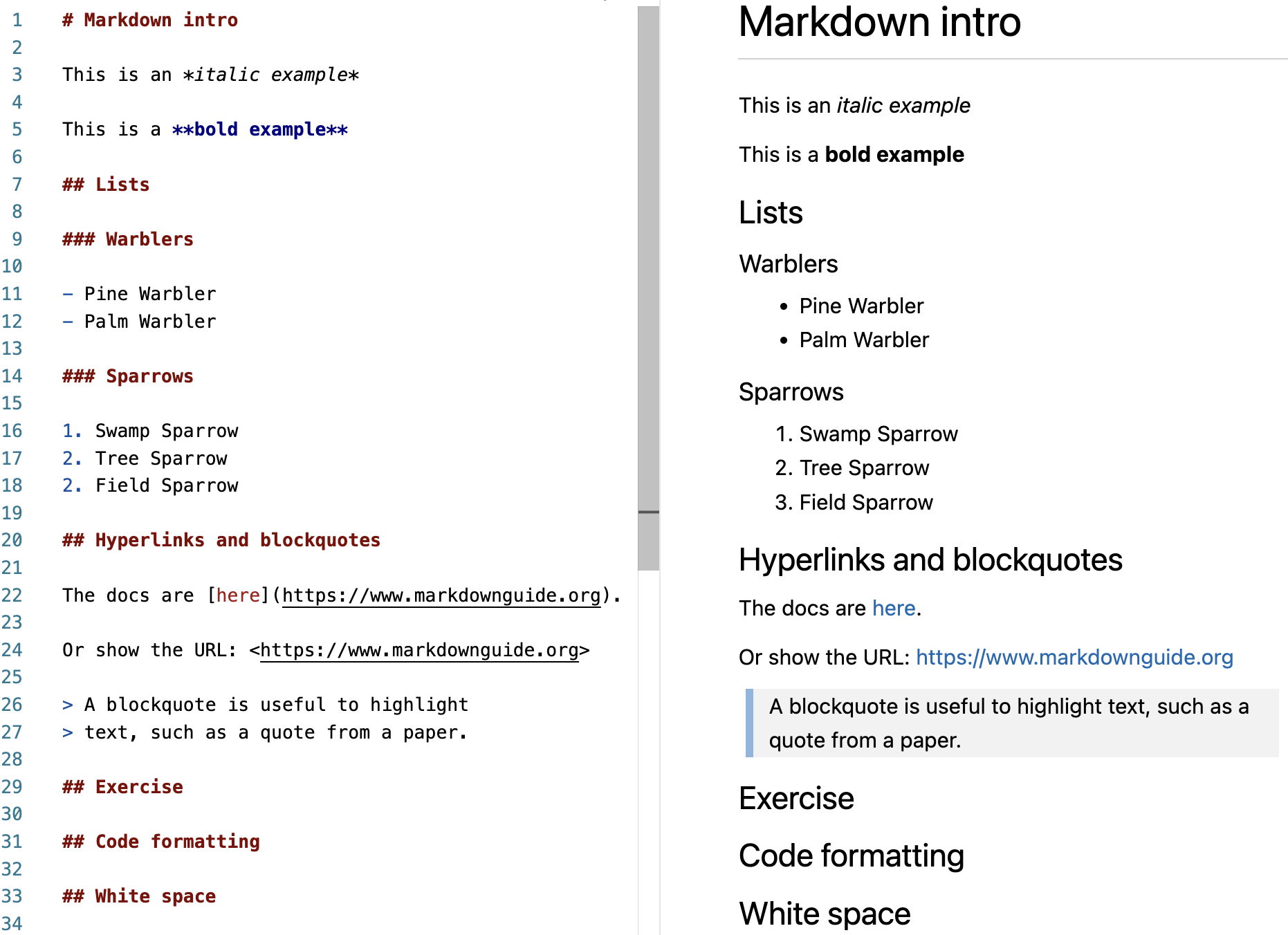
Your document so far

A side-by-side screenshot of a source Markdown document and its VS Code preview.

Overview of most common syntax

Syntax/source Result/rendered output
*italic* italic text (or use an underscore: _italic_)
**bold** bold text
# My Title Header level 1 (largest)
## My Section Header level 2 (smaller)
- List item Unordered (bulleted) list
1. List item Ordered (numbered) list
<https://website.com> Clickable link with visible URL: https://website.com
[link text](url) Clickable link with “hidden” URL: link text
> Text Blockquote (like quoted text in emails)
--- Horizontal rule (use 3+ dashes)

See also the Markdown Guide’s cheat sheet.

Exercise

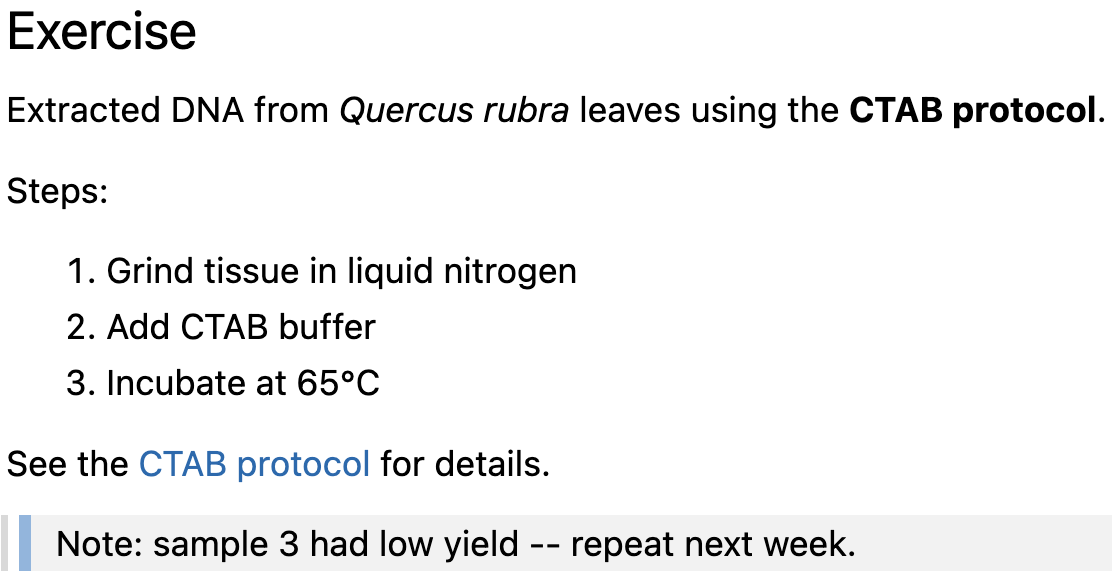
Try to create the following content at the ## Exercise header in your Markdown file (the URL can be anything):

A side-by-side screenshot of a source Markdown document and its VS Code preview.

Solution

Type:


## Exercise

Extracted DNA from *Quercus rubra* leaves using
the **CTAB protocol**.

Steps:

1. Grind tissue in liquid nitrogen
2. Add CTAB buffer
3. Incubate at 65°C

See the [CTAB protocol](https://pmc.ncbi.nlm.nih.gov/articles/PMC10278931/)
for details.

> Note: sample 3 had low yield -- repeat next week.

Rendered as:


A side-by-side screenshot of a source Markdown document and its VS Code preview.

Code formatting and whitespace

Code formatting

What is code formatting

Applying “code formatting” to text means that it:

  • Is displayed in a monospaced font, and often with a different text and/or background color
  • May have language-specific syntax highlighting

How to apply it

Surround text with backticks `:

  • Single backticks for inline code
  • Triple backticks for code blocks

Take a moment to find the backtick key on your keyboard (usually above the Tab key).


Type:


The command `date` prints the current date and time.

```bash
# Print the current date and time
date
```

Rendered as:


The command date prints the current date and time.


# Print the current date and time
date

Overview of code-formatting syntax

Syntax/source Result/rendered output
`inline code` “Code-formatted” text for inline use: inline code
```bash
code
```
Code block with bash syntax highlighting
```r
code
```
Code block with r syntax highlighting
```
code
```
Generic/language-agnostic code block

Leave whitespace around syntax elements

A blank line between sections

Always leave a blank line between different elements, such as headers, lists, and regular paragraphs, to guarantee they are interpreted correctly.

### Warblers

- Pine Warbler
- Palm Warbler

Both of these are warblers, which are ...

A space after specific characters

Always leave a space after heading (#) and list (-/1.) characters, or they won’t be interpreted correctly.

Type:


##An important list

-x
-y
-z

Rendered as:


##An important list

-x -y -z


Which two things happened to the list on the right? (Click to see the answer)

Not only did the items not become a bulleted list, they were also collapsed into a single line: we’ll see why now.

Single line breaks are ignored

A line break in the source does not create a line break in the output:

Type:


Line 1.
Line 2.

Rendered as:


Line 1. Line 2.


Instead, you’ll have to start a new paragraph with a blank line between the two lines of text:


Paragraph 1.

Paragraph 2.

Paragraph 1.

Paragraph 2.

Recap

What Markdown is

A lightweight markup language: plain text plus visible formatting characters.

Your source file is rendered into HTML, PDF, and more — preview it in VS Code.

The core syntax

*italic*, **bold**, # headers, - and 1. lists, [text](url) links, and > blockquotes.

Backticks for code: single for inline, triple for blocks.

Whitespace matters

Leave a blank line between elements, and a space after # and -.

Single line breaks are ignored — start a new paragraph instead.

Questions?

Markdown self-study material

Creating tables

Creating tables in Markdown is a bit trickier than the other elements we’ve seen. Use vertical bars | and dashes - like so:

Type:


| city       | inhabitants |
|------------|-------------|
| Columbus   | 906 K       |
| Cleveland  | 368 K       |

Rendered as:


city inhabitants
Columbus 906 K
Cleveland 368 K


Inserting images/figures

Images can be inserted using the following syntax:

![](image.jpg)

  • The syntax is the same as for a link, but with a leading !.
  • The path is interpreted relative to the Markdown file — therefore, for example, an image in an img subfolder needs ![](img/plot.png).

A caption can be added using ![Optional caption](image.jpg), but this syntax is not supported in all contexts. For example, it does not work in the Markdown preview in VS Code.

Forcing a single line break

You can force a single line break (as opposed to a new paragraph) by adding
a backslash \ after the last character on a line:

Type:


My first sentence.\
My second sentence.

Rendered as:


My first sentence.
My second sentence.

Some whitespace is “collapsed”

Multiple consecutive spaces or blank lines are “collapsed” into a single one:


Type:


Empty             spaces

Many


blank lines

Rendered as:


Empty spaces

Many

blank lines

Forcing additional space between paragraphs

We saw earlier that Markdown collapses multiple consecutive spaces or blank lines
into a single one. If you want to force additional space between paragraphs,
you’ll have to resort to an HTML tag — each <br> tag forces a line break:

Type:


One <br> word <br> per line
and <br> <br> <br> <br> <br>
several blank lines.

Rendered as:


One
word
per line and


several blank lines.

You can use any HTML markup in Markdown! Maybe not everyone’s cup of tea, but this is one way in which Markdown is very versatile.