Week 5 – Lecture A
Jelmer Poelstra
September 21, 2026
In this lecture, you’ll learn:
This lecture covers Git concepts, and we’ll put them into practice in the next one.
During a research project, your files will constantly change. Ideally, you can:
Modern cloud storage solutions (OneDrive, Dropbox, etc.) help. You can restore automatically saved earlier versions of individual files, and work simultaneously on files with collaborators.
However, a formal Version Control System does this better, and does more. It allows you to:
Version control is a way to keep your scientific projects tidily organized, collaborate on science, and have the whole history of each project at your fingertips.
— Allesina and Wilmes (2019), Chapter 2
Git is the most widely used Version Control System. It maintains a database in which you save “snapshots” of your project with every minor piece of progress.
It manages this cleverly without having to create full copies of the project for every snapshot:
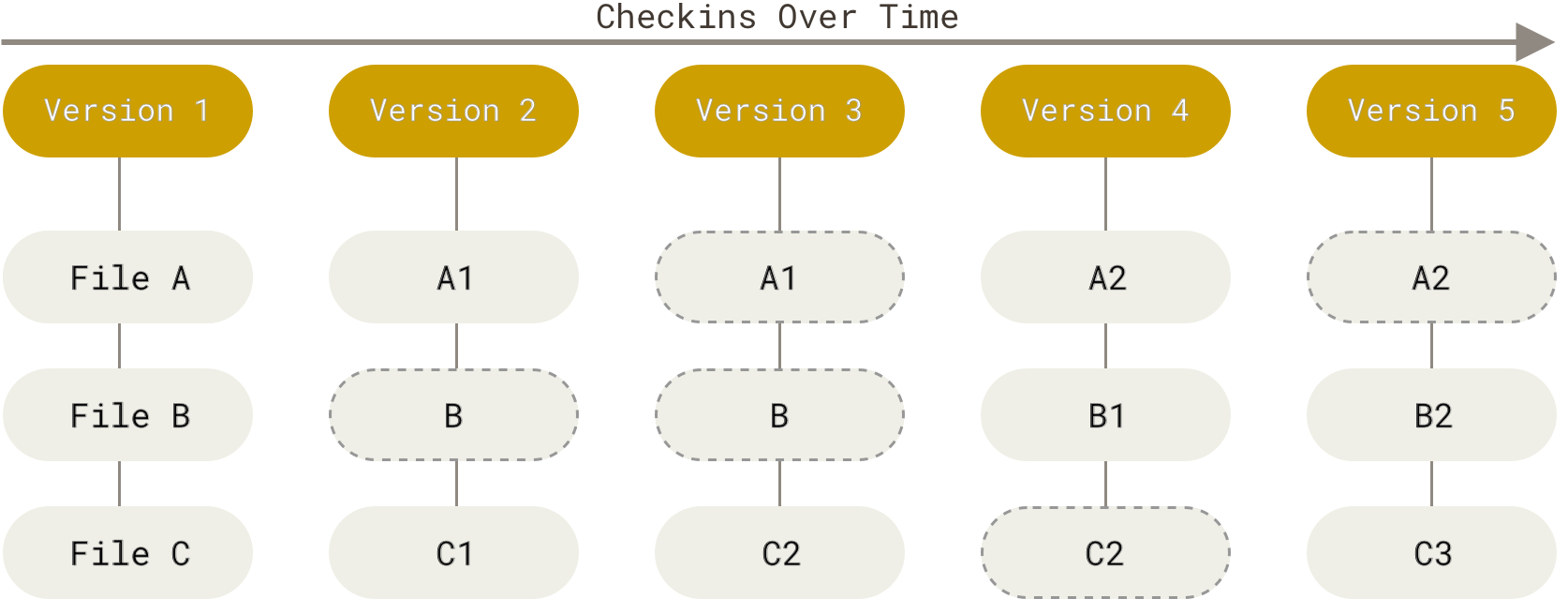
The boxes with dashed lines depict files that have not changed: these will not be saved repeatedly.
Figure from https://git-scm.com.
A Git repository (or “repo”) is the version-control database for a project.
One Git repository manages files inside a single directory structure.
It is typical (and recommended) to have one Git repository for each research project.
To use Git effectively, having separate directories for each project, as discussed in week 2, is important.
Within folders, systematic file organization also makes Git easier to work with.
You can start a Git repository in any dir you have write access to.
The database is saved in a hidden dir (.git) in the dir where you started the repo.
A file or dir name that starts with a ., like .git, is hidden.
These don’t show up in file browsers or ls listings by default.
A Git “commit” is a saved snapshot of the project. Note that:
You should primarily put manually edited files under version control.
That is, version-control changeable source files, but not derived files. For instance:
Derived files
Recall from week 2 that results and other derived files in essence are (or should be) disposable,
because they can be regenerated using the raw data and the scripts.
Therefore, version-controlling derived files is usually unnecessary and would lead to bloated repositories.
There are some limitations to the types and sizes of files that can be committed with Git:
Binary (non-text) files, such as Word or Excel files, or compiled software, can be included, but:
Git can’t show line-by-line changes for them like it can for plain-text files.
For performance reasons, it’s best to keep individual repositories <1 GB.
Git itself doesn’t limit file sizes, but GitHub (Wednesday) only allows files <100 MB.
And optionally:
More on sharing data
Small datasets may be appealing to add, e.g. because this is an easy way to share them.
That can be OK even if it’s not exactly what Git is designed for — but for large omics datasets, it is often not feasible. Specialized data repositories exist, and we’ll talk about them later in the course.
Your project directory contains the files below. Which ones should you put under version control?
scripts/trim.sh — a script you wroteresults/trim/sampleA.fastq.gz — output from your trimming scriptdata/sampleA.fastq.gz — raw reads from the sequencing facilitymetadata/samples.tsv — a small sample table you typed upREADME.html — rendered from README.mdWe’ll focus on the CLI because it’s the most universal and powerful interface.
You’ll also see the VS Code integration for Git, and you are allowed to use that for e.g. assignments.
Stick with it!
Git takes some getting used to, regardless of the interface — the main difficulties are conceptual, not technical. Many people have “false starts” with it, but in this course we try to get you past that.
This is also an area where Generative AI can be really helpful, once you know the basics!
Git commands always start with git followed by a subcommand or “verb”: git add, git commit, etc. Only three commands tend to make up the vast majority of your Git work:
Does two things:
Create a new snapshot of the project that includes all currently staged changes.
Get the status of your repo:
A visual representation of the process of adding and committing changes with Git commands:
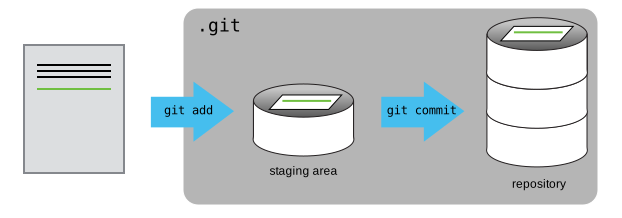
The Git database, which is in a hidden dir .git, is depicted with a gray background.
Files and their changes aren’t automatically added to the database:
you have to explicitly add them with git add and then commit them with git commit.
.git dir.We’ll start using GitHub on Wednesday — create a GitHub account before then!
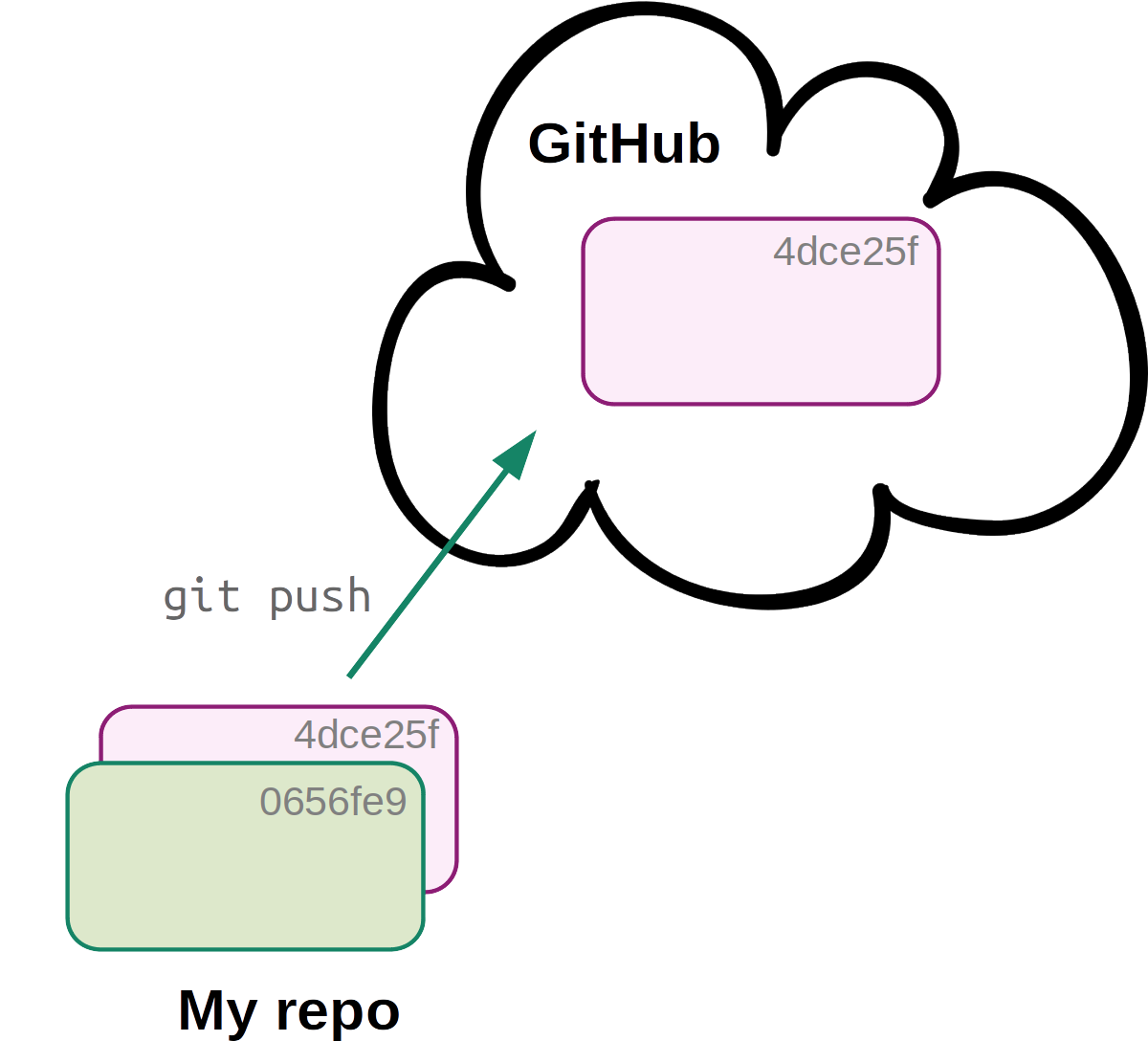
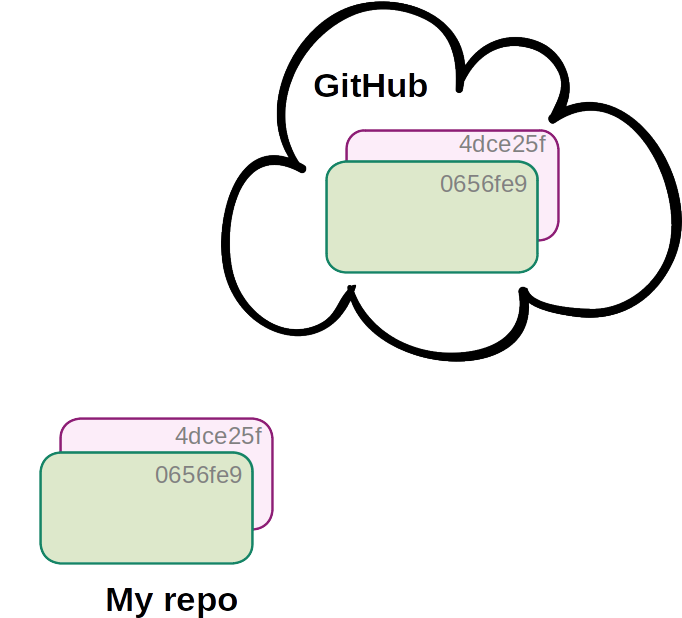
Commit locally as usual, and occasionally upload (“push”) new commits to GitHub with git push:
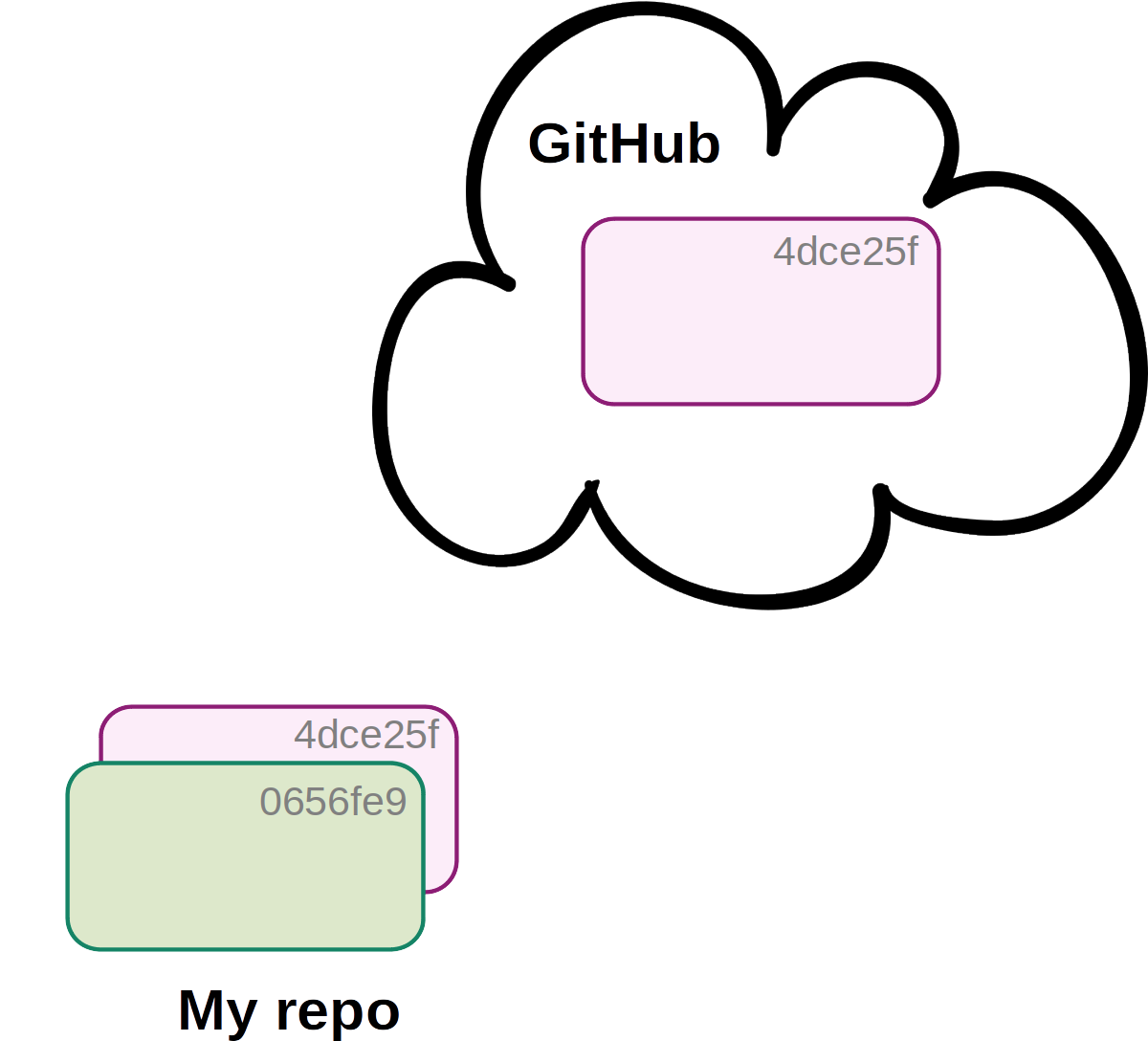
Boxes are commits and the 4dce25f-type labels are commit IDs (“hashes”).
Click here to continue with today’s hands-on practice: Version control with Git