Version control with Git
Week 5 – Lecture B

1 Introduction
This is the hands-on continuation of today’s lecture on version control with Git.
1.1 Learning goals for this lecture
- Learn the basic Git workflow and the most common Git commands.
- Make Git ignore specific files and dirs.
- Undo accidental changes to your files.
- Show the changes you’ve made to files, also using VS Code’s Git interface.
1.2 Getting ready
Start a VS Code session just like you’ve done before.
Click here to see the instructions
Log in to OSC’s OnDemand portal at https://ondemand.osc.edu.
In the blue top bar, select
Interactive Appsand near the bottom, clickCode Server.Fill out the form as follows (as necessary — should be prefilled now!):
- Cluster:
pitzer - Account:
PAS3493 - Number of hours:
2 - Working Directory:
/fs/ess/PAS3493/people/<user>(replace<user>with your user name) - App Code Server version:
4.129.0
- Cluster:
Click
Launch, and in the next page, click theConnect to VS Codebutton once it appears.In VS Code, open a terminal by either:
- Clicking →
Terminal→New Terminal - Using the keyboard shortcut Ctrl+`
- Clicking →
Check that you are in
/fs/ess/PAS3493/people/$USERby typingpwdin the terminal.Recall that
$USERis a variable that represents your username.If you’re not in
/fs/ess/PAS3493/people/$USER, it may be listed underRecentsin theGet Starteddocument — if so, click on that entry. Otherwise, clickFile>Open Folderand type/select that path.
2 One-time Git configuration
We will start with one-time personal Git configuration. This will apply anywhere on OSC, and won’t ever have to be redone unless you want to make changes.
These steps are all done with git config --global:
Make your name known to Git, since it will be recorded in every commit you make — your actual first and last name (not your OSC or GitHub username!):
git config --global user.name "John Doe"Make your email address known (should match the address associated with your GitHub account, if you already created one):
git config --global user.email "doe.391@osu.edu"Set a default text editor for Git. (Git may occasionally open a text editor for you. Even though we’re using VS Code, here it is better to select a text editor that runs in the shell, like
nano1.)git config --global core.editor "nano -w"Change the default “branch” name to
main(Git’s default is still the oldermaster, whereas GitHub usesmain)2:git config --global init.defaultBranch mainFinally, print your current settings to check whether you successfully changed them:
git config --global --listuser.name=John Doe user.email=doe.391@osu.edu core.editor=nano -w init.defaultbranch=main
3 The basic Git workflow
You’ll create a Git repository for a mock book project: writing Charles Darwin’s “On the Origin of Species”. This example follows Chapter 2 of Allesina and Wilmes (2019). The topic may seem silly, but keeping the content trivial means you can focus entirely on the Git workflow.
3.1 Create and move to a new project dir
Create a new dir for a mock project that you will version-control with Git:
# (Your starting point should be /fs/ess/PAS3493/people/$USER)
mkdir -p week05/evo
cd week05/evoNext, we’ll open this dir in VS Code with “Open Folder” to move all of VS Code, not just the terminal, to this dir. For example, after moving, the file explorer will only show this project’s files, and VS Code’s Git functionality will work with the repo you’ll create here. (This is also how you’ll want to work with your own projects: open each project’s dir as the folder in VS Code.)
Click →
File→Open Folder.Type/select
/fs/ess/PAS3493/people/<user>/week05/evo, replacing<user>with your user name. This will cause VS Code to reload.Open a new terminal and check that you are in the
evodir:pwd/fs/ess/PAS3493/people/jelmer/week05/evo
3.2 Start a new Git repository
Now we’re ready to start your first Git repository! The command to initialize a new Git repository is git init — use that to start a repo for the evo dir:
git initInitialized empty Git repository in /fs/ess/PAS3493/people/jelmer/week05/evo/.git/Can you confirm that this hidden dir is there? The ls command will show hidden files and dirs with the -a option, and indeed, the .git dir is present:
# (ls -a will also show the current dir "." and the parent dir "..")
ls -a. .. .gitgit init (Click to expand)
Above, we created a Git repo in an empty dir, but you can use git init just the same in a dir that already contains files. However, only run it in the top-level dir of a single project, and never:
- In a dir like your home dir or
/fs/ess/PAS3493/people/$USER, which contains many projects, - Inside a dir that is already part of a Git repo.
If you did run git init in the wrong place, you can undo it by removing the .git dir that it created using rm -rf .git3.
Next, check the status of your new repository with git status:
git statusOn branch main
No commits yet
nothing to commit (create/copy files and use "git add" to track)Git reports that you:
- Are on a “branch” called
main. We won’t cover Git branches in class, but this is discussed in the optional self-study material and in Allesina and Wilmes (2019) Chapter 2.6. Basically, branches are “parallel versions” of your repository that are useful for collaborative and experimental work. - Have not created any commits yet.
- Have “nothing to commit” because there are no files in this dir.
If you run a Git command, like git status, outside of an existing Git repository, you’ll get this error:
fatal: not a git repository (or any of the parent directories): .gitThat usually just means that you’re in the wrong dir: check with pwd. The bigger point is that Git commands only work inside a Git repository, not in any other directory.
3.3 Your first Git commit
Start writing the book (😉) by echo-ing text into a new file called origin.txt:
echo "An essay on ..." > origin.txtNow, check the status of the repository again:
git statusOn branch main
No commits yet
Untracked files:
(use "git add <file>..." to include in what will be committed)
origin.txt
nothing added to commit but untracked files present (use "git add" to track)Git has clearly detected the new file. But as mentioned in the intro slides, Git does not automatically start “tracking” files — that is, it won’t automatically include all files that are in your dir in the repository. Instead, it tells you the file is “Untracked” and gives a hint on how to add it to the repository.
Start tracking the file and stage it in one go with git add:
git add origin.txtAs always, Tab-complete file names, like origin.txt above!
Next, check the status of the repo again:
git statusOn branch main
No commits yet
Changes to be committed:
(use "git rm --cached <file>..." to unstage)
new file: origin.txtNow, your file has been added to the staging area (also called the Index) and is listed as a “change to be committed”4. That phrase means that if you now run git commit, the file will be included in that commit.
So, with your file tracked & staged, let’s make your first commit. Add the option -m followed by a “commit message”: a short description of the changes you are including in the current commit5:
git commit -m "Started the book"[main (root-commit) 3df4361] Started the book
1 file changed, 1 insertion(+)
create mode 100644 origin.txtYou’ve made your first commit! Here is another way of visualizing how changes are staged and committed in Git — and of the three areas that files can be in:
- The working tree (also called working dir) is where you make changes to files.
- The staging area (also called Index) is where you stage changes to be included in the next commit.
- The commit history is where committed changes are stored. It has many “layers” of commits, and you can go back to any of them at any time.
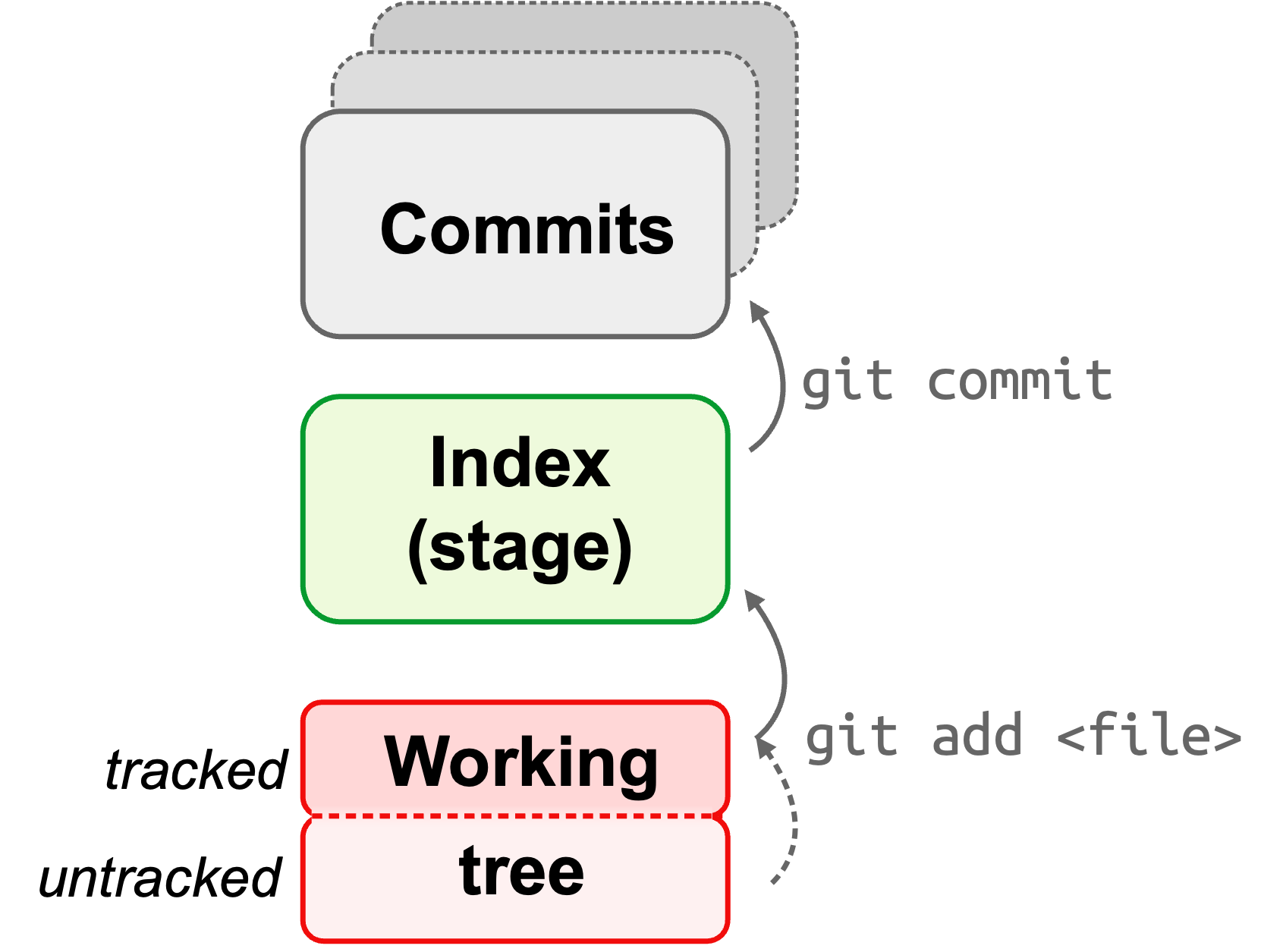
Note that git add has a dual function: it starts tracking files and stages them.
Why might the term “working tree” be used instead of “working directory”? (Click to see the answer)
The term “working tree” is used in Git to emphasize that we are referring to the entire hierarchy of dirs and files that makes up your project, and not the single dir that your terminal is currently in.
That said, both terms are often used interchangeably. As such, if you hear “working dir” in a Git context, it usually refers to the entire hierarchy.
3.4 Checking the status and history
First, let’s check the status of the repo again:
git statusOn branch main
nothing to commit, working tree cleanIt reported “nothing to commit, working tree clean”, which means no changes have been made anywhere in the project dir since the last commit.
Try to get in the habit of using git status a lot — as a sanity check before and after other git actions.
Next, look at the commit history of the repo with git log:
git logcommit 3df4361c1de9b71e08bf6e050105d53097acec21 (HEAD -> main)
Author: Jelmer Poelstra <jelmerpoelstra@gmail.com>
Date: Mon Mar 11 10:55:35 2024 -0400
Started the bookNotes on the first line of the above output:
The long “hexadecimal code” (which uses numbers and the letters
a–f) is a unique identifier for that commit, usually called the commit hash (or SHA-1 checksum). You can reference and access each past commit by its hash, and the first 7 characters are usually enough (as you’ll see withgit log --onelinebelow).(HEAD -> main)means that you are (your “HEAD” is) currently located at the commit in question, and that the commit was made on themainbranch.
Below that, git log reports the author, date and time of the commit, and the commit message you provided.
Exercise 1: Put the commands in order
Say you want to start a brand-new project with a Git repository, and make a first commit containing a single file, notes.md. In which order should you run the commands below? (Only figure out the order — don’t run these commands.)
Click for the solution.
mkdir myproject
cd myproject
git init
echo "# Project notes" > notes.md
git add notes.md
git commit -m "Start notes"Bonus: two of these commands could be swapped without any problems. Which ones?
Click for the solution.
git init and echo can be swapped: Git doesn’t care whether files already existed when you initialized the repo! Swapping git add and git commit, on the other hand, would make Git report that there is nothing to commit.
3.5 Your second commit
Find the file origin.txt in the VS Code file explorer, open it, and replace its line of text with the book’s final title:
Check the status of the repo:
git statusOn branch main
Changes not staged for commit:
(use "git add <file>..." to update what will be committed)
(use "git restore <file>..." to discard changes in working directory)
modified: origin.txt
no changes added to commit (use "git add" and/or "git commit -a")Git has noticed the changes, because the file is being tracked: origin.txt is listed as “modified”. But changes to tracked files are not automatically staged.
Use git add to stage the file as a first step to committing these changes:
git add origin.txtGit behaves similarly when it comes to new files and changes to tracked files: it does not automatically do anything with them. That is deliberate: managing which files are tracked and staged is up to you.
Now, make your second commit, again adding a commit message. Like always, it’s up to you to decide what to write in the commit message, but the idea is that you give a short description of the changes you made:
git commit -m "Changed the title as suggested by Murray"[main f106353] Changed the title as suggested by Murray
1 file changed, 1 insertion(+), 1 deletion(-)Git gives a brief summary of the changes that were made: you changed 1 file (origin.txt), and since you replaced the line of text in that file, it interprets that as 1 insertion (the new line) and 1 deletion (the replaced line).
Check the history of the repo again — you’ll see that there are now 2 commits:
git logcommit f1063537b6a1e0d87d2d52c9e96c38694959997a (HEAD -> main)
Author: Jelmer Poelstra <jelmerpoelstra@gmail.com>
Date: Mon Mar 11 11:01:49 2024 -0400
Changed the title as suggested by Murray
commit 3df4361c1de9b71e08bf6e050105d53097acec21
Author: Jelmer Poelstra <jelmerpoelstra@gmail.com>
Date: Mon Mar 11 10:55:35 2024 -0400
Started the bookAs you start accumulating commits, you might prefer git log --oneline for a one-line-per-commit summary:
git log --onelinef106353 (HEAD -> main) Changed the title as suggested by Murray
3df4361 Started the bookgit log output is longer than your screen (Click to expand)
Once your history is longer than your screen, git log opens in the less pager that you used last week: scroll with the arrow keys and press q to get back to your prompt. The same goes for long output of git diff, a command you’ll see later today.
git commit -a (Click to expand)
When you would like to stage multiple files, you don’t need to add them one by one. Here are a few other options:
Stage all files in the project/repository:
# [Don't run any of this - these are hypothetical examples] git add --allStage all files in the current dir and its subdirs (when run from the repo’s root dir, this is the same as
git add --all):git add .Stage all files in a specific dir (here:
scripts) in the project:git add scripts/
Finally, you can stage and commit all changes with a single command using the -a option for git commit (but be aware that this will not add untracked files):
git commit -am "My commit message"3.6 What to include in individual commits
As shown in the box above, there’s a way to stage and commit all changes to tracked files at once. That may seem more convenient than separately git adding files before committing. However, we focus here on the more deliberate workflow of staging and committing files separately to encourage you to think about what changes you are committing.
In turn, that’s useful because it’s good practice to make each commit a unit of progress worth saving, rather than committing lots of things at once (say, at the end of each day). That is, you ideally create separate commits for distinct changes, even if those are small.
For example, say you use git status and find that since your last commit you have:
- Updated a README file to include more information about your samples.
- Worked on a script to run quality control of sequence files.
These are unrelated changes, and it’s not recommended to include both in a single commit.
Exercise 2: A third change and commit
Create a new file
todo.txtcontaining the line: “June 18, 1858: Read essay from Wallace”.Click for the solution.
echo "June 18, 1858: Read essay from Wallace" > todo.txtOr: create the file with
touch todo.txtor in the VS Code file explorer, and then open it and type the line in the editor.Stage the file to be committed.
Click for the solution.
git add todo.txtCreate a Git commit with the commit message “Added to-do list”.
Click for the solution.
git commit -m "Added to-do list"
Exercise 3: Separate commits?
Say that since your last commit, you have changed three files:
README.md: you added information about your samples.scripts/qc.sh: you changed the output dir of this QC script fromqctoresults/qc.scripts/qc_summary.sh: you changed the dir that this script reads QC results from, also fromqctoresults/qc.
How many commits would you make, and which file(s) would go in each?
Click for the solution.
Two commits: one with README.md, and one with both scripts.
The changes to the two scripts are in different files, but they form a single unit of progress: if you committed only the change to qc.sh, that commit would contain a qc_summary.sh script that looks for QC results in the wrong place. So, the rule is “one commit per change”, not “one commit per file”.
Separate commits for distinct changes are the ideal, but don’t let that ideal stop you from committing at all. If you’ve made lots of changes since your last commit and don’t have time to split them up (say, at the end of a long day, or before a deadline), committing everything at once is much better than not committing: until you commit, your changes are not saved in your Git history, so you can’t go back to this version later.
In that case:
Stage everything at once (see the box above), but check
git statusfirst to make sure you’re not including files you don’t want in the repo, such as large data files:# [Don't run this - this is a hypothetical example] git status git add --all git commit -m "Updated README; QC scripts now use results/qc"Still, try to write a commit message that briefly summarizes the main changes, rather than something like “Various updates”. This will help you find your way back to this version later.
You have now learned the basic Git workflow! 🥳 Below, we’ll go through a few related key aspects of using Git.
4 Ignoring files and directories
As discussed in the intro slides, it’s best not to track some files, such as (bulky) data files, temporary files, and results. At the same time, we’ve seen that Git reports any “untracked” files in your project whenever you run git status.
Having these files reported every time you run git status can get annoying and make it harder to spot changes and untracked files that you do want to add. More importantly, it makes it easy to commit such files by accident — and once a large data file has been committed, it stays in the repo’s history even if you later delete it (!).
To deal with this, you can tell Git not to pay attention to certain files by adding file names and wildcard selections to a special file called .gitignore.
As an example, let’s start by adding some types of content you would not want to commit to your repository: a dir data, and a file ending in a ~ (a type of backup file that some text editors create):
mkdir data
touch data/drawings.png todo.txt~Before checking what Git reports, let’s take a look at the current contents of our project dir with tree:
tree.
├── data
│ └── drawings.png
├── origin.txt
├── todo.txt
└── todo.txt~
1 directory, 4 filesWhen you check the status of the repo, you should see that Git has noticed the new files:
git statusOn branch main
Untracked files:
(use "git add <file>..." to include in what will be committed)
data/
todo.txt~When a dir is untracked, Git reports the dir name and does not list the files inside it (above, the drawings.png file inside data is not shown). That is helpful, because it avoids cluttering the output of git status, but it’s good to be aware of.
You can create a .gitignore file to prevent Git from reporting these files whenever you run git status:
- This is a plain text file that contains dir and file names/patterns, all of which will be ignored by Git.
- The file should be called
.gitignoreand be placed in the project’s root dir (use one.gitignorefile per repo).
Some more things to know about .gitignore:
- As soon as a
.gitignorefile exists, Git automatically checks and processes its contents. - Perhaps somewhat counterintuitively, you should add and commit the
.gitignorefile itself (that way, it’s shared along with the rest of the repo, such as with collaborators or on GitHub).
Create a .gitignore file and open it in the editor:
# After this command, click on the file name in the file explorer to open it:
touch .gitignoreThen, type the following two lines in the file (press Enter at the end of the last line too):
The first line makes Git ignore everything in the data dir, and the second makes it ignore everything that ends in a ~. That is:
.gitignorefiles accept the same wildcard patterns as the shell, so*matches any string of characters.But unlike wildcards in the shell, which only match files in the current dir, these patterns apply across the entire repo:
*~will also match files ending in~in any subdir (anddata/will match adatadir at any level).
You have now changed files both with echo and in the editor. Git doesn’t care how a file changed: it only looks at file contents. In your own projects, you’ll mostly edit files in the editor, and then use the terminal to stage and commit your changes.
When you check the status again, you should see that Git has automatically processed the .gitignore file, since the targeted files are no longer listed as untracked:
git statusOn branch main
Untracked files:
(use "git add <file>..." to include in what will be committed)
.gitignoreHowever, you do now have an untracked .gitignore file, so track and commit this file as follows:
git add .gitignore
git commit -m "Added a gitignore file"[main 9715ab5] Added a gitignore file
1 file changed, 2 insertions(+)
create mode 100644 .gitignore Exercise 4: .gitignore
Say that a repo’s
.gitignorefile contains these two lines:Which of these new files would Git now ignore?
results/counts.tsvrun.logscripts/run.logscripts/qc.sh
Click for the solution.
It would ignore all except d.
results/counts.tsvis inside an ignored dir, and both.logfiles match*.log. c is ignored too: patterns like*.log(andresults/) match in any dir of the repo, not just in the top-level dir.Bonus: Say that you add “todo.txt” to the
.gitignorefile of yourevorepo, and then append another line totodo.txt. What do you think, wouldgit statusstill report thattodo.txtwas modified?Click for the solution.
Yes, it would report that
todo.txtwas modified, because.gitignoreonly affects currently untracked files.Since
todo.txtis already tracked (you committed it in Exercise 2), Git keeps tracking it and reports changes to it.To stop tracking a file, you’d first have to remove it from the repo, as shown in the optional self-study material for Git.
If you keep your data and results in their own top-level dirs, as recommended in week 2, the two lines data/ and results/ in your .gitignore file are all you need to ignore them. If you instead mix, for example, scripts and results within dirs, you’ll need many more specific and error-prone .gitignore entries.
5 Undoing changes that have not been committed
Now, we’ll practice undoing changes to your working tree by recovering a version from the repo: in other words, using Git as an “undo button” after accidental file changes or removal. (In the optional self-study Git material, you can learn how to unstage files and how to undo changes that have been committed.)
Say you accidentally overwrote a file, and want to recover the previous version from the repo:
Let’s first check the contents of
todo.txt:cat todo.txtJune 18, 1858: Read essay from WallaceYou accidentally overwrite the file contents instead of appending to it 😳:
echo "Finish taxidermy of the finches" > todo.txtConfirm the disaster by checking the file contents again:
cat todo.txtFinish taxidermy of the finchesAlways start by checking the status:
git statusOn branch main Changes not staged for commit: (use "git add <file>..." to update what will be committed) (use "git restore <file>..." to discard changes in working directory) modified: todo.txt no changes added to commit (use "git add" and/or "git commit -a")You’ll want to “discard changes in working directory”, and Git told you how to do this — with
git restore:git restore todo.txtCheck if it worked by looking at the file contents:
cat todo.txtJune 18, 1858: Read essay from Wallace
Great! You have successfully recovered the previous version of the file from the repo. If you accidentally deleted a file, you can similarly retrieve it with git restore:
You accidentally remove
todo.txt:rm todo.txtUse
git restoreto get the file back!git restore todo.txt cat todo.txtJune 18, 1858: Read essay from Wallace
git restore replaces your file with the version stored by Git (the last commit, or the staged version if you staged the file). Had you not committed todo.txt in Exercise 2, its contents would now be gone for good.
git restore overwrites your current version of the file without asking for confirmation. So be careful when using it: if the file contained changes that you had not committed, those changes are gone for good — Git cannot undo a git restore.
Self-study exercise: What can Git restore?
In which of these situations can git restore get back what you lost?
- You accidentally removed a new file that you had never added with
git add. - You accidentally removed a whole dir of committed files with
rm -r. - You had edited a committed file without staging or committing those edits, and then accidentally overwrote the file. You want those edits back.
Click for the solution.
The only correct answer is b, because Git can only restore versions of files that it has stored (and it can bring back a whole dir of committed files).
It never stored anything for the file in a, nor for the uncommitted edits in c. (In a, git restore would just give an error, and in c, it would only give you the last committed version.)
6 VS Code’s Git functionality
VS Code has built-in Git functionality, which can be more user-friendly than the Git command-line interface, especially for showing changes in files. To have a change to look at, let’s first modify the to-do list you made in Exercise 2.
Open todo.txt in the editor by clicking on it in the file explorer, and add a line to it (again, press Enter at the end of the line):
6.1 Git decorations in the file explorer
First, in the file explorer, several “decorations” related to Git are shown, as can be seen in the screenshot on the right:
Files that have been modified since the last commit are shown in orange and marked with an
M.The
.gitignorefile has a Git icon next to it.Files that are ignored via
.gitignoreare shown in a paler color (dataandtodo.txt~on the right).Untracked files that are not ignored would be shown in green and marked with a
U— there are none here.

File decorations in the VS Code file explorer.
6.2 The Source Control option in the side bar
Click on the version control icon in the narrow side bar (bottom icon in the screenshot on the right) to open the source control option of the wide side bar. (The icon should have an encircled 1 inside it, because we made one change since the last commit!)
The side bar should now show two sections, CHANGES at the top and GRAPH at the bottom, which together replicate the Git functionality we have so far used on the command line. Starting with the bottom one:
- “GRAPH” (bottom) — shows a visual representation of the commit history of the repo, similar to
git log --oneline.

- “CHANGES” (top) — shows the files that have been modified since the last commit. You can stage changes, make commits, and more. You can also click on a file name to see the specific changes made to that file, which we’ll do now.
6.3 Showing changes made to a file
Under Changes, click on
todo.txt, which has anM(for “modified”) next to it, as shown in the screenshot on the right.Then, your editor should show a nice overview of the changes made to the file, with the old version on the left, the new version on the right, and changes highlighted in color (green for additions, red for deletions) — as shown in the screenshot below:

The source control side bar option.

The “diff” (difference) view of a file in VS Code, showing the old version on the left and the new version on the right.
git diff (Click to expand)
The git diff command also shows changes made to tracked files. By default, for each file, it shows changes between the working tree and either the last commit or the staging area, depending on whether you have staged the file.
So, after the change to the to-do list that you just made, git diff shows the following:
git diffdiff --git a/todo.txt b/todo.txt
index e3b5e55..9aca508 100644
--- a/todo.txt
+++ b/todo.txt
@@ -1 +1,2 @@
June 18, 1858: Read essay from Wallace
+June 20, 1858: Send draft to HuxleyWe won’t go into the details of the above “diff format”, but at the bottom of the output above, you can see the specific change: the line “Send draft to Huxley” was added (hence the + sign) in our latest version of the file.
Two more notes on git diff:
To show differences between the staging area and the last commit, use the
--stagedoption togit diff. So, don’t be surprised ifgit diffshows nothing right after you rangit add!If you have changed multiple files,
git diffwill show all of them. If you only want to see differences for one of them, you can specify the filename togit diff. In our example, doing so prints the same output as the plaingit diffcommand above, since we only changed one file:git diff todo.txt # Output not shown, same as above
6.4 Staging and committing
Finally, let’s commit the change that you made to the to-do list, now using the Source Control side bar instead of Git commands:
Hover over
todo.txtunder Changes, and click the+icon that appears to stage the file. It should move to a new Staged Changes section.Type a commit message in the box at the top of the side bar: “Added Huxley draft to to-do list”.
Click the Commit button below the message box.
After that, the side bar should no longer list any changes, and the number in the version control icon should be gone: your working tree is “clean” again.
The command-line equivalent of what you just did would have been:
git add todo.txt
git commit -m "Added Huxley draft to to-do list"Or, with the -a option to git commit, which stages and commits changes in tracked files in one step:
git commit -am "Added Huxley draft to to-do list"At the top of the Source Control side bar, you may have noticed a blue Publish Branch button. That button creates an online copy of your repo on GitHub in a few clicks.
We will create such an online copy (a “remote” repository) in the next lecture, but in a different way: on the GitHub website and with Git commands, so that you can see each of the steps involved. The VS Code alternative is explained in a callout there.
In class, we will mostly use the command line for our Git operations. But it’s up to you whether you want to use the command line or the VS Code interface in your at-home course work, including graded assignments and the final project.
7 Self-study: Recap and best practices
7.1 The commands you learned today
| Command | What it does |
|---|---|
git init |
Start a new repo in the current dir |
git status |
Show which files changed and what is staged |
git add <file> |
Start tracking a file and stage its changes |
git commit -m "..." |
Save a snapshot of all staged changes |
git log [--oneline] |
Show the commit history |
git diff |
Show what changed in tracked files |
git restore <file> |
Get a file back as it was in the last commit |
And remember the .gitignore file, which keeps files you don’t want to track out of git status output.
7.2 A few Git best practices
Several of these have already been mentioned above, but here is a summary of some key points:
- Write informative commit messages. Imagine looking back at your project in a few months, after finding an error that you introduced a while ago.
- Not-so-good commit message: “Updated file”
- Good commit message: “In file x, updated function y to include z”
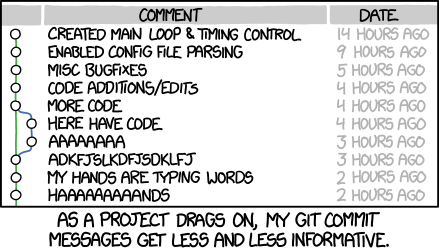
Commit often, using small commits.
This will also help to keep commit messages informative!Before committing, check what you’ve changed.
Usegit diff [--staged]or VS Code functionality.Avoid including unrelated changes in commits.
Separate commits if your working tree contains work from disparate edits: usegit add+git commitseparately for two sets of files.Don’t commit unnecessary files.
These clutter your repo and its history (especially automatically generated, temporary files), and when collaborating, they can lead to so-called merge conflicts.
Self-study exercise: File states
Say that in a different repo, git status prints the following:
git statusOn branch main
Changes to be committed:
(use "git restore --staged <file>..." to unstage)
modified: scripts/qc.sh
Changes not staged for commit:
(use "git add <file>..." to update what will be committed)
(use "git restore <file>..." to discard changes in working directory)
modified: README.md
Untracked files:
(use "git add <file>..." to include in what will be committed)
scripts/trim.shWhich file(s) would be included in a commit if you now ran
git commit -m "My message"?- Only
scripts/qc.sh scripts/qc.shandREADME.md- All three files
- None of them: you first need to run
git add
Click for the solution.
The correct answer is a. Only staged changes are included in a commit.
README.mdwas modified but not staged, andscripts/trim.shis not even tracked.- Only
And which file(s) would be included if you instead ran
git commit -am "My message"(see this box above for the-aoption togit commit)?Click for the solution.
scripts/qc.shandREADME.md: the-aoption stages all changes to tracked files, but it does not add untracked files.Say that, before committing, you edit
scripts/qc.shonce more, without runninggit addon it again. How do you thinkgit statuswould list this file, and which version of it wouldgit commit -m "My message"include?Click for the solution.
scripts/qc.shwould be listed twice: under “Changes to be committed” and under “Changes not staged for commit”.git addstages the file as it was at that moment, so the commit would only include the earlier, staged changes. To also include your newest edits, rungit addon the file again.
References
Footnotes
Git will open an editor when you need to provide a “commit message” but didn’t enter one on the command line. Its default editor is
vi/vim, which is harder to use and notoriously hard for beginners to exit.↩︎We’ll talk a bit about what branches are later on.↩︎
-fis needed because some files inside.gitare write-protected — and recall from last week thatrm -rfis unforgiving, so double-check that you are removing the correct.gitdir!↩︎You also get a hint on how to “unstage” the file: i.e., reverting what you just did with
git addand leaving the file untracked once again↩︎If you leave out
-m, Git will instead open thenanoeditor that you configured above, so you can type your commit message there. Type your message, then press Ctrl+X, Y (to save), and Enter (to confirm the file name) — Git will then make the commit.↩︎