OSC: Beyond the basics
Week 6 – Lecture A
Jelmer Poelstra
September 28, 2026


Where we’re heading
Step by step, in this and the next few weeks,
you’ll learn to run command-line bioinformatics programs at OSC:
- A deeper dive into OSC (this class)
- How to use software at OSC, including programs that aren’t installed (next class)
- How to write shell scripts (next week)
- How to submit shell scripts as “batch jobs” (in week 10)
- How to build functional commands to run such programs (throughout)
Compute nodes, compute jobs, and cores
Using compute nodes via “jobs”
Compute jobs
You can use compute nodes after requesting resources, such as a number of nodes and cores, and for how long you need them.
These requests result in “compute jobs” (or simply “jobs”). Our VS Code sessions are an example!
The job scheduler
Many users send requests all the time, so a job scheduler (at OSC, Slurm) considers each request and assigns resources to jobs as they become available.
In week 10, you’ll learn to submit scripts as “batch jobs” with Slurm.
Recap: nodes and clusters
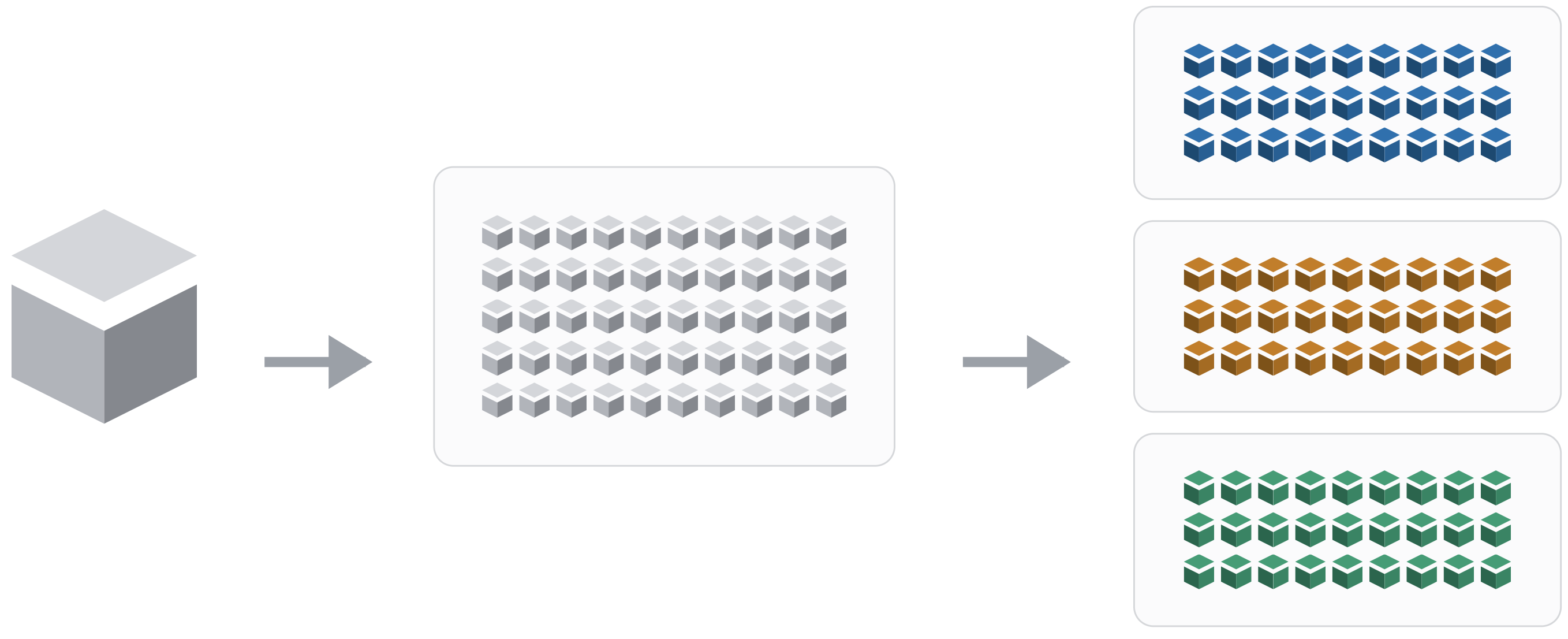
Node
A single computer that is a part of a supercomputer.
Supercomputer / Cluster
A collection of connected computers/nodes.
Supercomputer Center
A facility like OSC with one or more supercomputers. OSC has three: “Ascend”, “Cardinal”, and “Pitzer”.
Cores
There is one more “level” than what was shown on the previous slide from week 2 —
each node has multiple cores:
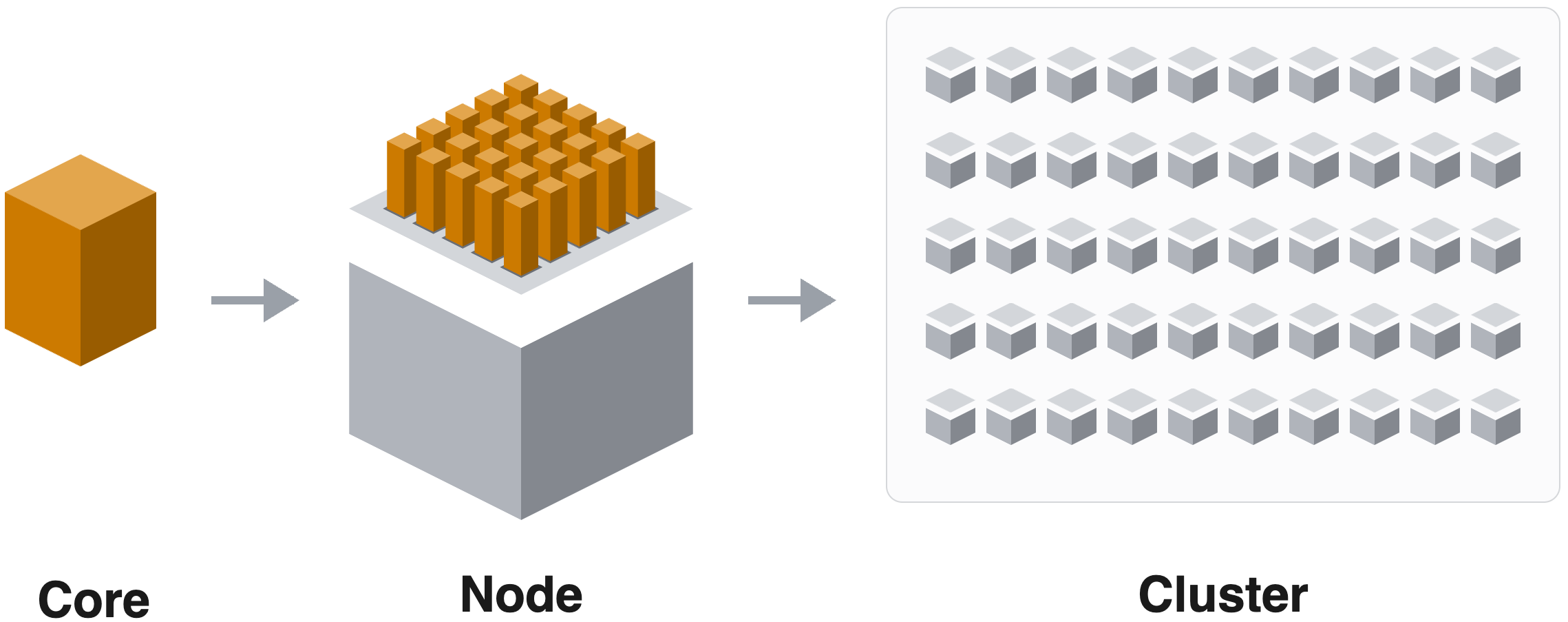
Cores
What is a core?
A component of a node (computer) that can independently perform a computing task, like running a bioinformatics program.
Also, many programs can use multiple cores for a single run, which can speed them up considerably.
Core / Processor / CPU / Thread
These terms are not technically synonyms, but are often used interchangeably.
For working at OSC, treat them as meaning the same thing: components of nodes that can be reserved and used independently.
One node, several jobs
Typical compute jobs only use a part of a single node, yet multiple cores. For example:
A node with 8 cores (real Pitzer nodes have 40–48):
Job A has 2 cores, Job B has 4, and 2 cores are free.
A job’s resource usage is measured in core hours. For example, if job A and job B above both request 2 hours, then job A would use 2 x 2 = 4 core hours, and job B would use 4 x 2 = 8 core hours.
Size of requests and wait times
When you request resources, the Slurm scheduler looks for a node with enough free cores. As such, smaller requests (fewer cores, less time) may start more quickly than larger ones, especially when the cluster is heavily used.
Core hours
You request a compute job with 8 cores for 3 hours. How many core hours will your Project be billed for?
The job ran, and only used 1 of those cores. Do you think that changes the number of billed core hours?
The job ran, and it ended after 1 hour. Do you think that changes the number of billed core hours?
Click for the answers
8 cores × 3 hours = 24 core hours.
No: you’re billed for the cores you reserved, whether or not they were used.
Yes: OSC only bills for the time a job actually ran, so 8 cores × 1 hour = 8 core hours.
Interpretation
What does this tell you about how many cores and hours to request?
Click for the answer
Only request as many cores as the program can use. For time, it’s better to be generous: unusedo time isn’t billed, and a job that runs out of time is killed before it finishes.
System status
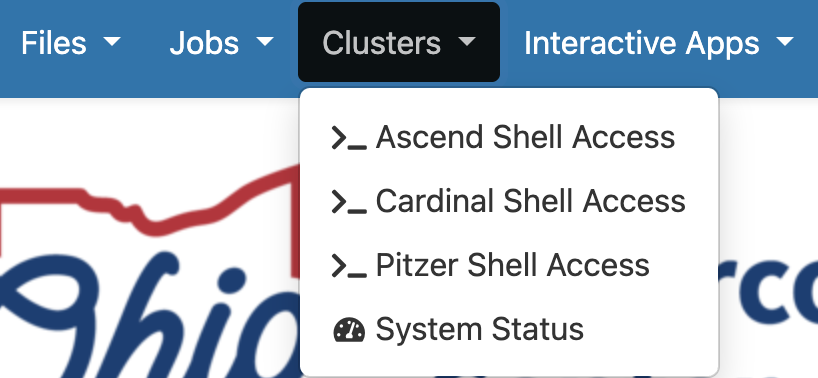
In OnDemand’s “Clusters” dropdown menu, click on the item at the bottom, “System Status”:
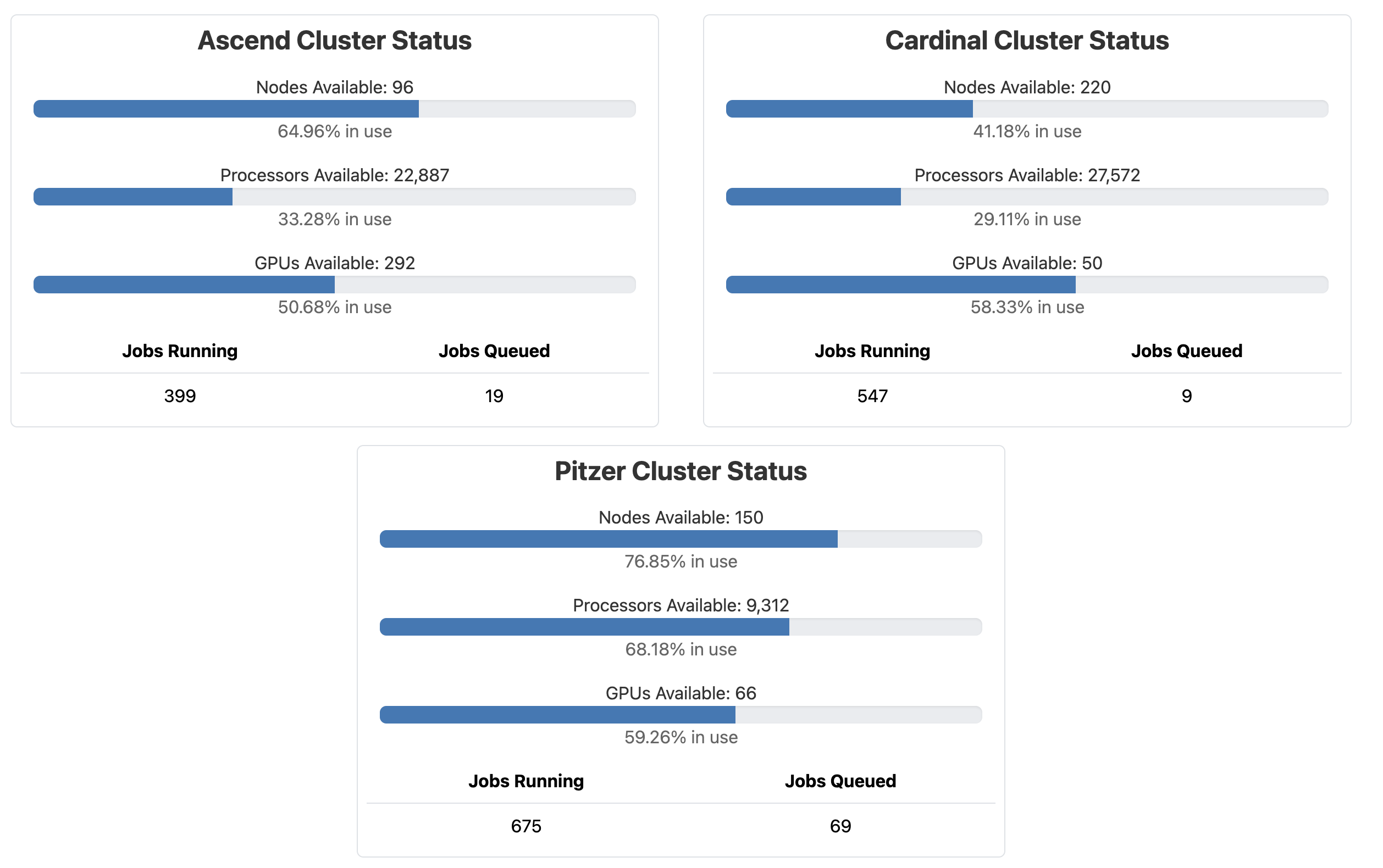
This page shows the live usage of the three clusters, and gives a good idea of the scale of the supercomputer center (next slide).
On the next slide, what does “processors” refer to?
Here, OSC uses the word “processor” to mean “core” (or “CPU”). As mentioned, these terms are often used interchangeably in practice.
Side note
Why does OSC have multiple clusters rather than a single big one?
OSC buys a new cluster every few years and retires the oldest one,
so the clusters differ in age and hardware:
- Pitzer (2018, expanded in 2020)
- Ascend (2022, with many GPU nodes)
- Cardinal (2024)
Among other things, rolling out clusters this way keeps some hardware up to date at all times,
and avoids downtime for the entire center.
Compute node types
“Standard” nodes
- By far the most numerous (Pitzer has 564).
- Vary in size, e.g., 40–48 cores per node on Pitzer.
- Used by default, and will serve you well for most omics analyses.
Other node types
- Nodes with extra memory:
largememandhugemem. - Nodes with GPUs (Graphics Processing Units) in addition to CPUs.
When are these useful?
You may occasionally need these, for example for genome or transcriptome assembly (large-memory nodes) or Oxford Nanopore base-calling (GPU nodes).
Memory versus storage
When we talk about a computer’s memory, this refers to RAM — don’t confuse this with file storage.
Memory (RAM)
- The data a computer is actively using.
- Accessed orders of magnitude faster than data stored on disk.
- E.g., heavily used when you play a game or have many browser tabs open.
Storage (disk)
- The data that is saved in files on disk.
When your computer freezes, memory is often full, and it starts using disk storage as “virtual memory”, which is much slower.
Bioinformatics programs may load input data into memory for fast access, and hold intermediate results there too. With large datasets, they may need 10s–100s of GBs of memory.
At OSC, available memory is proportional to the number of cores you request (often 4 GB per core).
OSC Projects
OSC bills Project-wise
OSC bills Projects (not individual users), and only for two things:
File storage
File storage in the Project dirs (
/fs/ess).Charged per TB per month for what you have reserved, not what you actually use.
Compute
Compute node usage.
Charged per core hour.
Who pays?
- Every OSU PI gets a $1,000 yearly credit.
- OSU colleges pay some or all of the costs — CFAES currently pays all of it.
Prices for academic usage are generally low, but a Project using dozens of TBs and tens of thousands of core hours would still be charged over a thousand dollars per year.
Using and managing OSC Projects
In this course, we only use the course’s OSC Project PAS3493. For your own research, you would likely use a Project specific to a research project, or your lab’s general-use Project.
Using a Project
In practice, “using” a Project means:
- Storage: Storing data in its
/fs/essand/or/fs/scratchdirs. - Compute: Selecting the Project when starting compute jobs, like VS Code and batch jobs.
Managing a Project
Generally only PIs can do this (more info ). Project admins can, among other things:
- Manage the compute budget and
/fs/essstorage allocation. - Add users to the Project.
Storage areas
Storage areas: overview
Let’s start by recapping what we learned in week 2 about the three main storage areas at OSC:
| Area | Path | One for each… |
|---|---|---|
| Home | /users/ |
User |
| Project | /fs/ess/ |
OSC Project |
| Scratch | /fs/scratch/ |
OSC Project |
Storage areas: overview
Now, let’s see some additional features of these storage areas:
| Area | Quota | Backed up? | Auto-purged? | I/O Speed | Billed |
|---|---|---|---|---|---|
| Home | 500 GB / 1 M files | Yes | No | Slower | No |
Storage areas: overview
Now, let’s see some additional features of these storage areas:
| Area | Quota | Backed up? | Auto-purged? | I/O Speed | Billed |
|---|---|---|---|---|---|
| Home | 500 GB / 1 M files | Yes | No | Slower | No |
| Project | Flexible | Yes | No | Slower | Yes |
Storage areas: overview
Now, let’s see some additional features of these storage areas:
| Area | Quota | Backed up? | Auto-purged? | I/O Speed | Billed |
|---|---|---|---|---|---|
| Home | 500 GB / 1 M files | Yes | No | Slower | No |
| Project | Flexible | Yes | No | Slower | Yes |
| Scratch | 100 TB | No | After 60 days unused | Faster | No |
All in all, Project storage should be your default, but when working with large datasets and/or limited storage quota, consider Scratch for large intermediate files that you can regenerate.
There is a fourth storage area, compute, that is directly tied to compute jobs (deleted when a job ends).
In practice, this is rarely needed in bioinformatics, and we won’t use it in this course.
Storage areas: final notes
Hidden files in Home
Your Home dir will have hidden files (those starting with a
.) that are generated and used automatically by software.Don’t mess with them unless you know what you’re doing!
Accessing backups
Home and Project dirs are backed up daily.
You don’t have direct access to the backups, but can email OSC to restore your files from a specific date.
Files across clusters
OSC’s clusters share the entire file system.
So, you can access your files with the same paths across all clusters.
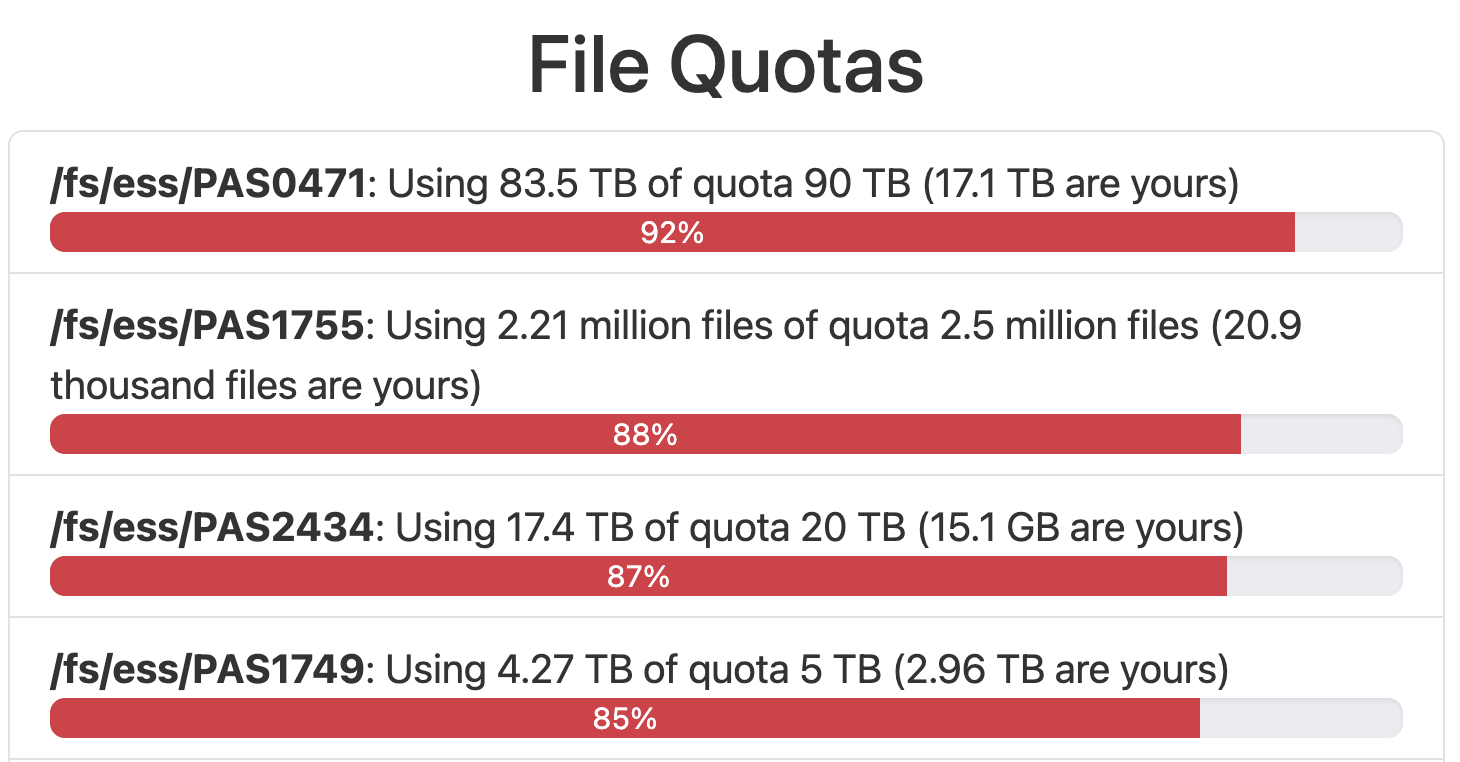
Storage quota on the OnDemand dashboard
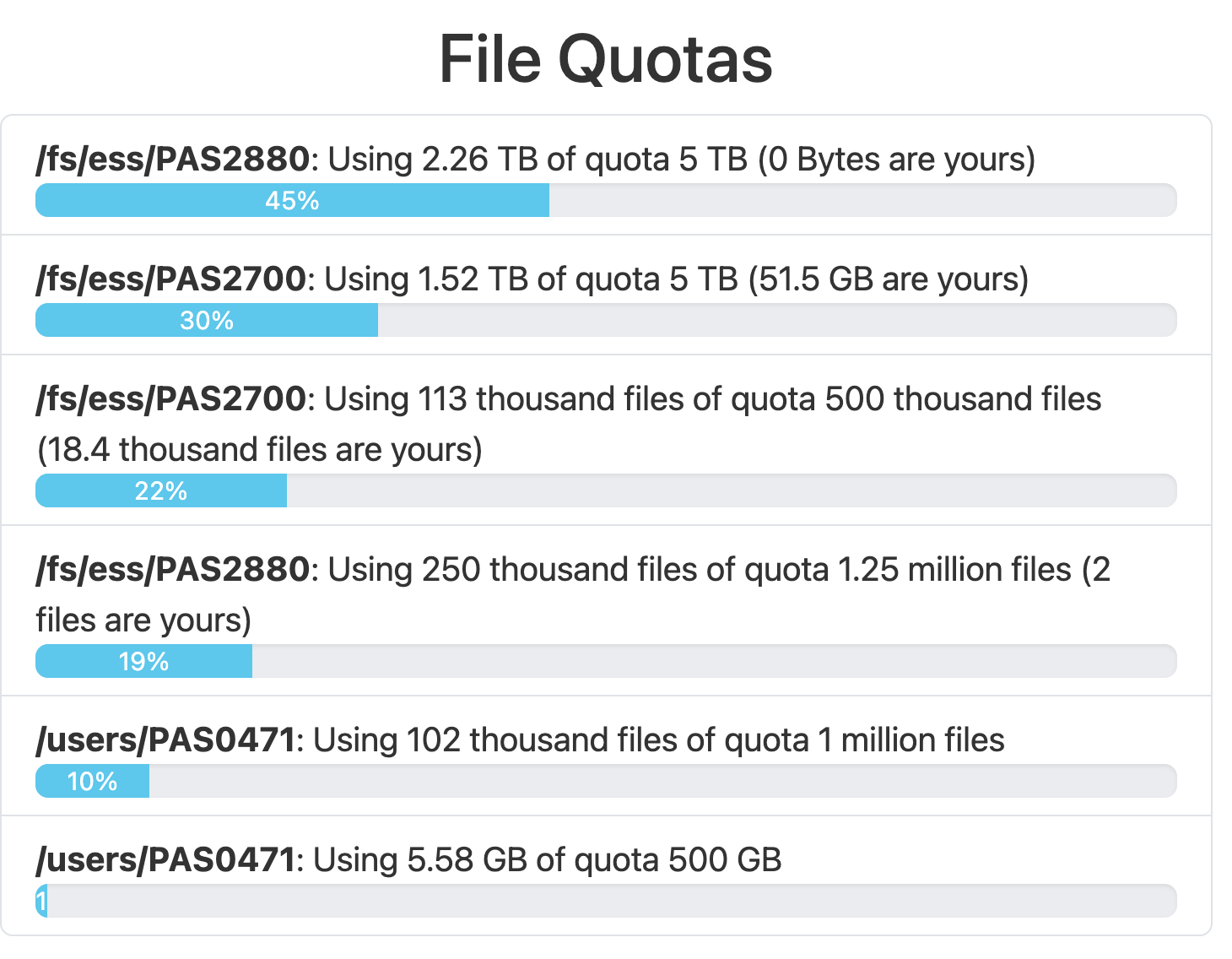
Storage quota on the OnDemand dashboard
Using software at OSC
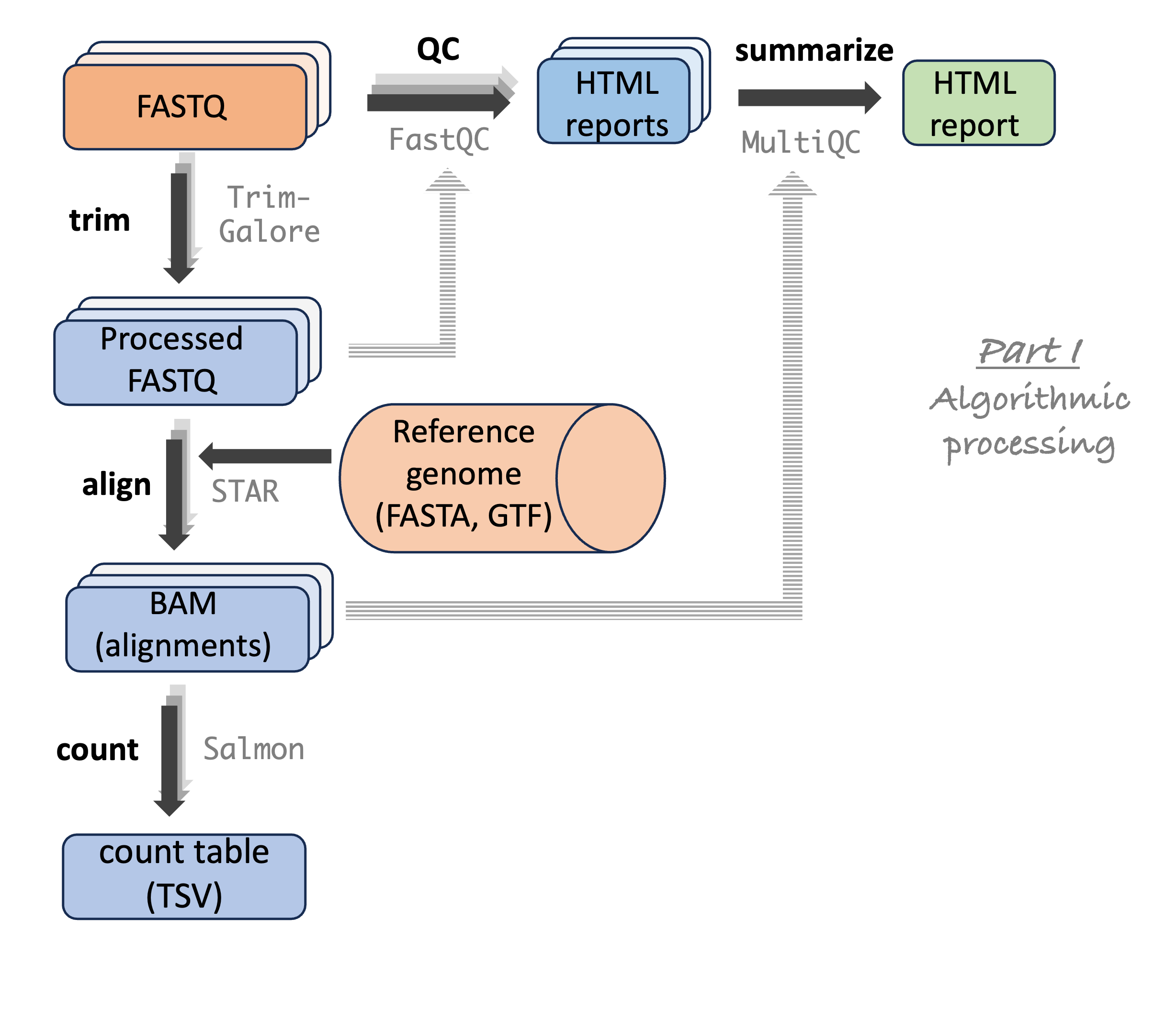
Omics analyses use many programs
A typical omics data analysis workflow consists of a sequence of specialized bioinformatics programs (a.k.a. software or tools). For example, the RNA-seq workflow we’ll go through:
Installed software at OSC
Basic system-wide installations
- Besides the shell and Git commands we’ve been using, other commonly used software like Python and Apptainer can be used without any extra steps.
Modules
OSC has also installed a number of more specialized programs, including bioinformatics tools.
You can use these programs after loading their “module” using the
modulecommand — we’ll do this in the next class.
But: The collection of installed software at OSC is not comprehensive, and program versions are not always the most recent.
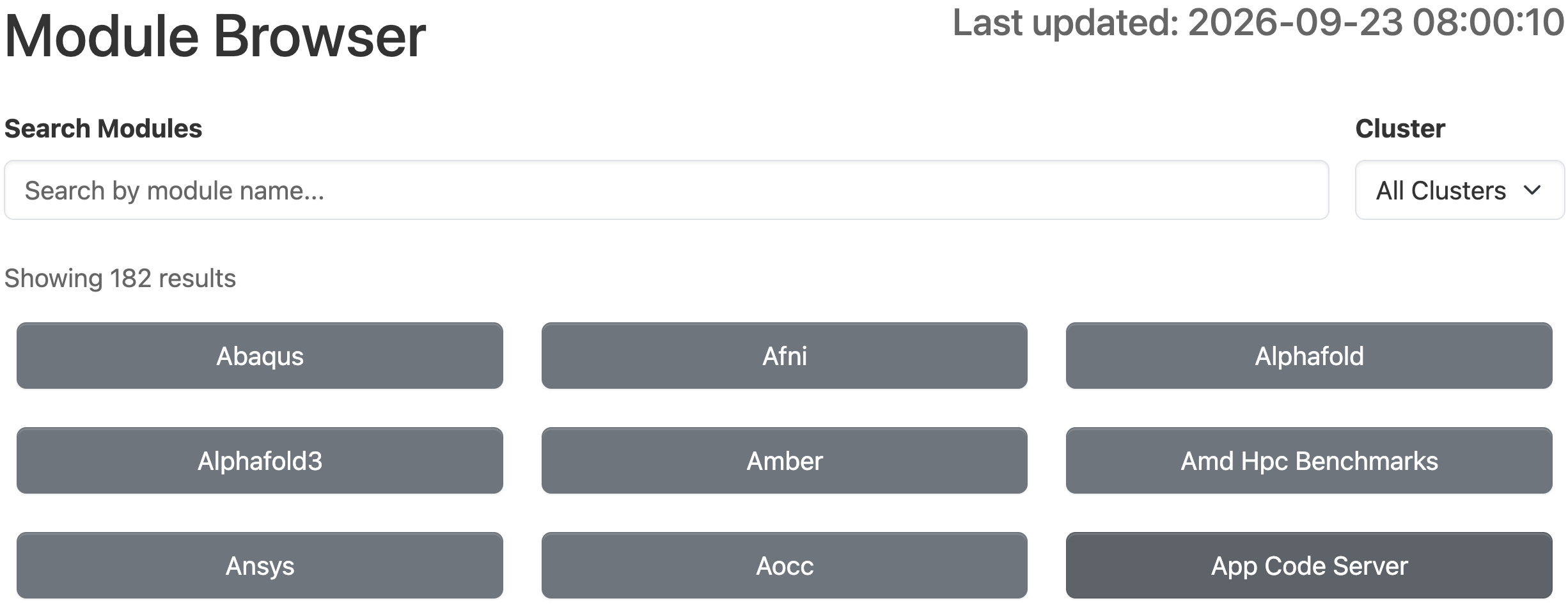
Module Browser
OnDemand has a Module Browser to search the software that OSC has installed as modules:
Other options
Installing software yourself?
Installing software like you would on your own computer is often not possible at OSC:
- You don’t have administrator privileges.
- You will often run into issues with dependencies (other software that a program depends on).
Conda and containers
Conda: Allows you to install software into “environments” you can load.
Containers: Self-contained software packages that can be distributed.
Both:
- Bypass the dependency and administrator privilege issues.
- Make it easy to switch between versions or use mutually incompatible software.
- Are good for reproducibility.
Conda versus containers
The two approaches are quite different, both conceptually and in practice:
| Aspect | Conda | Containers |
|---|---|---|
| Obtaining a tool | Install it | Download a file |
| Running a tool | Load, then run as usual | With a long command “prefix” |
| Combining tools | Easier | Harder |
Conda versus containers
The two approaches are quite different, both conceptually and in practice:
| Aspect | Conda | Containers |
|---|---|---|
| Obtaining a tool | Install it | Download a file |
| Running a tool | Load, then run as usual | With a long command “prefix” |
| Combining tools | Easier | Harder |
| Reliability | Installs can be slow or fail | Quick and reliable to obtain |
| Files | Many small files (may hit OSC quota) | Single file |
| Portability | Less portable | Highly portable & reproducible |
What programs/tools are available?
The same set of programs is available through Conda and as containers, all of which are free and open-source. Missing programs tend to be better avoided anyway (poorly maintained, etc. — exceptions exist).
Conda versus containers
The two approaches are quite different, both conceptually and in practice:
| Aspect | Conda | Containers |
|---|---|---|
| Obtaining a tool | Install it | Download a file |
| Running a tool | Load, then run as usual | With a long command “prefix” |
| Combining tools | Easier | Harder |
| Reliability | Installs can be slow or fail | Quick and reliable to obtain |
| Files | Many small files (may hit OSC quota) | Single file |
| Portability | Less portable | Highly portable & reproducible |
What will we use?
We’ll next practice with modules and containers, while Conda is covered in an optional self-study page.
Final notes
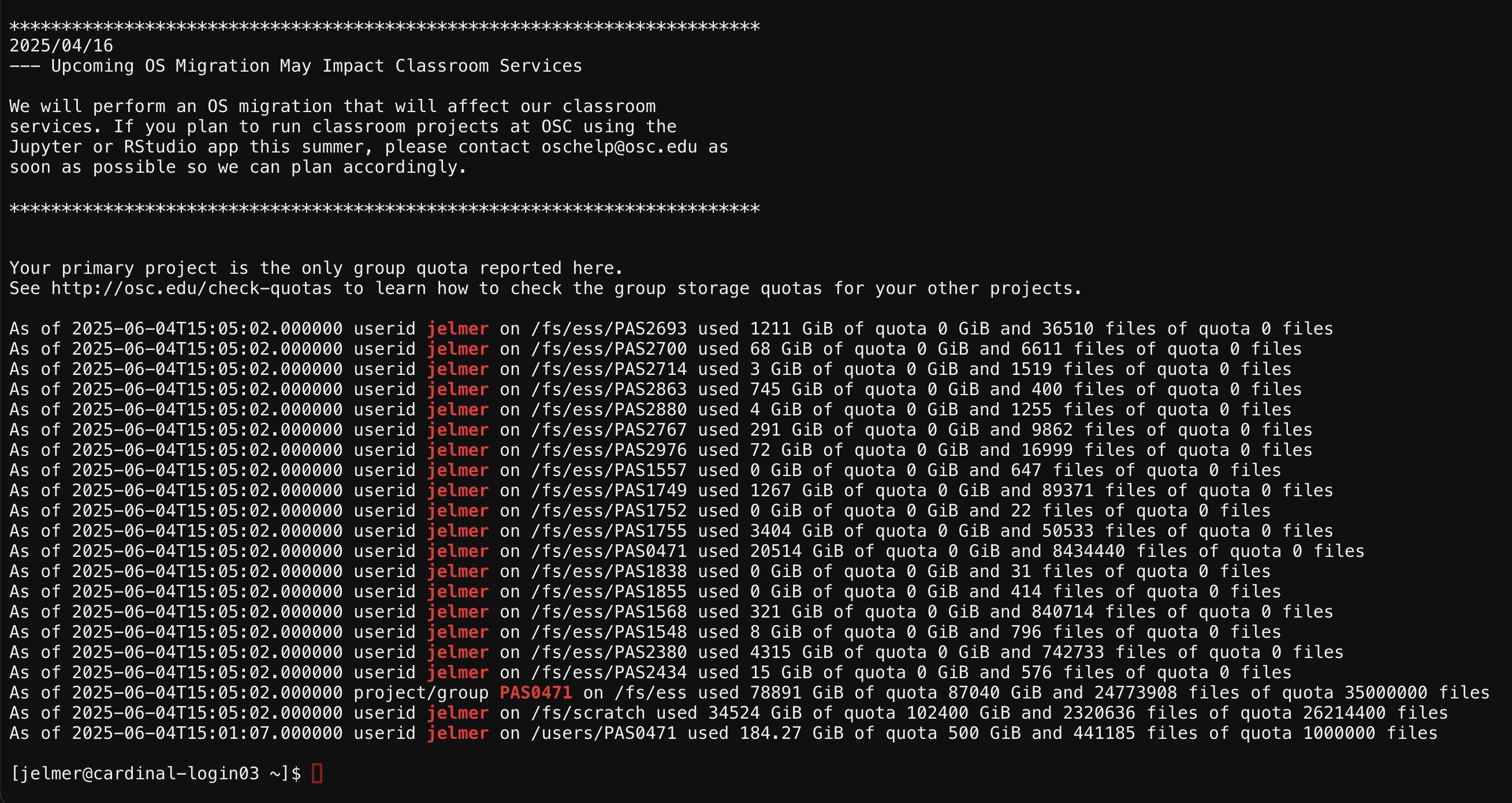
Direct Unix shell access
The Clusters dropdown menu also gives direct access to a Unix shell on any of the three clusters.
- In the course, we use VS Code (Code Server) to access a shell,
but the Clusters dropdown can occasionally be useful as a quicker access point. - Be aware that you will be on a login node, so only run light tasks there!
Contacting OSC to get help
Open a support case in the OSC Service Center (log in with your OSC credentials),
or email oschelp@osc.edu, with questions like:
- Problems with your account
- Installing or using specific software
- Why your jobs keep failing
They are usually quite quick to respond!
Citing OSC
When you use OSC, it’s good practice to acknowledge and cite OSC in your papers — see their citation page.
Questions?
Click here to go to the next lecture, Using software at OSC