Software management with Conda
Optional self-study content for week 6

1 Introduction
This page introduces Conda, a software management tool that is an alternative to the containers you used in w6b. You will learn how to create Conda environments, install software in them, activate them, and manage them.
1.1 Setting up
To run the commands on this page yourself, start a VS Code session at https://ondemand.osc.edu in /fs/ess/PAS3493/people/$USER.
2 What is Conda?
Conda can create so-called environments in which you can install one or more software packages. Compared to containers (see the comparison in w6a), Conda works especially well when you want to combine several programs in a single environment, or when you want to add programs to an existing environment later.
This makes Conda particularly handy for bioinformatics “utilities” like SeqKit, SAMtools, and BEDTools, which you will often want to use interactively (not just in scripts), and where you may want to pipe the output of one program into another. With all of them in one active environment, you can simply type samtools ... | seqkit ..., whereas with containers, every command would need its own apptainer exec ... prefix.
Conda installs programs from the same online software repositories that the Seqera containers you used in w6b were built from — recall the bioconda:: and conda-forge:: prefixes of the container search hits. So, any program with a bioconda:: or conda-forge:: hit in the Seqera search can also be installed with Conda. As you’ll learn below, installing a program with Conda:
- Is quite straightforward
- Is very uniform (the procedure is nearly identical for any program)
- Doesn’t require administrative privileges
Under the hood, a Conda environment is “merely” a directory that includes the executable (binary) files for the program or programs in question. When you activate a Conda environment, that directory will be added to the collection of locations that the computer checks when you try to run a program by entering a command (this is called the $PATH).
Like with modules, Conda has a main command (conda) and several sub-commands (e.g. create, activate, deactivate, and install). For example, to activate an environment, you would use conda activate. But before you can do so, you need to create an environment.
3 Creating Conda environments and installing software
3.1 Loading the Conda module
Before you can use Conda in any way, you always need to load OSC’s Miniconda module first:
module load miniconda3/25.11.1-py312As of September 2026, the above version is only available on Pitzer. You should be on Pitzer now, but if/when you are on one of the other clusters, load this module instead:
module load miniconda3/24.1.2-py3103.2 One-time Conda configuration
Before you can create your own environments, you should first do some one-time configuration1. The configuration will set the Conda “channels” (basically, software repositories) you want to use when installing programs. It will also set the relative priorities among channels, since one program may be available from multiple channels.
We can do this configuration with the config sub-command — run the following in your shell:
conda config --add channels bioconda # Added first => lowest priority
conda config --add channels conda-forge # Added last => highest priority
conda config --set channel_priority strictCheck whether the configuration was successfully saved:
conda config --get channels--add channels 'bioconda' # lowest priority
--add channels 'conda-forge' # highest priority3.3 Example: Creating an environment for TrimGalore
Now, you will create a Conda environment for the program TrimGalore, which can trim and filter reads in FASTQ files, but does not have a system-wide installation at OSC.
Here is a command that creates a new Conda environment and installs TrimGalore into it, all at once:
# [Don't run this - we'll modify this a bit below]
conda create -y -n trim-galore bioconda::trim-galoreLet’s break that command down:
createis the Conda sub-command to create a new environment.- When adding
-y, Conda will not ask you for confirmation to install. - Following the
-noption, you can specify the name you would like the environment to have: we usedtrim-galore. You can use whatever name you like for the environment, but a descriptive yet concise name is a good idea. For single-program environments, it makes sense to simply name it after the program. - With
bioconda::trim-galorewe indicate that we want to install the programtrim-galorefrom thebiocondachannel.
By default, Conda will install the latest available version of a program. If you create an entirely new environment for a program, like we’re doing here, that default will almost always apply. But if you’re installing into an environment that already contains other programs, it’s possible that due to compatibility issues, it will install a different version.
If you want to explicitly specify a version to install, add the version number after = following the package name. In that case, you may also want to include that version number in the Conda environment’s name, as in the below example, which you can run:
conda create -y -n trim-galore-2.3.0 bioconda::trim-galore=2.3.0Retrieving notices: ...working... done
Channels:
- conda-forge
- bioconda
Platform: linux-64
Collecting package metadata (repodata.json): done
Solving environment: done
## Package Plan ##
# [...truncated...]There should be a lot of output, with many packages that are being downloaded (these are all “dependencies” of TrimGalore), but if it works, you should see this before you get your prompt back:
Downloading and Extracting Packages
Preparing transaction: done
Verifying transaction: done
Executing transaction: done
#
# To activate this environment, use
#
# $ conda activate trim-galore-2.3.0
#
# To deactivate an active environment, use
#
# $ conda deactivate4 Creating environments for any available program
4.1 Finding Conda installation info online
Minor variations on the conda create command above can be used to install almost any program for which a Conda package is available, which is the vast majority of open-source bioinformatics programs!
To find out whether a program is available, what the channel and package name are, and which versions exist, you can use the same Seqera Containers search you used in w6b: for example, searching for Cutadapt gives a bioconda::cutadapt hit, and its dropdown menu lists the available versions.
Then, that bioconda::cutadapt goes at the end of the conda create command:
# [Don't run this - example command]
conda create -y -n cutadapt bioconda::cutadaptAnd to specify a version, add it after an =, e.g. bioconda::cutadapt=5.1.
Each Conda package also has a page on the Anaconda website, which is usually the top hit when you Google the program name together with “conda”, e.g. “cutadapt conda”:
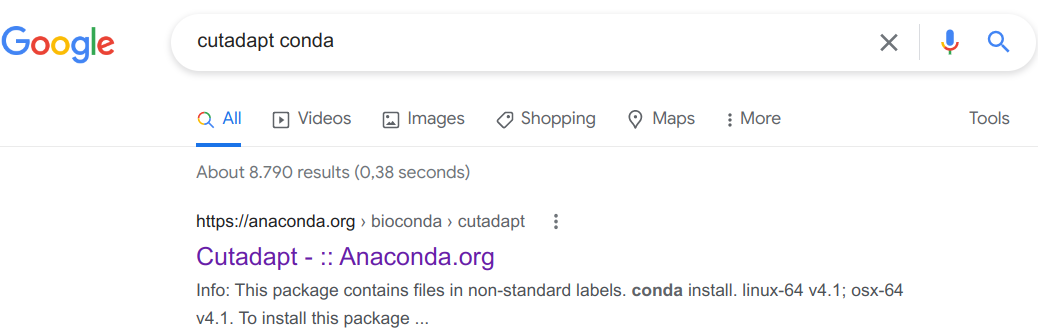
Screenshot of Google search results for “conda cutadapt”.
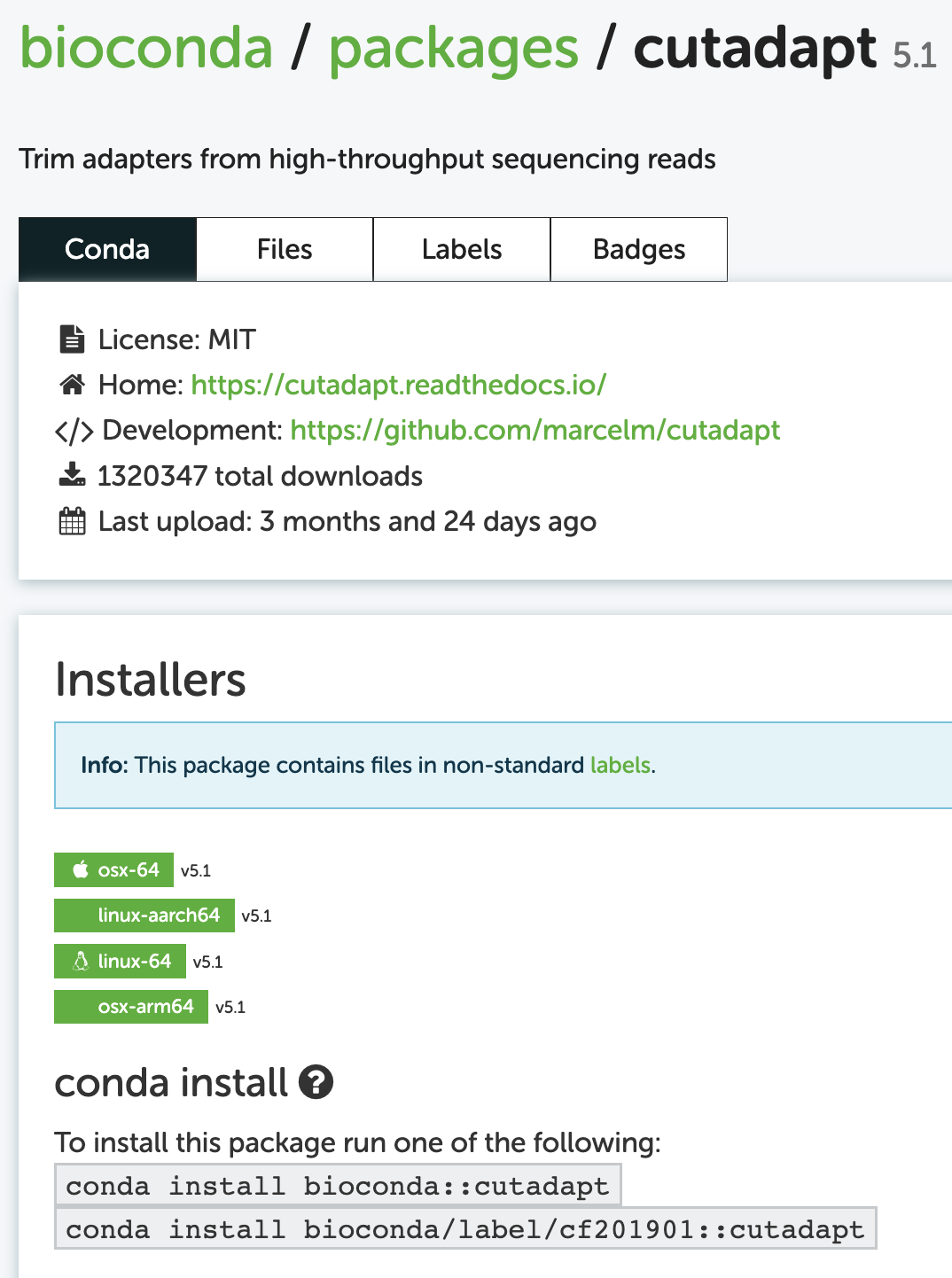
Screenshot of the Conda page for Cutadapt.
The first of the example installation commands shown there, conda install bioconda::cutadapt, uses the install subcommand. This installs a program into the currently active Conda environment, which is usually not what you want: it’s better to give each program (or set of programs) a new, dedicated environment.
To turn this into a create-plus-install command like the ones above, simply replace install with create -y -n <env-name>:
# [Don't run this - example command]
conda create -y -n cutadapt bioconda::cutadaptThe Anaconda page also shows which version will be installed by default, and which older versions are available:
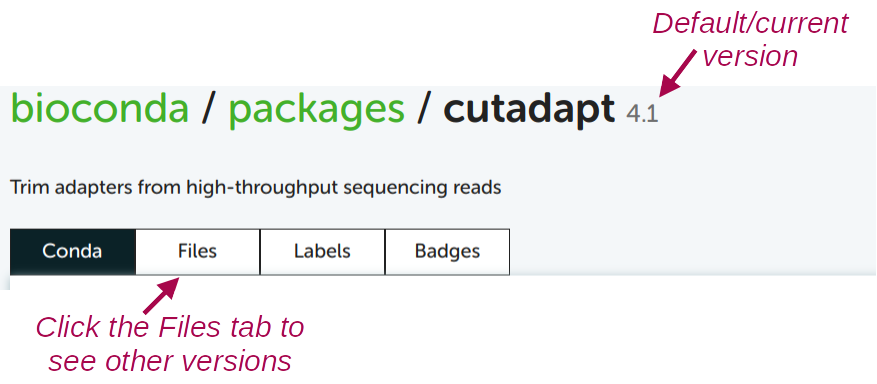
5 Activating Conda environments
Using a Conda environment works much like using a module: you first make its programs available, and then run them as usual. But while the term “load” is used for modules, the term and command activate is used for Conda environments — it means the same thing.
You should be able to activate the TrimGalore environment you created above (using just its name; more on that below):
conda activate trim-galore-2.3.0(trim-galore-2.3.0) [jelmer@p0085 jelmer]$When you have an active Conda environment, its name is displayed as part of your prompt, as shown above!
With the TrimGalore environment activated, you should be able to use the program. To test this, simply run the trim_galore command (note the underscore: the command name differs from the package name) with the --help option:
trim_galore --help USAGE:
trim_galore [options] <filename(s)>
-h/--help Print this help message and exits.
# [...truncated...]Unlike module load, Conda will by default only keep a single environment active. Therefore, when you have environment A active and then activate environment B, the active environment will switch to B, and the program(s) in environment A will no longer be available.
--stack (Click to expand)
If you want to have multiple Conda environments active at the same time, you can do so with the --stack option:
Activate the TrimGalore environment, if it isn’t already active:
conda activate trim-galore-2.3.0“Stack” a MultiQC environment of mine:
conda activate --stack /fs/ess/PAS3493/share/conda/multiqcCheck that you can use both programs — output not shown, but both should successfully print help info:
multiqc --help trim_galore --help
To deactivate the currently active environment, run conda deactivate (no environment name needed):
conda deactivateExercise: Create and activate a FastQC environment
OSC has a module for FastQC version 0.12.1. But say that you want to exactly reproduce an analysis from a paper that used FastQC version 0.11.9.
Create a Conda environment with FastQC version 0.11.9.
Click for the solution.
module load miniconda3/25.11.1-py312 conda create -y -n fastqc-0.11.9 bioconda::fastqc=0.11.9Activate the environment and check that you have the correct version of FastQC.
Click for the solution.
conda activate fastqc-0.11.9 fastqc --versionFastQC v0.11.9With the environment still active, run
module load fastqc/0.12.1. Which version do you predictfastqc --versionwill report now? Check your prediction. (Hint: think about what bothconda activateandmodule loaddo to your$PATH.)Click for the solution.
It will report version 0.12.1. Both
conda activateandmodule loadadd a directory to the start of your$PATH, and the shell runs the firstfastqcit finds there. So whichever you activated or loaded last wins. To avoid confusion like this, don’t mix modules and Conda environments that provide the same program.
6 Managing your Conda environments
6.1 Where Conda environments are stored
You may have noticed that above, we merely gave the environment we created a name (trim-galore-2.3.0), and did not tell Conda where to put this environment. Similarly, we were able to activate the environment with just its name.
Conda puts environments in a personal default directory, which at OSC is ~/.conda/envs (see the conda env list output below). To instead put an environment in a location of your choice, use the -p (for “prefix”, i.e. path) option instead of -n — for example, to create the environment inside a project directory:
# [Don't run this]
conda create -y -p /fs/ess/PAS3493/people/$USER/my_project/software/conda/trim-galore \
bioconda::trim-galoreWhen you do this, you will have to pass the path to the environment (rather than a name) when you activate it:
# [Don't run this]
conda activate /fs/ess/PAS3493/people/$USER/my_project/software/conda/trim-galoreAs explained below, this is the approach I recommend for your research projects.
When you want to activate someone else’s Conda environment (this is possible as long as you have read-access to that dir!), you’ll always have to specify the full path to the environment’s directory.
To see which Conda environments you have, run conda env list:
conda env listtrim-galore-2.3.0 /users/PAS0471/jelmer/.conda/envs/trim-galore-2.3.0To remove a Conda environment, use conda env remove:
conda env remove -n trim-galore-2.3.0List all packages (programs) installed in an environment — due to dependencies, this can be a long list, even if you only actively installed one program:
conda list -n trim-galore-2.3.0Export a plain-text “YAML” file that contains the instructions to recreate your currently-active environment (useful for reproducibility!)
conda env export --from-history > my_env.ymlThe
--from-historyoption only includes the packages you explicitly asked for (with their versions, if you specified them), rather than every dependency with platform-specific build details — which makes the file much more likely to work on another computer.And you can use the following to create a Conda environment from such a YAML file:
conda env create -n my_env --file my_env.ymlDownloaded packages are cached in
~/.conda/pkgs, even for environments you created elsewhere with-p. This cache can grow large, so if you’re running low on space in your Home directory, clear it with:conda clean --all
6.2 Project-specific environments
There are a number of ways to organize your Conda environments, but I recommend that you create Conda environments that are specific to a research project, rather than reusing environments across projects. That way, each project has its own record of exactly which software (and which versions) it used, and updating or breaking an environment for one project can’t affect your other projects. This does have the downside of requiring more disk space and time to set up each project, but it provides better reproducibility and maintainability.
Within a project, there are two reasonable ways to organize your environments:
- A single environment for the project
- You just need to activate that one environment when you’re working on your project.
- The project’s software setup is described by a single environment (and can be exported to a single YAML file).
- But the more programs you install into one environment, the higher the risk of running into problems due to mutually incompatible software and complicated dependency situations. Therefore, this works best for projects that only use a handful of programs.
- Multiple environments for the project, e.g. one for each program or for each analysis step
- Less risk of dependency problems, and each environment is quick to create.
- You can update or replace one program without touching the others.
- But you need to activate the right environment at each step, e.g. in each of your scripts.
What is not recommended is simply installing all programs across all your projects into one single environment. Even though this might seem easier, it doesn’t benefit reproducibility, and your environment is likely to stop functioning sooner or later.
Put your environments inside your project directory
To make your environments project-specific, create them inside your project directory with -p — for example, in a software/conda subdirectory with one or more environments, as in the example above. This has several advantages:
- It is always clear which environments belong to which project, and your scripts can refer to them with the path to the environment.
- Other members of your group who have access to the project directory can use the same environments.
- You avoid filling up your Home directory: Conda environments consist of many small files, and Home has a limit of 1 million files (as well as 500 GB of space).
- When you archive or remove a project, its software goes along with it.
Once you start writing shell scripts (week 7) and Slurm batch jobs (week 10), don’t rely on whatever module or environment happens to be active in your shell when you run the script. Instead, include both steps inside the script itself, so the script is self-contained and reproducible:
module load miniconda3/25.11.1-py312
conda activate /fs/ess/PAS3493/people/$USER/my_project/software/conda/trim-galoreIf this gives an error like CondaError: Run 'conda init' before 'conda activate', use source activate <env> instead of conda activate <env>.
Exercise: A project environment with two programs
FastQC and MultiQC are often used together. Following the recommendation above, create a single Conda environment with both programs, inside a software/conda subdirectory of your personal directory in the course project, /fs/ess/PAS3493/people/$USER. Call the environment qc.
Create the environment. You can install multiple programs in one go by listing them one after the other.
Click for the solution.
module load miniconda3/25.11.1-py312 conda create -y -p /fs/ess/PAS3493/people/$USER/software/conda/qc \ bioconda::fastqc bioconda::multiqcActivate the environment and check that both programs work.
Click for the solution.
conda activate /fs/ess/PAS3493/people/$USER/software/conda/qc fastqc --version multiqc --versionRun
conda listand look for the packagesopenjdkandpython. You didn’t ask for either of them, so why were they installed?Click for the solution.
They are dependencies: FastQC is written in Java (
openjdkprovides Java), and MultiQC is written in Python. Conda automatically installs everything a program needs to run — which is also why environments can contain many more packages than you explicitly installed.
Footnotes
That is, these settings will be saved somewhere in your OSC Home directory, and you never have to set them again unless you need to make changes.↩︎