Using software at OSC: modules and containers
Week 6 – Lecture B

1 Introduction
1.1 Learning goals
As we discussed in the previous lecture, you can use software at OSC by loading “modules” with system-wide installations, or by using containers or Conda. In this session, you will learn to use modules and containers, while an optional self-study page covers Conda.
We’ll use the program FastQC to illustrate how to use modules and containers, so along the way, you’ll also learn what FastQC does and how to run it.
1.2 Setting up
The usual
- At https://ondemand.osc.edu, start a VS Code session in
/fs/ess/PAS3493/people/$USER. - Open a terminal. In it, create and then navigate to a
week06dir. - Optional: Create a new Markdown file for class notes and save it in your
week06dir.
Install a VS Code extension
VS Code extensions are small programs that add extra functionality to the IDE. We’ll install several of these during the course, starting now with a VS Code extension for viewing HTML files, since we’ll need to look at an HTML file later in this lecture (without this extension, HTML files would only open as plain-text source documents).
- In the Activity Bar, click the Extensions icon at the bottom (see screenshot on the right).
- The wide side bar now shows the Extensions view. In the search box at the top, type “HTML preview”.
- The first result should be the extension called “HTML Preview” by Thomas Haakon Townsend. Click the blue “Install” button to install it.
- When asked if you “trust the publisher”, click the blue “Trust Publisher & Install” button.


Activity Bar, with the Extensions icon (bottom) highlighted.
2 Intermezzo: The FastQC software
As an example piece of bioinformatics software, we will use FastQC (Andrews 2010) in this session. FastQC is a ubiquitous tool for quality control of FASTQ files. Running FastQC (or a similar program) is the first step in nearly any high-throughput sequencing project, and it is a good introductory example of a CLI program.
For each FASTQ file that it analyzes, FastQC outputs an HTML file with about a dozen graphs showing different QC (Quality Control) metrics. Typically, the most important one is this per-base quality score graph:
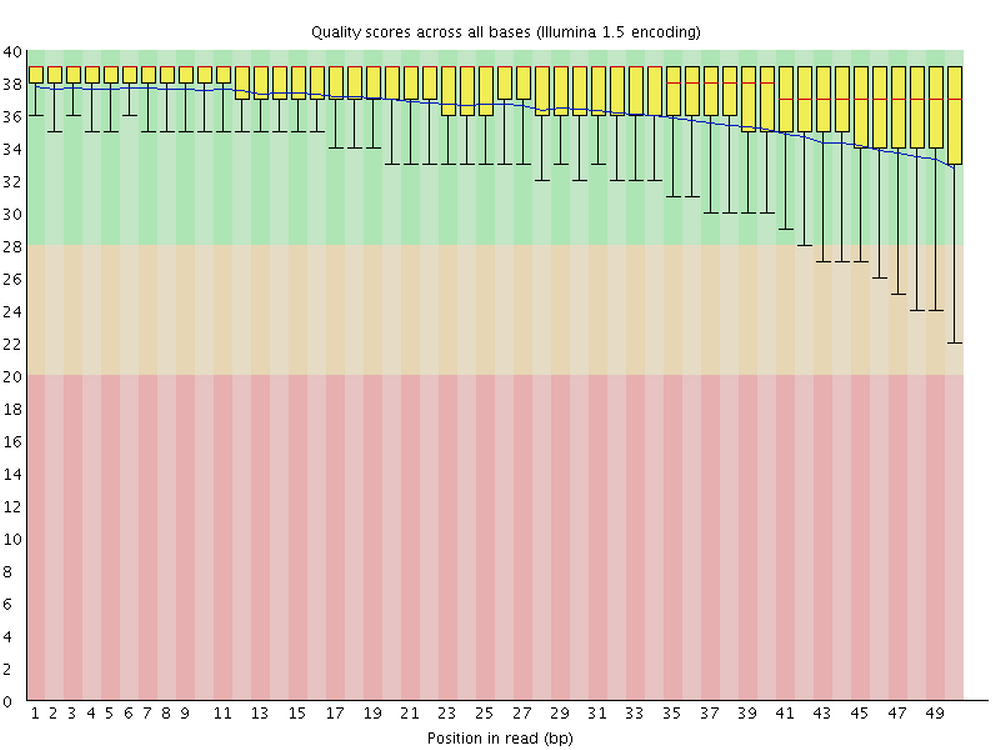
The y-axis shows Phred quality scores (higher is better, see also the color-coding),
and the x-axis shows the position along the read.
3 Loading software at OSC using modules
As discussed in the previous lecture, a lot of software installed at OSC can only be used after its module is loaded. You can find and load them using the module command and its various subcommands.
The three OSC clusters mostly have the same software available through modules, but there are some differences. In this course, our VS Code sessions run on the Pitzer cluster.
3.1 Searching for available modules
While OSC OnDemand has a Module Browser to search for available software modules, you can also do so directly in the shell using two subtly different module commands:
module spiderlists all modules.module availlists modules that can be loaded directly given your current shell environment1.
Simply running module spider or module avail spits out complete lists of available programs, so it’s typically useful to add a search term as an argument. For example, try to use module spider to search for fastqc:
module spider fastqc--------------------------------------------------------------------------------
fastqc: fastqc/0.12.1
--------------------------------------------------------------------------------
This module can be loaded directly: module load fastqc/0.12.1
Help:
A quality control tool for high throughput sequence data.We can see that fastqc is available, namely version 0.12.1 (the module is printed as <software>/<version>).
These two search commands are not case-sensitive: for example, module spider FastQC would also find the fastqc module.
3.2 Loading modules
To make a program available to you, use the module load command. But first, let’s confirm that the fastqc command, which is used to run FastQC, is not already available before doing so:
fastqc -vbash: fastqc: command not found...
Failed to search for file: GDBus.Error:org.freedesktop.DBus.Error.NameHasNoOwner: Could not activate remote peer.These error messages tell us that the fastqc command is not currently available. If it were available, this command would have printed the FastQC version instead, since many programs print their version with -v and/or --version2.
Now, load the module by specifying the module name and its version exactly as module spider printed it:
module load fastqc/0.12.1And then check once again whether you can use FastQC:
fastqc -vFastQC v0.12.1Success! 🥳
3.3 Final notes on modules
Module loading does not persist across shell sessions. Whenever you are in a fresh shell session (including but not limited to after you log into OSC for the day), you’ll have to reload any modules you want to use.
Modules are convenient, but not all software is available as a module. Containers are a more universal approach, with the added benefit of improved reproducibility and portability3 — as you’ll see below.
Here, we only covered the very basics of using module — see the boxes below for some more information.
module commands (Click to expand)
To check which modules are loaded, use
module list. Its output also includes modules that OSC loads by default in every shell — for example, after loadingfastqc/0.12.1, it may show something like the below, where only the last one was loaded by you:module listCurrently Loaded Modules: 1) intel-oneapi-mkl/2023.2.0 2) intel/2021.10.0 3) mvapich/4.1 4) modules/sp2024 5) fastqc/0.12.1Occasionally, when you run into conflicting (mutually incompatible) modules, it can be useful to unload modules, which you can do with
module unloadormodule purge:# Unload a specific module with 'module unload': module unload fastqc/0.12.1 # Unload all loaded modules with 'module purge': module purgeIf you ran these commands to try them out, reload FastQC with
module load fastqc/0.12.1before continuing.
module load example: R (Click to expand)
If you’re familiar with R, you may only have used it within RStudio, but R can also be started from the command line. First, test if R is available without loading anything:
Rbash: R: command not found...Nope. Is it available as a module?
module spider R-------------------------------------------------------------------------------------------------------------------------------------------------------------------------------------------------------------------------------------------------------------------------
R:
-------------------------------------------------------------------------------------------------------------------------------------------------------------------------------------------------------------------------------------------------------------------------
Versions:
R/4.4.0
R/4.5.2
Other possible modules matches:
amber app_code_server app_jupyter app_marimo benchmark blender connectome-workbench cryosparc-worker darshan-runtime darshan-util deepemhancer fmriprep freesurfer gromacs gurobi ibamr ior libjpeg-turbo linaro-forge mricrogl mriqc ...
-------------------------------------------------------------------------------------------------------------------------------------------------------------------------------------------------------------------------------------------------------------------------
To find other possible module matches execute:
$ module -r spider '.*R.*'
-------------------------------------------------------------------------------------------------------------------------------------------------------------------------------------------------------------------------------------------------------------------------
For detailed information about a specific "R" package (including how to load the modules) use the module's full name.
Note that names that have a trailing (E) are extensions provided by other modules.
For example:
$ module spider R/4.5.2
-------------------------------------------------------------------------------------------------------------------------------------------------------------------------------------------------------------------------------------------------------------------------Let’s try to load the most recent version, currently 4.5.2:
module load R/4.5.2Lmod has detected the following error: These module(s) or extension(s) exist but cannot be loaded as requested: "R/4.5.2"
You encountered this error for one of the following reasons:
1. Missing version specification: On Pitzer, you must specify an available version.
2. Missing required modules: Ensure you have loaded the appropriate compiler and MPI modules.
Try: "module spider R/4.5.2" to view available versions or required modules.
If you need further assistance, please contact oschelp@osc.edu with the subject line "lmod error: R/4.5.2"Didn’t work! As the error message suggests, let’s use module spider specifically on this version:
module spider R/4.5.2----------------------------------------------------------------------------------------------------------------------------------------------------------------
R: R/4.5.2
----------------------------------------------------------------------------------------------------------------------------------------------------------------
You will need to load all module(s) on any one of the lines below before the "R/4.5.2" module is available to load.
gcc/12.3.0
Help:
R is 'GNU S', a freely available language and environment for
statistical computing and graphics which provides a wide variety of
statistical and graphical techniques: linear and nonlinear modelling,
statistical tests, time series analysis, classification, clustering,
etc. Please consult the R project homepage for further information.So, it appears you first need to load the module gcc/12.3.0 before you can load R/4.5.2.
Therefore, let’s try to load gcc along with R — you can use the command below to load both at the same time:
module load gcc/12.3.0 R/4.5.2Lmod is automatically replacing "intel/2021.10.0" with "gcc/12.3.0".
Due to MODULEPATH changes, the following have been reloaded:
1) mvapich/4.1(gcc and intel are two different compilers — programs that translate code into a runnable program. OSC loads the intel compiler by default, but each program is built with (and needs) one specific compiler. Since we explicitly loaded gcc above, the module system swapped out the default intel compiler for it.)
Finally, let’s check that R now indeed is available:
RR version 4.5.2 (2025-10-31) -- "[Not] Part in a Rumble"
Copyright (C) 2025 The R Foundation for Statistical Computing
Platform: x86_64-pc-linux-gnu
R is free software and comes with ABSOLUTELY NO WARRANTY.
You are welcome to redistribute it under certain conditions.
Type 'license()' or 'licence()' for distribution details.
R is a collaborative project with many contributors.
Type 'contributors()' for more information and
'citation()' on how to cite R or R packages in publications.
Type 'demo()' for some demos, 'help()' for on-line help, or
'help.start()' for an HTML browser interface to help.
Type 'q()' to quit R.
>Now you’re in the R console — type q() or use the general keyboard shortcut for exiting, Ctrl+D, to exit R. (If R asks whether to “Save workspace image”, type n and press Enter.)
Self-study exercise: Modules
Check whether there is a module for the program STAR, an aligner for RNA-seq data that we’ll later use to align the reads from Garrigós et al. (2025) to a reference genome.
Click for the solution.
Yes, it’s available, but be careful: two modules with similar names are shown:
starandstarccm. The one we want is the first one,star, which is the actual RNA-seq aligner.module spider star-------------------------------------------------------------------------------- star: star/2.7.10b -------------------------------------------------------------------------------- Other possible modules matches: starccm This module can be loaded directly: module load star/2.7.10b Help: STAR is an ultrafast universal RNA-seq aligner. -------------------------------------------------------------------------------- starccm: -------------------------------------------------------------------------------- Versions: starccm/19.06.009-mixed starccm/19.06.009 -------------------------------------------------------------------------------- For detailed information about a specific "starccm" package (including how to load the modules) use the module's full name. Note that names that have a trailing (E) are extensions provided by other modules. For example: $ module spider starccm/19.06.009Load the module. Then, test whether you can use the program by running the command
STAR(in uppercase, and without adding any options).Click for the solution.
Make sure to load the module with the correct case, as printed by
module spider:module load star/2.7.10bFor example, this fails, because
module loadis case-sensitive and the module name is lowercasestar, even though the command is uppercaseSTAR:module load STAR/2.7.10bLmod has detected the following error: The following module(s) are unknown: "STAR/2.7.10b"Then, to see if the program is available, run the command
STAR:STARUsage: STAR [options]... --genomeDir /path/to/genome/index/ --readFilesIn R1.fq R2.fq Spliced Transcripts Alignment to a Reference (c) Alexander Dobin, 2009-2022 STAR version=2.7.10b STAR compilation time,server,dir=2026-06-11T15:35:30-04:00 pitzer-rw02.ten.osc.edu:/tmp/kkoepcke/spack/stage/spack-stage-star-2.7.10b-itj64jf32ufsx7x6kbmlpcprqq5xo5 in/spack-src/source For more details see: <https://github.com/alexdobin/STAR> <https://github.com/alexdobin/STAR/blob/master/doc/STARmanual.pdf> To list all parameters, run STAR --helpUse
module spiderto see if the program Salmon4 is available. Then, look for Salmon in the OnDemand Module Browser. Why did the former say it is not available, while the latter says it is?Click for the solution.
No, it isn’t available as a module!
module spider salmonLmod has detected the following error: Unable to find: "salmon".It’s listed in the OnDemand Module Browser, but if you click on it, you will see that it is only available on the Cardinal cluster, which is not the cluster we are using.


4 Running a FastQC analysis
Now that we’ve loaded the FastQC module, let’s try to put it to use with one of the FASTQ files from Garrigós et al. (2025).
Recall that your copy of the data is in /fs/ess/PAS3493/people/$USER/garrigos, so from your working dir /fs/ess/PAS3493/people/$USER/week06, you can most easily reach it with ../garrigos. List the FASTQ files for sample S63 to check that the path works:
ls -lh ../garrigos/fastq/S63*-rw-rw----+ 1 jelmer PAS0471 21M Sep 9 13:46 ../garrigos/fastq/S63_R1.fastq.gz
-rw-rw----+ 1 jelmer PAS0471 22M Sep 9 13:46 ../garrigos/fastq/S63_R2.fastq.gzTo analyze a FASTQ file with default settings, the most basic command is simply fastqc followed by the file path:
fastqc ../garrigos/fastq/S63_R1.fastq.gzHowever, an annoying default behavior of FastQC is that it writes its output files in the same dir that contains the input FASTQ files — this means mixing your raw data with your results, which, as we discussed in week 2, we don’t want!
To figure out how to change that behavior, consider that (as you already know from standard shell commands!) most bioinformatics tools also have a -h and/or --help option that prints usage information to the screen.
Exercise 1: FastQC help and output dir
Run FastQC with the
-hoption to see its help info, and use it to find the option for specifying a custom output directory.Click for the solution.
The option to do this is
-o/--outdir:fastqc -hFastQC - A high throughput sequence QC analysis tool SYNOPSIS fastqc seqfile1 seqfile2 .. seqfileN fastqc [-o output dir] [--(no)extract] [-f fastq|bam|sam] [-c contaminant file] seqfile1 .. seqfileN # [...output truncated...] -o --outdir Create all output files in the specified output directory. Please note that this directory must exist as the program will not create it. If this option is not set then the output file for each sequence file is created in the same directory as the sequence file which was processed.Use the output dir option you found in the previous step to type out the complete command for a FastQC run on
S63_R1.fastq.gzthat writes its output toresults/fastqc/.Click for the solution.
The option is
--outdir, and it takes the path to the output dir as an argument (in the same way thathead -ntakes a number as an argument):fastqc --outdir results/fastqc/ ../garrigos/fastq/S63_R1.fastq.gz- You could equivalently use the short
-ooption instead of--outdir. - You don’t need the trailing
/in the output dir path, but it doesn’t hurt either.
- You could equivalently use the short
Run the command you wrote in the previous step. Even if you got the command correct, this should result in an error. Try to understand the error message and fix the underlying issue, then rerun FastQC.
Click for the solution.
The problem is that the output dir
results/fastqcdoes not exist yet, and FastQC does not create it automatically (this is unusual: most bioinformatics programs would do this for you):fastqc --outdir results/fastqc/ ../garrigos/fastq/S63_R1.fastq.gzSpecified output directory 'results/fastqc/' does not existSo, let’s create the output dir first, and then rerun the command:
mkdir -p results/fastqc fastqc --outdir results/fastqc ../garrigos/fastq/S63_R1.fastq.gzStarted analysis of S63_R1.fastq.gz Approx 5% complete for S63_R1.fastq.gz Approx 10% complete for S63_R1.fastq.gz Approx 15% complete for S63_R1.fastq.gz [...truncated...] Analysis complete for S63_R1.fastq.gzSuccess! Above, FastQC printed some “logging” information to screen, telling us about its progress. The main output, however, is in the output dir we specified:
- A
.zipfile, which contains tables with FastQC’s data summaries. - An
.html(HTML) file, which contains the graphs we’d like to see.
ls -lh results/fastqctotal 512K -rw-rw----+ 1 jelmer PAS0471 241K Sep 30 09:53 S63_R1_fastqc.html -rw-rw----+ 1 jelmer PAS0471 256K Sep 30 09:53 S63_R1_fastqc.zip- A
Once your run for the R1 file has successfully completed, run FastQC for the R2 FASTQ file of the same sample. Do you use the same output dir or a different one?
Click for the solution.
It makes sense to use the same output dir. This is because, as you could see above, the output file names have the input file identifiers in them. As such, because we don’t need to worry about overwriting files, it will be more convenient to have all results in a single dir.
To run FastQC for the R2 (reverse-read) file:
fastqc --outdir results/fastqc ../garrigos/fastq/S63_R2.fastq.gzStarted analysis of S63_R2.fastq.gz Approx 5% complete for S63_R2.fastq.gz Approx 10% complete for S63_R2.fastq.gz Approx 15% complete for S63_R2.fastq.gz [...truncated...] Analysis complete for S63_R2.fastq.gzls -lh results/fastqctotal 1008K -rw-rw----+ 1 jelmer PAS0471 241K Sep 30 09:53 S63_R1_fastqc.html -rw-rw----+ 1 jelmer PAS0471 256K Sep 30 09:53 S63_R1_fastqc.zip -rw-rw----+ 1 jelmer PAS0471 234K Sep 30 09:55 S63_R2_fastqc.html -rw-rw----+ 1 jelmer PAS0471 244K Sep 30 09:55 S63_R2_fastqc.zipNow, we have four files: two for each of our preceding successful FastQC runs.
In the VS Code file explorer, find the two FastQC output HTML files. Right-click on the first one (for the
R1file) and click “Open Preview”, which should open the HTML file in a new tab in VS Code5.Explore the file. The “Summary” on the left gives each graph a green check (pass), orange exclamation mark (warning), or red cross (fail). Take a look at one or more graphs that got a warning or fail, and try to figure out from the graph what FastQC is flagging (I’d recommend skipping the “Per Base Sequence Content” graph, which is more complicated to interpret — see also the box below this exercise).
Click here for a hint.
Other than the “Per Base Sequence Content” graph, the other warnings and fails mostly relate to an issue with these sequences that we had already identified a few weeks ago.
Open the second HTML file (for the
R2file) in a new tab, and compare it to the first one. What are the main differences you observe?Click for the solution.
One key difference is that the R2 reads have somewhat lower quality scores, especially toward the end of the reads: in Illumina paired-end sequencing, the reverse reads are sequenced after the forward reads, and quality degrades as the sequencing run goes on.
FastQC’s pass/warn/fail thresholds assume a diverse library of random DNA fragments. For other data types, some “failures” are expected. For RNA-seq data, for example:
- Sequence Duplication Levels typically gets a warning or fail, since highly expressed genes produce many identical reads.
- Per Base Sequence Content typically fails, because library preparation makes the first ~10 bases of reads non-random.
Finally, a few notes on the behavior of bioinformatics programs like FastQC:
Specifying an output dir vs. output file(s)
FastQC allows us to specify the output directory, but not the output file names: these will be automatically determined based on the input file name(s). This kind of behavior is fairly common for bioinformatics programs that produce multiple output files in a single run, like FastQC does.Logging output is printed to screen, but its main output is stored in files.
So far with shell commands, we’ve seen that output is printed to screen, and we can redirect it to a file if we want. With bioinformatics programs, however, the main output is often written to files, while the output printed to screen is just logging information about the program’s progress.
5 Using Apptainer containers
As discussed in the previous lecture, containers are a great way to use programs that aren’t available as OSC modules. You can think of a container as a small, separate computer system that contains only the program(s) it was built with, plus everything those programs need to run (so-called “dependencies”). Because dependencies are included in a container, it works the same way on any computer that can run containers.
We’ll use pre-built containers from the Seqera Containers webpage, which provides a wide range of bioinformatics tools in containerized form. It even allows you to easily build custom containers with multiple programs installed.
The containers can be downloaded as .sif files, which are so-called container “images” in the Apptainer format (Apptainer is the container platform that can be used at OSC). Using a program from Seqera Containers is a two-step process:
- Get a link to the container image from the Seqera Containers webpage.
- Use that link to run the program inside the container image.
We’ll go over these steps below.
Container platforms: Docker and Apptainer (formerly, and sometimes still, called Singularity) are the most widely used container platforms. Docker can’t be used at OSC (or at most other supercomputers), because it requires administrator privileges. But luckily, Apptainer can convert container images made for Docker on the fly.
Terminology:
- Container image — a binary file that contains the container application (
.sifextension). - Container (strictly speaking) — a running container image.
- Definition file — a plain-text file with the recipe to build a container image. We won’t see these in the course, since Seqera Containers builds the images for us.
- Container image — a binary file that contains the container application (
Who runs it
Seqera Containers is a free service by Seqera, the company behind the pipeline tool Nextflow (which we’ll use later in the course).It doesn’t package software itself
Seqera doesn’t develop or package the programs you find there. Instead, it takes existing software packages from other repositories, builds container images with them on request, and hosts those images so you can download them.What is available?
All packages from two community-maintained sources, which together contain the vast majority of bioinformatics software:- The Conda channels Bioconda (bioinformatics software) and conda-forge (general software).
- PyPI, the main repository for Python packages.
5.1 Obtaining a container image
Let’s see how we can obtain a link to a container image from Seqera Containers. Again, we’ll use FastQC as the example, but it works the same for any other program that is available at this site:
Go to https://seqera.io/containers.
In the search box below “Containers”, type
fastqc.After waiting for the list to populate, the top hit should be
bioconda::fastqc, with version0.12.1selected (the most recent version is always selected by default).
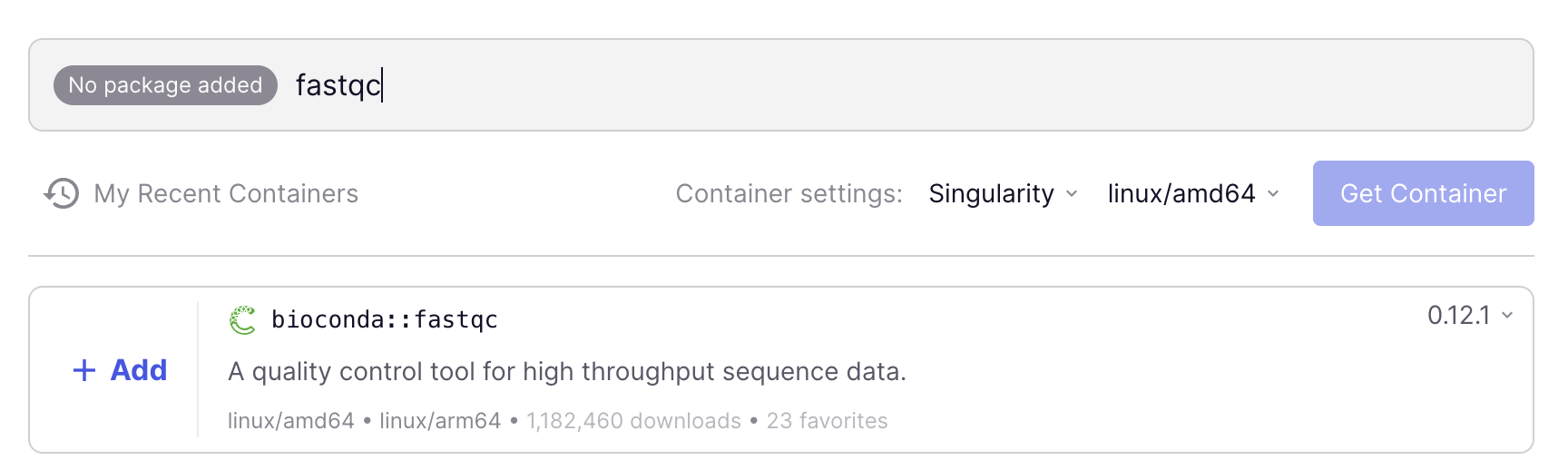
A screenshot of the Seqera containers website, showing the search result for FastQC.
Add FastQC to your container request by clicking the blue
+ Addbutton. You could now add more programs, but for this example, we are happy with a container that only has FastQC.In “Container settings” below the search box, change from
DockertoSingularity, Apptainer’s former name (and leave the other dropdown as is —linux/amd64should be selected).
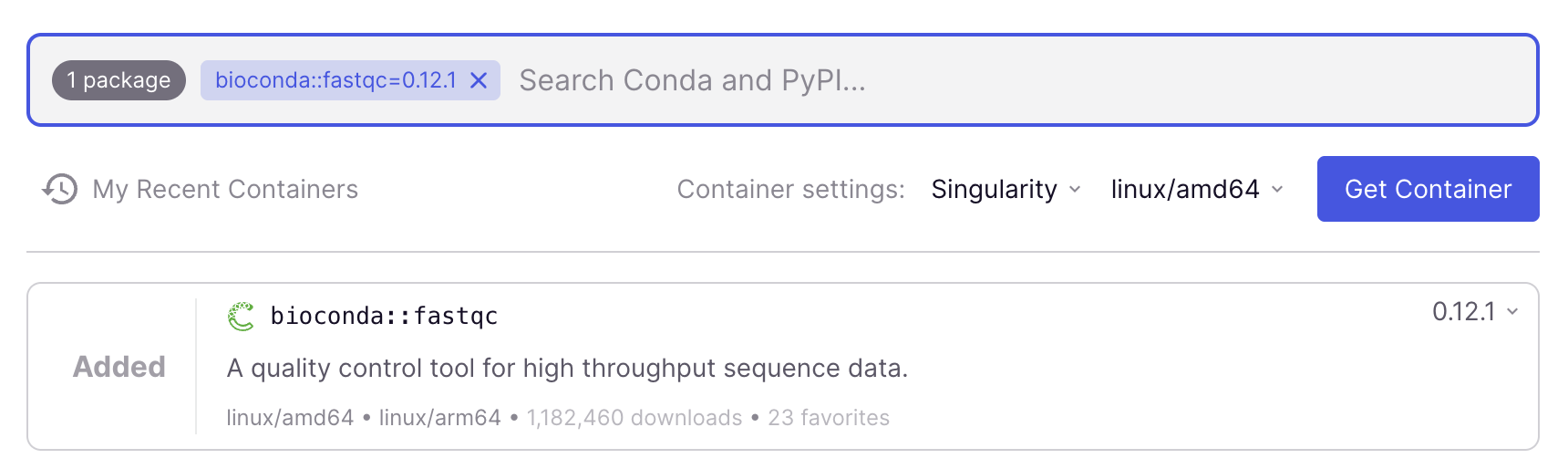
When a program is added to the container request, it appears in the search box as shown in this screenshot.
Get a link to the container image by clicking the blue
Get Containerbutton.Copy the link to the container image that should appear immediately — this type of link is called a URI (Uniform Resource Identifier). The link should be:
oras://community.wave.seqera.io/library/fastqc:0.12.1--104d26ddd9519960. We’ll use this link below to run the container.
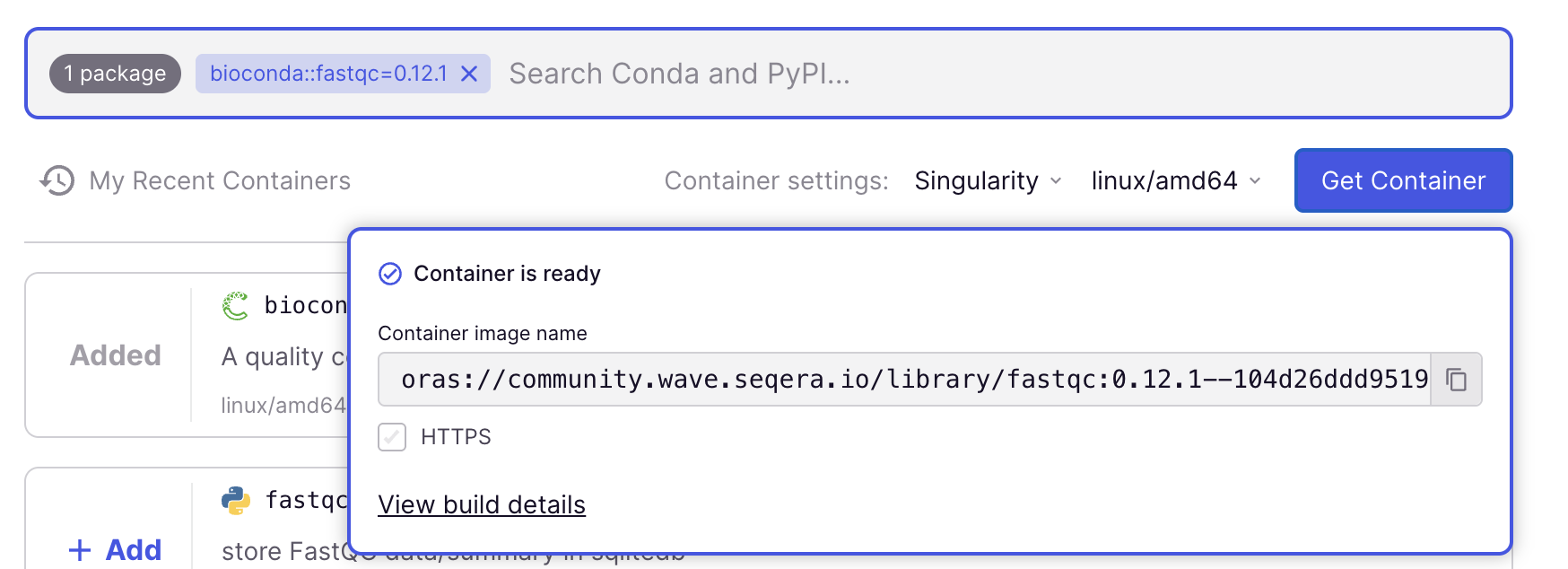
After clicking “Get Container”, the link to the container image appears in the popup window.
A few more tips on selecting programs for your container on Seqera Containers:
- To select a different version of a program, you can use the dropdown menu next to the search box:
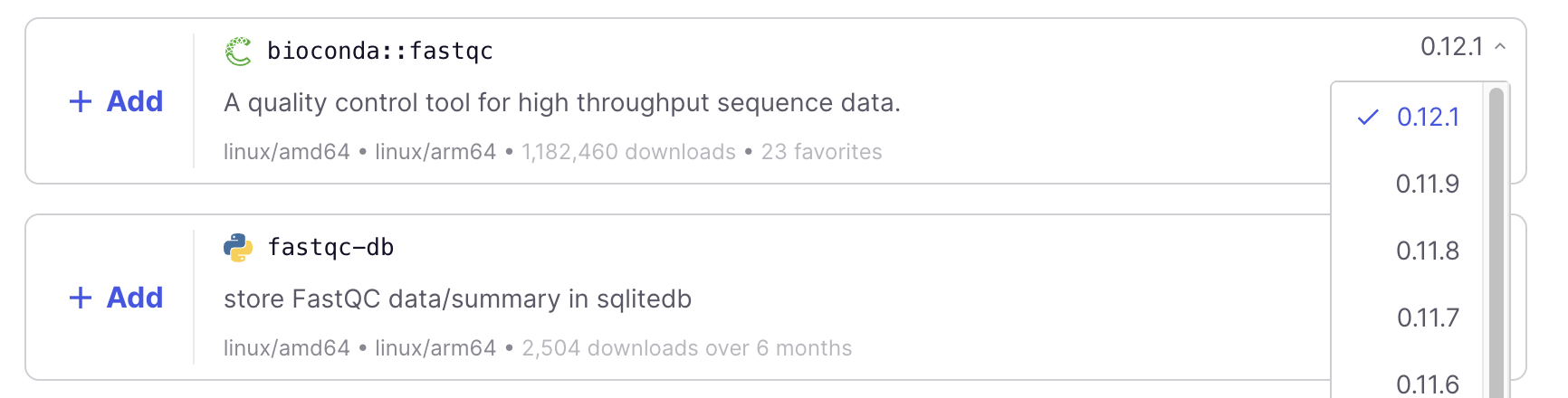
- You should generally pick Conda-based search hits, since that is how nearly all bioinformatics programs are distributed. You can recognize them in two ways:
- The program name will be prefixed by
bioconda::(most commonly) orconda-forge::. - The Conda logo, the green open circle (snake) shown in the screenshot above.
- The program name will be prefixed by
In this case, after we clicked Get Container, the pop-up box should have immediately said “Container is ready”. That means the container image was already available in the repository.
In other cases, however, the container may still need to be built, and the box should say “Fetching container” for a while. This could take one or a few minutes, and even though the URI is made available immediately and won’t change, you can only download/use the container once the box says “Container is ready”.
If you use a URI before the container is ready, you get this type of error:
apptainer exec oras://community.wave.seqera.io/library/multiqc_trim-galore:15a1e9f26daf266f \
multiqc -vFATAL: Unable to handle oras://community.wave.seqera.io/library/multiqc_trim-galore:15a1e9f26daf266f uri: failed to get checksum for oras://community.wave.seqera.io/library/multiqc_trim-galore:15a1e9f26daf266f: GET https://community.wave.seqera.io/v2/library/multiqc_trim-galore/manifests/15a1e9f26daf266f: MANIFEST_UNKNOWN: manifest unknown; map[Tag:15a1e9f26daf266f]5.2 Running a container image
To run a command in a container, the general syntax is:
apptainer exec <container-URI> <command>For example, if the command (<command> above) you want to run is fastqc -v:
apptainer exec <container-URI> fastqc -vPut another way, you need to preface your “regular” command to run a program with apptainer exec <container-URI>. All in all, here is the full command to run fastqc -v with the FastQC container URI we obtained above:
apptainer exec oras://community.wave.seqera.io/library/fastqc:0.12.1--104d26ddd9519960 \
fastqc -vINFO: Downloading oras image
384.0MiB / 384.0MiB [======================================================================================================================] 100 % 51.8 MiB/s 0s
INFO: gocryptfs not found, will not be able to use gocryptfs
FastQC v0.12.1The first time you run this command, the container image will be downloaded to a default location (see box below), as you can see in the output above — this will take a minute or so.
Above, I broke the command up across two lines, which can be done by ending the first line with a
\. With a\, the shell understands that the command is still incomplete despite the newline. Using this technique to break up your commands across multiple lines helps with readability for long commands like this one. (Just make sure that the\is the very last character on the line: even a space after it will break the command.)Also, this long command prefix to use containers may seem like a big pain. Keep in mind, though, that you’ll rarely type such commands directly in the terminal. Instead, you’ll put them in a script that you can reuse (you’ll learn to write scripts next week), so you only type the prefix once.
5.3 The container image cache (storage)
The easiest way to run a container image you already downloaded is to simply reuse the exact same command with the URI to the container (!). Apptainer will realize that the image has already been downloaded, and will automatically use the downloaded version. Let’s try it:
apptainer exec oras://community.wave.seqera.io/library/fastqc:0.12.1--104d26ddd9519960 \
fastqc -vINFO: Using cached SIF image
INFO: gocryptfs not found, will not be able to use gocryptfs
FastQC v0.12.1- The
Using cached SIF imageline tells you that a previously downloaded SIF file is being used — “cache” means that the file is stored locally for reuse. - You will keep seeing the
gocryptfs not foundmessage, but this is nothing to worry about.
By default, containers are downloaded to a hidden directory in your Home dir, ~/.apptainer/cache. That is generally fine, though if you download hundreds of containers, your Home dir can get quite full.
To change the cache location for your current shell session, set the
$APPTAINER_CACHEDIRenvironment variable usingexport, e.g.:export APPTAINER_CACHEDIR=/fs/scratch/PAS3493/$USER/containersTo permanently change this location, you would need to add this line to your
~/.bashrcshell configuration file. (We won’t cover this file in class, but it is explained in this optional self-study page.)You can check what’s in your cache as follows — though this is only informative in terms of how many containers there are and how much space they take up, because the container names are very cryptic:
apptainer cache list -vNAME DATE CREATED SIZE TYPE sha256:e0c976cb2eca5fe 2026-09-30 10:02:18 383.99 MiB oras There are 1 container file(s) using 383.99 MiB and 0 oci blob file(s) using 0.00 KiB of space Total space used: 383.99 MiBTo clear your cache, i.e. remove all cached containers (e.g., to free up space in your Home dir), run:
apptainer cache cleanThis is harmless in the sense that any container you run again will simply be re-downloaded.
You can also run a container by referring to the downloaded image file (i.e.,
apptainer exec <path-to-sif-file> <command>) rather than the URI. But there is little benefit to doing so, since Apptainer already uses the cached image when you give it the URI. And it reduces portability: a URI works for anyone on any computer, whereas a path to a local file will only work for you on this computer.
5.4 Using a container instead of a module
In the example above, we ran FastQC on a FASTQ file using its OSC module. To run the same analysis with the container instead, you would simply preface the exact same fastqc command with apptainer exec <container-URI>.
For example, let’s try running the container-based equivalent of our final FastQC command above:
# (This will overwrite the previous FastQC results, which is fine)
apptainer exec oras://community.wave.seqera.io/library/fastqc:0.12.1--104d26ddd9519960 \
fastqc --outdir results/fastqc ../garrigos/fastq/S63_R1.fastq.gzStarted analysis of S63_R1.fastq.gz
Approx 5% complete for S63_R1.fastq.gz
Approx 10% complete for S63_R1.fastq.gz
Approx 15% complete for S63_R1.fastq.gz
[...truncated...]
Analysis complete for S63_R1.fastq.gz5.5 What happens when you run apptainer exec?
Recall that a container is like a small, separate computer system. When you run apptainer exec <container-URI> <command>, the command is executed inside the container:
Therefore, it can only use software installed in the container — which modules you have loaded doesn’t matter.
However, you can access files that are outside of the container: at OSC, your Home dir and the
/fs/essand/fs/scratchdirs are automatically made available inside containers. That’s why FastQC could read the FASTQ file and write toresults/fastqcabove.
As mentioned above, nearly all bioinformatics programs are available through Seqera Containers.
If you do run into a program that isn’t, first consider whether you really need to use it. As a rule of thumb, if a program isn’t available, it is likely to either not be open-source software or be poorly maintained (exceptions do exist). Therefore, unless you have a good reason to use a program you can’t find, you should first consider finding an alternative that is available.
If you’re sure you need a program that isn’t available as a module or container, you have two options:
Contact OSC Help
They may be able to help you install the program yourself, or, for commonly used software, may be willing to do a system-wide installation (i.e., make it available as a module). See the previous lecture for how to contact them.Install the software “manually”
In the best case, you can download a directly functioning executable, but more commonly you need to “compile” (build) the program. This can get very tricky at OSC, because you don’t have administrator privileges and will often run into issues with dependencies (other software that the program depends on).
Can you think of any reasons why containers improve reproducibility and portability compared to modules?
Portability: Modules are OSC-specific, so a command like
module load fastqc/0.12.1won’t work on another computer. A container, on the other hand, can be run on any computer with a container platform like Apptainer or Docker.Reproducibility: OSC periodically retires older modules as it updates its software, so a module you use today may no longer exist in a few years. A container image, on the other hand, doesn’t change: the link you used will always give you the exact same program version(s). You can also save the container image file (
.sif) to keep it yourself.
6 In closing
In research with full-size datasets, you typically don’t want to run bioinformatics programs like FastQC “interactively” like we just did, i.e. by executing the command directly in the terminal.
Instead, it is better to write small shell scripts to run such programs, and then submit those scripts as so-called “batch jobs” at OSC. In the coming weeks, you will learn the why and how:
- Next week: writing shell scripts.
- Week 10: running shell scripts as batch jobs.
References
Footnotes
This takes into account which other software has been loaded, which can make a difference: for example, some modules can only be loaded after a specific compiler is loaded.↩︎
But not all: for example, you’ve seen that
grep -vdoes something very different.↩︎By portable, we mean that something that works on one computer will also work on another computer.↩︎
Salmon is a tool for quantifying transcript abundance from RNA-seq data.↩︎
Thanks to the HTML Preview extension we installed earlier. If this fails, you can download the file using the “Download…” option, which should also appear on a right-click, and open it on your local machine.↩︎