Advanced shell scripting
Optional self-study content for week 7

1 Introduction
This page covers additional shell scripting topics that build on the w7a and w7b lectures: command substitution, extracting parts of file paths, renaming files with loops, conditionals, while loops, and more. If you’re short on time, prioritize the first two sections (command substitution and extracting parts of file paths), which will be useful for one of the upcoming graded assignments.
1.1 Setting up
- At https://ondemand.osc.edu, start a VS Code session in
/fs/ess/PAS3493/people/$USER. - In the terminal, navigate to your
week07dir.
Some of the examples and exercises use the scripts/printname.sh and scripts/fastqc.sh scripts that you wrote in w7a.
2 Command substitution
Command substitution allows you to use the output of a command inside another command — most commonly, to store it in a variable. This is especially useful in scripts and loops. Let’s see an example. As you know, the date command will print the current date and time:
dateMon Oct 5 14:52:22 EDT 2026If you try to store the output of date like below, it doesn’t work — instead, the literal string “date” is stored:
today=date
echo "$today"dateTo run a command and store its output, you need command substitution, where the command is wrapped inside $():
today=$(date)
echo "$today"Mon Oct 5 14:54:11 EDT 2026A practical example of using command substitution is to automatically include the current date in a file name. “Automatically” means that the same command will work regardless of the date — for example, inside a script that you may run at any time.
Let’s first learn how to get the current date in a format that is suitable for file names. You can give date a format string that starts with a +, and date +%F will print the date in YYYY-MM-DD format and without the time:
date +%F2026-10-05Let’s use that in a command substitution:
# Store the current date in a variable: today=$(date +%F) # Use that variable in a file name: touch README_"$today".mdCheck if it worked:
ls README_*README_2026-10-05.md
It is even possible to do this all in one go, by using the command substitution $(date +%F) directly in your touch command, rather than first assigning it to a variable:
touch README_"$(date +%F)".mdYou may also come across an older syntax for command substitution that uses backticks, as in today=`date`. It does the same thing, but $() is easier to read, so we’ll stick to that.
Exercise 1: Command substitution
Say that you want to count and report the number of FASTQ files in a directory in a generalized, programmatic way — like inside a script.
Count and report the number of FASTQ files in
../garrigos/fastq/:- Write a command that will count the number of FASTQ files in
../garrigos/fastq/. - Use command substitution to store the result in a variable.
- Use
echoto print the following using the variable you created:
The input dir has 44 files, now processing...Click for some hints
You can count the number of FASTQ files by piping the output of
lstowc -l.Your final
echocommand should look something like this:echo "The input dir has $n_files files, now processing..."So, try to store the file count produced by the command in the variable
$n_files.
Click for the solution
n_files=$(ls ../garrigos/fastq/*fastq.gz | wc -l) echo "The input dir has $n_files files, now processing..."The input dir has 44 files, now processing...Note: The variable is already inside a double-quoted string, so you don’t need to quote it separately. In fact,
echo "The input dir has "$n_files" files"would end the quoted string right before the variable and start a new one after it, leaving the variable itself unquoted.- Write a command that will count the number of FASTQ files in
Adapt your commands to report the number of samples rather than files:
The input dir has 22 samples, now processing...Click for the solution
To count samples, only count the R1 files:
n_samples=$(ls ../garrigos/fastq/*_R1.fastq.gz | wc -l) echo "The input dir has $n_samples samples, now processing..."The input dir has 22 samples, now processing...
$(( ))
A construct that looks similar to command substitution is $(( )), which does arithmetic rather than running a command. For example, an alternative way to count the number of samples in Exercise 1 is to divide the number of FASTQ files by 2:
n_files=$(ls ../garrigos/fastq/*fastq.gz | wc -l)
n_samples=$(( n_files / 2 ))
echo "$n_samples"22Inside $(( )), you can refer to variables without the $, and you can use +, -, *, and /. Note that Bash can only do integer arithmetic: any decimal part is simply discarded, so $(( 45 / 2 )) gives 22.
3 Commands to extract parts of paths
In loops and other contexts where you are working with file names programmatically, it is common to have a file path from which you want to extract just the “file name part” and/or the “directory part”:
| Path | Directory part | File name part |
|---|---|---|
data/fastq/sample1_R1.fastq |
data/fastq |
sample1_R1.fastq |
../garrigos/fastq/S63_R1.fastq.gz |
../garrigos/fastq |
S63_R1.fastq.gz |
Extracting these parts can be done with the dirname and basename commands. Running dirname on a path will return the directory part of that path:
dirname ../garrigos/fastq/S63_R1.fastq.gz../garrigos/fastqSimilarly, basename will strip any directories and just return the file name:
basename ../garrigos/fastq/S63_R1.fastq.gzS63_R1.fastq.gzYou can optionally provide a suffix to strip from the file name, simply as a second argument to basename. For example, to strip the .fastq.gz suffix:
basename ../garrigos/fastq/S63_R1.fastq.gz .fastq.gzS63_R1In practice, basename is often used in scripts to define output file paths that have the same file names as the input files, but are in a different dir. You’ll need this with programs that make you specify output file names rather than just an output dir.
For example, the fictional program trimmer2 requires the arguments --out1 and --out2 to specify the output file names. Create this script as scripts/trimmer2.sh:
scripts/trimmer2.sh
#!/bin/bash
set -euo pipefail
# Copy the placeholder variables
R1_in="$1"
R2_in="$2"
outdir="$3"
# Define the output file names: we want the input and output file names
# to be the same - they should just be in different dirs:
R1_out="$outdir"/$(basename "$R1_in")
R2_out="$outdir"/$(basename "$R2_in")
# Mock-run a fictional program that takes output file paths as arguments:
echo trimmer2 --in1 "$R1_in" --in2 "$R2_in" --out1 "$R1_out" --out2 "$R2_out"Because the script “runs” trimmer2 with echo, running it will simply print the command with the output file paths filled in. Note that these have the same file names as the input files, but are in the output dir specified by the third argument:
bash scripts/trimmer2.sh ../garrigos/fastq/S63_R*.fastq.gz results/trimtrimmer2 --in1 ../garrigos/fastq/S63_R1.fastq.gz --in2 ../garrigos/fastq/S63_R2.fastq.gz --out1 results/trim/S63_R1.fastq.gz --out2 results/trim/S63_R2.fastq.gzrealpath (Click to expand)
A related command is realpath, which turns a relative path into an absolute (full) path:
realpath ../garrigos/fastq/S63_R1.fastq.gz/fs/ess/PAS3493/people/jane/garrigos/fastq/S63_R1.fastq.gzThis can be useful when you want to record exactly which files were used — for example, by printing the full input file paths in a script’s log output, which will then be unambiguous regardless of where the script was run from.
Exercise 2: basename and dirname
Predict the output of each of the following commands, and then run them to check your predictions:
basename ../garrigos/fastq/S63_R1.fastq.gz .fastqdirname S63_R1.fastq.gzbasename ../garrigos/fastq/Click for the solution
basenameremoves the suffix only if the file name ends in it..fastqoccurs in the file name, but not at its end, so nothing is removed — and you don’t get an error or warning either:S63_R1.fastq.gzA file name without any dirs refers to a file in your working dir, so
dirnamereturns., the shorthand for the working dir:.basenamedoesn’t check whether a path points to a file or a dir: it simply returns the last part of the path (ignoring a trailing/):fastq
4 Renaming files with loops
Sometimes, you need to rename many files in a systematic/repetitive way. This is relatively common with omics data files, as you will often have separate files for each sample, and you may have many dozens of samples.
Manually renaming these one-by-one is tedious, error-prone, and not reproducible. There are many different ways to rename many files in a programmatic way in the shell — though admittedly, none as easy as one might have hoped. Here, we’ll use the basename command and a for loop.
4.1 Create a set of dummy files to work with
Start with creating some dummy files that represent alignments (the results of aligning reads in FASTQ files to a reference genome, stored in .sam or .bam files)1:
# Create the sandbox dir (if it doesn't already exist)
mkdir -p sandbox
# Use brace expansion to create 50 dummy SAM files:
touch sandbox/sample{01..50}.samCheck the names of the files you created and how many there are:
ls sandbox/*.samsandbox/sample01.sam
sandbox/sample02.sam
sandbox/sample03.sam
sandbox/sample04.sam
# [...output truncated...]ls sandbox/*.sam | wc -l50Now, say that you noticed these files somehow ended up with the wrong file extension: they are saved as .sam (SAM files) but are really .bam (BAM files). You’ll have to rename them before moving on to the next step in your analysis.
4.2 Rename a single file using variables
When renaming files in a loop, you will typically use variables to store the original and new file paths. Let’s practice that first with a single file, before we put it in a loop.
Your old file path is:
old_path=sandbox/sample01.samYou extract the file ID from the old path using
basenameand store it in a variable:# Save the filename without the extension using command substitution: file_id=$(basename "$old_path" .sam) # Check that it worked: echo "$file_id"sample01Now, you can save the new file path in a variable, using that file ID:
new_path=sandbox/"$file_id".bam # Check that it worked: echo "$new_path"sandbox/sample01.bamAnd using these variables, the
mvcommand to do the renaming would be:# (We'll do this in a loop later, so for now, don't actually run it) mv -v "$old_path" "$new_path"
We used a two-step approach above for clarity, but you can also do it in one step with
basename:new_path=sandbox/$(basename "$old_path" .sam).bamAlternatively, you could go a different route and use parameter expansion:
new_path=${old_path/.sam/.bam}
4.3 Loop over all files
Now, we’ll loop over all files and add the renaming code inside the loop. Before actually renaming, let’s do a “dry run” by putting echo in front of mv, which prints the commands instead of executing them. Because the commands contain variables, this is a good way to check that they look as intended:
for old_path in sandbox/*.sam; do
# Build the new file path:
file_id=$(basename "$old_path" .sam)
new_path=sandbox/"$file_id".bam
# Rename the file:
echo mv -v "$old_path" "$new_path"
donemv -v sandbox/sample01.sam sandbox/sample01.bam
mv -v sandbox/sample02.sam sandbox/sample02.bam
mv -v sandbox/sample03.sam sandbox/sample03.bam
mv -v sandbox/sample04.sam sandbox/sample04.bam
# [...output truncated...]Finally, actually perform the renaming by removing echo:
for old_path in sandbox/*.sam; do
# Build the new file path:
file_id=$(basename "$old_path" .sam)
new_path=sandbox/"$file_id".bam
# Rename the file:
mv -v "$old_path" "$new_path"
donerenamed 'sandbox/sample01.sam' -> 'sandbox/sample01.bam'
renamed 'sandbox/sample02.sam' -> 'sandbox/sample02.bam'
renamed 'sandbox/sample03.sam' -> 'sandbox/sample03.bam'
renamed 'sandbox/sample04.sam' -> 'sandbox/sample04.bam'
# [...output truncated...]mv will silently overwrite an existing file with the same name as the new path. This is another reason to always check your renaming commands with echo first, especially when the new names are shorter or less unique than the old ones. You can also use mv -n (“no-clobber”), which will never overwrite an existing file.
Exercise 3: Renaming files
What would happen if you ran the final renaming loop above a second time? Predict the output, and then run the loop again to check. Hint: recall the third loop in w7b Exercise 1.
Click for the solution
There are no
.samfiles left, so the glob doesn’t match anything. Therefore, the loop runs once, with$old_pathcontaining the literal stringsandbox/*.sam.mvthen fails because no file with that name exists, so no harm is done:mv: cannot stat 'sandbox/*.sam': No such file or directoryA labmate builds the new file path with parameter expansion instead:
new_path="${old_path/sam/bam}". What would the new path be forsandbox/sample01.sam? Check your prediction withecho, and then fix the parameter expansion.Click for the solution
The first match of
samis insample, not in the extension!old_path=sandbox/sample01.sam echo "${old_path/sam/bam}"sandbox/bample01.samIncluding the period in the search pattern fixes this:
new_path="${old_path/.sam/.bam}".
5 Conditionals
With conditionals like if statements, you can run one or more commands only when a condition is met. You can additionally run a different set of commands when the condition is not met.
5.1 A first if statement
Let’s start with a simple example that you can run in the terminal. First, assign a value to a variable fruit:
fruit=appleNext, use an if statement to print a message only if $fruit is “apple”:
if [[ "$fruit" == "apple" ]]; then
echo "It's an apple!"
fiIt's an apple!Now, assign a different value to fruit, and run the same if statement again:
fruit=banana
if [[ "$fruit" == "apple" ]]; then
echo "It's an apple!"
fiThis time, nothing is printed, because the condition was not met, so the echo line was skipped. Here’s how that works:
- After
ifcomes the condition, where the double square brackets[[ ]]represent a test2, and==tests whether the text on either side is identical. - After
then, you put one or more lines with commands that should run only if the condition is true. - The
ifstatement ends withfi3.
==
The spaces bordering the brackets on the inside are necessary:
[["$fruit" == "apple"]]would fail!The same goes for the spaces around
==, and leaving those out is even more treacherous:[[ "$fruit"=="apple" ]]will not give an error, but will always be true, regardless of the value of$fruit.A double
==is common in programming to test for equality, as opposed to a single=, which is used for variable assignment.
5.2 Adding an else clause
To run alternative command(s) when the condition is not met, add an else clause:
fruit=banana
if [[ "$fruit" == "apple" ]]; then
echo "It's an apple!"
else
echo "It's not an apple, it's a $fruit."
fiIt's not an apple, it's a banana.So, exactly one of the two echo lines is always run. In general, the syntax of an if statement is:
if <test>; then
# Command(s) to run if the condition is true
else
# Command(s) to run if the condition is false (optional)
fi5.3 Conditionals in shell scripts
if statements are especially useful in shell scripts. You may, for instance, want to check that all inputs are correct, and exit with an informative error if that’s not the case. While doing this adds complexity to your shell script, it can be worth it because:
- The sooner you stop a script from running when there are such problems, the better.
- If you pass erroneous input to the program that your script runs, you may get confusing errors or, even worse, failure without any clear error message at all.
In the example below, an if statement checks whether the input file has a FASTQ file extension, and exits the script if it doesn’t:
if [[ "$fastq" == *.fastq.gz ]]; then
echo "Processing FASTQ file $fastq..."
# [Commands to process the FASTQ file...]
else
echo "Error: input file $fastq does not have a .fastq.gz extension!"
exit 1
fiNote that *.fastq.gz is not quoted. When the right-hand side of == is unquoted, it is treated as a pattern with the same wildcards as globbing, so the test is true for any value of $fastq that ends in .fastq.gz. (With quotes, the test would only be true for a file literally named *.fastq.gz!)
When used inside a script, the exit command will stop the execution of the script. With exit 1, the exit status of our script is 1: an exit status of 0 means success — any other integer, including 1, means failure. (Don’t run exit directly in your terminal, though: that will exit your shell and close the terminal!)
5.4 String comparisons
The above test, "$fastq" == *.fastq.gz, was an example of a string comparison, where “string” is the programming term for text (as opposed to numbers). The two main string comparisons you can make are:
| String comparison | Evaluates to true (condition is met) if |
|---|---|
str1 == str2 |
Strings str1 and str2 are identical4 |
str1 != str2 |
Strings str1 and str2 are different |
5.5 Integer (number) comparisons
| Integer comparisons | Evaluates to true if |
|---|---|
int1 -eq int2 |
Integers int1 and int2 are equal |
int1 -ne int2 |
Integers int1 and int2 are not equal |
int1 -lt int2 |
Integer int1 is less than int2 (-le for less than or equal to) |
int1 -gt int2 |
Integer int1 is greater than int2 (-ge for greater than or equal to) |
Why these odd-looking operators instead of < (smaller than) and > (greater than)? Inside [[ ]], < and > compare strings alphabetically, so for example, [[ 10 < 9 ]] is true, because “1” comes before “9”!
Bash can only compare integers: [[ 2.5 -gt 2 ]] will produce an error.
It can be a good idea to test at the beginning of a script whether the correct number of arguments were passed to it, and simply exit if that’s not the case. This can be done easily thanks to the $# variable, which, as you saw in w7a, contains the number of arguments that were passed to a script:
if [[ "$#" -ne 2 ]]; then
echo "Error: wrong number of arguments"
echo "You provided $# arguments, while 2 are required."
echo "Usage: printname.sh <first-name> <last-name>"
exit 1
fiSay you want to run a program but the specifics of running it (e.g., some settings) depend on how many samples you run the program with.
With the number of samples determined from the number of lines in a hypothetical file samples.txt and stored in a variable $n_samples, you can test if the number is greater than 9 as follows:
# Store the number of samples in variable $n_samples:
n_samples=$(cat samples.txt | wc -l)
# With '-gt 9', the if statement tests whether the number of samples is greater than 9:
if [[ "$n_samples" -gt 9 ]]; then
# Commands to run if nr of samples >9:
echo "Processing files with algorithm A"
else
# Commands to run if nr of samples is <=9:
echo "Processing files with algorithm B"
fi5.6 File tests
Finally, you can test whether files or dirs exist (and more):
| File/dir test | Evaluates to true if |
|---|---|
-f file |
file exists and is a regular file (not a dir) |
-d dir |
dir exists and is a directory |
-s file |
file exists and is not empty |
For example, the code below tests whether an input file exists using the file test -f and if it does not (hence the !), it will stop the execution of the script:
# '-f' is true if the file exists, so '! -f' is true if the file doesn't exist
if [[ ! -f "$fastq_file" ]]; then
echo "Error: Input file $fastq_file not found!"
exit 1
fi&& and || (Click to expand)
To test for multiple conditions at once, use the && (“and”) and || (“or”) shell operators — for example:
If the number of samples is less than 100 and at least 50 (i.e. 50-99):
if [[ "$n_samples" -lt 100 && "$n_samples" -ge 50 ]]; then # Commands to run if the number of samples is 50-99 fiIf either one of two FASTQ files doesn’t exist:
if [[ ! -f "$fastq_R1" || ! -f "$fastq_R2" ]]; then # Commands to run if either file doesn't exist - probably report error & exit fi
Exercise 4: Number of arguments
You will add the if statement from above, which tests whether the correct number of arguments were passed, to your printname.sh script.
Click to see the printname.sh script from w7a
scripts/printname.sh
#!/bin/bash
set -euo pipefail
first_name="$1"
last_name="$2"
echo "This script will print a first and a last name"
echo "First name: $first_name"
echo "Last name: $last_name"First, think about where in the script the
ifstatement should go. What would happen when you run the script with only 1 argument if you placed theifstatement after the lines that copy$1and$2?Click for the solution
The
ifstatement should come before you copy the variables tofirst_nameandlast_name, otherwise you get the “unbound variable error” before your descriptive custom error, when you pass 0 or 1 arguments to the script.Add the
ifstatement to your script, and run the script consecutively with 1, 2, and 3 arguments. Recall what happened in the w7a exercise when you ran this script with the wrong number of arguments. For which of these runs does theifstatement make the biggest difference?Click for the solution
The final script:
scripts/printname.sh
#!/bin/bash set -euo pipefail if [[ "$#" -ne 2 ]]; then echo "Error: wrong number of arguments" echo "You provided $# arguments, while 2 are required." echo "Usage: printname.sh <first-name> <last-name>" exit 1 fi first_name="$1" last_name="$2" echo "This script will print a first and a last name" echo "First name: $first_name" echo "Last name: $last_name"Run it with different numbers of arguments:
bash scripts/printname.sh JelmerError: wrong number of arguments You provided 1 arguments, while 2 are required. Usage: printname.sh <first-name> <last-name>bash scripts/printname.sh Jelmer PoelstraThis script will print a first and a last name First name: Jelmer Last name: Poelstrabash scripts/printname.sh Jelmer Wijtze PoelstraError: wrong number of arguments You provided 3 arguments, while 2 are required. Usage: printname.sh <first-name> <last-name>So, the check helps most when there are too many arguments. Without it, the script would silently print the wrong last name (
Wijtze), whereas with too few arguments,set -uwould already have stopped the script, albeit with a less informative$2: unbound variableerror.
Exercise 5: Check the input file
In w7b, you saw that if a glob doesn’t match any files, a loop will still run once, with the literal glob pattern as the “file name”. If such a loop calls one of your scripts, the script receives a “file” that doesn’t exist, such as ../garrigos/fastq/*_R3.fastq.gz. Input files can also simply be misspelled or have the wrong path.
Rather than letting the program inside your script fail with a confusing error, or fail silently, it’s better for the script itself to check that its input exists.
Here, you will add an if statement to your scripts/fastqc.sh script that checks whether the input FASTQ file exists.
First, think about where in the script this check should go.
Click for the solution
The check should go right after copying the placeholder variables, and before the remaining code: the sooner you stop a script when there’s a problem, the better — here, for example, there’s no point in creating the output dir for a run that will fail.
Add the
ifstatement to your script. If the input file doesn’t exist, it should print an informative error message and exit with exit status 1.Click for the solution
scripts/fastqc.sh (excerpt)
# Copy the placeholder variables fastq="$1" outdir="$2" # Check that the input file exists if [[ ! -f "$fastq" ]]; then echo "Error: Input file $fastq not found!" exit 1 fiTest your script by passing an input file name with a typo, like
../garrigos/fastq/S63_R1.fastq.g.Click for the solution
bash scripts/fastqc.sh ../garrigos/fastq/S63_R1.fastq.g results/fastqcError: Input file ../garrigos/fastq/S63_R1.fastq.g not found!Would your check also catch the following problems? Predict, and then test it:
- The input is a dir instead of a file:
bash scripts/fastqc.sh ../garrigos/fastq results/fastqc - The input file is empty:
touch empty.fastq.gzand thenbash scripts/fastqc.sh empty.fastq.gz results/fastqc
How could you modify your script to also catch (b)?
Click for the solution
- Yes:
-fis only true for regular files, not for dirs. - No:
empty.fastq.gzexists and is a regular file, so FastQC would be run and fail with a confusing error.
To also catch (b), add a second check with the
-stest, which is only true for files that are not empty. Using a separateifstatement makes for a more informative error message:scripts/fastqc.sh (excerpt)
# Check that the input file exists and is not empty if [[ ! -f "$fastq" ]]; then echo "Error: Input file $fastq not found!" exit 1 fi if [[ ! -s "$fastq" ]]; then echo "Error: Input file $fastq is empty!" exit 1 fi(Replacing
-fwith-swouldn’t work well: a dir is not “empty” in this sense, so-swould no longer catch (a).)- The input is a dir instead of a file:
6 While loops
6.1 When are while loops useful?
A for loop iterates over a collection that you specify directly in the loop, such as a list of words or a glob pattern like *fastq.gz. A while loop instead runs as long as a condition is true.
In Bash, while loops are mostly used in combination with the read command, to loop over each line in a file. This is useful when:
- The items you want to loop over are stored in a file, such as a list of sample IDs, file paths, or accession numbers for files to download.
- Each line contains multiple pieces of information that belong together, like the rows of a metadata table with a sample ID, treatment, and time point.
- The items contain spaces:
readreads entire lines, whereas aforloop over$(cat file)would split items at spaces.
6.2 A first while loop
To see how a while loop works, let’s create a file with one fruit per line:
touch fruits.txtOpen that file in the editor, enter the following lines, and make sure to press Enter after the last line (see the box below for why):
fruits.txt
apple
banana
plumNow, loop over the lines in that file, and print each fruit:
while read -r fruit; do
echo "Fruit: $fruit"
done < fruits.txtFruit: apple
Fruit: banana
Fruit: plumSo, the output is the same as that of the for loop for fruit in apple banana plum in w7b, but now, the collection of items comes from a file.
Here’s how that works:
- The
< fruits.txtafterdoneuses input redirection: just like>sends a command’s output to a file,<feeds a file’s contents into a command — here, the whole loop5. - The condition after
whileisread -r fruit6. Each time it is run,readreads one line from the input, and assigns it to the variablefruit. - The lines between
doanddoneare run for that line, using$fruit— just like in aforloop. - Then,
readis run again and reads the next line, and so on. Once there are no lines left,read“fails”, the condition is no longer true, and the loop stops.
read only “succeeds” when it reaches the end of a line, which is marked by an invisible newline character. If the last line of a file isn’t followed by a newline, read fails on that line, and the loop silently skips it!
VS Code doesn’t add a final newline by default — so if plum was missing from your output, that’s why. You can make VS Code always add one by checking the setting “Files: Insert Final Newline”.
6.3 Looping over file names
Next, let’s loop over a list of FASTQ files. First, create a file with the paths to the two FASTQ files for one sample:
ls ../garrigos/fastq/S63_R*.fastq.gz > fastq_files.txtcat fastq_files.txt../garrigos/fastq/S63_R1.fastq.gz
../garrigos/fastq/S63_R2.fastq.gzwhile read -r fastq_file; do
echo "Processing file: $fastq_file"
# More processing...
done < fastq_files.txtProcessing file: ../garrigos/fastq/S63_R1.fastq.gz
Processing file: ../garrigos/fastq/S63_R2.fastq.gz6.4 Lines with multiple columns
We can also process each line of the file inside the while loop, like when we need to select a specific column. For this, we’ll use the Garrigós metadata file, which has one line per sample. First, create a copy of it without its header line (tail -n +2 prints all lines starting from line 2):
tail -n +2 ../garrigos/meta/metadata.tsv > samples.tsv
head -n 3 samples.tsvS82 10dpi cathemerium
S75 10dpi cathemerium
S79 10dpi cathemeriumNow, loop over the lines in this file, and extract the first column (the sample ID) with cut:
while read -r my_line; do
echo "Have read line: $my_line"
sample_id=$(echo "$my_line" | cut -f 1)
echo "Processing sample: $sample_id"
# More processing...
done < samples.tsvHave read line: S82 10dpi cathemerium
Processing sample: S82
Have read line: S75 10dpi cathemerium
Processing sample: S75
# [...output truncated...]Alternatively, you can process the file with another command before it goes into the loop. Below, cut extracts the first column, and the <(...) construct (called “process substitution”) makes the output of that command available as if it were a file, so it can be redirected into the loop with <:
while read -r sample_id; do
echo "Processing sample: $sample_id"
# More processing...
done < <(cut -f 1 samples.tsv)Processing sample: S82
Processing sample: S75
Processing sample: S79
Processing sample: S83
# [...output truncated...](Note the space between the two <s, which is required: the first one is the redirection, and the second one is part of <(...).)
You can also extract columns directly by providing read with multiple variable names, as read will split each line at spaces and tabs:
while read -r sample_id time treatment; do
echo "Processing sample: $sample_id (treatment: $treatment)"
# More processing...
done < samples.tsvProcessing sample: S82 (treatment: cathemerium)
Processing sample: S75 (treatment: cathemerium)
# [...output truncated...]Finally, we didn’t actually need to create the samples.tsv file at all: we can also remove the header line on the fly with process substitution, and read directly from the original metadata file:
while read -r sample_id time treatment; do
echo "Processing sample: $sample_id (treatment: $treatment)"
# More processing...
done < <(tail -n +2 ../garrigos/meta/metadata.tsv)Processing sample: S82 (treatment: cathemerium)
Processing sample: S75 (treatment: cathemerium)
# [...output truncated...]Exercise 6: While loops
Below,
readgets only two variable names for the three columns insamples.tsv. What do you think the loop will print for the first sample? Predict, then run it to check.while read -r sample_id treatment; do echo "Sample: $sample_id / Treatment: $treatment" done < samples.tsvClick for the solution
readassigns one column to each variable, but all remaining columns go into the last variable:Sample: S82 / Treatment: 10dpi cathemerium # [...output truncated...]This is why the examples above needed the
timevariable even though they never use it: it is a placeholder that “absorbs” the second column, so that the third column ends up in$treatment. A common convention for such a “throwaway” variable is to name it_, as inwhile read -r sample_id _ treatment; do.Write a
whileloop that prints the sample IDs of thecontrolsamples only.Click for a hint
Use an
ifstatement inside thewhileloop.Click for the solution
while read -r sample_id time treatment; do if [[ "$treatment" == "control" ]]; then echo "$sample_id" fi done < samples.tsvS78 S84 S77 S81 S66 S69 S63
7 Miscellaneous
7.1 More on the && and || operators
Above, you saw that multiple tests in if statements can be combined with && and ||. But these shell operators can be used to chain commands together in a more general way, as shown below. Here, a command “succeeds” if its exit status is 0, and “fails” otherwise. You can see the exit status of the last command you ran with the special variable $?:
ls nonexistent_dir
echo $?ls: cannot access 'nonexistent_dir': No such file or directory
2Only if the first command succeeds, also run the second command:
# Move into the data dir and if that succeeds, then list the files there: cd data && ls# Stage all changes => commit them => push the commit to remote: git add --all && git commit -m "Add README" && git pushOnly if the first command fails, also run the second command:
# Exit the script if you can't change into the output dir: cd "$outdir" || exit 1# Print a warning if the input file is empty (or doesn't exist): [[ -s "$fastq" ]] || echo "Warning: input file $fastq is empty"
That last example works because a test like [[ -s "$fastq" ]] is simply a command with exit status 0 if the condition is true, and 1 if it is false. In fact, if works the same way: it runs the then block if the command after it has exit status 0.
7.2 Parameter expansion to provide default values
In scripts, it may be useful to have optional arguments that have a default value if they are not specified on the command line. You can use the following parameter expansion syntax for this — and unlike a plain $1, this won’t cause an “unbound variable” error with set -u when the argument is missing:
Assign the value of
$1tonumber_of_linesunless$1is unset or empty: in that case, set it to a default value of10:number_of_lines="${1:-10}"Assign the value of
$3toremove_unpaired, with a default value oftrue:remove_unpaired="${3:-true}"
As a more worked-out example, say that your script takes an input dir and an output dir as arguments. But if the output dir is not specified, you want it to be the same as the input dir. You can do that like so:
input_dir="$1"
output_dir="${2:-$input_dir}"Now you can call the script with or without the second argument, the output dir:
# Call the script with 2 args: input and output dir
bash scripts/sort_bam.sh results/bam results/bam_sorted# Call the script with 1 arg: input dir (which will then also be the output dir)
bash scripts/sort_bam.sh results/bam7.3 Standard output and standard error
As you briefly saw in week 4, when commands run into errors, they will print error messages. Error messages are not part of “standard out”, but represent a separate output stream: “standard error”.
We can see this when we try to list a non-existent directory and redirect the output of the ls command to a file:
ls solutions/ > solution_files.txtls: cannot access 'solutions/': No such file or directoryEvidently, the error was printed to screen rather than redirected to the output file. This is because > only redirects standard out, and not standard error. Was anything at all printed to the file?
cat solution_files.txt# We just get our prompt back - the file is emptyNo, because there were no files to list, only an error to report.
The figure below draws the in- and output streams without redirection (a) versus with > redirection (b):
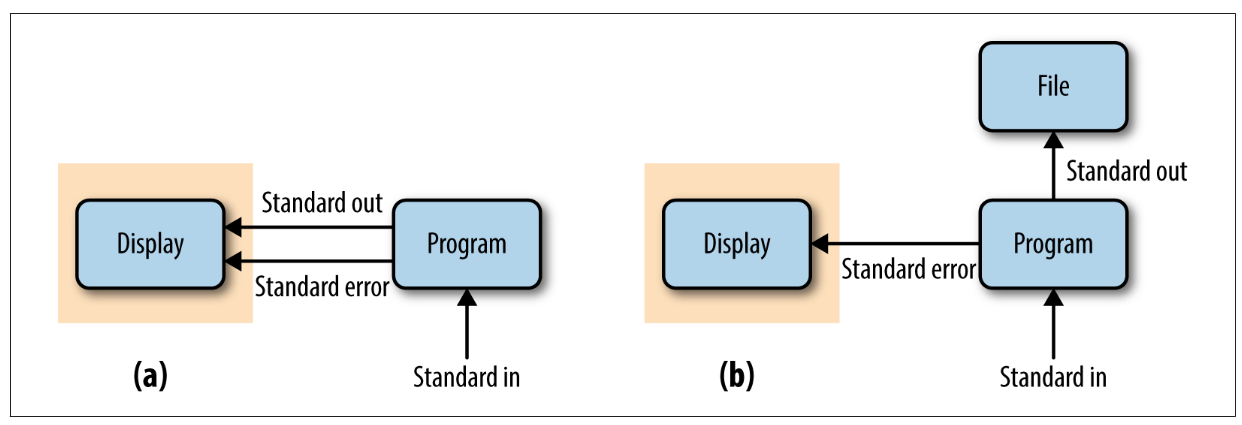
To redirect the standard error, use 2>7:
ls solutions/ > solution_files.txt 2> errors.txtTo combine standard out and standard error, use &>:
# (&> out.txt is a Bash shortcut for: > out.txt 2>&1)
ls solutions/ &> out.txtcat out.txtls: cannot access 'solutions/': No such file or directoryFinally, if you want to “manually” turn the output of an echo statement in a script into standard error instead of standard out, use >&2. This is good practice for your own error messages, like those in the if statements above:
echo "Error: Invalid line number" >&2
exit 1That way, your error messages behave like those of other programs: for example, they will still be shown on screen when standard out is redirected to a file.
8 Shell script options
It is also possible to make your shell script accept options (as opposed to positional arguments), just like most command-line programs do.
The example below uses both short and long options (e.g. -o and --outdir). It also uses a mix of “flag”-type options that turn functionality on/off (e.g. --no-gcbias) and options that take a value (e.g. --infile):
scripts/salmon.sh (excerpt)
# Default values (used when an option is not specified)
gcbias=true
outdir=results/salmon
# Process command-line options
while [[ "$#" -gt 0 ]]; do
case "$1" in
-i | --infile ) shift && infile="$1" ;;
-o | --outdir ) shift && outdir="$1" ;;
--no-gcbias ) gcbias=false ;;
-v | --version ) echo "Version 2026-10-01" && exit 0 ;;
* ) echo "Invalid option $1" >&2 && exit 1 ;;
esac
shift
doneHow this works:
- The
whileloop keeps running as long as there are arguments left (i.e., as long as$#is greater than 0). - In each iteration,
casecompares the current first argument,$1, to each pattern (e.g.-o | --outdir, where|means “or”), and runs the command(s) after the matching pattern, up until;;. The final*pattern matches anything, so it catches invalid options. shiftremoves the first argument, so that the second one becomes$1, and so on. Options that take a value, like--outdir, have an extrashiftinside thecasestatement, so that$1then refers to the option’s value.
Such a script could for example be run like so:
bash scripts/salmon.sh -i my.bam -o results/salmon --no-gcbiasThis is more readable and less error-prone than “anonymous” positional arguments, whose order you have to remember. It also makes it easy to have many settings with defaults that can be omitted, like --outdir and --no-gcbias above. In contrast, with positional arguments, only the last one(s) can be made optional.
References
Footnotes
The
{01..50}construct is called brace expansion: the shell expandssample{01..50}.saminto the 50 file namessample01.sam,sample02.sam, …,sample50.sambefore runningtouch.↩︎You can also use single square brackets
[ ], but the double brackets have more functionality, and I recommend always using these.↩︎The
fiending (equivalent todonein loops) may seem peculiar, but it is simply “if” in reverse order (you’ll see the same trick withcase…esacfurther down this page).↩︎A single
=also works but==is clearer.↩︎You may also see
cat fruits.txt | while read -r ..., which works for simple cases. But because the loop then runs in a separate “subshell”, any variables you assign inside the loop are lost once the loop finishes.↩︎The
-roption preventsreadfrom treating backslashes (\) as special characters, and it’s good practice to always use it.↩︎Note that
1>is the full notation to redirect standard out, and the>we’ve been using is merely a shortcut for that.↩︎