Advanced version control
Optional self-study content for week 5

1 Introduction
This page contains optional self-study material if you want to dig deeper into Git. Some of it may also be useful as a reference in case you run into problems while trying to use Git.
- Moving and removing tracked files
- Unstaging files
- Collaboration with Git: multi-user remote workflows
- Contributing to repositories: Forking & Pull Requests
- Undoing (& viewing) changes that have been committed
- Branching & merging
- Miscellaneous Git
1.1 Setting up
- At https://ondemand.osc.edu, start a VS Code session in
/fs/ess/PAS3493/people/$USER. - In the terminal, navigate to your
week05dir.
The first few sections continue with the evo repository from the Git hands-on lecture, and the sections on collaboration and forking assume that you have set up GitHub access as in the GitHub lecture.
2 Moving and removing tracked files
This section and the next one continue with the evo repository from the Git hands-on lecture.
2.1 Moving and removing tracked files
When you want to remove, move, or rename files that are tracked by Git, it is good practice to preface the regular rm and mv commands with git — that is, to use git rm and git mv.
When removing or moving/renaming a tracked file with git rm / git mv, changes will be made to your working dir just like with a regular rm/mv, and the operation will also be staged. For example:
# (Don't run this, hypothetical examples)
git rm file-to-remove.txt
git mv myoldname.txt mynewname.txt
git statusOn branch main
Changes to be committed:
(use "git restore --staged <file>..." to unstage)
renamed: myoldname.txt -> mynewname.txt
deleted: file-to-remove.txtgit rm/git mv? (Click to expand)
It is inevitable that you will occasionally forget about this and e.g. use rm instead of git rm. Fortunately, Git will eventually figure out what happened. For example:
For a renamed file, Git will first be confused and register both a removed file and an added file:
# (Don't run this, hypothetical example) mv myoldname.txt mynewname.txt git statusOn branch main Changes not staged for commit: (use "git add/rm <file>..." to update what will be committed) (use "git restore <file>..." to discard changes in working directory) deleted: myoldname.txt Untracked files: (use "git add <file>..." to include in what will be committed) mynewname.txtBut after you stage both changes (the new file and the deleted file), Git realizes it was renamed instead:
git add myoldname.txt git add mynewname.txt git statusOn branch main Changes to be committed: (use "git restore --staged <file>..." to unstage) renamed: myoldname.txt -> mynewname.txt
So, there is no need to stress if you forget this, but when you remember, use git mv and git rm.
2.2 Stop tracking a file, but keep it on your computer
git rm removes a file from the repo and deletes it from your working dir. In some cases, though, you want to keep the file, but have Git stop tracking it. For example, if you accidentally committed a large data file or a file with a password, you might want to remove it from the repo but keep it on your computer.
For this, add the --cached option:
# (Don't run this, hypothetical example)
echo "results/" >> .gitignore # Make sure Git ignores it from now on
git rm --cached results/counts.tsv # Stop tracking it, but keep the file
git commit -m "Stop tracking the counts file"The file stays put in your working dir, but Git no longer tracks it — and thanks to the .gitignore entry, it won’t be reported as untracked either.
Be aware that this only stops tracking the file from now on: the versions you already committed stay in the repo’s history, and will still be pushed to GitHub. Removing a file from a repo’s history entirely is difficult, which is exactly why it’s so important not to commit large or sensitive files in the first place.
Exercise: .gitignore and git rm
Create a new directory
resultswith filesGalapagos.txtandAscension.txt. Add a line to the.gitignorefile to ignore all files inresults, and commit the changes to the.gitignorefile.Click for the solution.
Create the dir and files:
mkdir results touch results/Galapagos.txt results/Ascension.txtOptional - check that they are detected by Git (note: only the dir will be shown, not its contents):
git statusOn branch main Untracked files: (use "git add <file>..." to include in what will be committed) results/ nothing added to commit but untracked files present (use "git add" to track)Add the text “results/” to the
.gitignorefile:echo "results/" >> .gitignoreOptional - check the status again:
git statusOn branch main Changes not staged for commit: (use "git add <file>..." to update what will be committed) (use "git restore <file>..." to discard changes in working directory) modified: .gitignore no changes added to commit (use "git add" and/or "git commit -a")Looks good,
results/is no longer listed. But you do need to commit the changes to.gitignore.Commit the changes to
.gitignore:git add .gitignore git commit -m "Add results dir to gitignore"[main 33b6576] Add results dir to gitignore 1 file changed, 1 insertion(+)
Create and commit an empty new file
notes.txt. Then, remove it withgit rmand commit your file removal.Click for the solution.
Create the file and add and commit it:
touch notes.txt git add notes.txt git commit -m "Add notes"[main 44a37f9] Add notes 1 file changed, 0 insertions(+), 0 deletions(-) create mode 100644 notes.txtOptional - check that the file is there:
lsdata notes.txt origin.txt README.md results todo.txt todo.txt~Remove the file with
git rmand commit the removal:git rm notes.txt git commit -m "These notes were made in error"[main 058fd47] These notes were made in error 1 file changed, 0 insertions(+), 0 deletions(-) delete mode 100644 notes.txtOptional - check that the file is no longer there:
lsdata origin.txt README.md results todo.txt todo.txt~
Suppose that, before you had added
results/to.gitignore, you had already committedresults/Galapagos.txt. You then addresults/to.gitignoreas in part 1. Wouldgit statusstill report changes toresults/Galapagos.txt? And which command would you use to make Git stop tracking it without deleting the file?Click for the solution.
Yes, it would still be reported:
.gitignoreonly affects untracked files, so a file that is already tracked keeps being tracked.To stop tracking it while keeping it on your computer:
git rm --cached results/Galapagos.txt git commit -m "Stop tracking the Galapagos results"(Plain
git rmwould also delete the file itself.)
3 Collaboration with Git: multi-user remote workflows
In a multi-user workflow, your collaborator can make changes to the repository (committing to local, then pushing to remote), and you need to make sure that you stay up-to-date with these changes.
Synchronization between your and your collaborator’s repository happens via the remote, so now you will need a way to download changes from the remote that your collaborator made. This happens with the git pull command.
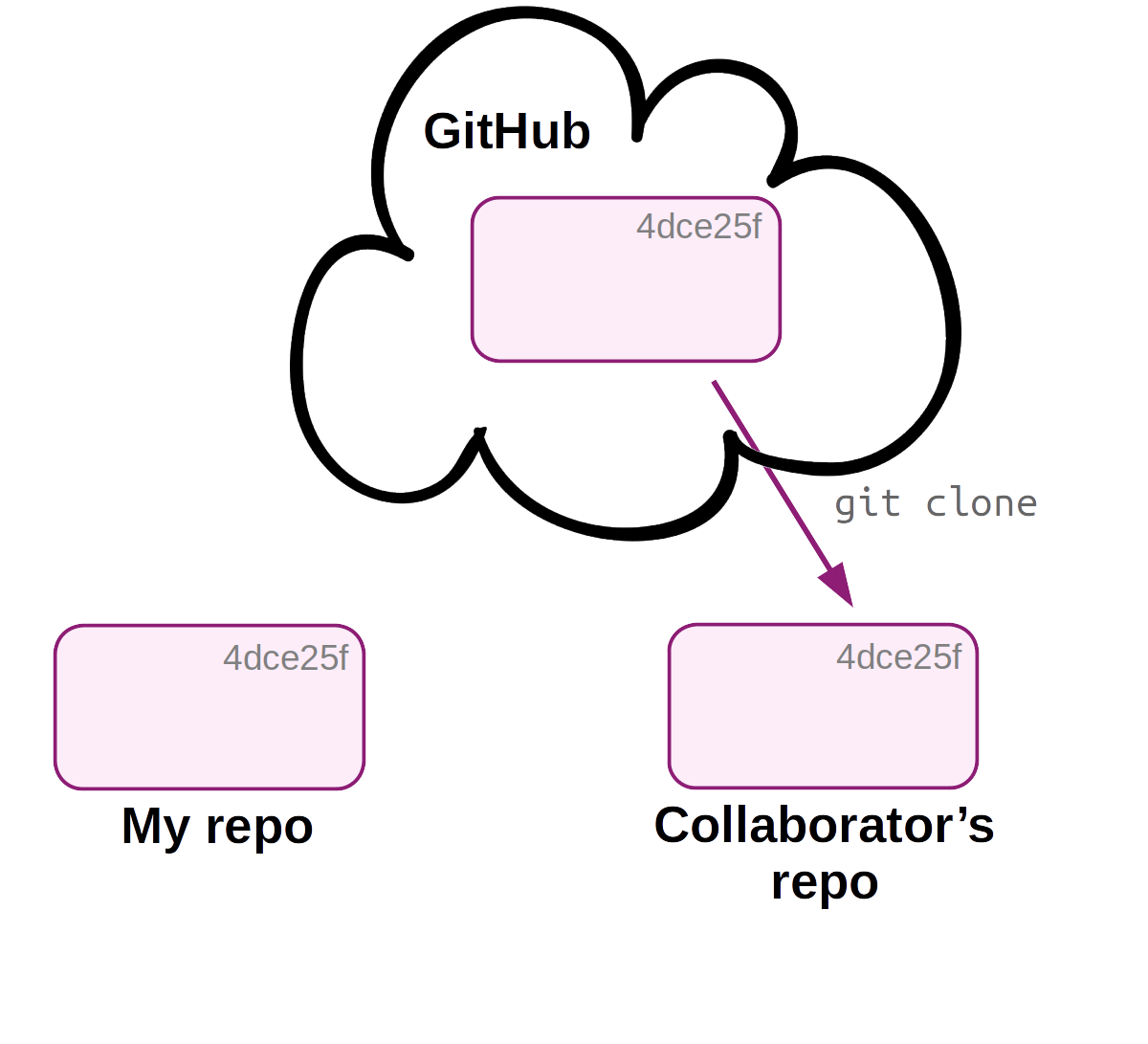
First, a second user, your collaborator, downloads (clones) the online repo. They should also receive admin rights on the repo (not shown - done on GitHub).
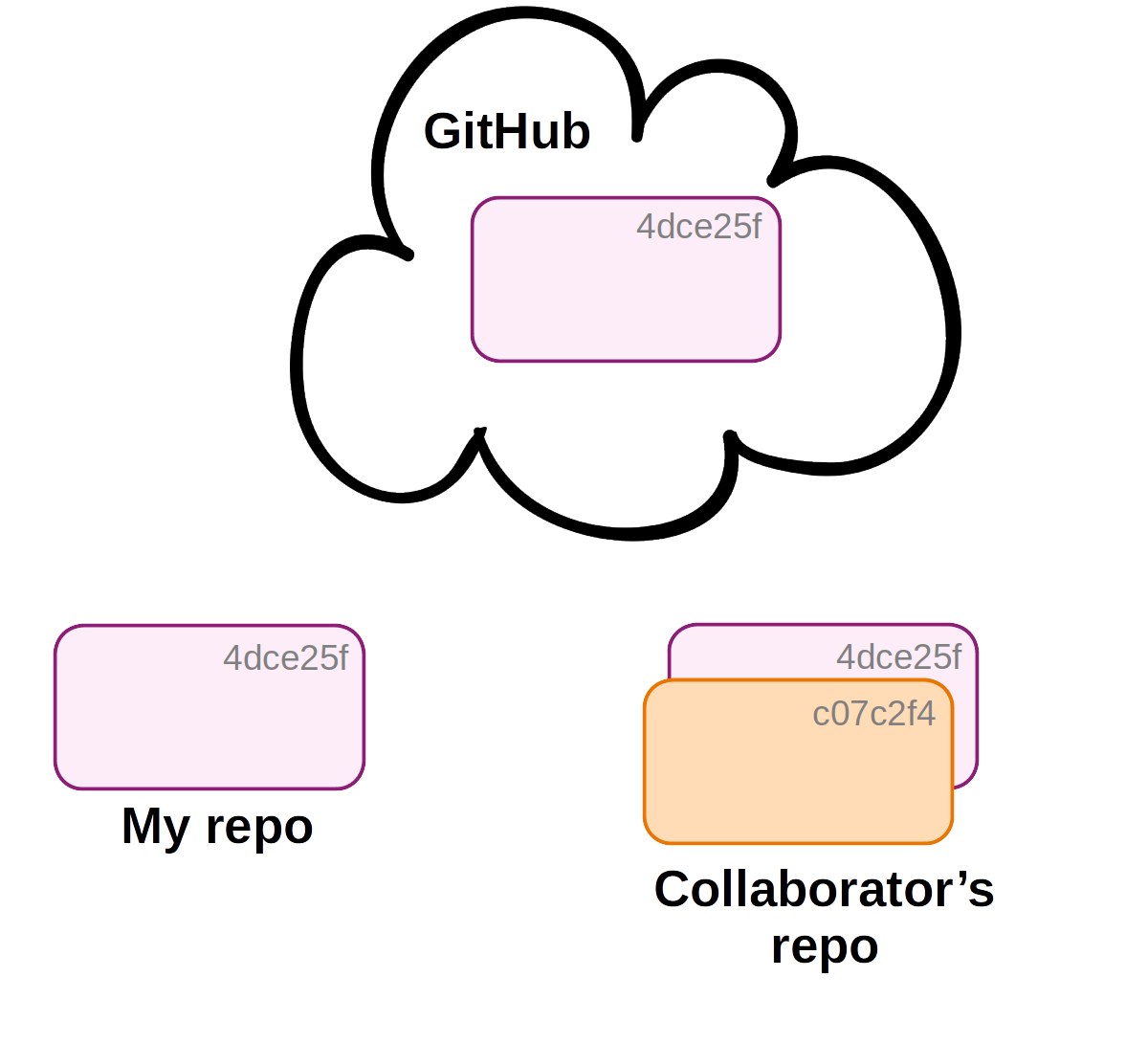
Then, your collaborator commits changes to their local copy of the repository.
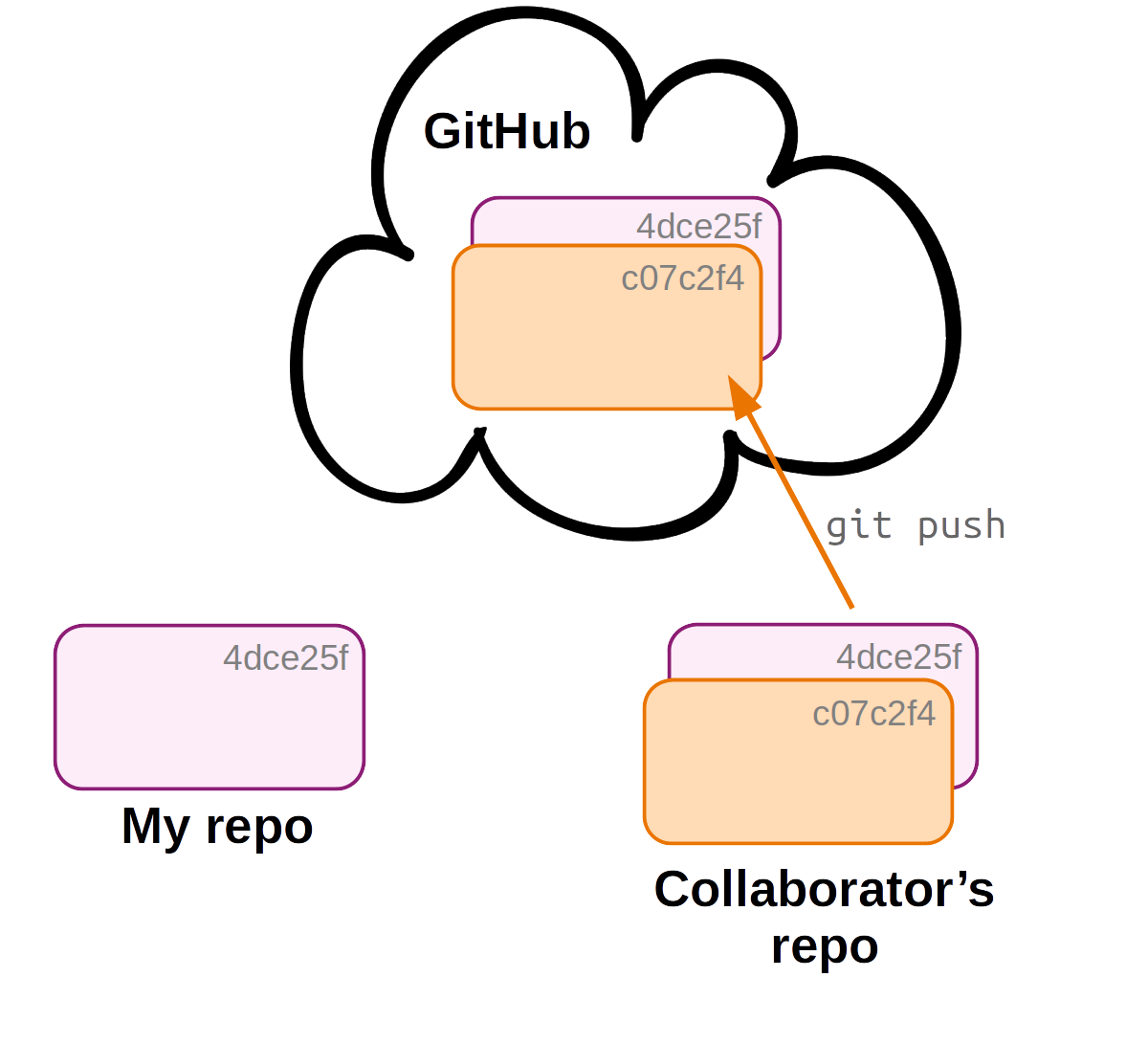
Before you can receive these changes, your collaborator will need to push their changes to the remote, which you can access too.
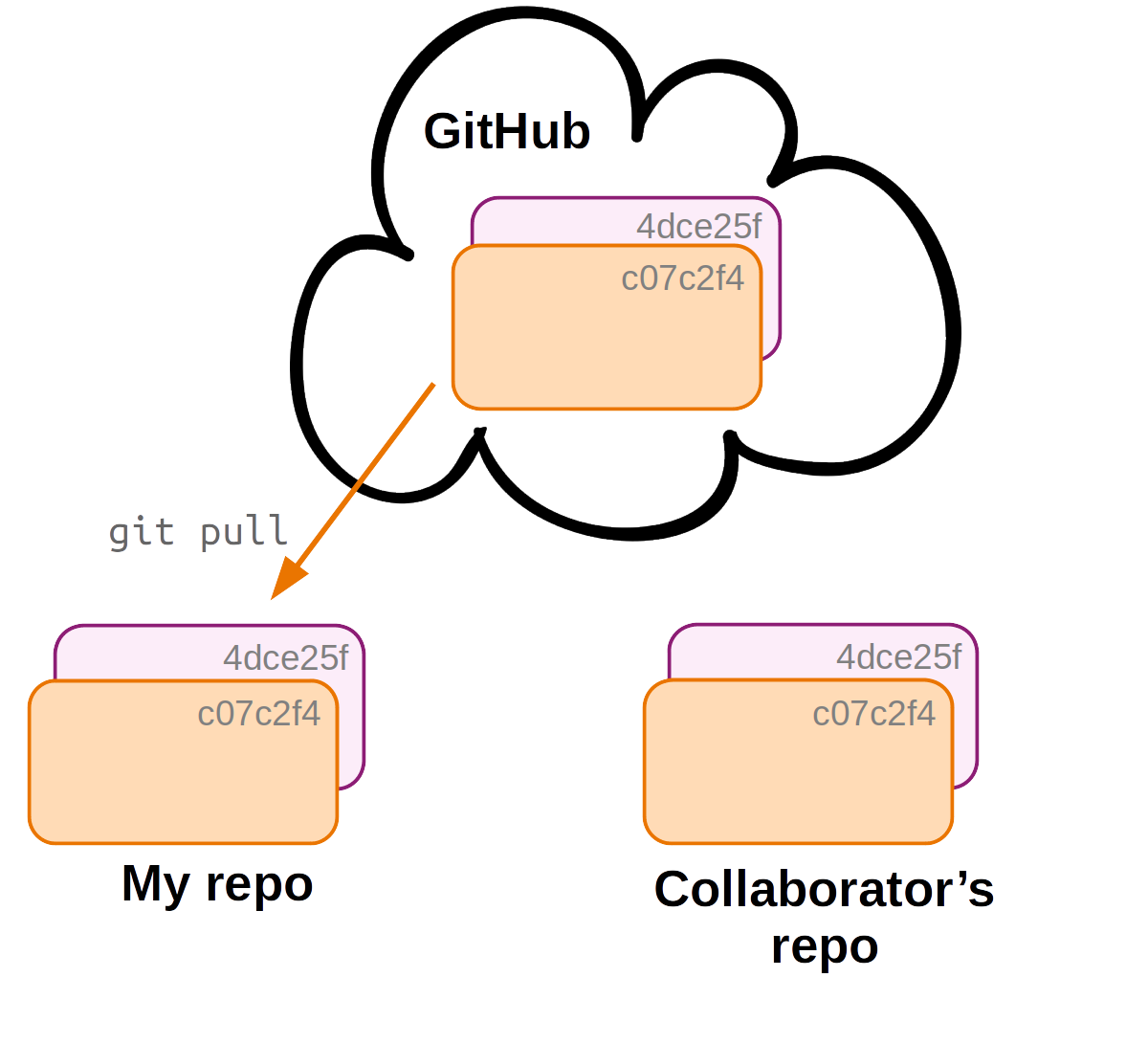
To update your local repo with the changes made by your collaborator, you pull in the changes from the remote. Now all 3 copies of the repo are in sync again!
In a multi-user workflow, changes made by different users are shared via the online copy of the repo. But syncing is not automatic:
- Changes to your local repo remain local-only until you push to remote.
- Someone else’s changes to the remote repo do not make it into your local repo until you pull from remote.
However, Git can tell you about “divergence” between your local repository and the remote. Note that git status by itself does not contact GitHub: it compares your local repo with the last state of the remote that Git knows about. To have Git check the remote for new commits without merging them into your working dir, run git fetch first:
# (Don't run this, hypothetical example)
git fetch # Ask GitHub whether there are new commits
git status # Now git status knows about your collaborator's commits
In a multi-user workflow, you should use git pull often, since staying up-to-date with your collaborator’s changes will reduce the chances of merge conflicts.
Usually, git pull simply downloads the commits you don’t have yet, and you’ll see no more than a summary of the changes. But when both your local repo and the remote have commits that the other doesn’t have — the two have “diverged”, which can easily happen when you work from two computers or with collaborators — Git refuses to guess how to combine them, and prints a wall of text:
git pullhint: You have divergent branches and need to specify how to reconcile them.
hint: You can do so by running one of the following commands sometime before
hint: your next pull:
hint:
hint: git config pull.rebase false # merge
hint: git config pull.rebase true # rebase
hint: git config pull.ff only # fast-forward only
hint:
hint: You can replace "git config" with "git config --global" to set a default
hint: preference for all repositories. [...]
fatal: Need to specify how to reconcile divergent branches.Nothing went wrong here, and nothing was changed: Git just stopped and asked you to pick a strategy. The first option, merge, keeps both sets of commits and ties them together with an extra “merge commit”, and is the best default for how we use Git in this course.
To select it once and for all, so you won’t see this message again:
git config --global pull.rebase false3.1 Add a collaborator in GitHub
You can add a collaborator to a repository on GitHub as follows:
- Go to the repository’s settings.
- Click on
Collaboratorsin the left-hand menu. - Click
Add peopleand follow the prompts.
3.2 Merge conflicts
A so-called merge conflict means that Git is not able to automatically merge two branches, which occurs when all three of the following conditions are met:
- You try to merge two branches (this includes cases where you’re pulling from remote: a pull includes a merge).
- One or more file changes have been committed on both branches since their divergence.
- Some of these changes were made in the same part(s) of file(s).
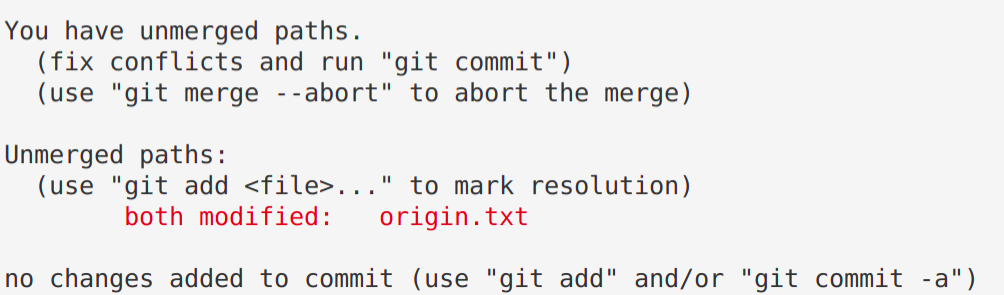
When this occurs, Git has no way of knowing which changes to keep, and it will report a merge conflict as follows:

Resolving a merge conflict
When Git reports a merge conflict, follow these steps:
- Use
git statusto find the conflicting file(s).
Open and edit those file(s) manually to a version that fixes the conflict.
Git will have changed these file(s) to add the conflicting lines from both versions of the file, and to add marks that indicate which lines conflict. You have to manually change the contents in your text editor to keep the conflicting content that you want, and to remove the indicator marks that Git made.
On the Origin of Species # Line preceding conflicting line <<<<<<< HEAD # GIT MARK 1: Next line = current branch Line 2 - from main # Conflict line: current branch ======= # GIT MARK 2: Dividing line Line 2 - from conflict-branch # Conflict line: incoming branch >>>>>>> conflict-branch # GIT MARK 3: Prev line = incoming branchUse
git addto tell Git you’ve resolved the conflict in a particular file:git add origin.txt

Once all conflicts are resolved, use
git statusto check that all changes have been staged. Then, usegit committo finish the merge commit:git commit -m "Solved the merge conflict"
VS Code has some nice functionality to make Step 2 (resolving the conflict) easier. After the merge conflict, you can open the conflicting file in VS Code:
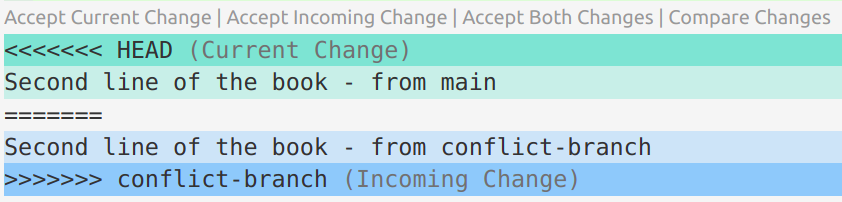
If you click on “Accept Current Change” or “Accept Incoming Change”, etc., it will keep the desired lines and remove the Git indicator marks. Then, save and exit.
4 Contributing to repositories: Forking & Pull Requests
4.1 What can you do with someone else’s GitHub repository?
In some cases, you may be interested in working in some way with someone else’s repository that you found on GitHub. If you do not have rights to push, you can:
- Clone the repo and make changes locally. When you do this, you can also periodically pull to remain up-to-date with changes in the original repo.
- Fork the repository on GitHub and develop it independently. Forking creates a new personal GitHub repo, to which you can push.
- Using a forked repo, you can also submit a Pull Request with proposed changes to the original repo: for example, if you’ve fixed a bug in someone else’s program.
If you’re actually collaborating on a project, though, you should ask your collaborator to give you admin rights for the repo, which makes things a lot easier than working via Pull Requests.
Note: Forking, Pull Requests, and Issues are GitHub functionality, and not part of Git.
Forking a GitHub repository
You can follow along by e.g. forking my evo repo.
- Go to a GitHub repository, and click the “Fork” button in the top-right:

- You may be asked which account to fork to: select your account.
- Now, you have your own version of the repository, and it is labeled explicitly as a fork.
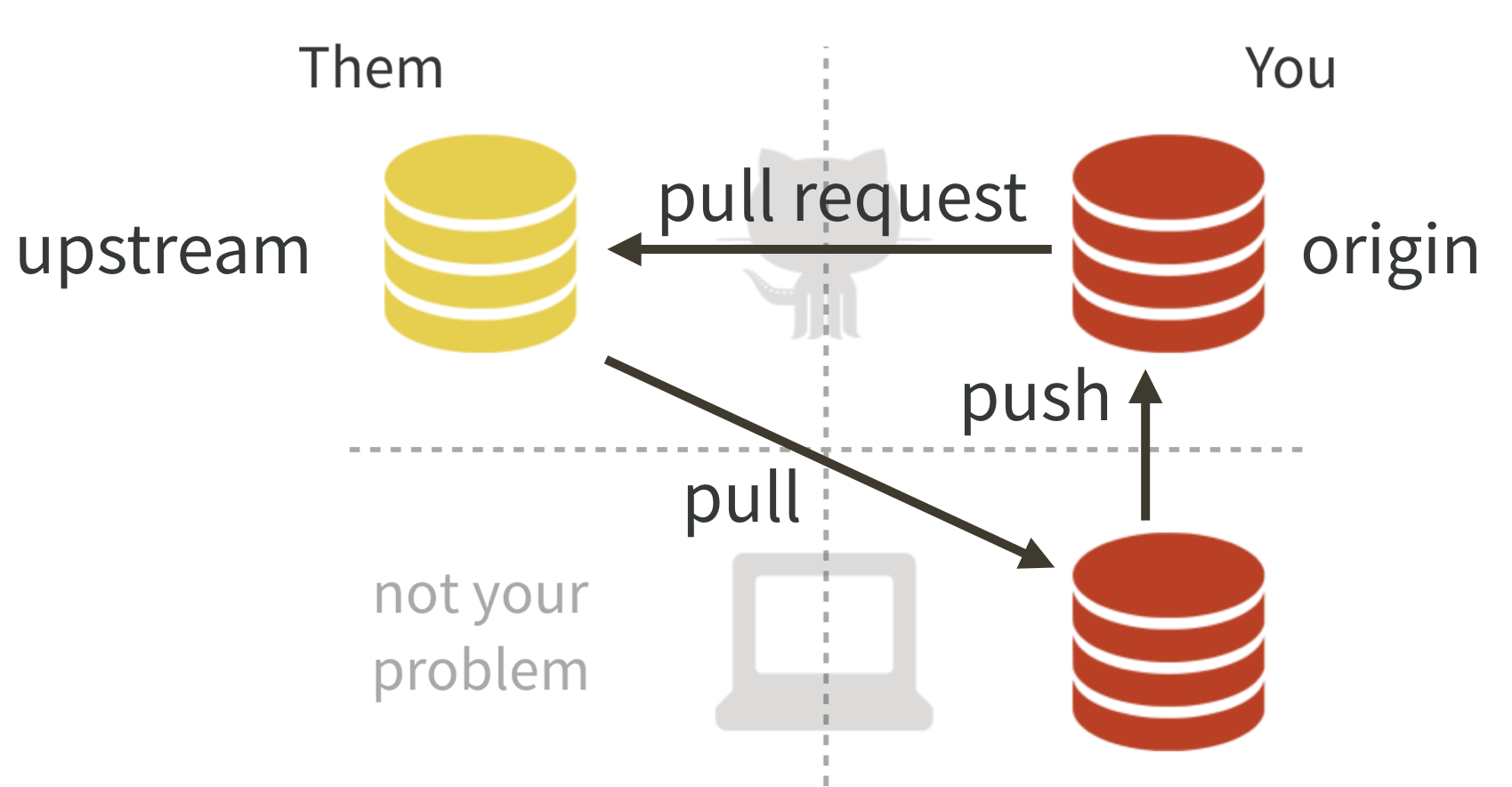
Forking workflow
You can’t directly modify the original repository, but you can:
- First, modify your fork (with local edits and pushing).
- Then, submit a so-called Pull Request to the owner of the original repo to pull in your changes.
- You can also easily keep your fork up-to-date with changes to the original repository.
Editing the forked repository
To clone your forked GitHub repository to a dir at OSC, start by creating a dir there — for example:
mkdir /fs/ess/PAS3493/people/$USER/week05/fork_test
cd /fs/ess/PAS3493/people/$USER/week05/fork_testThen, find the URL for your forked GitHub repository by clicking the green Code button. Make sure you get the SSH URL (rather than the HTTPS URL), and click the clipboard button next to the URL to copy it:
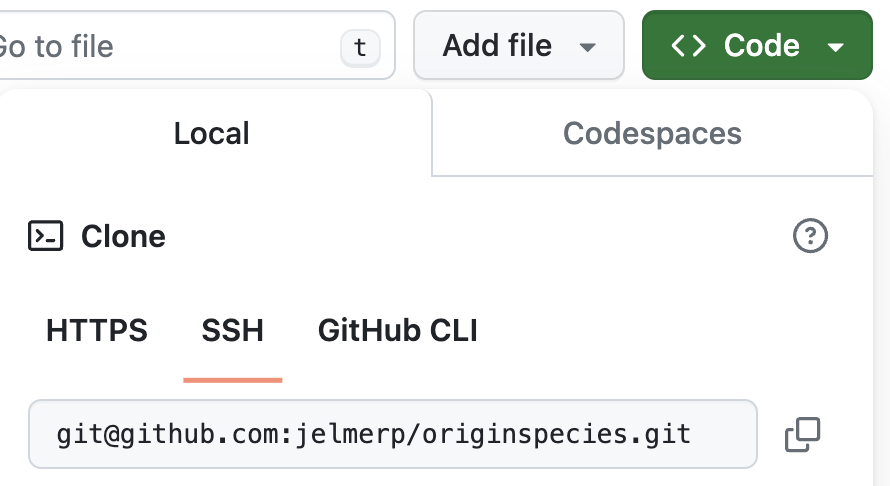
Then, type git clone and a space, and paste the URL, e.g.:
git clone git@github.com:jelmerp/originspecies.gitCloning into 'originspecies'...
remote: Enumerating objects: 31, done.
remote: Counting objects: 100% (31/31), done.
remote: Compressing objects: 100% (19/19), done.
remote: Total 31 (delta 4), reused 30 (delta 3), pack-reused 0
Receiving objects: 100% (31/31), done.
Resolving deltas: 100% (4/4), done.Now, you can make changes to the repository in the familiar way, for example:
echo "# Chapter 1. Variation under domestication" >> origin.txt
git add origin.txt
git commit -m "Suggested title for first chapter"And note that you can push without any setup — because you cloned the repository, the remote setup is already done (and you have permission to push because it’s your own repo on GitHub and you have set up GitHub authentication):
git pushCreating a Pull Request
If you then go back to GitHub, you’ll see that your forked repo is “x commit(s) ahead” of the original repo:

Click Pull request, and check whether the right repositories and branches are being compared (and here you can also see the changes that were made in the commits):

If it looks good, click the green Create Pull Request button:

Give your Pull Request a title, and write a brief description of your changes:
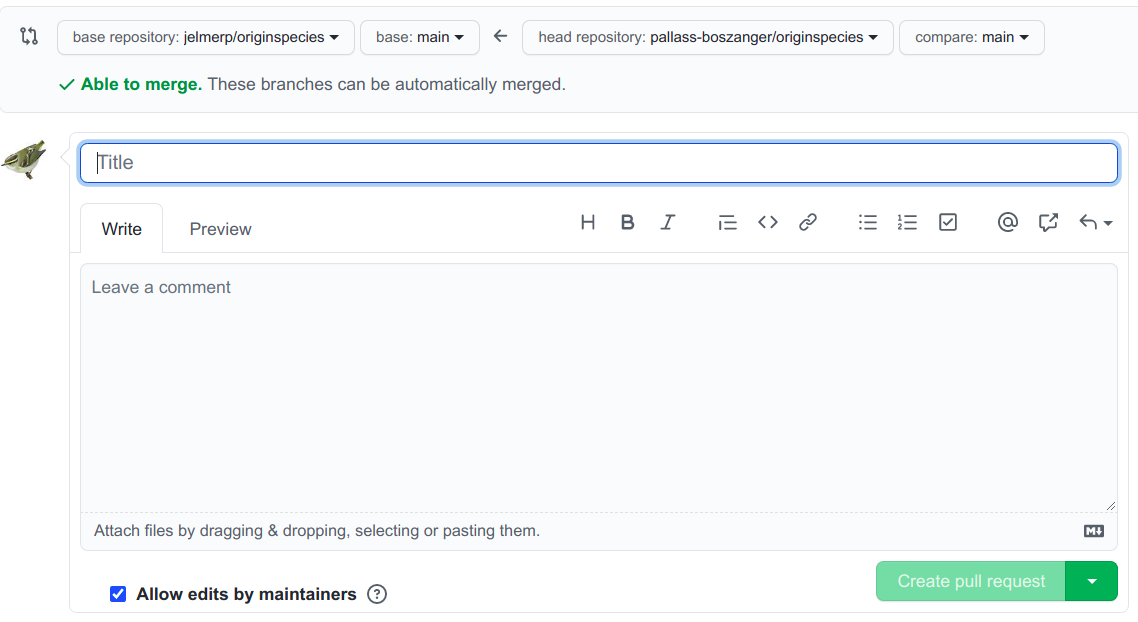
Keeping your fork up-to-date
As you saw, you can’t directly push to the original repo but instead have to submit a Pull Request (yes, this terminology is confusing!). The easiest way to do this is on the GitHub website: on your fork’s page, GitHub shows how many commits your fork is behind the original repo, along with a Sync fork button that pulls in the changes. (After that, run git pull locally to get those changes onto your computer too.)
If you’d rather do it entirely from the command line, you can create an ongoing connection to the original repo, which you can use to periodically pull to keep your fork up-to-date. This works similarly to connecting your own GitHub repo, but you should give the remote a different nickname than origin — the convention is upstream:
# Add the "upstream" connection
git remote add upstream git@github.com:jelmerp/originspecies.git
# List the remotes:
git remote -vorigin git@github.com:pallass-boszanger/originspecies.git (fetch)
origin git@github.com:pallass-boszanger/originspecies.git (push)
upstream git@github.com:jelmerp/originspecies.git (fetch)
upstream git@github.com:jelmerp/originspecies.git (push)# Pull from the upstream repository:
git pull upstream main“Upstream” is an arbitrary but conventional name — compare with origin, which is used for your own version of the online repo.
5 Undoing changes that have not been committed
In the Git hands-on lecture, you used git restore to undo changes to files in your working dir. Here, you’ll learn how to undo other kinds of changes that have not been committed.
5.1 Unstaging files
git restore can also unstage a file. In other words, you can undo the staging that is done by git add, so the file goes back to the modified state.
This is most often needed when you added a file that was not supposed to be part of the next commit. For example:
You modify two files and use
git add --all:echo "Variation under domestication" >> origin.txt echo "Prepare for the next journey" >> todo.txt git add --allThen you realize that those two file changes should be part of separate commits. Again, check the status first:
git statusOn branch main Changes to be committed: (use "git restore --staged <file>..." to unstage) modified: origin.txt modified: todo.txtAnd use
git restore --stagedas suggested by Git:git restore --staged todo.txt git statusOn branch main Changes to be committed: (use "git restore --staged <file>..." to unstage) modified: origin.txt Changes not staged for commit: (use "git add <file>..." to update what will be committed) (use "git restore <file>..." to discard changes in working directory) modified: todo.txt
Now, you can go ahead and add these changes to separate commits: see the exercise below. And finally, in case you merely staged a file prematurely, you can just continue editing the file and re-add it afterwards.
Exercise: Commit the changes 1-by-1
You just ran
git restore --staged todo.txt. Before checking: do you think the contents oftodo.txtin your working dir changed? Why or why not?Click for the solution.
No: unstaging only changes which version Git has lined up for the next commit, so your file on disk is untouched. This is also why there are two separate commands:
git restore --staged <file>moves a file out of the Index, whereasgit restore <file>overwrites the file in your working dir.Commit the currently staged changes to
origin.txt. Then predict whatgit statuswill report abouttodo.txt, and check.Click for the solution.
git commit -m "Start writing about artificial selection" git statustodo.txtis still listed as “modified” and not staged: committingorigin.txtdid nothing to it.Now stage and commit the changes to
todo.txtas well.Click for the solution.
git add todo.txt git commit -m "Update the TODO file"
5.2 Undoing staged changes
What if you had made mistaken changes (like an accidental deletion) and also staged those changes? You can simply follow the two steps described above, in order:
- First unstage the file with
git restore --staged <file>. - Then discard changes in the working dir with
git restore <file>.
For instance, you overwrote the contents of the book and then staged the overwritten file:
echo "Instincts of the Cuckoo" > origin.txt
git add origin.txt
cat origin.txtInstincts of the CuckooYou can undo all of this as follows:
git restore --staged origin.txt
git restore origin.txt
cat origin.txtOn the Origin of Species
Variation under domestication6 Undoing (& viewing) changes that have been committed
Whereas in the Git hands-on lecture and above, you learned about undoing changes that have not been committed, here you’ll see how you can undo changes that have been committed. We’ll start with some concepts that are helpful in this context.
6.1 The three trees of Git
In class, you saw that a file can be in three states: committed, staged, and modified. These states correspond to the three “trees” of Git — three snapshots of your project that Git keeps side by side:
- HEAD: State of the project in the most recent commit (on the current branch).
- Index (Stage): State of the project ready to be committed.
- Working directory (Working Tree): State of the project as currently on your computer.
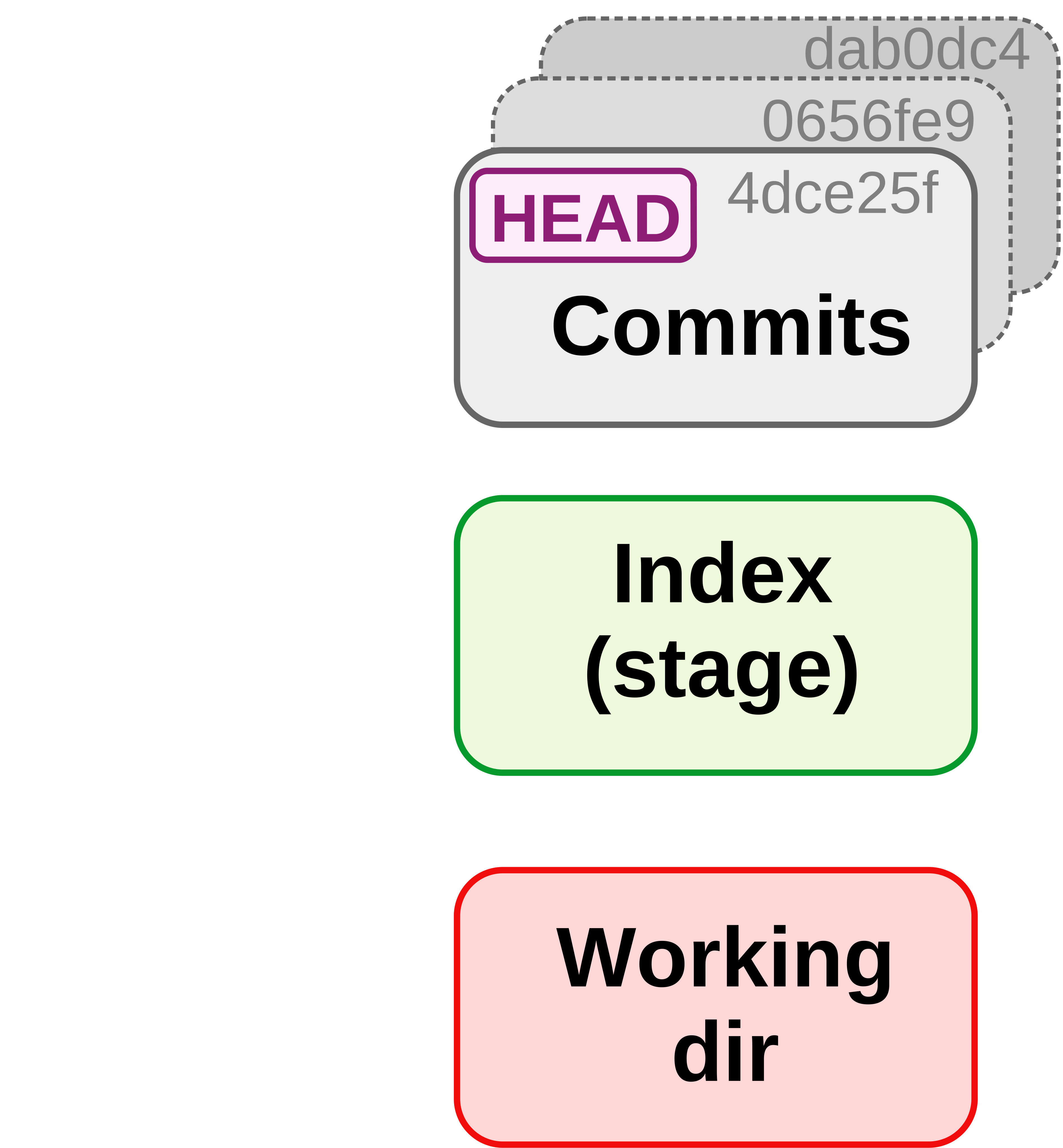
The hexadecimals in the Commits rectangles are abbreviated checksums for each commit.
Or consider this table for a hypothetical example in which HEAD, the Index, and the working dir all differ with regards to the version of file 1, and there also is an untracked file in the working dir:
| File state | Version | Which tree |
|---|---|---|
| Committed | file 1 version X | HEAD |
| Staged | file 1 version Y | Index (stage) |
| Modified | file 1 version Z | Working dir |
| Untracked | file 2 version X | Working dir |
6.2 Ways to refer to past commits
To refer to specific past commits, you can:
- Use the hexadecimal checksum (either the full ID or the 7-character abbreviation)
- Use HEAD notation: HEAD is the most recent commit, and there are two ways of indicating ancestors of HEAD:
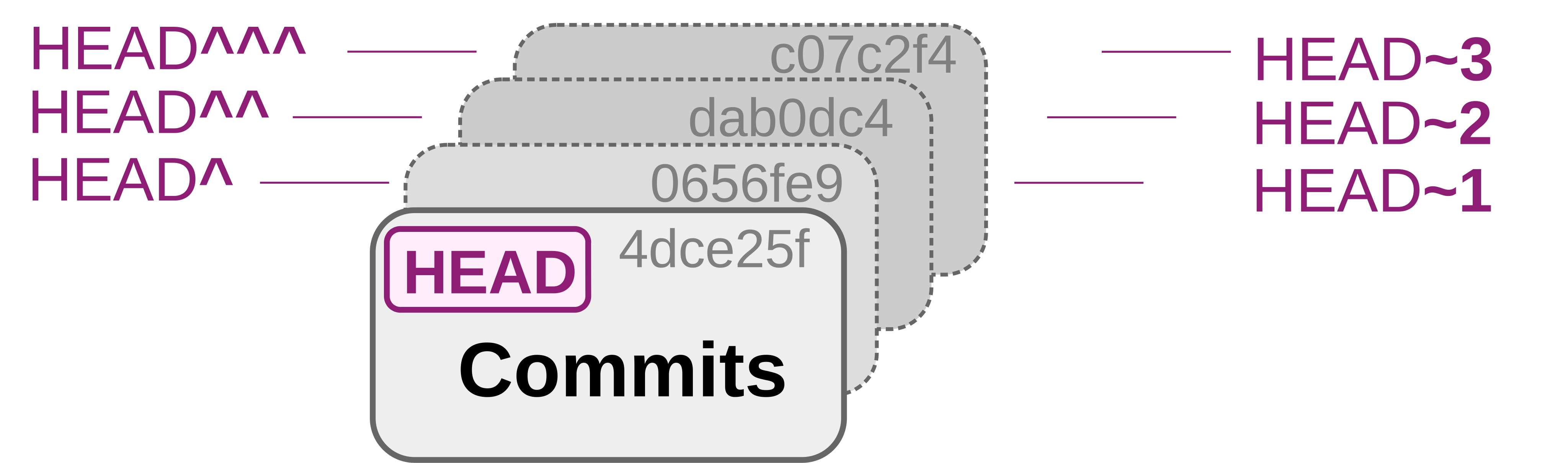
dab0dc4 for the third-to-last commit)or HEAD notation (
HEAD^ or HEAD~1 for the second-to-last commit, HEAD^^ or HEAD~2 for the third-to-last).For example, using git diff to compare your repo or individual files between any two arbitrary commits:
# Second-to-last commit vs last commit - full repo:
git diff HEAD^ HEAD
# A specified commit vs the last commit - specific file:
git diff d715c54 HEAD todo.txtNote that the order matters: git diff <A> <B> shows the changes needed to go from A to B, so type the ID of the older commit first if you want more recently added lines to show up as additions.
6.3 Viewing past versions of the repository
Before undoing committed changes, you may want to look at earlier states of your repo, e.g. to know what to revert to:
First, print an overview of past commits and their messages:
# (example code in this and the next few boxes - don't run as-is) git log --onelineFind a commit you want to go back to, and look around in the past:
git switch --detach <sha-id> # Replace <sha-id> by an actual hash less myfile.txt # Etc. ...Then, you can go back to where you were originally as follows:
git switch main
HEAD” state
Moving to a commit by its hash puts you in what Git calls “detached HEAD” state — which is not an error.
Normally, HEAD follows a branch such as main, and every commit you make is added to that branch. When you move to an old commit directly, HEAD is “detached” from main: you are viewing an old snapshot of your project, and Git no longer has a branch to attach new commits to. Any commit you made while in this state would therefore not appear on main, and would be easy to lose track of.
That is why git switch refuses to move to a commit hash unless you add --detach: you have to ask for this state explicitly. (The older git checkout <sha-id> has no such requirement, and instead prints a long warning that starts with “You are in ‘detached HEAD’ state”.)
So while you’re visiting the past: look around, but don’t commit. Running git switch main re-attaches HEAD to main and brings you back to the present.
The next section will talk about strategies to move your repo back to an earlier state that you found this way.
If you just want to retrieve/restore an older version of a single file that you found while browsing around in the past, then a quick way can be: simply copy the file to a location outside of your repo, move yourself back to the “present”, and move the file back into your repo, now in the present.
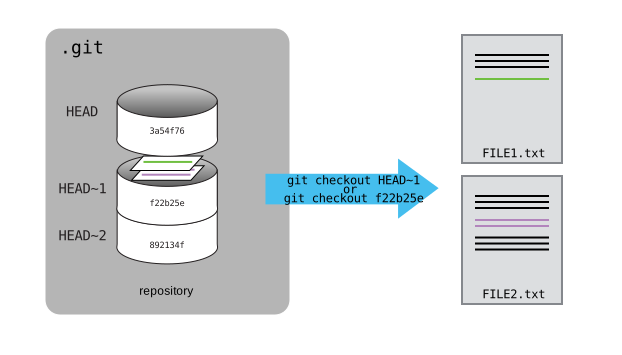
git checkout command, see the box below.Figure from https://software-carpentry.org.
git switch and git restore versus git checkout
Most Git tutorials — and the figure above — use a single command, git checkout, for all of the following:
- Move to a previous commit to explore (figure above)
- Retrieve one file as it was in a past commit (see below)
- Move between branches (see the branching section below)
Because this triple duty was so confusing, Git split these uses over two commands in 2019: git switch for moving between branches and commits, and git restore (which you used in class) for getting file versions back. This page uses those two commands throughout, but git checkout still works, and you’ll keep running into it, so it’s worth being able to translate:
| Used on this page | git checkout equivalent |
|---|---|
git switch <branch> |
git checkout <branch> |
git switch -c <branch> |
git checkout -b <branch> |
git switch --detach <sha-id> |
git checkout <sha-id> |
git restore --source=<sha-id> <file> |
git checkout <sha-id> -- <file> |
One oddity: the man pages of git switch and git restore still say “THIS COMMAND IS EXPERIMENTAL”. In practice, both have been stable and widely used for years.
6.4 Undoing entire commits
To undo commits, i.e. to move the state of your repository back to how it was before the commit you want to undo, there are two main commands:
git revert: Undo the changes made by a commit, by applying the opposite changes in a new commit.git reset: Delete commits as if they were never made.
Undoing commits with git revert
A couple of examples of creating a new commit that will revert all changes made in the specified commit:
# Undo changes by the most recent commit:
git revert HEAD
# Undo changes by the second-to-last commit:
git revert HEAD^
# Undo changes by a commit identified by its checksum:
git revert e1c5739Undoing commits with git reset
git reset is quite complicated as it has three modes (--hard, --mixed (default), and --soft) and can act either on individual files or on entire commits. To undo a commit, and:
Stage all changes made by that commit:
# Resetting to the 2nd-to-last commit (HEAD^) => undoing the last commit git reset --soft HEAD^Put all changes made by that commit as uncommitted working-dir changes:
# Note that '--mixed' is the default, so you could omit that git reset --mixed HEAD^Completely discard all changes made by that commit:
git reset --hard HEAD^
git reset erases history
Undoing with git revert is much safer than with git reset, because git revert does not erase any history.
For this reason, some argue you should not use git reset on commits altogether. At any rate, you should never use git reset for commits that have already been pushed online.
6.5 Viewing & reverting to earlier versions of files
Above, you learned to undo at a project/commit-wide level. But you can also undo things for specific files:
Get a specific version of a file from a past commit:
# Retrieve the version of README.md from the second-to-last commit git restore --source=HEAD^ README.md# Or: Retrieve the version of README.md from a commit IDed by the checksum git restore --source=e1c5739 README.mdNow, you have the old version in your working dir (but not staged), which you can optionally check with:
# Optional: check the file at the earlier state cat README.md git statusYou can go on to stage and commit this version from the past, or go back to the current version, as we will do below:
git restore README.md
git restore
Be careful with git restore: any uncommitted changes to this file would be overwritten by the past version you retrieve!
An alternative method to view and revert to older versions of specific files is to use git show.
View a file from any commit as follows:
# View the version of README.md from the last commit git show HEAD:README.md# Or: View the version of README.md from a commit IDed by the checksum git show ad4ca74:README.mdRevert a file to a previous version:
git show ad4ca74:README.md > README.md
7 Branching & merging
In this section, you’ll learn about using so-called “branches” in Git. Branches are basically parallel versions of your repository, which allow you or your collaborators to experiment or create variants without affecting existing functionality or others’ work.
7.1 A repo with a couple of commits
First, you’ll create a dummy repo with a few commits by running a script:
cd /fs/ess/PAS3493/people/$USER/week05
git clone https://github.com/CSB-book/CSB.gitTake a look at the script you will run to create your repo:
cat CSB/git/data/create_repository.sh#!/bin/bash
# function of the script:
# sets up a repository and
# immitates workflow of
# creating and commiting two text files
mkdir branching_example
cd branching_example
git init
echo "Some great code here" > code.txt
git add .
git commit -m "Code ready"
echo "If everything would be that easy!" > manuscript.txt
git add .
git commit -m "Drafted paper"Run the script — note that you run it from week05, and not from inside the CSB dir:
bash CSB/git/data/create_repository.shInitialized empty Git repository in /fs/ess/PAS3493/people/jelmer/week05/branching_example/.git/
[main (root-commit) 3c59d8a] Code ready
1 file changed, 1 insertion(+)
create mode 100644 code.txt
[main 7ba8ca4] Drafted paper
1 file changed, 1 insertion(+)
create mode 100644 manuscript.txtWhy not simply cd into CSB/git/sandbox and run the script there? Because CSB is itself a Git repo — and as mentioned in class, you should never create a repo inside another repo.
And move into the repository’s dir:
cd branching_exampleLet’s see what has been done in this repo:
git log --oneline7ba8ca4 (HEAD -> main) Drafted paper
3c59d8a Code readyWe will later modify the file code.txt — let’s see what it contains now:
cat code.txtSome great code here7.2 Using branches in Git
You now want to improve the code, but these changes are experimental, and you want to retain your previous version that you know works. This is where branching comes in. With a new branch, you can make changes that don’t affect the main branch, and can also keep working on the main branch:
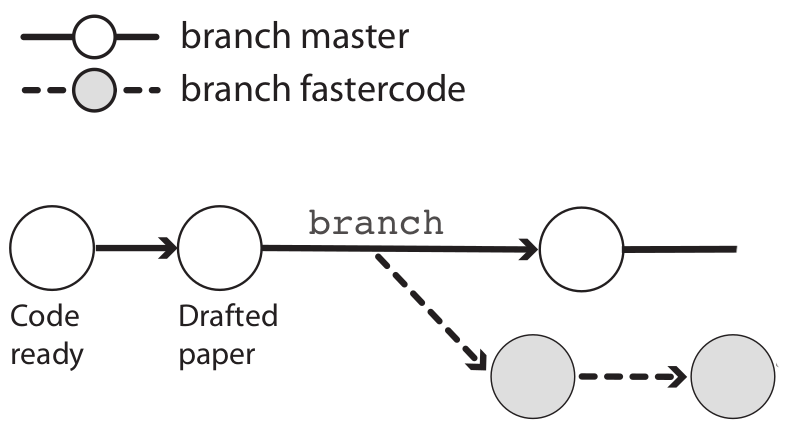
(Note that the
main branch is here called “master”.)Creating a new branch
First, create a new branch as follows, naming it fastercode:
git branch fastercodeList the branches:
# Without args, git branch will list the branches
git branch fastercode
* mainIt turns out that you created a new branch but are still on the main branch, as the * indicates.
You can switch branches with git switch:
git switch fastercodeSwitched to branch 'fastercode'And confirm your switch with git branch:
git branch* fastercode
mainNote that you can also tell from the git status output on which branch you are:
git statusOn branch fastercode
nothing to commit, working tree cleanMaking experimental changes on the new branch
You edit the code, stage and commit the changes:
echo "Yeah, faster code" >> code.txt
cat code.txtSome great code here
Yeah, faster codegit add code.txt
git commit -m "Managed to make code faster"[fastercode 21f1828] Managed to make code faster
1 file changed, 1 insertion(+)Let’s check the log again, which tells you that the last commit was made on the fastercode branch:
git log --oneline21f1828 (HEAD -> fastercode) Managed to make code faster
7ba8ca4 (main) Drafted paper
3c59d8a Code readyMoving back to the main branch
You need to switch gears and add references to the paper draft. Since this has nothing to do with your attempt at faster code, you should make these changes back on the main branch:
# Move back to the 'main' branch
git switch mainSwitched to branch 'main'What does code.txt, which we edited on fastercode, now look like?
cat code.txtSome great code hereSo, by switching between branches, the contents of your working dir have changed!
Now, while still on the main branch, add the reference, stage and commit:
echo "Marra et al. 2014" > references.txt
git add references.txt
git commit -m "Fixed the references"[main 1bf123f] Fixed the references
1 file changed, 1 insertion(+)
create mode 100644 references.txtNow that you’ve made changes to both branches, let’s see the log in “graph” format with --graph, also listing all branches with --all — note how it tries to depict these branches:
git log --oneline --graph --all* 1bf123f (HEAD -> main) Fixed the references
| * 21f1828 (fastercode) Managed to make code faster
|/
* 7ba8ca4 Drafted paper
* 3c59d8a Code readyFinishing up on the experimental branch
Earlier, you finished speeding up the code in the fastercode branch, but you still need to document your changes. So, you go back:
git switch fastercodeSwitched to branch 'fastercode'Do you still have the references.txt file from the main branch?
lscode.txt manuscript.txtNope, your working dir has changed again.
Then, add the “documentation” to the code, and stage and commit:
echo "# My documentation" >> code.txt
git add code.txt
git commit -m "Added comments to the code"[fastercode d09f611] Added comments to the code
1 file changed, 1 insertion(+)Check the log graph:
git log --oneline --all --graph* d09f611 (HEAD -> fastercode) Added comments to the code
* 21f1828 Managed to make code faster
| * 1bf123f (main) Fixed the references
|/
* 7ba8ca4 Drafted paper
* 3c59d8a Code readyMerging the branches
You’re happy with the changes to the code, and want to make the fastercode version the default version of the code. This means you should merge the fastercode branch back into main. To do so, you first have to move back to main:
git switch mainSwitched to branch 'main'Now you are ready to merge with the git merge command. Because both branches have new commits, Git cannot simply move main forward: it has to combine the two histories into a new “merge commit” — which is why you also provide a commit message here1:
git merge fastercode -m "Much faster version of code"Merge made by the 'ort' strategy.
code.txt | 2 ++
1 file changed, 2 insertions(+)Once again, check the log graph, which depicts the branches coming back together:
git log --oneline --all --graph* 5bb84cd (HEAD -> main) Much faster version of code
|\
| * d09f611 (fastercode) Added comments to the code
| * 21f1828 Managed to make code faster
* | 1bf123f Fixed the references
|/
* 7ba8ca4 Drafted paper
* 3c59d8a Code readyCleaning up
You no longer need the fastercode branch, so you can delete it as follows:
git branch -d fastercodeDeleted branch fastercode (was d09f611).7.3 Branching and merging – Workflow summary
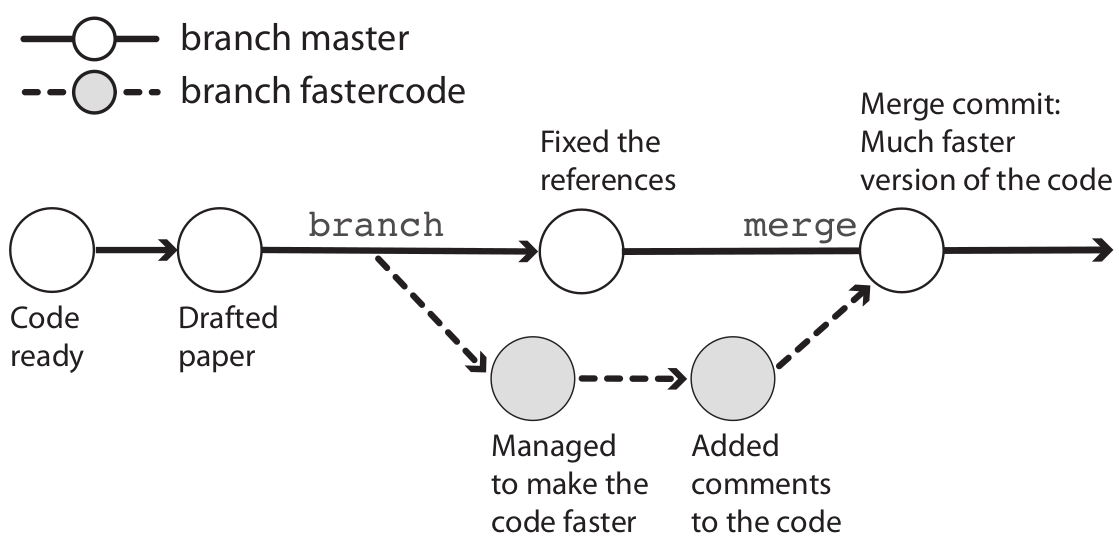
Overview of commands used in the branching workflow
# (Don't run this, hypothetical example)
# Create a new branch:
git branch mybranch
# Move to new branch:
git switch mybranch
# Add and commit changes:
git add --all
git commit -m "my message"
# Done with branch - move back to main trunk and merge
git switch main
git merge mybranch -m "Message for merge"
# And [optionally] delete the branch:
git branch -d mybranch8 Miscellaneous Git
8.1 Amending commits
Let’s say you forgot to add a file to a commit, or notice a silly typo in something you just committed. Creating a separate commit for this seems “wasteful” or even confusing, and including these changes along with others in a next commit is also likely to be inappropriate. In such cases, you can amend the previous commit.
First, stage the forgotten or fixed file:
# (Don't run this, hypothetical example)
git add myfile.txtThen, amend the commit, adding --no-edit to indicate that you do not want to change the commit message:
# (Don't run this, hypothetical example)
git commit --amend --no-editBecause amending a commit “changes history”, some recommend avoiding this altogether. For sure, do not amend commits that have been published in (pushed to) the online counterpart of the repo.
8.2 git stash
Git stash can be useful when you need to pull from the remote, but have changes in your working dir that:
- Are not appropriate for a separate commit
- Are not worth starting a new branch for
Here is an example of the sequence of commands you can use in such cases.
Stash changes to tracked files with
git stash:# (Note: add option '-u' if you need to include untracked files) git stashPull from the remote repository:
git pull“Apply” (recover) the stashed changes back to your working dir:
git stash apply
8.4 Some final tips
Git will not pay attention to empty directories in your working dir.
You can create a new branch and move to it in one go using:
git switch -c <new-branch-name>To show commits in which a specific file was changed, you can simply use:
git log <filename>“Aliases” (command shortcuts) can be useful with Git, and can be added in two ways:
By adding lines like the below to the
~/.gitconfigfile:[alias] hist = log --graph --pretty=format:'%h %ad | %s%d [%an]' --date=short last = log -1 HEAD # Just show the last commitWith the
git configcommand:git config --global alias.last "log -1 HEAD"
References
Footnotes
If the branch you merge in is the only one that has new commits, Git can just move the branch label forward (a so-called fast-forward merge), and no merge commit is made.↩︎