GitHub Copilot in VS Code
Optional self-study content for week 9

1 Introduction
In class, we used the Claude extension in VS Code Server (see the week 9 lecture). Claude is great for chat and agent-style help, but it does not give you code completions: AI suggestions that appear in the editor as you type. Additionally, you can only continue to use Claude after this course if your PI supports an Ohio State Generative AI account, or if you get a personal account1.
This page focuses on GitHub Copilot, which in VS Code is a built-in feature. Here is how it compares to Claude Code (as also shown in the week 8 slides):
| Feature | GitHub Copilot | Claude Code |
|---|---|---|
| Code completions | ✅ | ❌ |
| Agentic chat | ✅ | ✅ |
| Free use with a personal, “academic” account | ✅ 2 | ❌ |
| Can be paid for with university funds | ❌ | ✅ |
| Approved for use with institutional data | ❌ | ✅ |
| Often considered the best AI coding tool | ❌ | ✅ |
On this page, you will learn how to:
- Get free extended access to GitHub Copilot as a student
- Sign in to GitHub Copilot and enable its code completions in VS Code
- Use GitHub Copilot’s code completions, inline chat, and chat to help you with coding tasks
As pointed out in the table above: unlike the Claude setup we use in class, GitHub Copilot is not an OSU-approved tool. This is true even though the similarly named Microsoft Copilot is OSU-approved: these are separate products from the same company3. So, whenever you use GitHub Copilot, you must be aware of the data privacy implications outlined in the week 8 lecture.
2 Enabling and authenticating GitHub Copilot
2.1 About access to GitHub Copilot
Anyone with a GitHub account is automatically enrolled in the “Copilot Free” plan, which provides quite limited access to Copilot’s features, but at least you can try it out. As students and teachers/faculty, we can get additional free access after applying for it. While teachers can get access to the “Copilot Pro” plan, which can also be bought by individuals for $10/month, students get access to the more limited “Copilot Student” plan.
GitHub is increasingly vague about the limits of its plans, especially the Free and Student plans, but here is an approximate summary (where an “AI Credit” is roughly a single chat request):
| Plan | Free for whom | How to get it | Code completions | “AI Credits” |
|---|---|---|---|---|
| Free | Everyone | Automatically | 2,000 per month | ~50 |
| Student | Students | Apply for education benefits | Unlimited | 200 |
| Pro | Teachers/Faculty | Apply for education benefits | Unlimited | 1,500 |
Here is how GitHub itself currently describes the differences between the plans (source):

GitHub’s overview of the plans discussed above (there are more plans).
Click “Start an application”:

- Fill out the form as needed. (You may need a document that proves your current status at the university.)
Application approval is often quite fast (sometimes in minutes), but access is only granted 72 hours after approval. You can already sign in and use the Free plan in the meantime.
2.2 Sign in to GitHub Copilot in VS Code
First, start a VS Code Server session at OSC in /fs/ess/PAS3493/people/$USER, as usual. Then, use File > Open Folder to open your week09 dir from the lecture. Just like Claude, Copilot treats this folder as its workspace.
- Open the VS Code Settings ( > Settings) and enter “
chat.disableAIFeatures” in the search bar:
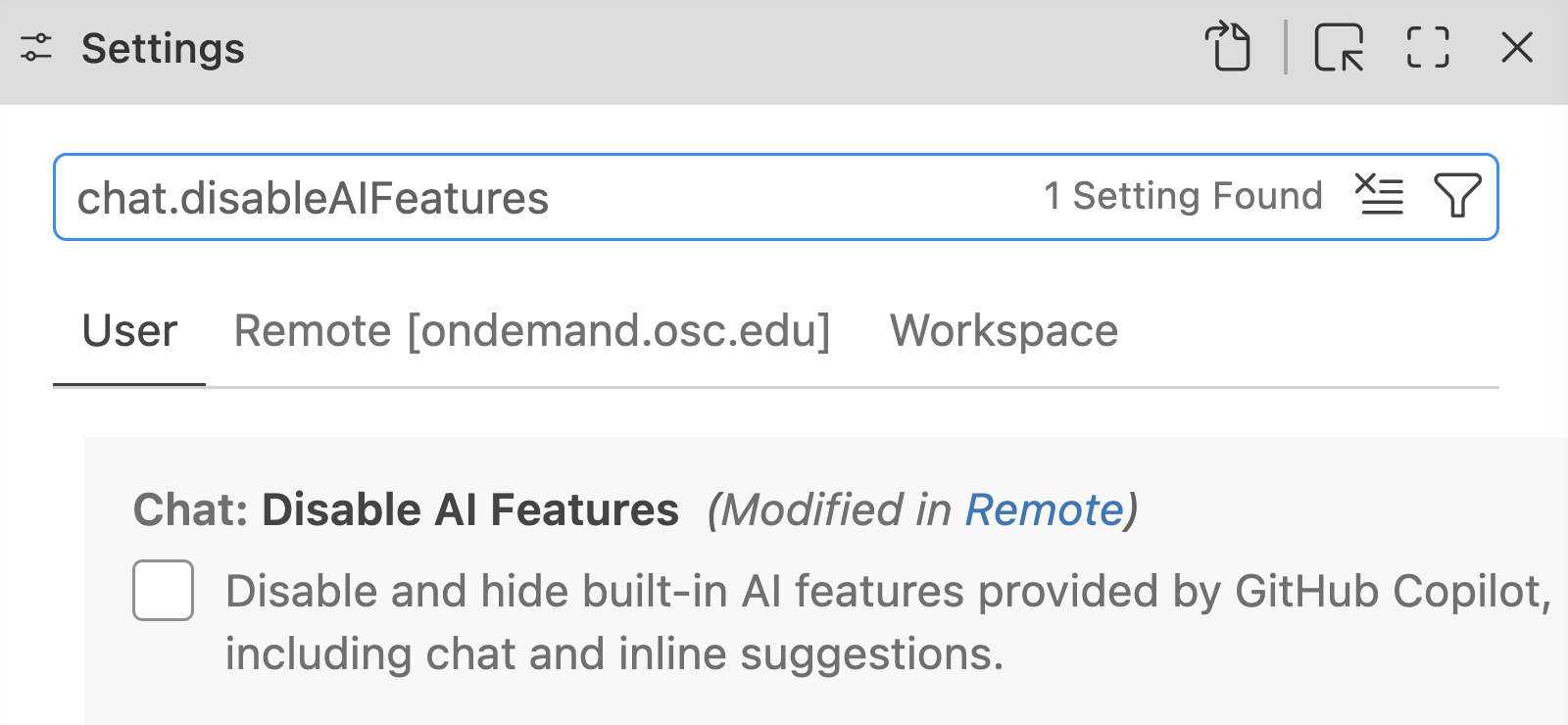
- Click on the “
Remote [ondemand.osc.edu]” tab header:
![A screenshot of the VS Code Settings with 'chat.disableAIFeatures' searched for and the 'Remote [ondemand.osc.edu]' tab selected, showing the 'Chat: Disable AI Features' box checked.](../img/vscode-disable-ai-setting-2.png)
- Uncheck the box next to “
Chat: Disable AI Features”:
![A screenshot of the 'Chat: Disable AI Features' setting in the 'Remote [ondemand.osc.edu]' tab of the VS Code Settings, with its box unchecked.](../img/vscode-disable-ai-setting-3.png)
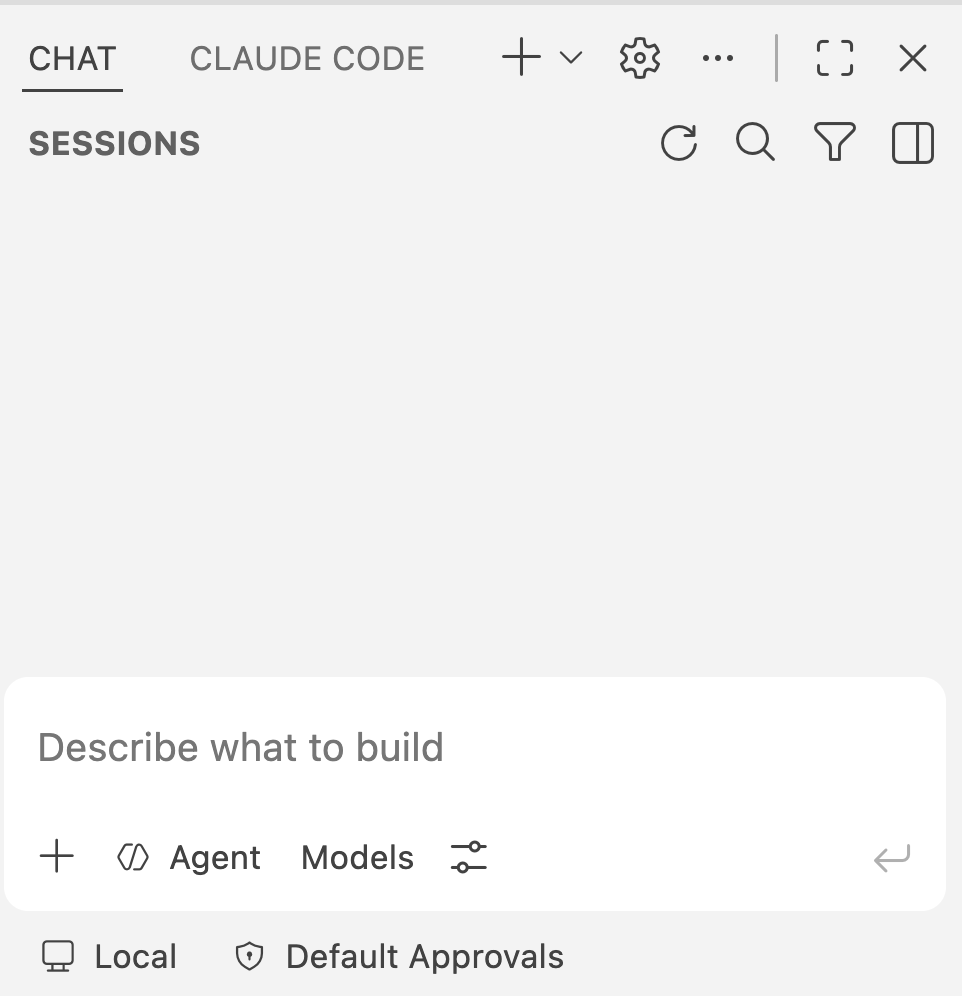
- Now, the secondary side bar with Claude should also have a “
CHAT” tab. Click that and the side bar should show something like the screenshot below:
- Click “Sign In” next to the Copilot icon in the status bar at the bottom of the window. (If you’re not seeing the Copilot icon, OSC’s VS Code Server may have reverted to its default setting of disabling AI features: follow the instructions in the previous box to enable them again.)

The GitHub Copilot icon in the status bar at the bottom, with a “Sign In” button next to it.
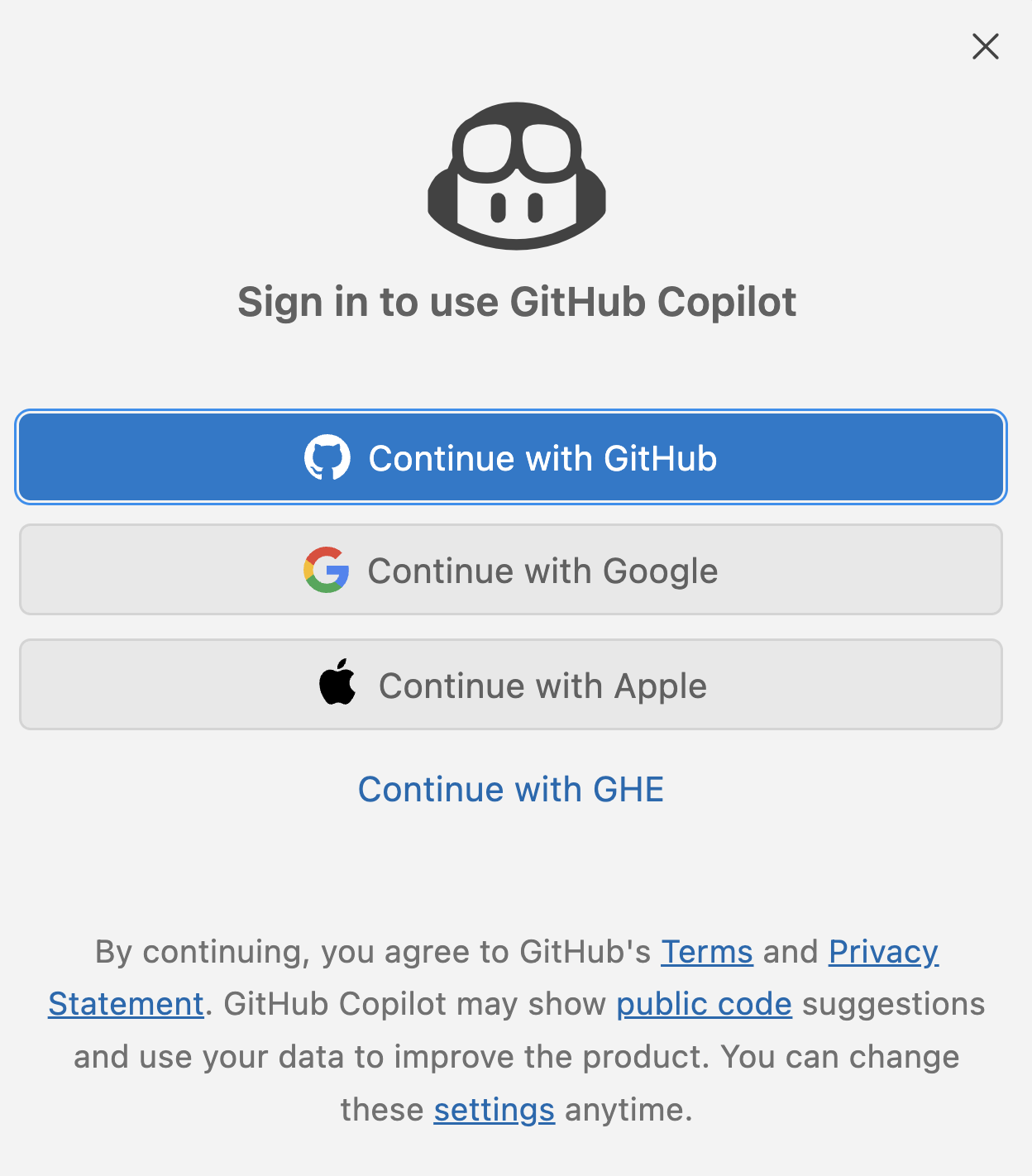
- Click “Continue with GitHub” and continue to follow the prompts to authenticate with your GitHub account.
Click here for a step-by-step guide to signing in
- This is where you click “Continue with GitHub”:
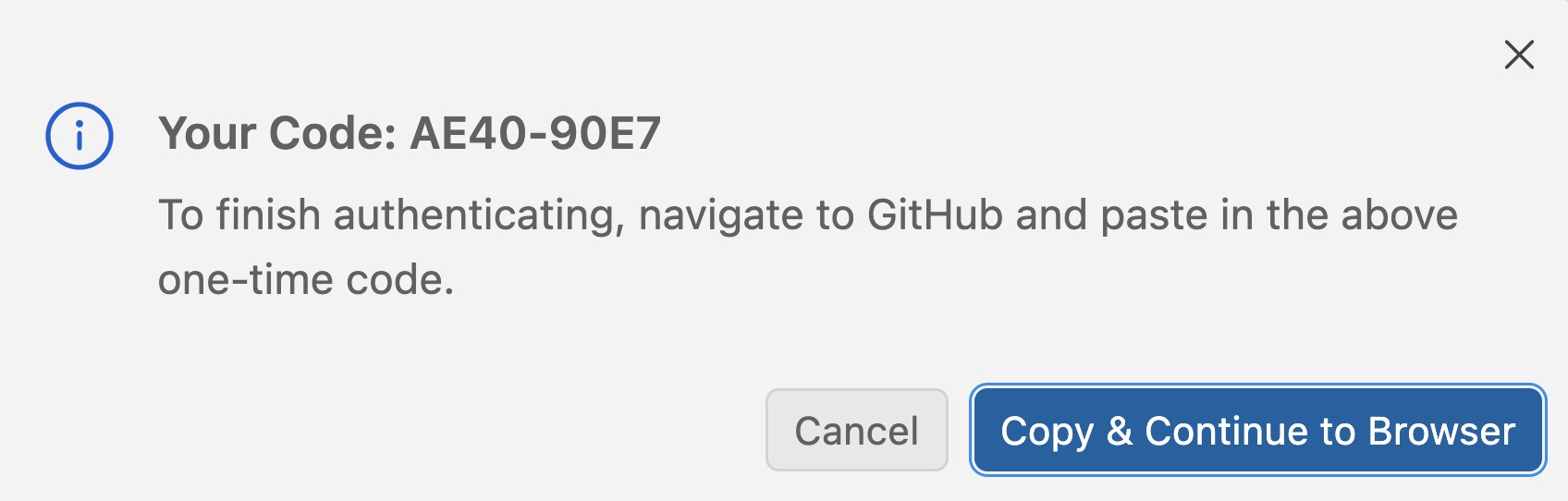
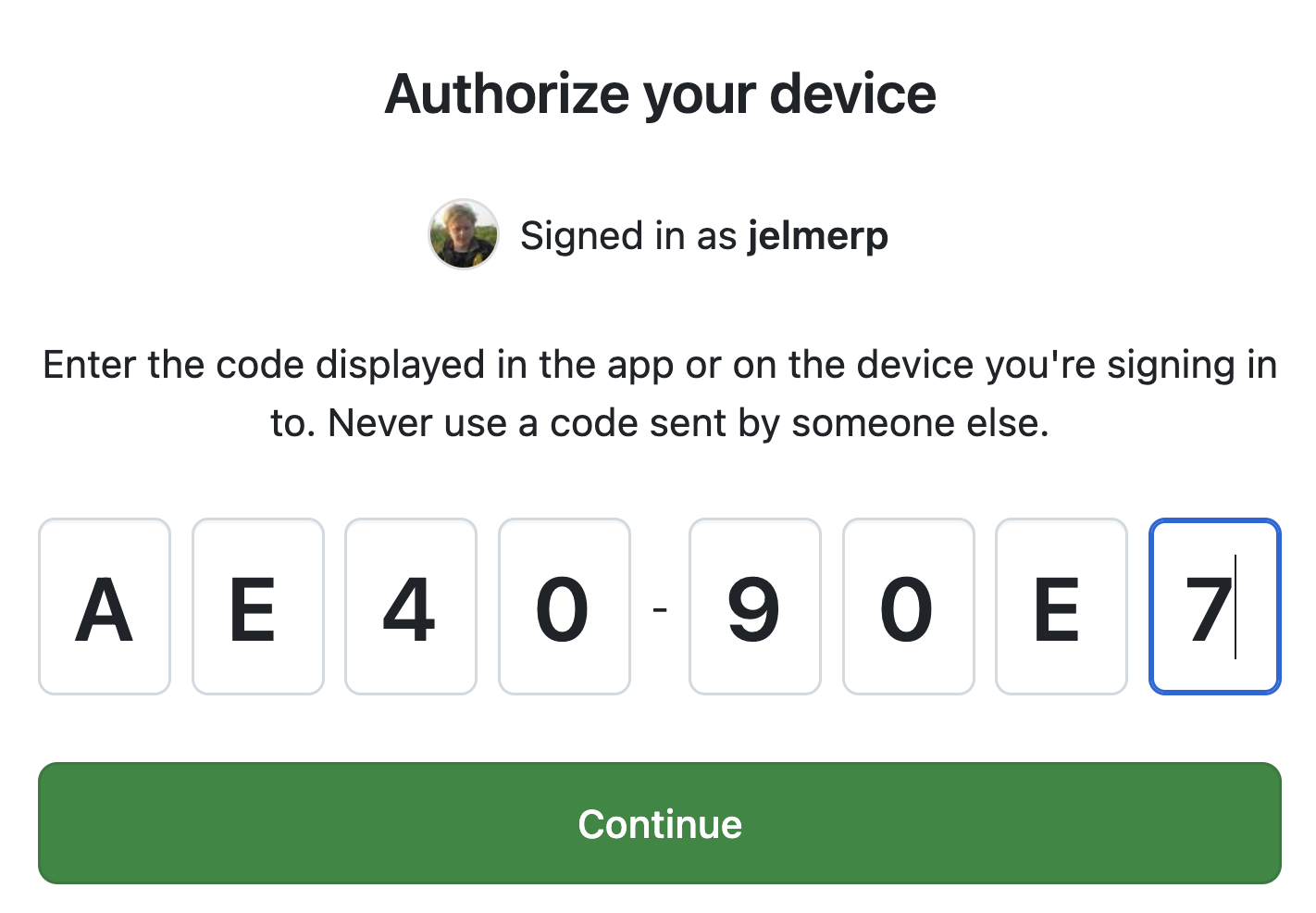
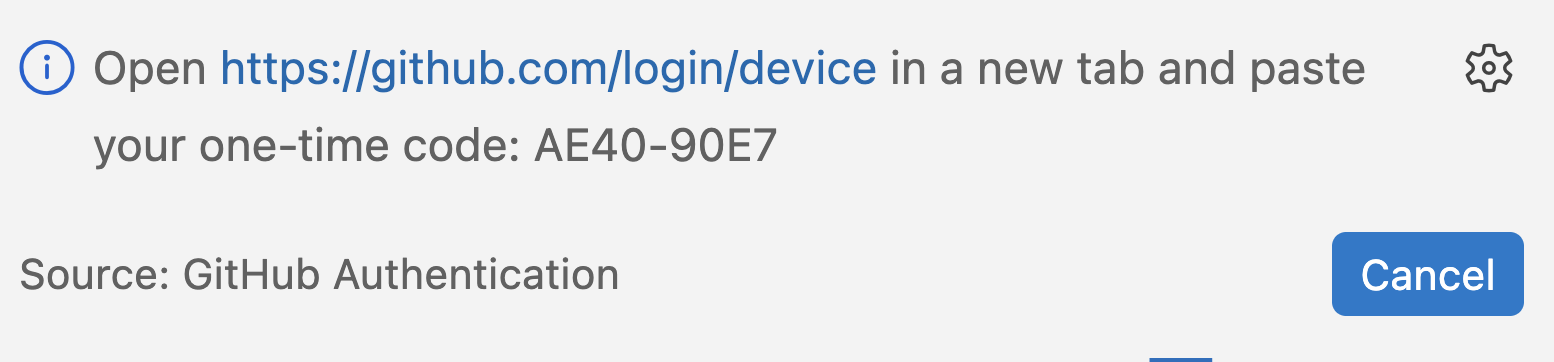
- VS Code will show you a one-time code. Click “Copy & Continue to Browser”, which copies the code:
- Click “Open” to allow VS Code to open the GitHub website in a new browser tab:

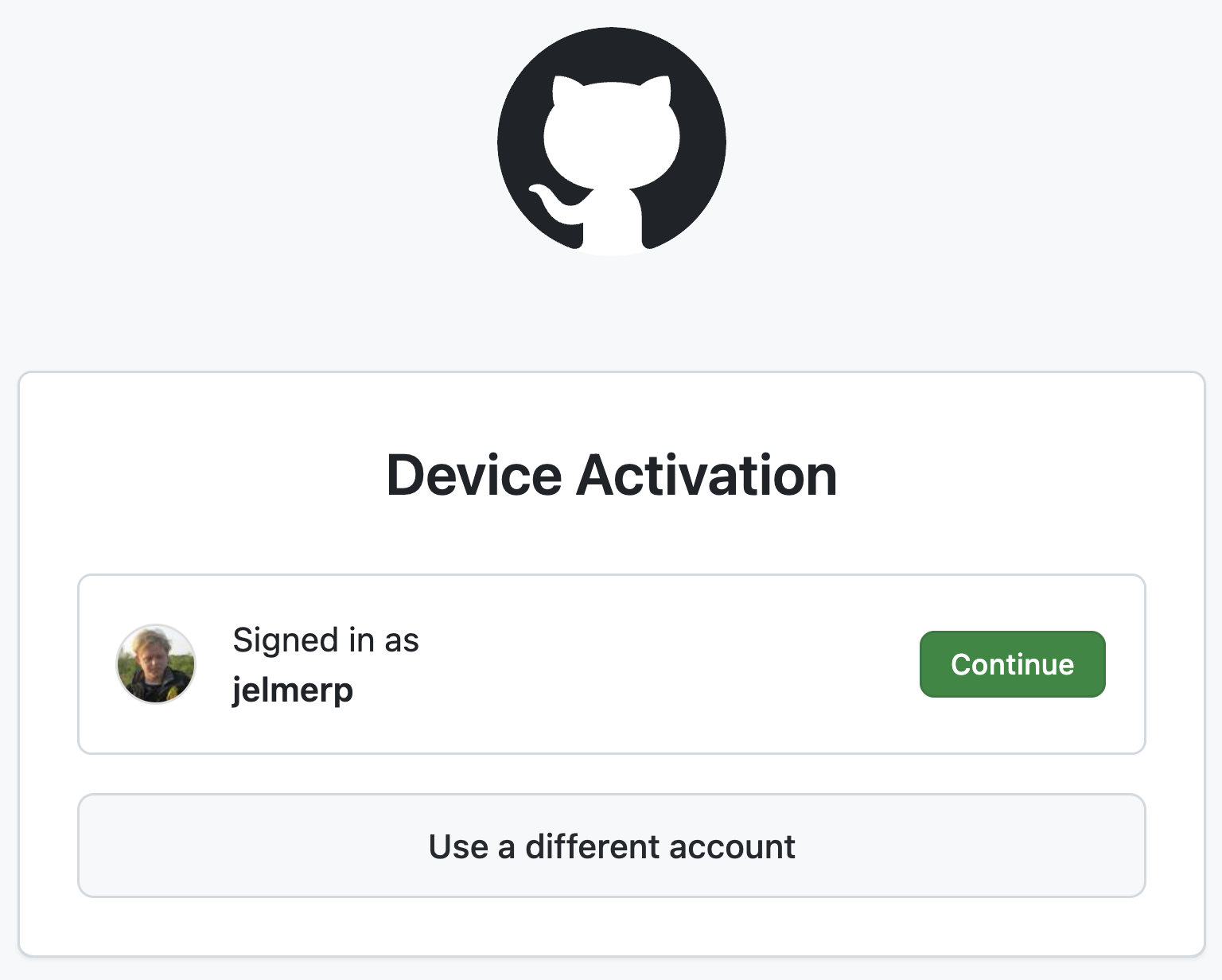
- In the new browser tab, check that you are signed in to the correct GitHub account and click “Continue”:
- Paste the code that you copied earlier and click “Continue”:
Back in VS Code, a notification in the bottom right also shows the code:
- On the “Authorize Visual Studio Code” page, scroll down and click “Authorize Visual-Studio-Code”:
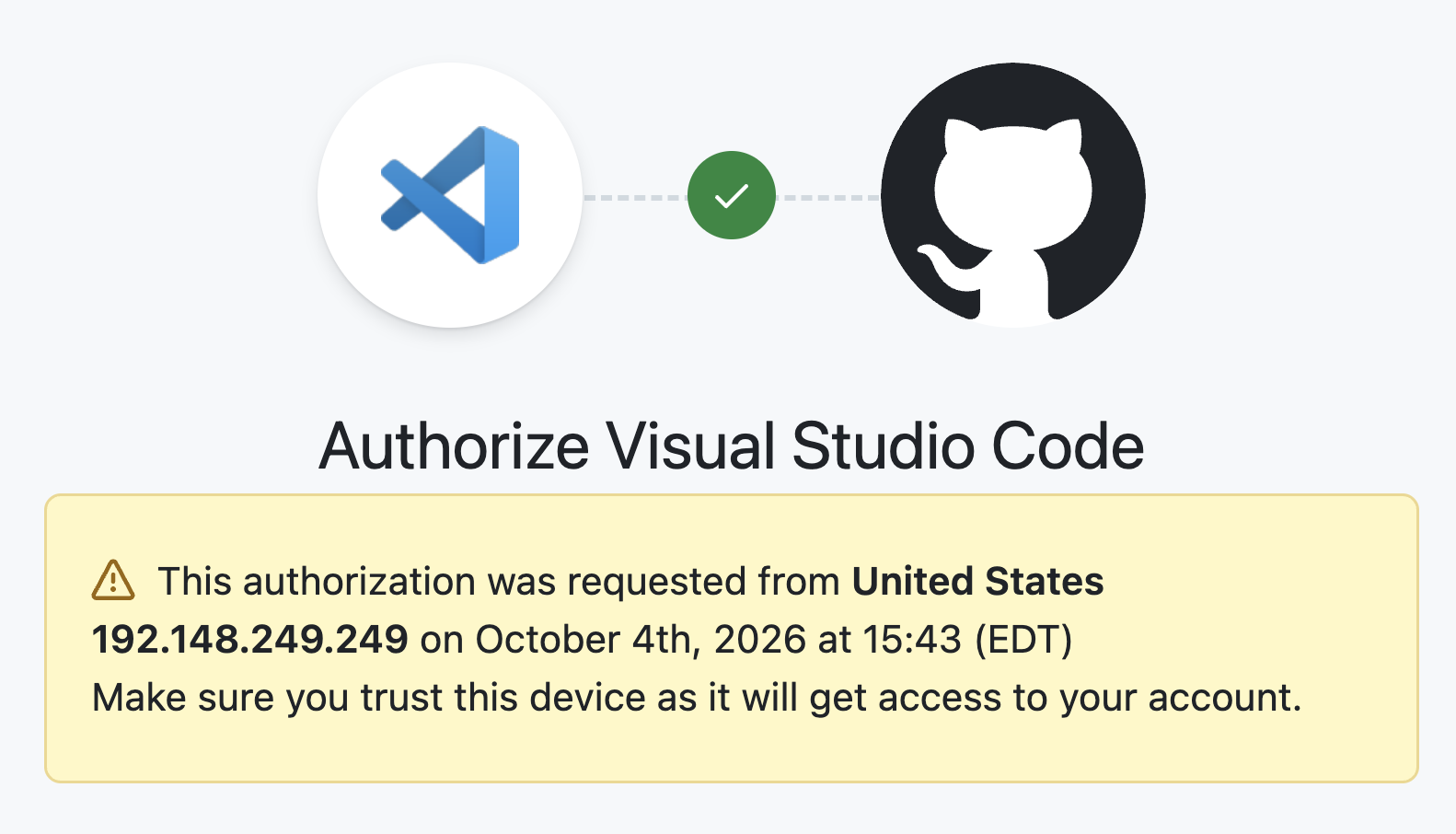

The page shows that this request came from an OSC IP address (starting with 192.148) — that’s expected, because VS Code Server runs at OSC rather than on your computer.
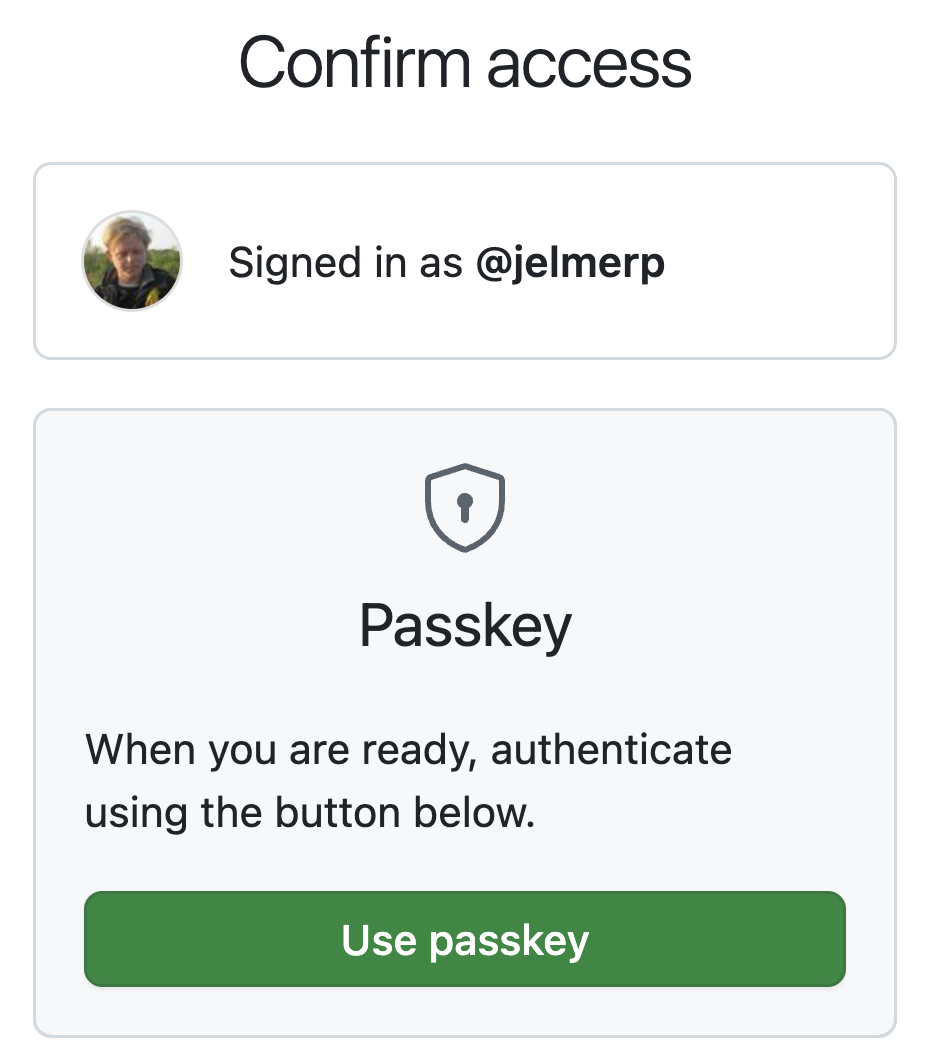
- GitHub may ask you to confirm access with your passkey, password, or two-factor authentication:
After this, you can close the browser tab and go back to VS Code.
2.3 Enabling code completions
Click the Copilot icon in the status bar at the bottom again:
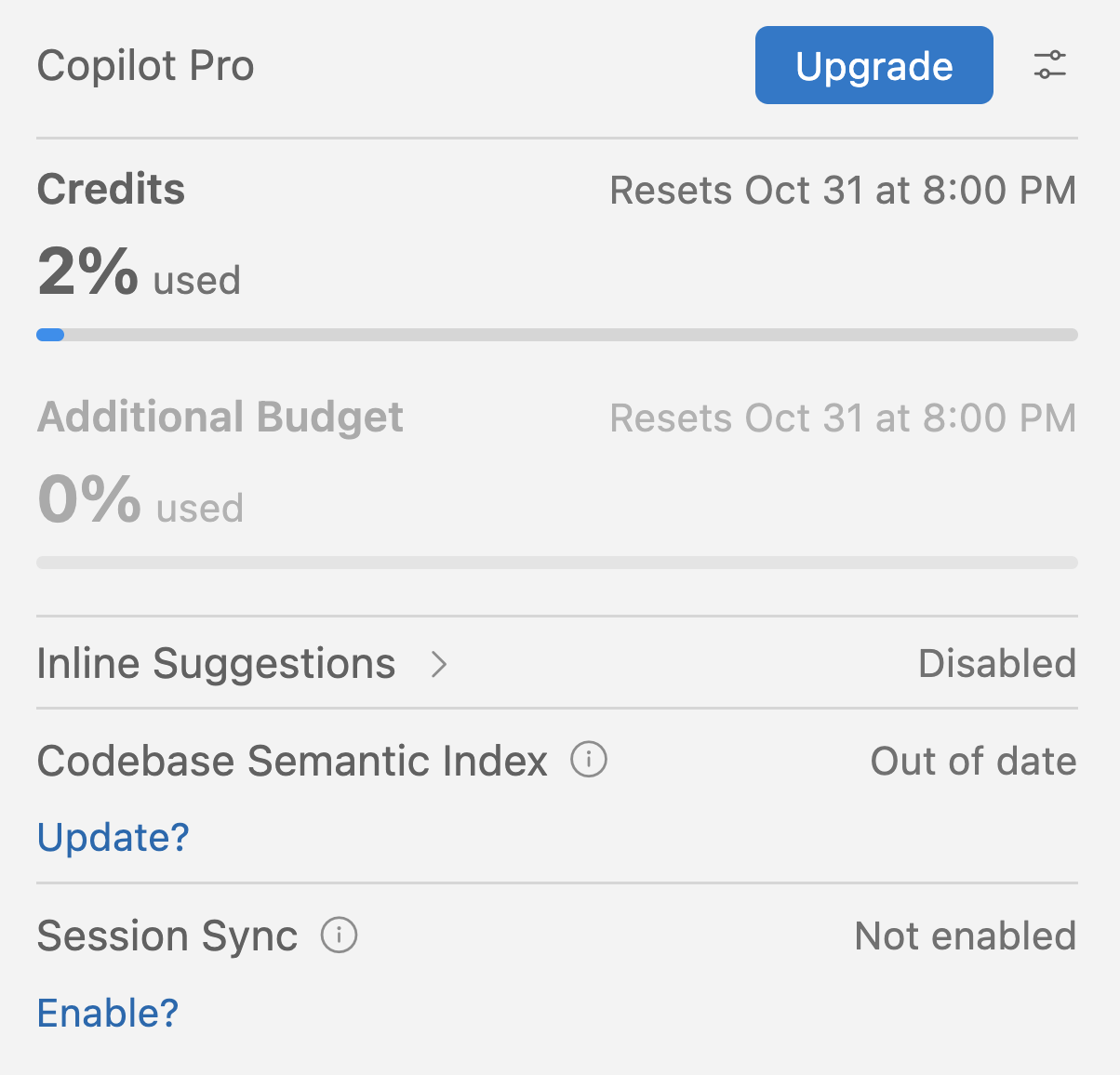
- It shows your plan and how much of your monthly allowance you have used.
- Code completions, which VS Code calls “Inline Suggestions”, may be disabled by default, as in the screenshot on the right.
If inline suggestions are disabled, enable them as follows:
Open the Command Palette: > Command Palette (or Ctrl/Cmd+Shift+P).
Type “copilot inline” and select
GitHub Copilot: Enable Inline Suggestions:

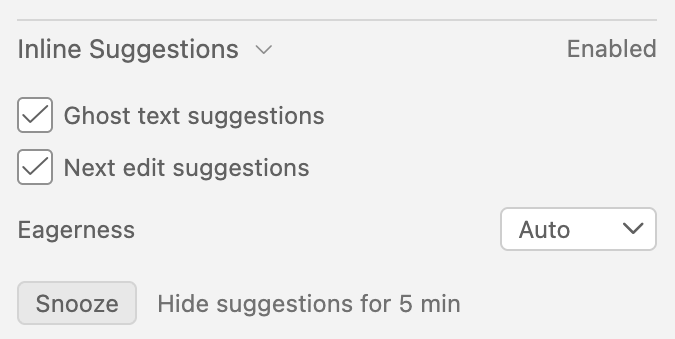
- Click the Copilot icon once more, and make sure that both boxes under “Inline Suggestions” are checked (these are the two types of code completions discussed below):
3 Intro to code completions
3.1 What are code completions?
“Code completions”, also known as “code suggestions” or, in VS Code, “inline suggestions”, are suggestions for additional or modified code (or other text) that Copilot shows right in the editor as you type. There are two types of code completions:
- Ghost text suggestions add new code at your cursor.
- Next edit suggestions change code that you have already written.
We’ll go over these one by one. After that, we’ll turn to Copilot’s chat, and in an appendix, to inline chat, a related feature that also works right in the editor.
3.2 Set up a practice file
You’ll work directly in your week09 dir while following along with this page. Start by making a decompressed copy of the GTF file in a new data dir, for easy access:
# You should be in /fs/ess/PAS3493/people/$USER/week09
mkdir -p data
zcat ../garrigos/ref/annot.gtf.gz > data/annot.gtfFinally, create a file copilot.sh, and open it in the editor. If Copilot is active, you should see some ghost text startup suggestions in the file already:

To run the code in your file, you can either copy it to the terminal and press Enter, or use a keyboard shortcut to send the code from the editor to the terminal. You should have set up that shortcut in week 7, but if not, see the next box for instructions.
.sh file instead of a Markdown file? (Click to expand)
In other sessions, you’ve been typing code in a Markdown file and sending it to the terminal from there. Here, we’ll use a file with a .sh extension instead, because that makes things a bit easier with Copilot:
- In a
.shfile, Copilot knows that everything is Bash code, so it will suggest code rather than prose, and comment lines work as prompts. - You don’t need to create code blocks with backticks.
But note that this file is not a real shell script like the ones you wrote in week 7: it is a scratch file whose lines you run one by one in the terminal, just like the code in your Markdown files. You won’t run it with bash or sbatch, which is why it doesn’t need a shebang line or set settings.
This shortcut will send selected code in the editor to the terminal. When no text is selected, the shortcut sends the line your cursor is on (in VS Code, your entire line is implicitly “selected” when your cursor is on it). To run a multi-line command like a for loop, first select all of its lines.
- Click (bottom-left) >
Keyboard Shortcuts. - Type “Run Selected Text” in the search box, and you should see the option “Terminal: Run Selected Text in Active Terminal”.
- Click on that line, then add the shortcut Ctrl+Enter (don’t worry about any warnings that other keybindings exist for this action; also, the keyboard shortcut is up to you, but I’d recommend this one).

4 Ghost text suggestions
Ghost text suggestions are the most common type of code completions. As you type, Copilot shows a suggestion in light gray “ghost text”. Press Tab to accept it, or Esc to dismiss it (you can also simply keep typing, which dismisses it too). There are two kinds of ghost text suggestions.
4.1 Completing what you’re typing
These suggestions try to complete the line you are typing, or suggest a next line based on the previous ones. For example, if you type #! in the first line of copilot.sh, it’s likely that Copilot will suggest the rest of the shebang line:

I typed #!, and Copilot suggested /bin/bash in ghost text.
It can be a little hard to see the distinction, but the ghost text is fainter than the already typed text.
When you accept the suggestion with Tab, the line is completed. And it may immediately suggest a next line:

Here, Copilot suggested echo "Hello, world!" as a next line.
Press Esc to dismiss the suggestion, whatever it is.
Copilot can help with many kinds of text, not just code. In a Quarto document that is part of the source code of this website, I typed the Markdown syntax to insert an image, {}, and Copilot then suggested the part in gray:

It suggested the formatting options that I typically add to a figure, and even fairly reasonable “alt text” (a description of the image), based on the file name.
We’ll talk about Quarto documents later in the course.
4.2 A comment as a prompt
These suggestions generate code that tries to implement what you described in a comment line. This is similar to asking a question in the chat, but can be faster and more convenient for small tasks, while less suitable for more complex questions.
Let’s try this in your copilot.sh file. First, add the following into it:
copilot.sh
# GTF file:
GTF=data/annot.gtfA first example
When you go to a new line and wait a second, you may already see a ghost text suggestion that acts on the GTF variable. But instead of letting GitHub Copilot go off on its own to randomly suggest ways to interrogate the GTF file, let’s give it a “prompt” by typing a comment line first:
copilot.sh (excerpt)
# Count the number of entries in the GTF fileYou may see a ghost text suggestion appear even with your cursor still at the end of the line, but otherwise, press Enter to go to a new line, and wait for a second for the suggestion to appear. Accept it with Tab and run the code: does it seem to have given a correct suggestion?
“Entries” means rows in the table part of the GTF file, i.e. excluding the header lines that start with #, but this is deliberately a little vague, so Copilot may not always get it right. For example, it may suggest a command that simply counts all lines instead. In that case, you could switch the prompt comment to:
copilot.sh (excerpt)
# Count the number of entries (non-header lines) in the GTF fileA correct answer may well look like this — recall, you can use grep -v to exclude lines that start with # (“starts with” is expressed as ^ in a regular expression; not covered in class), and then pipe the result into wc -l to count the lines:

Interestingly, in this specific case, we get a blue squiggly line under the command from shellcheck:

And hovering over the squiggly line shows a shellcheck suggestion for a more efficient and shorter command — we don’t need to pipe into wc -l, but can count directly with grep -c:

You never know exactly what you’ll get, but when I tried this, Copilot suggested saving the output to a variable, and then echo-ing a sentence with the result:

It did this consistently, with the commands below as well. This is neat in a way, but also very verbose. When I deleted the initial command and then added “print directly, no variable” to the prompt comment, it stopped doing this:

A second example
Let’s try a question that is simpler but more likely to suggest code with a construct that you haven’t seen before:
copilot.sh (excerpt)
# Count the total number of lines in the GTF file
What’s up with the <? You can ask Copilot to explain the code it suggests without opening the chat: type your question as a comment line below the command, such as # How does the < work in the above command?, then go to a new line and wait for Copilot to suggest an answer as a comment (if it suggests code instead, type # first). Here’s the “conversation” I had this way:

You may not have gotten the same construct, but you can use this trick with any command that Copilot suggests — including those in the next section. This doesn’t use any of your “AI Credits”, since it’s just another code completion (!).
Try it for yourself
Next, try some or all of the following prompts in the same way. Copilot is likely to use commands or syntax you haven’t seen yet; in particular, it often uses awk. Get Copilot to explain these commands, and optionally dig deeper with Claude Code or Gemini. You can also add notes like “avoid awk” and “use only very basic commands” to your prompt comments, to see if Copilot can do it in a simpler way.
# Count the number of gene features in the GTF file
# Print a frequency table of all feature types in the GTF file
# Count the number of genes on the + versus the - strand
# What is the average length of a gene in this GTF file?
Finally, here are a few other example prompts you can try in the same way — these are more general Unix shell tasks that are currently likely just beyond your abilities:
# Find all Markdown files in /fs/ess/PAS3493 and its subdirs
# List the top 5 largest files in the /fs/ess/PAS3493 directory and its subdirs
Tips and pitfalls
Overall, mistakes are much more likely here than in the (Claude Code) chat, because it will use a low-tier model, and sometimes also because it has less context to work with. For example:

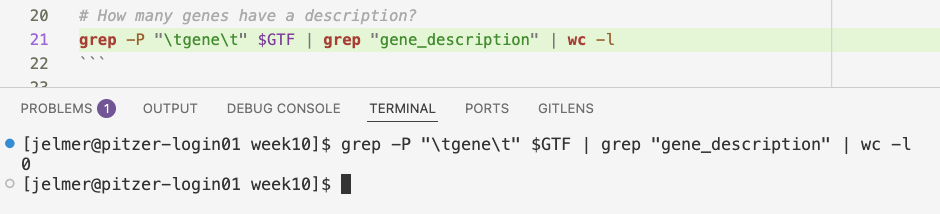
This suggestion is wrong, because the string gene can occur in many lines
that do not represent a gene-level feature in the GTF file.
You can follow up with a comment asking Copilot to fix the command, and it may do so.
Sometimes, multiple suggestions are available for a prompt, and you can hover over the ghost text to see them.
After you’ve accepted and run a command, go to a new line, type only a comment symbol (
#), and wait: Copilot will often suggest a next step that builds on the previous command. See where that leads you, and whether it makes sense!Think of something you want to do, start typing the command yourself, and see if and how Copilot completes it.


5 Next edit suggestions
“Next edit” suggestions suggest a change to code or other text that you have already written. Several kinds of situations can trigger next edit suggestions, such as:
- Syntax, spelling, or style errors in your code, such as a missing closing bracket or quote.
- Changing one instance of a recurring pattern in your code, such as a variable name or a path: Copilot will then suggest to change the other instances as well.
(There isn’t always a bright line between these two kinds of situations.)
5.1 Fixing errors
As a very simple example of the first kind, type the incorrect Ls -lh in your copilot.sh file, and wait a second: Copilot should suggest changing it to ls -lh, with a lowercase l:

Ls is incorrect, and Copilot recognizes that we are looking for ls instead.
As always, press Tab to accept the suggestion.
5.2 Recurring patterns
When you change one instance of a recurring pattern, such as a sample ID, a variable name, or a file name, Copilot will often suggest changing the other instances as well. We’ll go through two examples.
A shell script for a single sample
Create a new file fastq_summary.sh, and paste the following script into it. This script summarizes the FASTQ files for sample S63 (you don’t need to run it):
fastq_summary.sh
#!/bin/bash
set -euo pipefail
# Summarize the FASTQ files for sample S63
R1=../garrigos/fastq/S63_R1.fastq.gz
R2=../garrigos/fastq/S63_R2.fastq.gz
outdir=results/fastq_summary/S63
mkdir -p "$outdir"
# Count the number of lines in each FASTQ file
n_R1=$(zcat "$R1" | wc -l)
n_R2=$(zcat "$R2" | wc -l)
# Write the line counts to a TSV file
echo -e "S63\tR1\t$n_R1" > "$outdir"/S63_counts.tsv
echo -e "S63\tR2\t$n_R2" >> "$outdir"/S63_counts.tsv
# Save the first read of each file
zcat "$R1" | head -n 4 > "$outdir"/S63_R1_first-read.txt
zcat "$R2" | head -n 4 > "$outdir"/S63_R2_first-read.txt
echo "Done with sample S63"Let’s say that you now want to summarize the FASTQ files for sample S64 instead. Change S63 to S64 in the line that starts with R1=, and wait a second: Copilot is likely to suggest changing the next instance as well. Press Tab to accept a suggestion, Tab again to move on to the next suggestion, Tab again to accept that one, and so on. Did Copilot catch all instances of S63, including the ones in the comment line and in the final echo command?
A better solution would be to make the script work for any sample, by having it accept the sample ID as an argument, as you learned in week 7. To do so, first add the line sample_id=$1 above the R1= line. Then, change the R1= line to:
R1=../garrigos/fastq/${sample_id}_R1.fastq.gzCopilot should now suggest replacing the other hard-coded sample IDs with ${sample_id} as well. Check its suggestions carefully: for example, does it keep the curly braces in ${sample_id}_counts.tsv? Without them, the shell would look for a (nonexistent) variable sample_id_counts.
An R script
Next edit suggestions are not limited to changing identical pieces of text. The R script below uses the built-in iris dataset to summarize, plot, and test the sepal length of three iris species. Even if you don’t know R yet, you should be able to follow along. Create a new file iris.R, and paste the following code into it (again, you don’t need to run it):
iris.R
library(ggplot2)
# Mean sepal length per species
aggregate(Sepal.Length ~ Species, data = iris, FUN = mean)
# Boxplot of sepal length per species
p <- ggplot(iris, aes(x = Species, y = Sepal.Length)) +
geom_boxplot() +
labs(y = "Sepal length (cm)", title = "Sepal length by species")
ggsave("sepal_length_boxplot.png", p)
# Test whether sepal length differs between versicolor and virginica
iris_sub <- subset(iris, Species != "setosa")
t.test(Sepal.Length ~ Species, data = iris_sub)Note that sepal length is referred to in four different ways in this script: “sepal length” in the comments, Sepal.Length as the column name, “Sepal length” in the plot labels, and sepal_length in the file name. So, if you wanted to switch to a different variable, a single find-and-replace wouldn’t do the trick.
Change “sepal length” to “petal width” in the first comment line, and see whether Copilot suggests changing Sepal.Length to Petal.Width in the next line. Keep pressing Tab to see if it also updates the plot labels, the output file name, and the other comment lines.
This works in the other direction, too: change geom_boxplot() to geom_violin() to make a violin plot instead, and see whether Copilot suggests updating the “Boxplot” comment and the _boxplot.png part of the file name.
Code completions mainly use the file you’re working in, and other open files, as context. So if you use them only in your code and documentation files, and don’t open data files while doing so, you are unlikely to send any of your data to GitHub, even if your workspace contains data files. This is different for the chat, especially in Agent mode (see below): an agent can read any file in your workspace, and the output of the commands it runs.
6 The chat sidebar
Just like for Claude, the secondary side bar hosts the chat. Open it by clicking the icon shown on the right, then make sure that the “CHAT” tab is selected.
- You can use the keyboard shortcut Ctrl+⌘/Alt+I to directly open the “
CHAT” tab in the secondary sidebar. - You can click the “sparkling chat box” icon in the top bar, shown in this screenshot:


The chat sidebar should open on the right side of your VS Code window, and look something like the screenshot below.
6.1 Chat panel interface
As shown in the screenshot, the chat panel has a text box at the bottom where you can type your prompts. Across the bottom of that box are the following buttons:
+adds file contextAgentis the currently selected mode, and clicking it allows you to select others.Autois the currently selected model, and clicking it allows you to select others (but this is plan-dependent: see below).- The dials icon allows you to “configure tools”, i.e. to select which tools the agent can use to answer your questions (not something you need to change for now).
Below the text box are buttons to set where the agent runs (Local) and the permission level (Default Approvals): see below.
Way at the top is a + button to start a new chat.

The GitHub Copilot chat sidebar, with the “copilot.sh” file suggested as context.
6.2 Approval levels
The approval levels are similar to Claude’s permission modes, but not equivalent. The available approval levels are:
Default Approvals falls between Claude’s Manual and Edit automatically modes. Like in Manual mode, Copilot runs common read-only commands without asking, and asks for permission before running other commands. But like in Edit automatically mode, it doesn’t ask before editing files in your workspace (except for “sensitive” files like settings files): it saves its edits right away, and you can then keep or undo each one.
Bypass Approvals lets Copilot do everything without asking, including running any command. But it still works like a regular chat turn: it may stop to ask you a question, or stop when it runs into an error.
Autopilot goes one step further: besides doing everything without asking, it also answers its own questions, and retries on errors, so it keeps going until it decides the task is done.

The approval level menu, with “Default Approvals” selected.
Note that neither Bypass Approvals nor Autopilot has the AI safety check that Claude’s Auto mode has: they really skip all approvals, including for destructive commands4. (And whereas Plan is one of Claude’s permission modes, it is one of the chat modes in Copilot: see below.)
Local button (Click to expand)
The Local button below the box sets where the agent runs. You’ll only need the default, Local, which runs it right here in VS Code on your own files. The other options hand the task off to a separate agent that works in the background: Copilot CLI runs Copilot’s command-line agent on the machine where VS Code runs (here, at OSC), Cloud runs Copilot on GitHub’s servers (and opens a pull request with its changes), and Claude uses Anthropic’s Claude agent instead of Copilot’s own.
6.3 File context
Just like Claude, Copilot can search and read files in your workspace (the folder open in VS Code) by itself. And like in Claude, you can point it to specific files:
- The file that’s active in the editor is suggested as context. Assuming you still have it open, you should see
copilot.shat the top of the chat box as shown in the screenshot on the right. However, unlike in Claude, it is not added automatically: click the+button next to the file name to add it. - Other files can be added with the
+button at the bottom left of the chat box, or by typing#followed by part of a file name (in Claude, you used@for this). - Lines of code that you select in the editor are added as context, just like in Claude.
As with Claude, it’s often better to point Copilot to the relevant files explicitly, rather than letting it search for them. Even if not explicitly pointed to, Copilot is more likely to pay attention to the files you have open in the editor, so when asking questions, consider opening relevant files and closing irrelevant ones.
6.4 Modes
The second button from the left at the bottom of the chat box lets you select different chat modes5. The button will show the currently selected mode, which is usually Agent by default. Click it to see the menu with the three built-in modes:

The options in the modes/agents menu.
- Ask — Copilot answers questions, but doesn’t change any files or run any commands. Claude doesn’t have a mode like this, which is why we recommended using a browser-based chat for general questions.
- Agent — Copilot can search your files, create and edit files, and run commands. This is the mode that is most similar to how we used Claude in class.
- Plan — Just like Claude’s Plan mode, Copilot looks around your files without changing them, and writes a plan for a bigger task. Once you’re happy with the plan, Copilot switches to Agent mode to carry it out.
(The last item in the dropdown, Configure Custom Agents…, lets you create your own modes, each with its own instructions and a list of tools it may use — for example, a “reviewer” mode that can only read your files and comment on your code. You won’t need this for now, as the three built-in modes cover most use cases.)
6.5 Models
While Claude can only use Anthropic models, GitHub Copilot lets you choose between LLMs from different providers, like GPT, Claude, Gemini, and others.
However, on the Free and Student plans, you can only use whatever model Copilot automatically picks for each request — there’s no model dropdown to choose from. (Pro and other paid Copilot plans do let you manually pick a specific model.)

Here’s what the menu looks like on a Pro plan, where you can select a model.
7 Chat examples
7.1 An example in “Ask” mode
Ask mode is most useful when you want Copilot to look at your files, but not change anything or run commands. For example, you can ask it to explain what a script does, why a certain line in it fails, or which of your scripts creates a certain output file. In Agent mode, Copilot may start editing files or running commands when all you wanted was an explanation.
To keep this first example simple, well ask a general question that doesn’t involve your files (just note that in your actual research, such questions may be better asked to Gemini, so you don’t use up your Copilot credits). Select “Ask” mode and type the following prompt:
In a Bash script with set -euo pipefail, why could the line zcat sample.fastq.gz | head -n 8 make my script stop with an error, even though the FASTQ file is fine?
Does its explanation make sense to you?
Click to see a possible answer
Here’s the answer I got from Copilot:
With set -euo pipefail, the pipeline’s exit status is treated as a failure if any command in it fails.
In:
zcat sample.fastq.gz | head -n 8what often happens is:
head -n 8reads 8 lines, then exits normally (0).- The pipe closes because
headis done. zcatis still writing, getsSIGPIPE(broken pipe), and exits non-zero (commonly141).- Because of
pipefail, the pipeline status becomes non-zero. - Because of
-e, your script exits.
So the FASTQ can be perfectly fine; it’s a broken-pipe side effect from intentionally truncating output with head.
Typical fixes:
Ignore that specific pipeline failure:
zcat sample.fastq.gz | head -n 8 || trueTemporarily disable
pipefailaround this command:set +o pipefail zcat sample.fastq.gz | head -n 8 set -o pipefailUse a command that can stop decompressing cleanly for small previews (depends on tools available), but the above is the common practical fix.
Most robust pattern in strict-mode scripts is to explicitly allow this known benign case.
Be careful with Copilot’s first suggested fix, || true
|| means “or”: the command after it only runs if the command before it fails. And true is a command that does nothing except succeed. So, adding || true to a line makes it “succeed” no matter what went wrong.
That solves the problem above, but if the FASTQ file were missing or corrupt, your script would now also carry on as if nothing happened — exactly what set -e is meant to prevent. This is a common pattern in AI suggestions: a fix that makes the error go away, but also hides errors you’d want to see.
Unlike an agent, Ask mode won’t test its own claims — but you can easily do that yourself. $? contains the exit status of the last command: an exit status of 0 means success, and anything else means failure.
First, run the command without pipefail, which is the default in the shell:
zcat ../garrigos/fastq/S63_R1.fastq.gz | head -n 8
echo $?After the 8 lines of the FASTQ file, you should see:
0Then, run it again with pipefail turned on (set +o pipefail turns the setting off again at the end):
set -o pipefail
zcat ../garrigos/fastq/S63_R1.fastq.gz | head -n 8
echo $?
set +o pipefailThis time, after the FASTQ lines, you should see:
141Without pipefail, the exit status of a pipeline is that of its last command, head, which ran successfully. With pipefail, a failure of any command in the pipeline becomes the exit status of the whole pipeline. Here, 141 means that zcat was killed by a “SIGPIPE” signal because head stopped reading after 8 lines. In a script with set -e, that would make the script stop at this line.
When I asked it this, Copilot already suggested a few ways to avoid the problem, but if it didn’t, you could ask it a follow-up question, like “How can I avoid this?”. You could also ask it to further explain something it said, or to give a simpler explanation.
7.2 An example in “Agent” mode
Select “Agent” mode. Your workspace is your week09 dir, which contains the scripts from the lecture and your CLAUDE.md file. Let’s ask for a new script:
Write a shell script that prints the unique chromosome names in an uncompressed GTF file. Use commands like cut and sort, not awk
For tasks with tabular files like GTF files, AI tools tend to use awk, a powerful command that is really its own language, and that we haven’t covered in this course other than briefly this optional self-study section. More broadly, telling the agent which commands to use keeps its code readable for you. If you always want this, you could add a line like “In shell scripts, don’t use awk” to your CLAUDE.md.
Also, I asked for an uncompressed GTF file to avoid a more complicated script. Agents can be very eager to dot all the i’s and cross all the t’s, and may suggest complicated scripts that handle compressed files, check for errors, etc. This is certainly good in a way, but there is also a cost: you may end up with scripts that you don’t understand, and you become dependent on the AI to maintain them.
Like Claude would, Copilot will probably first search your workspace, and look at any existing scripts: you should see this being reported in the chat panel.
It should also read the
CLAUDE.mdfile you created in the lecture on Claude, adjust its code accordingly, and even write a diary entry in thedoc/ai/claude-diary.mdfile as instructed in that file.It will likely want to make the script executable and/or test-run it, and will ask for permission to do so, e.g.:

Unlike in Claude’s “Manual” permission mode, where Claude asks permission before it edits a file, Copilot makes the edits right away and saves them to disk (that’s how it can test-run a new script) — but they are still pending your review: you can keep or undo them, as we’ll see below.
When Copilot is done, you should see an “x files changed” (x is likely 2, as in the screenshot) message at the top of the chat box. You can click the arrow to see the file names, and click on them to open them in the editor:


- The file explorer should also highlight the new and changed files with these dot-in-box icons:

- As mentioned, you can still keep or undo the changes that Copilot made. When you open one of the changed files, you should see a diff view like this, where the lines highlighted in green are the new lines that Copilot added:

Click to see some additional screenshots
- Here, you can see that it looked at the other files in the workspace to determine what it should do:

- Here, its first test-run of the script failed because it didn’t use the correct path for the GTF file:

- Then, it fixed the path and asked for permission to run the command again:

- Finally, it talks about the diary entry that
CLAUDE.mdinstructs it to write, and it also saves a note in its own memory file — like Claude, Copilot keeps memory notes for itself:

Exercise 2: Check the agent’s work
- Did Copilot look at other files before writing the script? Did it report reading
CLAUDE.mdand did it write a diary entry indoc/ai/claude-diary.md? Does the new script follow the shell script conventions in yourCLAUDE.md? - Where did it save the script, and why there?
- Did it do exactly what you asked, or did it add things you didn’t ask for?
- Run the script on the
data/annot.gtffile. Does the output look reasonable? - The GTF file starts with a few header lines that begin with
#. Predict what the simple commandcut -f 1 data/annot.gtf | sort -uwould print for those lines. Does the output of Copilot’s script contain such lines? Look at the script to see how it handles them.
Click to see a hint for the last question
Header lines contain no tabs, and when a line has no delimiter, cut prints the whole line. So each header line would show up as if it were a chromosome name. (My script first removed these lines with grep -v '^#': does yours?)
Next, ask for an edit to that script:
Make the script write its output to a file, which is passed as the second argument
When it’s done and you open the modified script, you should see a diff that highlights both additions and deletions:

And the final script may look something like this. (It’s using an if-statement to check whether two arguments were passed to the script, and if not, it prints a usage message and exits with an error code. For more about this, see the optional self-study section on if-statements.)

As mentioned above, and as you should have witnessed in the previous example, Copilot in VS Code reads the same CLAUDE.md file as Claude. Therefore, any persistent instructions you wrote for Claude also apply to Copilot. It also reads AGENTS.md, the equivalent file that many other AI coding tools use.
8 Appendix: Inline chat
While technically part of Copilot’s chat features, inline chat is a final in-editor feature that dovetails nicely with code completions: you select a piece of code and ask Copilot to modify or explain it, right there in the editor. (Claude doesn’t have inline chat: there, you would select the lines and ask about them in the side bar.)
8.1 Modify code
When you are not happy with a ghost text suggestion, you can delete it, modify your comment line, and press Enter again. But you can also explicitly request a change to the code with inline chat, by selecting the code and pressing ⌘+I (Mac) / Ctrl+I (Windows).
For example, here, I got an incorrect answer to the comment prompt “How many genes have a description?”:
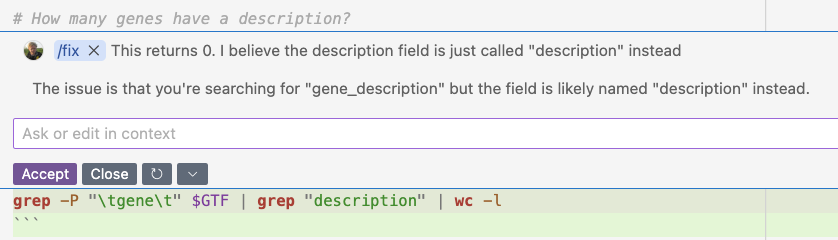
So I pressed ⌘+I and reported the failure:

Copilot then came up with a fix, which I could accept:
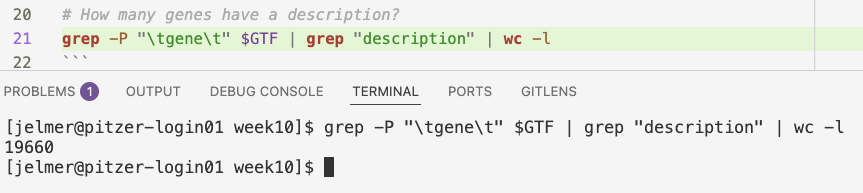
Running the modified line did give the correct answer:
Inline chat also works in the terminal: when you type a command in the terminal and press ⌘+I / Ctrl+I, the inline chat box opens there and works on that command.
8.2 Explain code
To have Copilot explain code instead, select it, open inline chat, type the “slash command” /explain, and press Enter:

For the selected line in the screenshot, find . -type d | wc -l, you should get a response like the following:

Exercise 3: Inline chat
Select the command that Copilot suggested for “What is the average length of a gene in this GTF file?”, and ask Copilot to explain it with
/explain. Do you understand each part of the command now? If you also asked about this command with a comment line earlier, how does that explanation compare?Select the command that Copilot suggested for “Print a frequency table of all feature types in the GTF file”, and use inline chat to ask Copilot to change it so that the table is sorted from most to least common feature type (or, if it already was, from least to most common). Then run the modified command to check the result.
On the Student and Pro plans, code completions are unlimited, but inline chat requests use your monthly “AI Credits”, just like requests in the chat side bar. You can check how much you have used by clicking the Copilot icon in the status bar.
Footnotes
Note: If you get a personal account, you will be responsible for any costs associated with its use and it will not be OSU-approved↩︎
Quite limited without educational benefits, but more useful as a student: see below.↩︎
GitHub and VS Code are both Microsoft products. Google Gemini also has a VS Code extension with similar functionality, but when I logged in with OSU credentials, I was informed that this is not available to us.↩︎
In newer versions of VS Code, these levels may be called “Manual permissions” and “Allow all”, Autopilot may have moved to the modes menu, and an experimental “Assisted permissions” level with an AI check, like Claude’s Auto mode, may be available: see the VS Code documentation .↩︎
VS Code calls these “agents” rather than modes, but “mode” is clearer here, since all three are run by the same AI.↩︎