Unix shell basics
Week 3 – Lecture A

1 Introduction
1.1 Context & overview
Throughout the rest of this course, you’ll be using the Unix shell regularly. This is the first of several lectures completely focused on learning to work in it. We’ll start with a conceptual introduction, and then you’ll take your first steps in the Unix shell!
1.2 Learning goals
In this lecture, you’ll learn:
- What the Unix shell is and what you can do with it
- Why it can be beneficial to use a command-line interface in general, and the Unix shell specifically
- How you execute shell commands, and how they are structured
- How to get help on a command’s options and arguments
- What environment variables are and how to print their values
- How to navigate around a computer with shell commands
- Keyboard shortcuts that make working in the shell much more efficient
2 The Unix shell
2.1 Some terminology and concepts
Unix-based (or Unix-like) operating systems include macOS and Linux but not Windows. For scientific computing, Unix-based operating systems are generally preferable. Supercomputers like those of OSC, and most servers throughout the world, run on Linux specifically.
Don’t be alarmed if you have a Windows laptop/desktop. Certainly for the purposes of this course, and in principle for your other research, your computer can run on any operating system. That’s because you can connect to OSC and do your work there.
This session introduces the “Unix shell”. Terminology around the Unix shell can be confusing, and some terms are used interchangeably. Let’s run through these terms, going from more general ones to more specific ones:
| Term | Explanation |
|---|---|
| Command Line / Command Line Interface (CLI) |
A user interface where you type commands rather than pointing-and-clicking like in a Graphical User Interface (GUI). This “interface” can be anything from a specific bioinformatics program to a computer’s operating system. |
| Shell | A more specific and technical term for a command line interface to a computer as a whole. |
| Unix shell | The type of shell found on Unix-based (Linux + Mac) computers. |
| Bash | A specific Unix shell language (the most common one, and the one we’ll use). |
Or, shown in another way — each term is a subset of the one around it:
Command line (CLI)
Shell
Unix shell
Bash
Also related is the word terminal: the program/app/window in which the shell is run.
While the above terms are not synonyms, they are often used interchangeably in practice.
2.2 Why use the Unix shell?
The Unix shell can be used for a wide variety of tasks, from “file browser” functionality to running specialized software.
The Unix shell has been around for a long time and may seem a bit archaic. But astonishingly, a system largely built decades ago in an era with very different computers and datasets has stood the test of time, and the ability to use it is a crucial skill in computational biology.
Using the Unix shell rather than programs with GUIs has some of the general advantages of using code we’ve discussed:
- Automation, fewer errors, and reproducibility
The shell allows you to repeat and automate tasks easily and with fewer errors, and it’s straightforward to keep a detailed record of what you have done.
There are also specific reasons to use the Unix shell as opposed to (other) coding languages like R and Python:
- Software needs
Many programs used for omics data analysis have a CLI and are most easily run from the Unix shell. - Viewing and processing large files
Shell commands are excellent at viewing and processing very large, plain-text files, which are common in omics research. - Efficiency and convenience
Built-in shell tools are often faster in terms of both coding and running time, especially for simpler tasks. And when doing remote computing, the Unix shell is both your point of entry and a universal interface.
3 First steps in the shell
3.1 Start a VS Code session and open a Unix shell
Log in to OSC’s OnDemand portal at https://ondemand.osc.edu.
In the blue top bar, select
Interactive Appsand near the bottom, clickCode Server.Fill out the form as follows:
- Cluster:
Pitzer - Account:
PAS3493 - Number of hours:
2 - Working Directory:
/fs/ess/PAS3493/people/<user>(replace<user>with your user name) - App Code Server version:
4.129.0(New version as of this week)
- Cluster:
Click
Launch, and in the next page, click theConnect to VS Codebutton once it appears.In VS Code, open a terminal by either:
- Clicking →
Terminal→New Terminal - Using the keyboard shortcut Ctrl+`
- Clicking →
Here’s one pop-up I got in this new version of VS Code, which you may also see, at least if you have a Chrome browser — if so, click “Allow”:

3.2 Change one VS Code setting
This newer version of VS Code has a default setting for terminal behavior called Sticky Scroll, which can be pretty confusing1. To change this setting:
- Click (bottom-left) >
Settings. - In the search box, type “terminal sticky”.
- Look for the setting
Terminal > Integrated > Sticky Scroll: Enabledand uncheck it.

On OSC OnDemand, you can also access a Unix shell directly via the Clusters dropdown menu.
You can open a Unix shell on any of the three clusters:

Clusters dropdown menu on OSC OnDemand.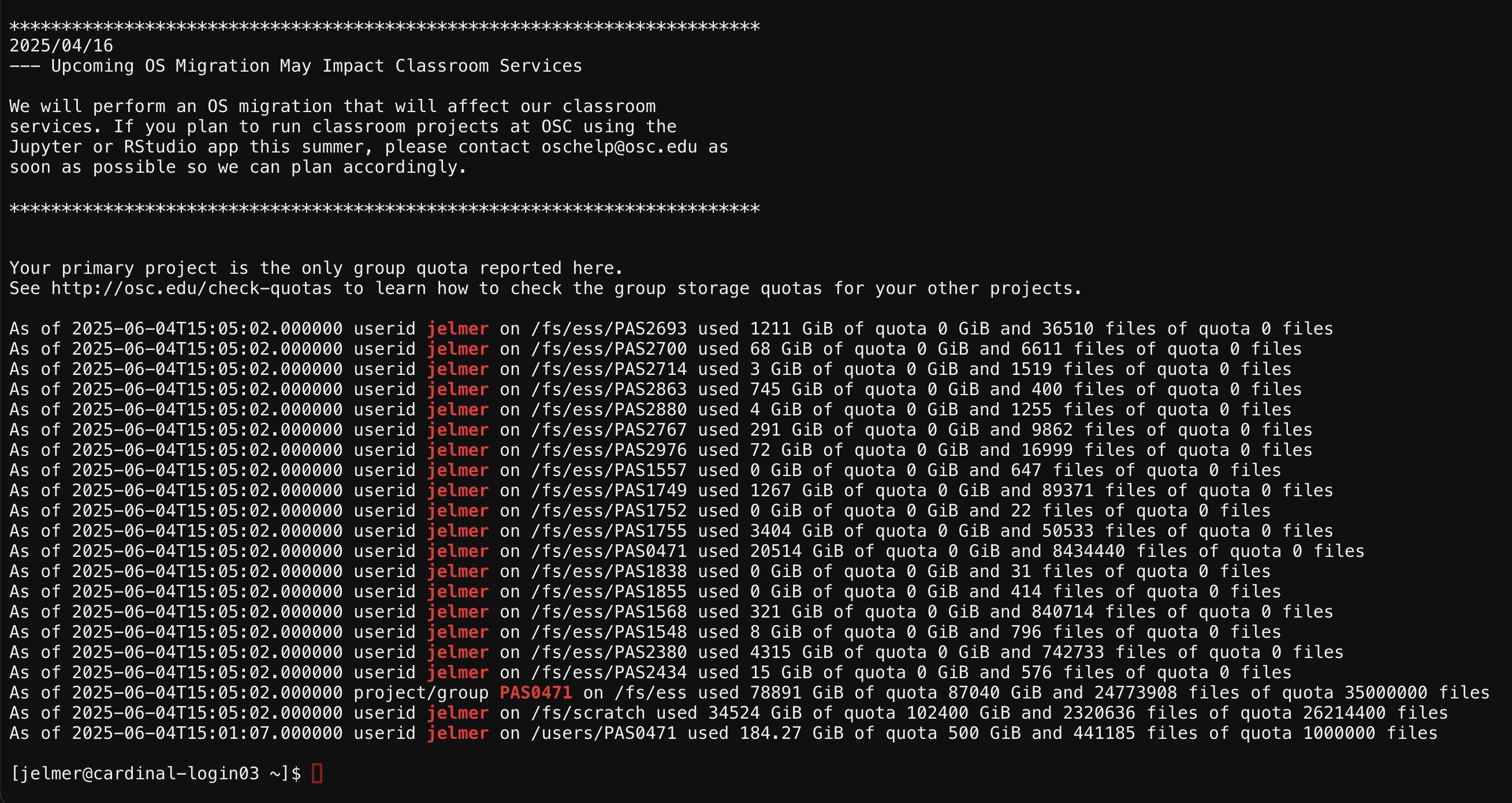
Clusters menu.During the course, you will instead access a Unix shell inside Code Server, because this allows you to use the shell in combination with a text editor and other tools.
However, direct access via the Clusters dropdown menu can be a much quicker way in, if you just want to run a few commands and don’t need the other tools.
3.3 The shell’s prompt
Inside your terminal, the “prompt” indicates that the shell is ready for a command. Exactly what is shown varies across shells and can be customized, but our prompts at OSC should show something like this:
[jelmer@p0362 jelmer]$This represents the following pieces of information:

The working dir is the directory you are currently located in. For brevity, the prompt only shows the name of the directory you are directly located in (e.g. jelmer) rather than the entire path (e.g. /fs/ess/PAS3493/people/jelmer).
You type your commands after the dollar sign $, and then press Enter to execute the command. When the command has finished executing, you’ll “get your prompt back”, and can execute a new command.
~ as the working directory? Click here to learn how you can switch to the correct dir.
If you see a ~ as the working-dir-part of your prompt, you are instead in your Home directory in /users/ and you will need to go to /fs/ess/PAS3493/people/<user> instead.
While you could navigate there with a simple shell command, you should use the “Open Folder” functionality in VS Code instead. This moves the entire program (and not just the terminal) to the correct dir.
To do so: click File > Open Folder in VS Code and then type/select /fs/ess/PAS3493/people/<user>, replacing <user> with your user name. When you then open a Terminal again, the correct dir should be displayed.
3.4 A few simple commands
The Unix shell comes with hundreds of commands: small programs that perform specific actions2. Let’s start with a few simple commands:
The
datecommand prints the current date and time:dateWed Sep 9 13:58:19 EDT 2026The
pwd(Print Working Directory) command prints the path to the directory you are currently located in:pwd/fs/ess/PAS3493/people/jelmerThe
echocommand simply prints the text you provide it with, typically between double quotes “…”3.echo "Welcome to PLNTPTH 5006"Welcome to PLNTPTH 5006
All these commands provided us with some output. That output was printed to screen, which is the default behavior for nearly every shell command.
4 Options, arguments, and help
4.1 The cal command — and options & arguments
The cal command is another example of a command that simply prints some information to the screen, in this case a calendar. It’s not a particularly useful command in this day and age 🙃, but we’ll use it as a low-stakes example to learn about command options and arguments.
Just running cal will print a calendar for the current month:
cal September 2026
Su Mo Tu We Th Fr Sa
1 2 3 4 5
6 7 8 9 10 11 12
13 14 15 16 17 18 19
20 21 22 23 24 25 26
27 28 29 30(In your terminal, the current date should also be highlighted.)
Examples of using command options
Use the option -j (a dash - and then a j) to instead print the calendar with “Julian” (day-of-year) date numbering, which numbers days year-wise instead of month-wise:
# Make sure to leave a space between `cal` and `-j`!
cal -j September 2026
Sun Mon Tue Wed Thu Fri Sat
244 245 246 247 248
249 250 251 252 253 254 255
256 257 258 259 260 261 262
263 264 265 266 267 268 269
270 271 272 273OSC prints welcome messages and storage quota information when you open a shell. To reduce the amount of text on the screen, I will clear the screen now, and regularly throughout. This can be done with the keyboard shortcut Ctrl+L.
Use the -3 option to show 3 months (adding the preceding month and the next month):
cal -3 August 2026 September 2026 October 2026
Su Mo Tu We Th Fr Sa Su Mo Tu We Th Fr Sa Su Mo Tu We Th Fr Sa
1 1 2 3 4 5 1 2 3
2 3 4 5 6 7 8 6 7 8 9 10 11 12 4 5 6 7 8 9 10
9 10 11 12 13 14 15 13 14 15 16 17 18 19 11 12 13 14 15 16 17
16 17 18 19 20 21 22 20 21 22 23 24 25 26 18 19 20 21 22 23 24
23 24 25 26 27 28 29 27 28 29 30 25 26 27 28 29 30 31
30 31You can use multiple options at once — for example:
cal -j -3 August 2026 September 2026 October 2026
Sun Mon Tue Wed Thu Fri Sat Sun Mon Tue Wed Thu Fri Sat Sun Mon Tue Wed Thu Fri Sat
213 244 245 246 247 248 274 275 276
214 215 216 217 218 219 220 249 250 251 252 253 254 255 277 278 279 280 281 282 283
221 222 223 224 225 226 227 256 257 258 259 260 261 262 284 285 286 287 288 289 290
228 229 230 231 232 233 234 263 264 265 266 267 268 269 291 292 293 294 295 296 297
235 236 237 238 239 240 241 270 271 272 273 298 299 300 301 302 303 304
242 243To save you some typing, options can be “pasted together” like so:
# [Output not shown - same as above]
cal -j3#
Any text that comes after a # is considered a comment instead of code! Comments are not executed but are ignored by the shell:
# This entire line is a comment - you can run it and nothing will happen
cal # If you run this line, 'cal' will be executed, but everything after the '#' is ignoredOptions summary
Options are specified with a dash - (or two dashes --, as you’ll see later). The examples so far have involved the kind of option that is also called a flag, which changes functionality in an ON/OFF way, such as:
- Turning Julian (day-of-year) date numbering on with
-j - Turning a 3-month display on with
-3
We’ll see more complex types of options later. Generally speaking, options change the behavior of a command.
Arguments
Arguments typically tell a command what to operate on. Most commonly, these are file or directory paths. Admittedly, cal is not the best illustration of this pattern — when you give it one argument, this is the year to show a calendar for:
cal 2020 2020
January February March
Su Mo Tu We Th Fr Sa Su Mo Tu We Th Fr Sa Su Mo Tu We Th Fr Sa
1 2 3 4 1 1 2 3 4 5 6 7
5 6 7 8 9 10 11 2 3 4 5 6 7 8 8 9 10 11 12 13 14
12 13 14 15 16 17 18 9 10 11 12 13 14 15 15 16 17 18 19 20 21
19 20 21 22 23 24 25 16 17 18 19 20 21 22 22 23 24 25 26 27 28
26 27 28 29 30 31 23 24 25 26 27 28 29 29 30 31
# [...output truncated, entire year is shown...]Finally, you can also combine options and arguments:
cal -j 2020 2020
January February
Sun Mon Tue Wed Thu Fri Sat Sun Mon Tue Wed Thu Fri Sat
1 2 3 4 32
5 6 7 8 9 10 11 33 34 35 36 37 38 39
12 13 14 15 16 17 18 40 41 42 43 44 45 46
19 20 21 22 23 24 25 47 48 49 50 51 52 53
26 27 28 29 30 31 54 55 56 57 58 59 60
# [...output truncated, entire year is shown...]To summarize how command arguments differ from options — arguments:
- Usually tell the command what to operate on, instead of changing how to operate
- Are not preceded by
-and a letter (or--and a keyword) - Go after options, if the two are combined4.

Note that regrettably, the most common way to refer to this entire line is also “command”. Therefore, the term “command” can either refer to just a command like
cal or a full command-line expression that includes options and arguments like cal -j 2020.4.2 Getting help
Many shell commands have a -h (or --help) option for help, which usually gives a concise summary of the command’s syntax, such as its available options and arguments:
cal -hUsage:
cal [options] [[[day] month] year]
cal [options] <timestamp|monthname>
Display a calendar, or some part of it.
Without any arguments, display the current month.
Options:
-1, --one show only a single month (default)
-3, --three show three months spanning the date
-n, --months <num> show num months starting with date's month
-S, --span span the date when displaying multiple months
-s, --sunday Sunday as first day of week
-m, --monday Monday as first day of week
-j, --julian use day-of-year for all calendars
--reform <val> Gregorian reform date (1752|gregorian|iso|julian)
--iso alias for --reform=iso
-y, --year show the whole year
-Y, --twelve show the next twelve months
-w, --week[=<num>] show US or ISO-8601 week numbers
-v, --vertical show day vertically instead of line
--color[=<when>] colorize messages (auto, always or never)
colors are enabled by default
-h, --help display this help
-V, --version display version
For more details see cal(1).In this case, we learn that most options to cal can be referred to in one of two ways:
- A short-form notation: a single dash followed by a single character (e.g.
-s) - A long-form notation: two dashes followed by a keyword (e.g.
--sunday)
man command (Click to expand)
An alternative way of getting help for shell commands is with the man command:
man calThis manual page often includes a lot more detail than the --help output, and it is opened inside a “pager” rather than printed to screen: type q to exit the pager that man launches.
(The last line of the output of cal -h — “For more details see cal(1)” — referred to this man page.)
Exercise: options
Look through the options listed when you ran
cal -h, and try an option we haven’t used yet. (You can also combine this new option with other options, if you want.)Click to see a solution.
For example, to print a calendar with Monday as the first day of the week (instead of the default, Sunday):
cal -mSeptember 2026 Mo Tu We Th Fr Sa Su 1 2 3 4 5 6 7 8 9 10 11 12 13 14 15 16 17 18 19 20 21 22 23 24 25 26 27 28 29 30I did this the “wrong way around” in class, showing the
-sSunday option, which does not actually change the default behavior, as Sunday is the default.Try using one or more options in their “long form” (with
--).Click to see a solution.
For example:
cal --julian --mondaySeptember 2026 Mon Tue Wed Thu Fri Sat Sun 244 245 246 247 248 249 250 251 252 253 254 255 256 257 258 259 260 261 262 263 264 265 266 267 268 269 270 271 272 273Can you think of an advantage of using long-form over short-form options?
Click to see the answer.
The advantage of using long options is that they are less cryptic and more descriptive. It is much more likely that any reader of the code (including yourself next week) will immediately understand what these options are doing.
Therefore, they are useful for code that is part of your main analysis workflow, and that you plant to share with others or re-use later. For quick in-terminal exploration, on the other hand, short options are often more convenient.
5 Environment variables
You may be familiar with the concept of variables from previous experience with R or another language. Either way, variables can hold values and other pieces of data, and they are essential in coding.
While you can create variables yourself, and will learn how to do so later in this course, we’ll now focus on environment variables. These are pre-existing variables that were automatically created by the system when you logged in. Two examples are:
$HOME, which contains the path to your Home directory$USER, which contains your user name
Note that in the Unix shell, variables are always referenced using a leading $. This helps you recognize them as variables.
If you want to print the value of a variable, you can’t just type its name: you need to precede it with a command like echo:
echo $HOME/users/PAS0471/jelmerecho $USERjelmer Exercise: environment variables and echo
Using an environment variable, print
Hello, my name is <user>to the screen, e.g.:Hello, my name is janeClick to see the answer.
# (This would also work without the " " quotes) echo "Hello, my name is $USER"Hello, my name is jelmerAbove, my (Jelmer’s) home dir was printed. Why might its path contain
PAS0471instead ofPAS3493?Click to see the answer.
This simply means that I created my account when joining the OSC Project
PAS0471. For those of you who created your account for this course, your Home dir will be underPAS3493instead. Recall that the project ID in your Home folder is mostly irrelevant.
<...>
Code-formatted text between < and > (such as <user> above) represents something that will differ from user to user, or between contexts. For example, <user> above should be read as a placeholder for your actual username, and would be replaced by that username, e.g. by jelmer (not by <jelmer>).
6 Navigation
6.1 cd and command “actions”
All commands so far “merely” provided some information, which was printed to the screen. But many commands instead perform some other kind of action.
For example, the command cd (Change Directory) will change your working directory. First, check again where you are:
pwd/fs/ess/PAS3493/people/jelmerNow, use cd to navigate to another directory by specifying the path to that dir as an argument:
cd /fs/ess/PAS3493# Double-check that you were moved:
pwd/fs/ess/PAS3493In summary:
Like
cal,cdaccepts an argument. Unlike withcal, this argument takes the form of a path that the command should operate on (which is very typical among shell commands).cdgives no output when it successfully changes the working directory. This is very common behavior for shell commands that perform operations: when they succeed, they are silent.
Let’s also see what happens when cd does not succeed — it gives an error:
cd /fs/ess/pas3493bash: cd: /fs/ess/pas3493: No such file or directoryWhat went wrong here? And what does that tell you? (Click to see the answer.)
We spelled pas in lowercase letters, while the actual dir is spelled PAS3493 in uppercase letters.
Given that this resulted in an error, it appears that the shell is case-sensitive. That is, it treats uppercase and lowercase letters as different characters.
6.2 Absolute versus relative paths
Any path, i.e. the location of any file or dir, can be specified in two ways:
| As an absolute path | As a relative path | |
|---|---|---|
| Meaning | Starts from the computer’s root dir | Starts from your working dir |
| Recognized by | A leading / 5 |
No leading / |
| Examples | – /fs/ess/PAS3493 – /users/PAS0471 |
– week02/exercises – data/meta/metadata.tsv |
| Analogy | GPS coordinates for a geographical location: valid regardless of where you are. | Directions along the lines of “take the second left”: validity depends on your current location. |
Exercise: paths
Which one of the following statements is true about the path
todo_list.txt?- It’s an absolute path, which implies the file is in the computer’s root dir.
- It’s a relative path, which implies the file is in our current working dir.
- It’s a shortcut path, which implies the file could be anywhere the shell searches.
- It’s not a valid path, since a path must contain at least one directory.
Click to see the answer.
The correct answer is B: a file name like
todo_list.txt, with no directories included, can represent a relative path that implies the file is in our current working dir.Alternatively, you can be explicit about the fact that a file is in your current working dir by using a
./preface, e.g.:./todo_list.txt. You’ll learn more about this later.From what we’ve seen so far, which of the below option(s) appear to be limitations of relative paths?
- Their meaning depends on your current working dir, so the same relative path can point to different locations at different times.
- They can only be used to refer to files, not to directories.
- They only work when the target is inside your Home directory.
- They only allow you to move “down” the dir hierarchy, not “up”.
Click to see the answer.
Both A) and D) were correct answers to the question as phrased, but D) is not actually a limitation of relative paths: it’s just that haven’t yet learned how to do this.
Because a relative path is interpreted relative to your current working dir, it is only valid from that working dir — like directions along the lines of “take the second left” only make sense from a specific starting point. An absolute path, by contrast, is valid regardless of where you are. However, relative paths have real advantages for reproducibility, since they can work across computers and users — we’ll see more about this later.
So far, we haven’t seen how you can move “up” the dir hierarchy with relative paths, so this answer is correct as well. However, it is in fact possible to move up with relative paths — we’ll see how to do that next.
6.3 Path shortcuts
A number of “shortcuts” exist for paths:
| Symbol/shortcut | Represents |
|---|---|
~ (a tilde) |
Your Home directory |
. (a single period) |
The current working directory (we’ll see why this is useful later) |
.. (two periods) |
The directory “one level up” from your working dir, i.e. towards the computer’s root dir |
Some examples of ..:
Use
..to go up one level in the dir hierarchy:# Start by reminding yourself of where you are: pwd/fs/ess/PAS3493# Move one level up: cd .. # Check where you are now: pwd/fs/essYou can “continue” a path like usual after
.., e.g.:cd ../scratch/PAS3493 pwd/fs/scratch/PAS3493Therefore, you can also move up multiple levels at once, e.g.:
# Move up two levels cd ../.. pwd/fs
., .., and ~ are general shell shortcuts that work with any command that accepts a path/file name, and not just with cd. We’ll see examples of this next week.
If the relative paths with .. are confusing to you, perhaps this diagram helps:

PAS3493 box in the Home dir is faded, because your Home dir may be in a differently named dir. Example commands to navigate (partially) upwards with relative paths are shown in purple.7 Keyboard shortcuts
Keyboard shortcuts help you work much more efficiently in the shell. Here are some of the most useful ones:
Command history — ↑ / ↓ arrow keys to cycle through your command history.
Tab completion — The shell will auto-complete partial commands or file paths when you press Tab.
Cancel/stop/abort — If your prompt is “missing”, one of two things is going on:
- The shell is still busy executing your command, or
- You typed an incomplete command.
Either way: press Ctrl+C to abort/cancel, and you will get your prompt back. In some cases, you need to press it multiple times to get your prompt back.
7.1 Let’s try Tab completion together
In the shell, whenever you type something and press Tab, the shell will try to autocomplete what you typed based on the available commands and on the files/dirs in the dir you are typing a path into (which is your working dir if you haven’t typed any dir yet). This is incredibly useful, because it saves you from typing long paths and also helps you avoid typos.
| Type this | Expected response |
|---|---|
/f => Tab |
Autocompletes to /fs/ |
Add s (to /fs/s) => Tab |
Autocompletes to /fs/scratch/ |
Add PAS (to /fs/scratch/PAS) => Tab |
Nothing happens because there are many options |
| Tab twice | Prints Display all 815 possibilities? (y or n) |
Type n to answer no |
Prompt goes back to /fs/scratch/PAS |
Add 349 (/fs/scratch/PAS349) => Tab twice |
Displays the dirs that start with PAS349 |
Add 3 => Tab (/fs/scratch/PAS3493/) => Enter |
Prints bash: /fs/scratch/PAS3493/: Is a directory |
Quiz: Error
Why did we get an error at the last step?
- The directory PAS3493 doesn’t exist.
- We don’t have permission to access that directory.
- A path by itself isn’t a command.
- Tab completion inserted the wrong character into the path.
Click to see the answer.
The correct answer is C.
Basically, everything you type in the shell should start with a command. Just typing a path will not make the shell print some info about, or the contents of, this dir or file. Instead, since a path is not a command, you will get an error.Let’s continue and actually navigate to the dir we just autocompleted with Tab completion:
| Type this | Expected response |
|---|---|
| ↑ (Up arrow) | You get the path back at the prompt! |
| Ctrl+A | Cursor moves to the start of the line. |
Prepend cd (to cd /fs/scratch/PAS3493/) => Enter |
You are now in the PAS3493 dir. |
Your cursor can be anywhere in a line (not just at the end) when you press Enter to execute a command!
Bonus exercise: canceling
To simulate a long-running command that you may want to abort, we’ll use the sleep command, which makes the computer wait for a specified amount of time before it gives your prompt back.
Run the below command and instead of waiting for the full 60 seconds, press Ctrl+C to get your prompt back sooner!
sleep 60sAs another example of a situation where you might have to use Ctrl+C, simply type an opening parenthesis ( and press Enter:
(When you do this, nothing is executed and you don’t get your prompt back: instead, you should see a > on the next line. This is the shell wanting you to “complete” your command. Why would that be?
Click to see the answer.
This is an incomplete command by definition: any opening parenthesis should have a matching closing parenthesis.
This is true even though() by itself is still not a valid command.
Again, press Ctrl+C to get your regular prompt back.
7.2 Self-study: Table with useful keyboard shortcuts
Even on Macs, you should use Ctrl rather than switching it out for Cmd as you may be used to doing (though in some cases, like copy/paste, both keys work).
| Shortcut | Function |
|---|---|
| Tab | Tab completion |
| ↑ / ↓ | Cycle through previously issued commands |
| Ctrl+C | Copy selected text (only when text is selected — see the Cancel row below) |
| Ctrl+V | Paste text from clipboard |
| Ctrl+A / Ctrl+E | Move cursor to beginning (A) / end (E) of line |
| Ctrl+U / Ctrl+K | Cut from cursor to beginning (U) / end (K) of line |
| Ctrl+W | Cut word before cursor |
| Ctrl+Y | Paste (“yank”) text that was cut with one of the shortcuts above |
| Alt+. (Windows) Esc+. (Mac) |
Paste last argument of previous command (very useful!) |
| Ctrl+R | Search your command history: press Ctrl+R again to cycle through matches, Enter to put command in prompt. |
| Ctrl+C | Cancel (or kill/stop/abort) currently active command (when no text is selected) |
| Ctrl+D | Exit (a program or the shell, depending on the context; same as exit command) |
| Ctrl+L | Clear the screen (same as clear command) |
Footnotes
It’s intended to always show you the last-issued command, like freezing the top row of a spreadsheet, but it often hides the prompt and is unintuitive.↩︎
If you’re familiar with R or Python, a shell command is like an R/Python function.↩︎
While these aren’t always strictly necessary, I recommend always using them for clarity.↩︎
Though some commands are flexible and accept either order.↩︎
This leading
/can be implicit though: for example,~is a shortcut that expands to an absolute path to your Home directory.↩︎