Working with files in the Unix shell I:
The shell as a file browser
Week 4 – Lecture B

1 Introduction
1.1 Overview & learning goals for this week’s shell lectures
We’ll pick up where we left off last week, continuing with basic Unix shell commands. We will focus on commands that operate on files and dirs. Specifically, you will learn to use the Unix shell to:
- Create, copy, move, rename, and delete directories and files (this lecture)
- Select multiple files with globbing (this lecture)
- View the contents of text files in various ways (next lecture)
- Use redirection and the pipe to flexibly process the output of commands (next lecture)
- Search within, manipulate, and extract information from text files (next lecture)
1.2 Lecture context & overview
GUI-based file browsers (such as “Finder” on Mac, “File Explorer” on Windows, and the interface we saw in OSC OnDemand’s Files menu) can perform operations like listing, creating, moving, renaming, copying, and removing files and folders. Here, you will learn to use Unix shell commands that can perform these actions.
Why do I need to learn to do these relatively trivial tasks in the shell? 🤨
- This will help you to get more comfortable with working in the shell.
- The general benefits of using code — automation and reproducibility — apply here too.
- With practice, using the shell is faster and more powerful than a GUI file browser (certainly at OSC).
(You may also run into situations where a GUI file browser is not available.)
1.3 Getting ready
Start a VS Code session
Open a VS Code session in exactly the same way as last week:
Log in to OSC’s OnDemand portal at https://ondemand.osc.edu.
In the blue top bar, select
Interactive Appsand near the bottom, clickCode Server.Fill out the form as follows (these fields should be prefilled now — just check them):
- Cluster:
pitzer - Account:
PAS3493 - Number of hours:
2 - Working Directory:
/fs/ess/PAS3493/people/<user>(replace<user>with your user name) - App Code Server version:
4.129.0
- Cluster:
Click
Launch, and in the next page, click theConnect to VS Codebutton once it appears.In VS Code, open a terminal by either:
- Clicking →
Terminal→New Terminal - Using the keyboard shortcut Ctrl+`
- Clicking →
Check that you are in
/fs/ess/PAS3493/people/$USERby typingpwdin the terminal.TipWorking dir checkFirst, recall that
$USERis a variable that represents your username.Second, if you’re not in
/fs/ess/PAS3493/people/$USER, it may be listed underRecentsin theGet Starteddocument — if so, click on that entry. Otherwise, clickFile>Open Folderand type/select that path.
2 Download the practice dataset
You will now download the practice/example dataset from Garrigós et al. (2025) that we’ve discussed. Use the git clone command (there is a space between git and clone1) to download a repository on GitHub that contains the practice dataset:
git clone https://github.com/cfaes-bioinfo/garrigosCloning into 'garrigos'...
remote: Enumerating objects: 52, done.
remote: Total 52 (delta 0), reused 0 (delta 0), pack-reused 52 (from 1)
Receiving objects: 100% (52/52), 945.76 MiB | 132.14 MiB/s, done.
Updating files: 100% (47/47), done.This may take 10 or so seconds, since it will download almost 1 GB of data. Next, navigate into the dir that was just downloaded:
cd garrigos//
You don’t need the trailing slash after the directory name, but it is allowed. Since I will use Tab completion to complete the dir name, and encourage you to do the same, the trailing slash is included in these examples.
3 ls and tree to list
3.1 ls
The ls command, short for list, will list files and directories — by default those in your current working dir:
lsfastq meta README.md refls uses different colors to indicate different types of files:
- Entries in blue are directories (
fastq,metaandrefabove). - Entries in black (or white in dark themes) are regular files (
README.mdabove). - Entries in red are compressed files (we’ll see examples of this soon).
With ls, you can use:
- One or more arguments to change the dir (or file) it operates on
- One or more options to change how it shows the output
Let’s start with an option, -l (lowercase L):
ls -ltotal 2
drwxr-x---+ 2 jelmer PAS0471 4096 Sep 14 11:14 fastq
drwxr-x---+ 2 jelmer PAS0471 4096 Sep 14 11:14 meta
-rw-rw----+ 1 jelmer PAS0471 2856 Sep 14 11:14 README.md
drwxr-x---+ 2 jelmer PAS0471 4096 Sep 14 11:14 refThe same items as before were printed, but now in a different format: one item per line, with additional information such as the date and time that each file was last modified, and the file sizes in bytes directly to the left of the date. (The user name, project ID, and dates will differ in your output; my project ID is PAS0471 — see the box below for more info.)
Let’s add another option, -h:
ls -lhtotal 2.0K
drwxr-x---+ 2 jelmer PAS0471 4.0K Sep 14 11:14 fastq
drwxr-x---+ 2 jelmer PAS0471 4.0K Sep 14 11:14 meta
-rw-rw----+ 1 jelmer PAS0471 2.8K Sep 14 11:14 README.md
drwxr-x---+ 2 jelmer PAS0471 4.0K Sep 14 11:14 ref
How does the output differ after adding -h, and what do you think that means? (Click to see the answer)
The only difference is in the format of the column reporting the sizes of the items listed.
We now have “Human-readable file sizes” (hence-h), where sizes on the scale of kilobytes will be shown with Ks, of megabytes with Ms, and of gigabytes with Gs. That can be useful especially for large files.
ls output (Click to expand)
A lot of information is shown in long-format ls output, and it can be a bit overwhelming at first. You’ll learn to ignore the majority of columns, which are only relevant in specific contexts.
The following image shows what each column in long-format ls represents:
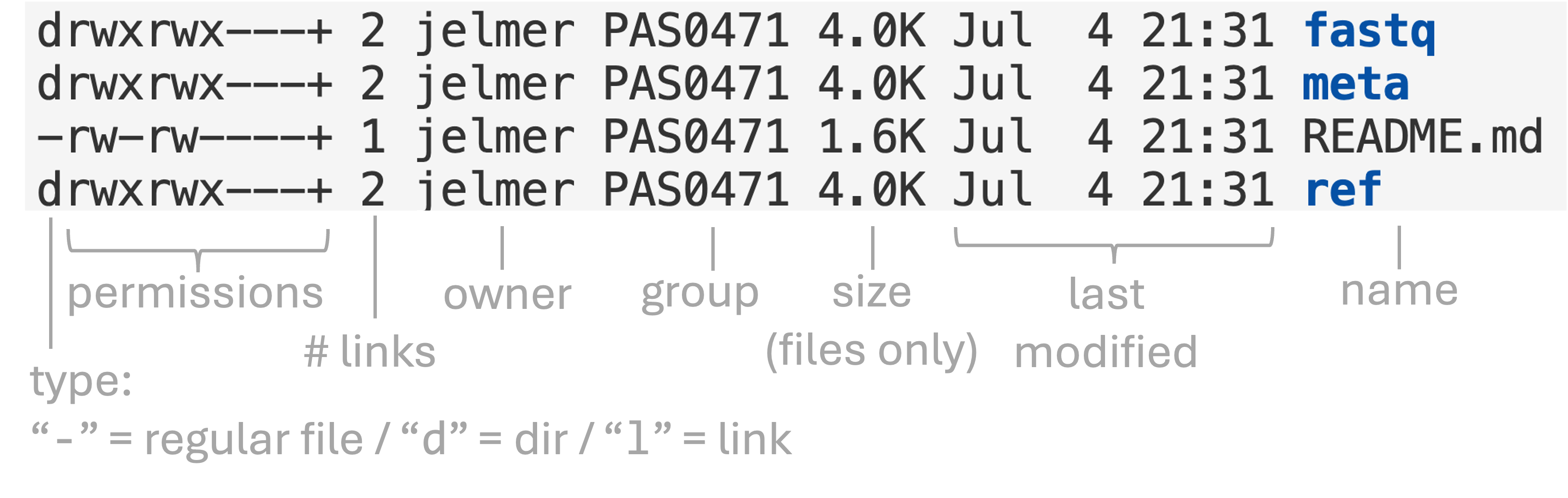
Some notes about the above:
- We will talk about file “permissions” later in the course.
- You can ignore the column with the “number of links”, as this is not informative for regular users.
- Sizes shown for directories unfortunately do not correspond to the total size of the dir and its contents. Basically, you should only pay attention to sizes of files when looking at long-format
lsoutput (to get the total size of a dir, usedu -sh <dir>). - The default “group” for your account is the group shown for your Home dir. This is the group that will be assigned to any new files or directories you create. For me, it is
PAS0471— even when I create dirs and files in other locations, the default group will still bePAS0471. This has relevance for file permissions, which we will discuss later in the course.
Finally, the first line of long-format ls output (total 2 / total 2.0K in the examples above) gives an indication of the total size of files that are directly located in this folder, i.e. not including those in subdirs.
Moving on to argument(s) — to list the contents of one or more other dirs, specify these as arguments:
# [Your output should show file names in red]
ls fastq/S63_R1.fastq.gz S67_R1.fastq.gz S71_R1.fastq.gz S77_R1.fastq.gz S81_R1.fastq.gz S85_R1.fastq.gz
S63_R2.fastq.gz S67_R2.fastq.gz S71_R2.fastq.gz S77_R2.fastq.gz S81_R2.fastq.gz S85_R2.fastq.gz
S64_R1.fastq.gz S68_R1.fastq.gz S74_R1.fastq.gz S78_R1.fastq.gz S82_R1.fastq.gz S86_R1.fastq.gz
S64_R2.fastq.gz S68_R2.fastq.gz S74_R2.fastq.gz S78_R2.fastq.gz S82_R2.fastq.gz S86_R2.fastq.gz
S65_R1.fastq.gz S69_R1.fastq.gz S75_R1.fastq.gz S79_R1.fastq.gz S83_R1.fastq.gz
S65_R2.fastq.gz S69_R2.fastq.gz S75_R2.fastq.gz S79_R2.fastq.gz S83_R2.fastq.gz
S66_R1.fastq.gz S70_R1.fastq.gz S76_R1.fastq.gz S80_R1.fastq.gz S84_R1.fastq.gz
S66_R2.fastq.gz S70_R2.fastq.gz S76_R2.fastq.gz S80_R2.fastq.gz S84_R2.fastq.gzAnd like you saw last week with cal, options and arguments can be combined:
ls -lh fastq/total 941M
-rw-r-----+ 1 jelmer PAS0471 21M Nov 13 2024 S63_R1.fastq.gz
-rw-r-----+ 1 jelmer PAS0471 22M Nov 13 2024 S63_R2.fastq.gz
-rw-r-----+ 1 jelmer PAS0471 21M Nov 13 2024 S64_R1.fastq.gz
-rw-r-----+ 1 jelmer PAS0471 22M Nov 13 2024 S64_R2.fastq.gz
-rw-r-----+ 1 jelmer PAS0471 22M Nov 13 2024 S65_R1.fastq.gz
-rw-r-----+ 1 jelmer PAS0471 22M Nov 13 2024 S65_R2.fastq.gz
# [...output truncated...]Some notes about these FASTQ files:
- They are printed in red because they are compressed, as the added
.gzextension also indicates. - There are two files per sample:
_R1(forward reads) and_R2(reverse reads). - The files are ~21-22 MB in size — much smaller than the original file sizes (~1-2 GB) because they were subsampled.
Exercise 1: Listing a single file
If you want to check the size of a single file, it may not be convenient to list all of a dir’s contents. Can you get ls to show you the file size only for the S65_R2.fastq.gz file?
Click to see the solution.
The argument to ls can be a path of any kind, including to a file rather than to a dir:
ls -lh fastq/S65_R2.fastq.gz-rw-r-----+ 1 jelmer PAS0471 22M Nov 13 2024 fastq/S65_R2.fastq.gz3.2 tree to recursively list files in tree-like format
By default, ls is not “recursive”, which means that it only shows results for one directory level. Compare that with the output of the tree command, which gives a nice recursive overview in a simple tree-like format:
tree.
├── fastq
│ ├── S63_R1.fastq.gz
│ ├── S63_R2.fastq.gz
│ ├── S64_R1.fastq.gz
│ ├── S64_R2.fastq.gz
│ ├── S65_R1.fastq.gz
│ ├── S65_R2.fastq.gz
│ └── [...other FASTQ files not shown...]
├── meta
│ └── metadata.tsv
├── README.md
└── ref
└── annot.gtf.gz
3 directories, 47 filesLet’s take a step back and consider what’s in our dataset:
- 44 FASTQ files with RNA-Seq reads for 22 samples (in the
fastqdir). - A metadata file with treatment group info for each sample (in the
metadir). - A
README.mdMarkdown file. - A GTF annotation file for the reference genome (in the
refdir).
We will take a closer look at these files this week and in the weeks to come.
4 mkdir and touch to create dirs and files
4.1 mkdir to create new directories
The mkdir command creates one or more new directories. Let’s create a dir for this week and navigate there:
mkdir ../week04
cd ../week04/By default, mkdir is not recursive either: it won’t create a dir inside a dir that doesn’t exist yet. The -p option is needed to enable recursive behavior:
mkdir -p sandbox/jarThis command was recursive because both the sandbox dir and the jar dir within it had to be created at once. The name sandbox is common for dirs meant for experimentation and testing. Now, navigate into the sandbox dir you just created:
cd sandbox/
lsjarFor the rest of this lecture and most of the next one, you’ll work inside this sandbox dir, so let’s take a moment to look at the layout:
/fs/ess/PAS3493/people/$USER
├── garrigos <- The practice dataset: only read from it, don't change it
│ ├── fastq
│ ├── meta
│ └── ref
└── week04 <- Your dir for this week
└── sandbox <- Your working dir for the rest of this week's classes
└── jar Exercise 2: mkdir and recursiveness
What do you think the following mkdir command does, and would you consider that recursive? Then, run the command and see what it did.
mkdir cup potClick to see the answer.
This command created two dirs at once. It is not recursive, because it only operated on one “dir level”, i.e. it did not need to create two dir levels (or put another way, it did not create a dir within a dir).
lscup jar pot-p option to mkdir do? (Click to expand)
Run the below two commands one by one, and read any output the commands print to the screen. Why does the first command fail? What can you conclude about the -p option other than that it enables recursiveness?
mkdir jar/
mkdir -p jar/Click to see the answer.
mkdir jar/produces an error, because you’re trying to create a dir that already exists:mkdir jar/mkdir: cannot create directory 'jar/': File existsWhile
mkdir -p jar/doesn’t print anything:mkdir -p jar/The latter may either mean that
mkdir -precreated the dir, or that it did nothing but also didn’t complain. Here’s the answer:mkdir -pdoesn’t do anything when the dir already exists, and won’t produce an error either. We’ll come back to why that is useful when we start writing shell scripts.
4.2 touch to create a new file
To create new, empty files, use the touch command, specifying the file name(s) as the argument(s):
# Create a single new file called apple.txt
touch apple.txt
# Create two additional files:
touch fig.txt kiwi.txtAs you just saw, both mkdir and touch can take multiple arguments. Notably, almost all shell commands that operate on files and/or dirs can operate on multiple (many!) files at a time, which is one reason that using these commands can be highly efficient. That’s especially true once you know how to select/specify many files at once using globbing (later in this lecture).
Exercise 3: Creating a file in a new dir
Create a new file mango.txt inside a new dir box. Don’t change your working dir while you’re doing this.
Click to see the answer.
To make a new dir and create a file in there, you can’t just use the touch command, as it cannot create the directory for you (pay attention to the error, which may seem a bit confusing):
touch box/mango.txttouch: cannot touch 'box/mango.txt': No such file or directoryInstead, you first have to create the new dir with mkdir, and then create the new file in there:
mkdir box
touch box/mango.txt5 cp to copy
The cp command copies files and/or dirs from one location to another. Just like when copying files in a GUI file browser, the new copy can have a different name than the original — or the same name, as long as it’s copied to a different dir.
cp has two required arguments in the following order:
- What you want to copy (source path)
- Where you want to copy it to (destination path)
That is, its basic syntax is cp <source path> <destination path>.
<...> notation
Recall that when I use < > around text in a line of code, that text is descriptive rather than literal, and has to be replaced. In this example, <source path> should be replaced in an actual line of code by whatever “source” you want to use, and likewise for the <destination path>.
Basic examples
Same directory, different file name:
cp kiwi.txt kiwi_copy.txtDifferent directory, same file name:
cp kiwi.txt jar/Different directory, different file name:
cp kiwi.txt jar/kiwi_backup.txt
In other words: if the destination is an existing dir, the copy is placed inside it with its original name — otherwise, the destination is the name of the copy.
Copying into your working dir without changing the name
It’s common to copy a file from elsewhere into your working dir while keeping its name. Instead of typing out the file name in the destination path, you can use the . shortcut to refer to your current working dir:
# Equivalent to: cp jar/kiwi_backup.txt kiwi_backup.txt
cp jar/kiwi_backup.txt .Check the contents of the sandbox dir:
lsapple.txt box cup fig.txt jar kiwi_backup.txt kiwi_copy.txt kiwi.txt potCopying dirs and their contents
Finally, cp will by default refuse to copy directories and their contents — that is, like ls and mkdir, it is not recursive2:
cp jar/ jar_copycp: -r not specified; omitting directory 'jar/'As the error message above hints, the -r option is needed for recursive copying:
cp -r jar/ jar_copy
ls jar_copy/kiwi_backup.txt kiwi.txtcp and mv (next up) commands will by default:
- Be silent when they succeed (use the
-voption for verbose to make them report what they do). - Overwrite existing files without reporting this (use the
-ioption for interactive to make them ask before overwriting).
Self-study exercise: Copying a dir a second time
What do you think happens if you run the exact same command, cp -r jar/ jar_copy, a second time? Make a prediction, then run it and check the result with ls jar_copy/.
Click to see the answer.
Recall that for files, if the destination is an existing dir, the copy is placed inside it — and the same is true for dirs. Because jar_copy now already exists, the second command creates a copy of jar inside jar_copy:
cp -r jar/ jar_copy
ls jar_copy/jar kiwi_backup.txt kiwi.txt6 mv to move and rename
While copying a file creates a new copy of it, moving a file does not (think: copy-paste versus cut-paste).
Also, moving a file versus renaming it is fundamentally the same operation: in both cases, you are changing its path. After all, both a file’s name (e.g. mango.txt) and the dir that it’s inside (box/) are part of its path (box/mango.txt).
As such, the mv command can be used to move files, rename them, or do both at the same time — the same three scenarios you saw with cp:
Same directory, different file name (“renaming”):
mv -v kiwi_copy.txt plum.txtrenamed 'kiwi_copy.txt' -> 'plum.txt'lsapple.txt box cup fig.txt jar jar_copy kiwi_backup.txt kiwi.txt plum.txt
potDifferent directory, same file name (“moving”):
# [Don't run this one: example only] mv -v plum.txt cup/renamed 'plum.txt' -> 'cup/plum.txt'Different directory, different file name (“moving + renaming”):
# [Don't run this one: example only] mv -v kiwi_backup.txt cup/kiwi_old.txtrenamed 'kiwi_backup.txt' -> 'cup/kiwi_old.txt'
Final notes:
- While we used
-vabove to makemvreport what it does, this is not required for the command to work. - Unlike
cp, themvcommand does not need an-roption to move or rename dirs!
Watch out for typos in a destination dir name: mv plum.txt cups would not give an error even though there is no cups dir: it would rename plum.txt to a file called cups. Including a trailing slash (cups/) protects against this, because mv will then give an error if that dir doesn’t exist (the same goes for cp).
Avoiding these mistakes is much easier if you consistently use Tab completion to type paths to existing dirs.
mv and cp (Click to expand)
You can move or copy multiple files at once with mv and cp. If you give these commands more than two arguments, the last argument is the destination, which must then be an existing dir — for example:
cp <source1> <source2> <destination>
mv <source1> <source2> <source3> <source4> <destination>7 rm to remove
The rm command removes files and optionally dirs. First, let’s remove one of the dummy files you created above:
rm apple.txtAs with cp, the -r option is needed to make the command work recursively:
# (box/ is the dir you created in Exercise 3)
rm box/rm: cannot remove 'box/': Is a directory# (This produces no output if it works)
rm -r box/rm with caution!
rm -r can be very dangerous. For example, rm -r / would try to remove the entire contents of the computer, including the operating system3. You’ll often see rm -rf online: the -f (force) option makes rm ignore nonexistent files and never ask for confirmation, so it’s even less forgiving. A couple of ways to take precautions:
- You can add the
-ioption, which will make you confirm each individual removal (can be tedious). - When you intend to remove an empty dir, you can use the
rmdircommand. This command fails on non-empty dirs.
Exercise 4: Spaces in file names — what could go wrong?
Consider the following hypothetical scenario:
You have a dir called
datawith important raw data, and a dir calledextra datawith additional data.# [Hypothetical - don't run] lsdata 'extra data'You realize you won’t need the additional data at all, so you try to remove the
extra datadir with the following command:# [Hypothetical - don't run] rm -r extra data
What do you expect would happen when that last command is run?
- The
extra datadir is removed, as intended. - Nothing is removed, and
rmgives an error because there is noextradir. - The
datadir is removed, andrmgives an error because there is noextradir. - Both the
dataandextra datadirs are removed.
Click to see the answer.
The correct answer is C.
Because the space in the dir name was not “escaped” (for example, by quoting the name: rm -r "extra data"), rm will interpret extra and data as two separate arguments, i.e. as two separate files/dirs to remove.
Therefore, the rm command will not remove the extra data dir, but it will remove the data dir — now your project’s raw data has been erased! 😳
(Additionally, it will produce an error because it cannot find the extra dir. But this error does not stop rm from moving on to the next argument.)
Tab completion would have prevented this: it automatically “escapes” the space with a backslash, completing the name to extra\ data.
8 Globbing
Globbing is a very useful shell technique to select multiple files at once, using wildcards — characters with a special meaning. To practice with this, start by creating some dummy FASTQ files in your sandbox dir:
# (Copy-and-paste this into the shell rather than typing it out)
touch sample1_R1.fastq sample1_R2.fastq
touch sample2_R1.fastq sample2_R2.fastq
touch sample3_R1.fastq sample3_R2.fastqYour browser may be blocking the paste action, but you can change that. Find a small clipboard icon in the address bar of your browser, click it, and allow pasting.
Let’s check the contents of the sandbox dir again:
lscup fig.txt jar jar_copy kiwi_backup.txt kiwi.txt plum.txt pot
sample1_R1.fastq sample1_R2.fastq sample2_R1.fastq sample2_R2.fastq
sample3_R1.fastq sample3_R2.fastqWe have a real mess now! Globbing will help us to select files to operate on without having to type out all of their names.
The most commonly used wildcard is *, which matches any number of any combination of characters (including “nothing”, the absence of any characters). For example, you can match only the FASTQ files with a * using:
# This matches files that end with "fastq"
ls *fastqsample1_R1.fastq sample2_R1.fastq sample3_R1.fastq
sample1_R2.fastq sample2_R2.fastq sample3_R2.fastqOr only the sample1 FASTQ files:
# This matches files that start with "sample1"
ls sample1*sample1_R1.fastq sample1_R2.fastqWhen globbing, the pattern has to match the entire file name — therefore, the following doesn’t match anything:
# This matches files that *end* in R1, but there are no such files:
ls *R1ls: cannot access '*R1': No such file or directorySo, if the text we use for matching is in the middle of the file name, like R1, we need a * on both sides of it:
# This matches files whose names contain "R1" anywhere:
ls *R1*sample1_R1.fastq sample2_R1.fastq sample3_R1.fastqIn summary:
| Pattern | Matches files whose names… |
|---|---|
sample1* |
start with “sample1” |
*fastq |
end with “fastq” |
*R1* |
contain “R1” |
* |
(matches all files and dirs in the working dir)4 |
Exercise 5: File matching
Which files does
ls *samp*le*match? Make a prediction before you try it.Click to see the answer.
It matches all the FASTQ files, because:
- All the FASTQ file names start with
sample. - Since
*also matches “zero characters”, there is no requirement for the presence of characters at the locations of the “unnecessary”*s.
- All the FASTQ file names start with
Create two new files called
sample1.txtandsample2.txtin the current working dir. Then, only match the two FASTQ files for sample1 — that is, avoid matching these new.txtfiles.Click to see the answer.
First we create the files:
touch sample1.txt sample2.txtThen we match only the two FASTQ files — the code below means any file that starts with “sample1” and ends with “fastq”:
ls sample1*fastqsample1_R1.fastq sample1_R2.fastq
Expansion is done by the shell itself
The “expansion” of a wildcard to matching file names is done by the shell itself, not by ls — or by any other command you might be using wildcards with. Therefore, a command like ls receives the list of files after the expansion has already happened. When you type…
ls sample2*fastq…the shell will perform globbing before it runs the ls command. As such, the ls command will never see the * wildcard5. Instead, the command that is actually run is:
ls sample2_R1.fastq sample2_R2.fastqYou can see this expansion for yourself with echo, which simply prints whatever arguments it receives:
echo sample2*fastqsample2_R1.fastq sample2_R2.fastqPractical examples
So far, we’ve only used globbing with the ls command to list files. But because the expansion is done by the shell, globbing works with any command, and is especially useful with commands that accept multiple paths as arguments, such as copy (cp), move (mv), and remove (rm). As some initial examples of how useful globbing is, we can:
Remove all stray
.txtfiles at once. Before removing files with a pattern, it’s a good habit to first check what the pattern matches withls:ls *.txtfig.txt kiwi_backup.txt kiwi.txt plum.txt sample1.txt sample2.txtThen remove them (adding the
-voption just to makermreport what it is removing):rm -v *.txtremoved 'fig.txt' removed 'kiwi_backup.txt' removed 'kiwi.txt' removed 'plum.txt' removed 'sample1.txt' removed 'sample2.txt'Move all FASTQ files at once:
mkdir fastq_files mv -v *fastq fastq_files/renamed 'sample1_R1.fastq' -> 'fastq_files/sample1_R1.fastq' renamed 'sample1_R2.fastq' -> 'fastq_files/sample1_R2.fastq' renamed 'sample2_R1.fastq' -> 'fastq_files/sample2_R1.fastq' renamed 'sample2_R2.fastq' -> 'fastq_files/sample2_R2.fastq' renamed 'sample3_R1.fastq' -> 'fastq_files/sample3_R1.fastq' renamed 'sample3_R2.fastq' -> 'fastq_files/sample3_R2.fastq'
Globbing is incredibly handy for working with large numbers of files, and is one of the reasons that shell commands are so powerful and efficient. Later on, you’ll use it, for example, to iterate over all FASTQ files in a dir to run a command on each of them.
Self-study exercise: Globbing pitfalls
Say your dir contained only two R1 FASTQ files,
sample1_R1.fastqandsample2_R1.fastq. You want to copy them into another dir, but forget to type the destination:# [Hypothetical - don't run] cp *_R1.fastqKnowing that the shell expands the pattern before
cpruns, what would happen?Click to see the answer.
After the shell has expanded the pattern,
cpreceives two arguments:cp sample1_R1.fastq sample2_R1.fastqSo,
cptreats the second file as the destination, and it will silently overwritesample2_R1.fastqwith a copy ofsample1_R1.fastq! 😳(With three or more matching files, you would instead get an error such as
cp: target 'sample3_R1.fastq' is not a directory, because whencpgets more than two arguments, the last one has to be a dir.)You want to remove all
.txtfiles in your working dir, but accidentally type a space after the*:# [Hypothetical - don't run] rm * .txtWhat would happen?
Click to see the answer.
A single stray space makes a big difference:
rm *.txtremoves all.txtfiles, butrm * .txtremoves all files in your working dir (dirs are only spared because you didn’t use-r, thoughrmprints an error for each of them), and it also complains that there is no file called.txt.A good habit is to first run
lswith the same pattern to check what it matches, and only then runrm.What would have happened if you had used
*fastq*instead of*fastqin themvexample above, i.e.mv -v *fastq* fastq_files/?Click to see the answer.
The pattern
*fastq*also matches thefastq_filesdir itself! Somvtries to move that dir into itself, which fails with an error. The FASTQ files are still moved:mv: cannot move 'fastq_files' to a subdirectory of itself, 'fastq_files/fastq_files' renamed 'sample1_R1.fastq' -> 'fastq_files/sample1_R1.fastq' [...]
References
Footnotes
gitis a type of command that has “subcommands”, such ascloneand many others. You will learn much more about Git next week.↩︎Non-recursive defaults act as a kind of safety mechanism, since they make it harder to accidentally operate on very large amounts of data.↩︎
Luckily,
rmnowadays refuses this particular command — but it will not stop you from e.g. wiping your entire home dir withrm -r ~.↩︎Except so-called hidden files, whose names start with a
..↩︎If nothing matches, the shell leaves the pattern as is — which is why the error message for
ls *R1above showed*R1literally.↩︎