Coding with an AI agent in VS Code
Week 9 lecture

1 Introduction
1.1 Learning goals
In this lecture, you will learn how to:
- Set up and use the Claude Code extension in VS Code Server at OSC
- Use Claude to ask questions about, write, and edit code, with your files as context
- Let Claude act as an “agent” that runs commands, and control what it may do with permission modes
- Give Claude persistent instructions (ones that carry over between conversations) with a
CLAUDE.mdfile - Keep a record of your AI use, with exported conversations and an AI diary
- Manage Claude’s context window and costs
1.2 From chat to agents
In the previous lecture, you used genAI through a browser-based chat. That works well for many questions, but when coding, it has clear limitations: the model can’t see your files unless you paste or upload them, and it can’t check whether the code it writes actually works.
Today, we’ll use Claude Code, Anthropic’s “agentic” coding tool. Working inside your editor, it can:
- Read the files in your project, so you don’t have to explain or paste them
- Edit and create files, showing you each change for approval
- Run commands in the terminal, for example to test a script or check a program’s help info
In other words, if browser chat is like emailing a knowledgeable colleague, working with an agent is more like having them sit next to you at your computer.
1.3 Why Claude Code in VS Code?
There are many AI coding tools, but this setup has two key advantages for us:
It’s approved for your research data.
Rather than using a personal account, we’ll authenticate through an API key from OSU’s Generative AI Service , which is approved for use with restricted institutional data.It integrates with our current VS Code setup.
It only takes one extension, which you installed last week.
Another kind of AI coding help in IDEs is code completions: suggestions that appear in the editor as you type, and that you can accept with Tab. These either add new code (“ghost text” suggestions) or change code you already wrote (“next edit” suggestions). Claude Code does not offer code completions, but some other tools do, like GitHub Copilot. GitHub Copilot is built into VS Code, including VS Code Server at OSC. If you want to try code completions, see the self-study page on GitHub Copilot.
Claude Code itself also comes in several forms, including a command-line program and a desktop app. Here, we’ll use its VS Code extension.
2 Getting set up
2.1 Prepare and open a dir for this week
At https://ondemand.osc.edu, start a VS Code session in
/fs/ess/PAS3493/people/$USER.In the terminal, create a dir for this week, and copy your FastQC script from week 7 into it:
mkdir -p week09/scripts cp -v week07/scripts/fastqc.sh week09/scripts/'week07/scripts/fastqc.sh' -> 'week09/scripts/fastqc.sh'(If you’re worried your own astQC script is not correct or not complete, you can instead copy this version:
/fs/ess/PAS3493/share/week07/scripts/fastqc.sh.)Open the
week09dir as your VS Code folder withFile>Open Folder.Claude treats the folder that is open in VS Code as its “workspace”: this is where it will look for files, and by default the only place where it can make changes. (Yet another application where good project organization, in the sense of having a single self-contained dir with all project files, pays off.)
2.2 Claude Code setup (done last week)
Last week, you installed the Claude Code extension and connected it to your API key. If you’re not able to open Claude Code, or Claude doesn’t respond to a prompt, follow the steps in the box below.
Install the Claude Code extension
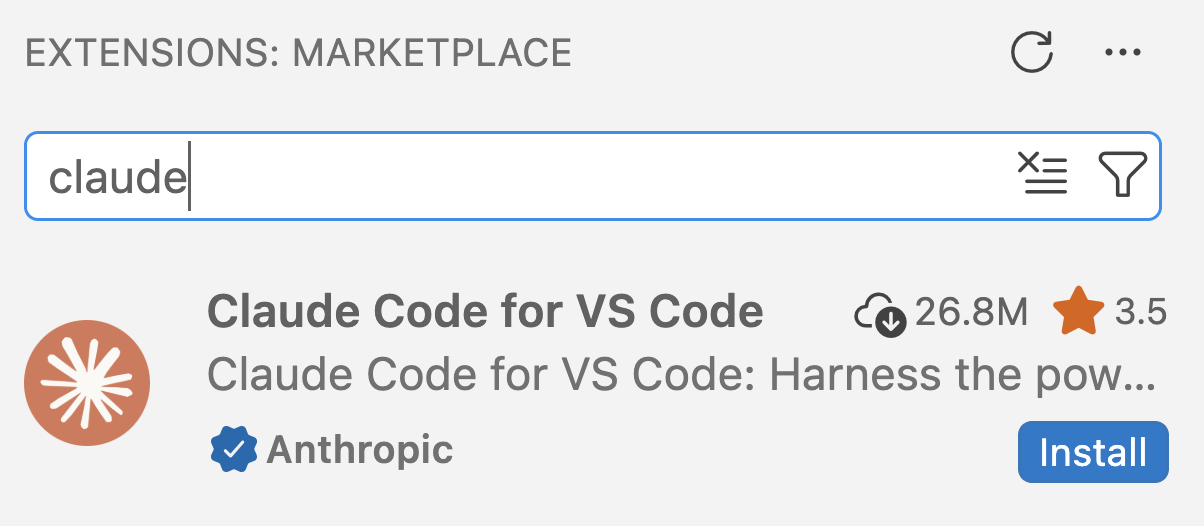
In the Extensions side bar, search for “claude”, and click Install for the extension “Claude Code for VS Code”:

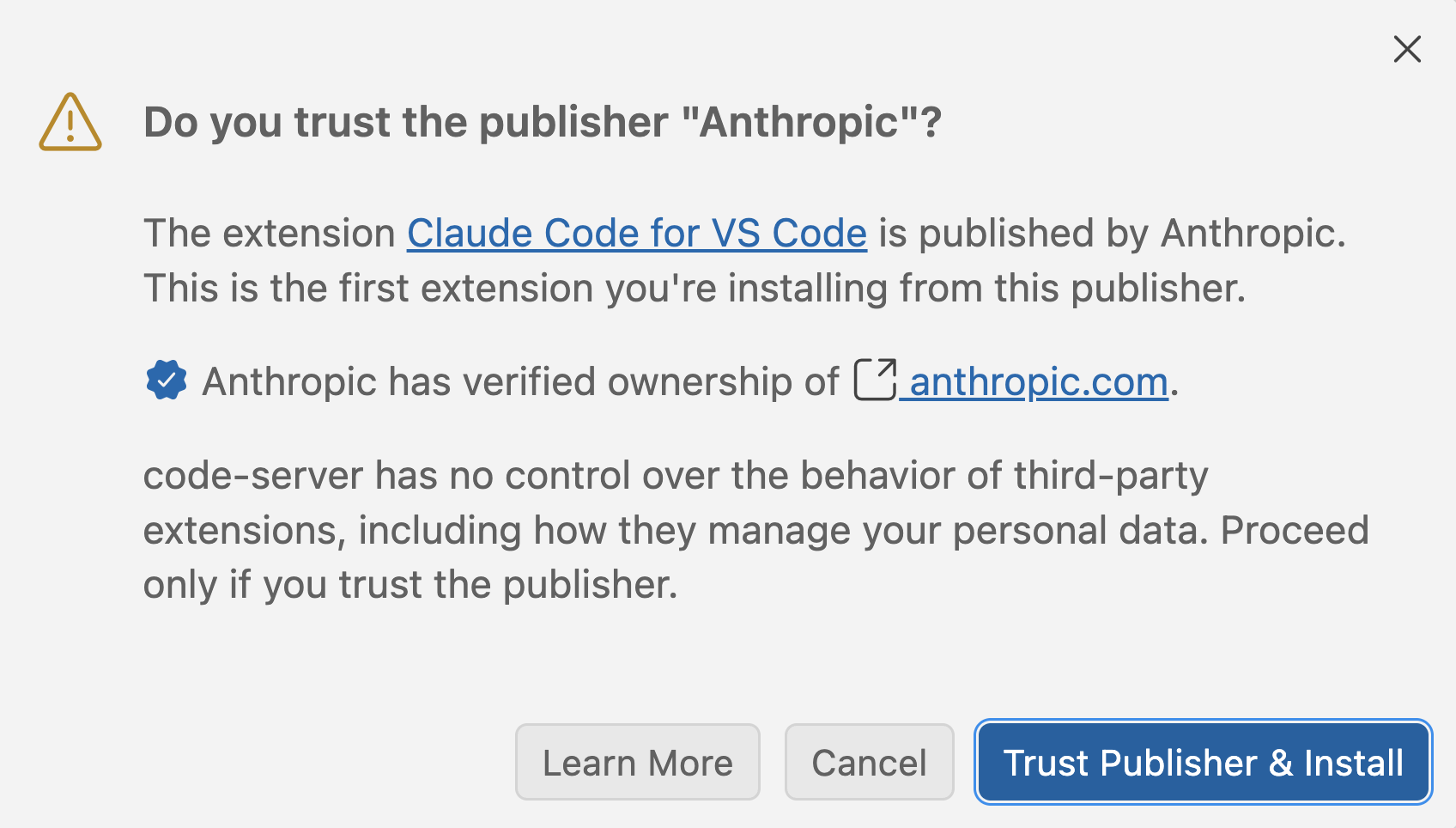
In the pop-up that asks whether you trust the publisher “Anthropic”, click Trust Publisher & Install:

Connect Claude to your API key
You’ve received a personal API key from us, giving you access to Claude models through OSU’s Generative AI Service.
To tell Claude to use your key, you need to create a settings file in your Home dir. Claude expects this file to be a JSON file at the standard location ~/.claude/settings.json, and will read that file every time it starts up. Let’s set this up:
Copy a template settings file to that location:
mkdir -p ~/.claude cp -v /fs/ess/PAS3493/share/claude/settings.json ~/.claude/settings.json'/fs/ess/PAS3493/share/claude/settings.json' -> '/users/PAS0471/jelmer/.claude/settings.json'Open your copy of the settings file in the editor1.
In the file, replace the placeholder
<API-KEY>with your personal API key in the manner shown below:~/.claude/settings.json (excerpt - before)
"ANTHROPIC_AUTH_TOKEN": "<API-KEY>",~/.claude/settings.json (excerpt - after - with fictional API key)
"ANTHROPIC_AUTH_TOKEN": "bY-7jiuWbfck9DZk34hA_t",
Here is what the file looks like before you add your own key:
~/.claude/settings.json
{
"env": {
"ANTHROPIC_BASE_URL": "https://litellm.cloud.osu.edu",
"ANTHROPIC_AUTH_TOKEN": "<API-KEY>",
"ANTHROPIC_DEFAULT_OPUS_MODEL": "claude-opus-5-5",
"ANTHROPIC_DEFAULT_SONNET_MODEL": "claude-sonnet-5",
"ANTHROPIC_DEFAULT_HAIKU_MODEL": "claude-haiku-5-5",
"CLAUDE_CODE_DISABLE_EXPERIMENTAL_BETAS": "1"
},
"model": "sonnet",
"effortLevel": "medium",
"outputStyle": "Concise",
"theme": "auto"
}The file is in JSON format, a plain-text format with key-value pairs: a colon : separates each key from its value, pairs are separated by commas, and curly braces {} group pairs. A single missing quote or comma breaks the whole file (this would be a likely culprit if Claude doesn’t pick up your API key).
ANTHROPIC_BASE_URLmakes Claude go through OSU’s service rather than directly to Anthropic.ANTHROPIC_AUTH_TOKENis the API key.- The
MODELlines specify which model versions to use. modelandeffortLevelset the default model (Sonnet) and effort level (Medium).outputStylemakes Claude’s answers shorter and more to the point (remove this line if you prefer longer explanations).
Anyone with your key can use it, and usage costs money and depletes your key’s budget. So never share your key or commit it to a Git repository. That’s one reason the settings file is located in your Home dir, and not in a project dir that others can see.
A quick test
You can type a prompt (question) in the prompt box in the Claude Code panel, and press Enter to send it to Claude2. To check that Claude works, try this prompt:
Write a limerick about a grad student whose shell script keeps failing
If you get a limerick back, Claude is set up correctly. If you get an error instead, or it merely keeps printing verbs like “Brewing” and “Deliberating” (Claude’s variant on a spinning wheel) but nothing else, let us know, and we’ll help you troubleshoot.
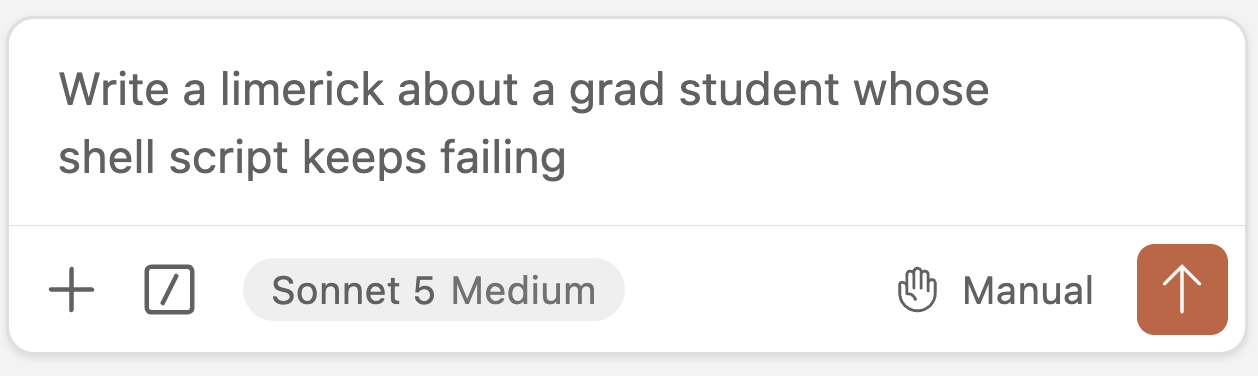
Write or paste the prompt in the box, and press Enter.
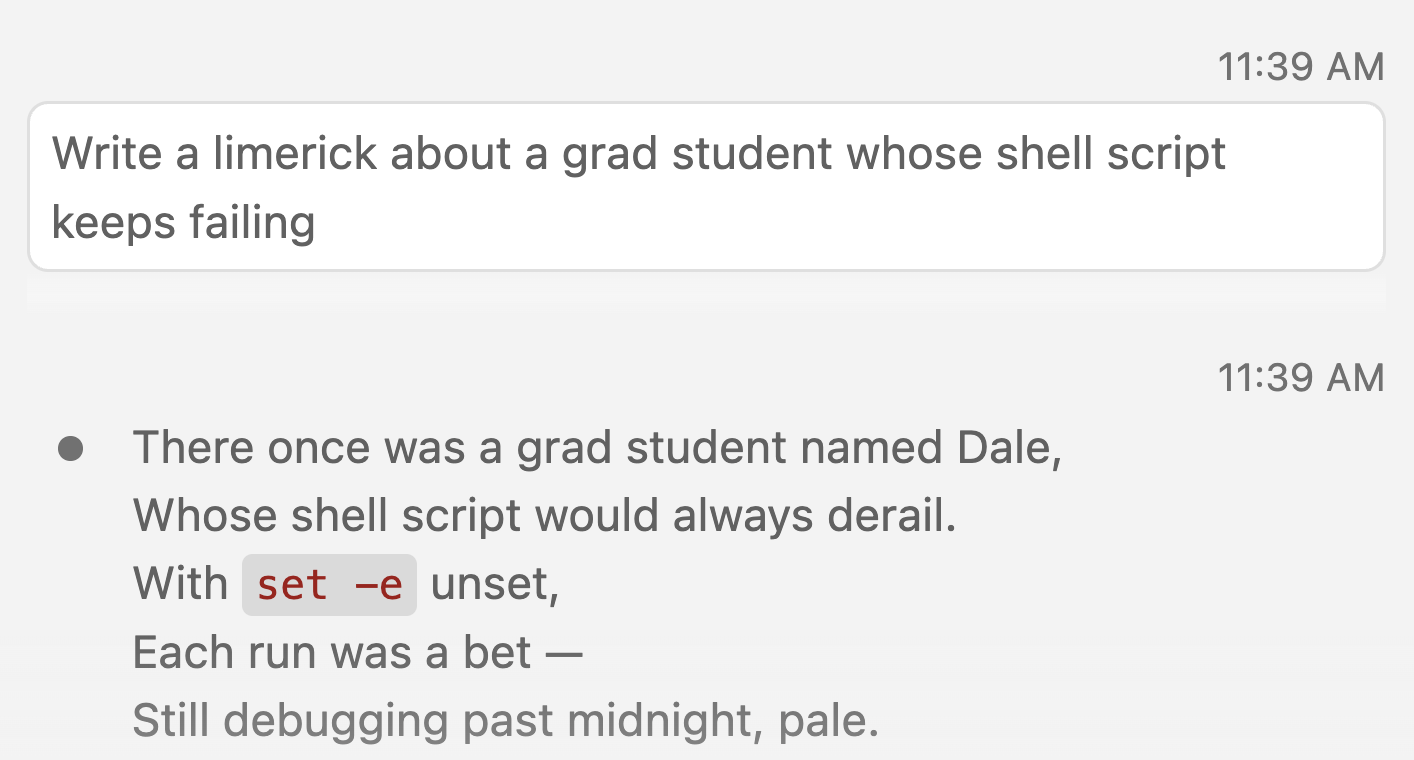
Then, your question and, after a while, the answer should appear in the panel above the prompt box.
2.3 Open Claude
This time, let’s open Claude Code in a slightly different way than last week, namely as a tab in the editor rather than in the side bar (see the box below). Do so by clicking the orange “splash” Claude icon in the top right corner of the editor pane.

In the Claude Code panel, you may initially see various login options presented, like in the previous lecture (left screenshot below), but if you simply wait, Claude should read your settings file automatically and the panel should show a prompt box (right screenshot below):
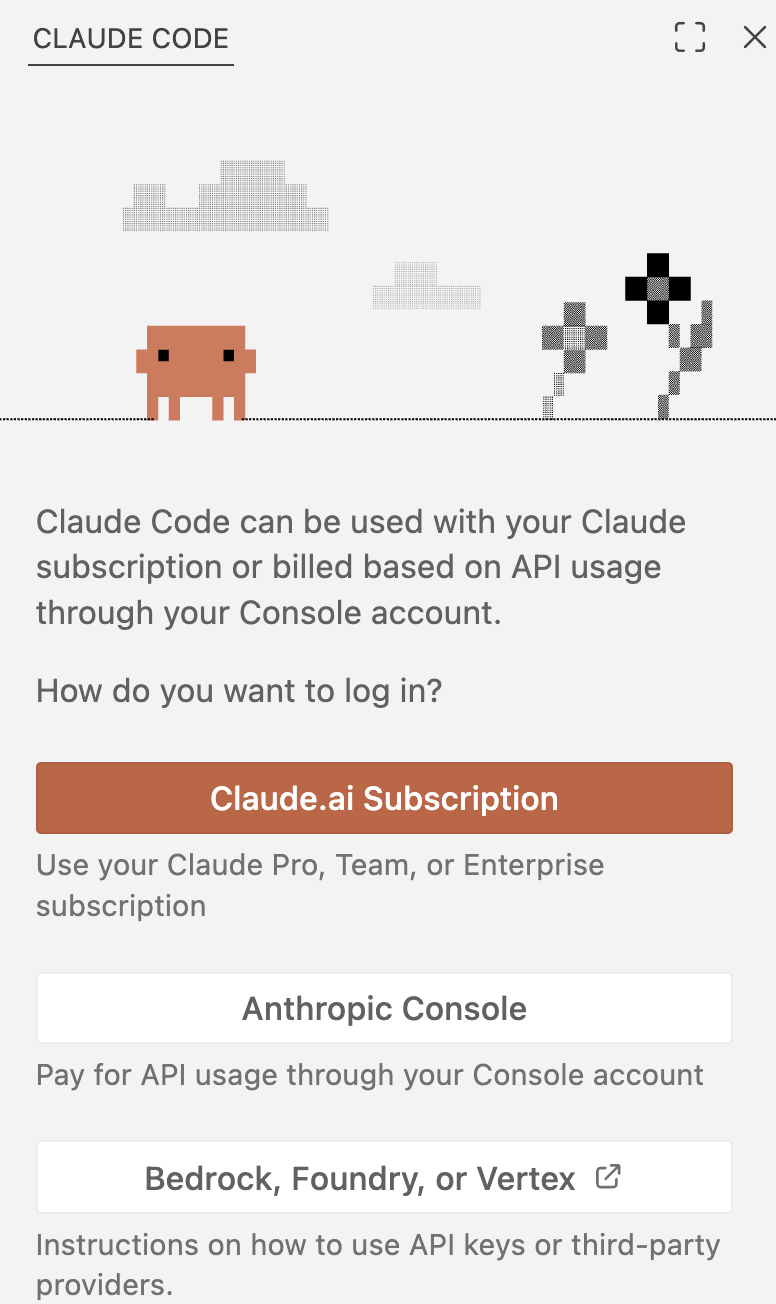
If the panel looks something like this, you’re not yet authenticated with your API key. Simply wait, and Claude should read your settings file automatically.
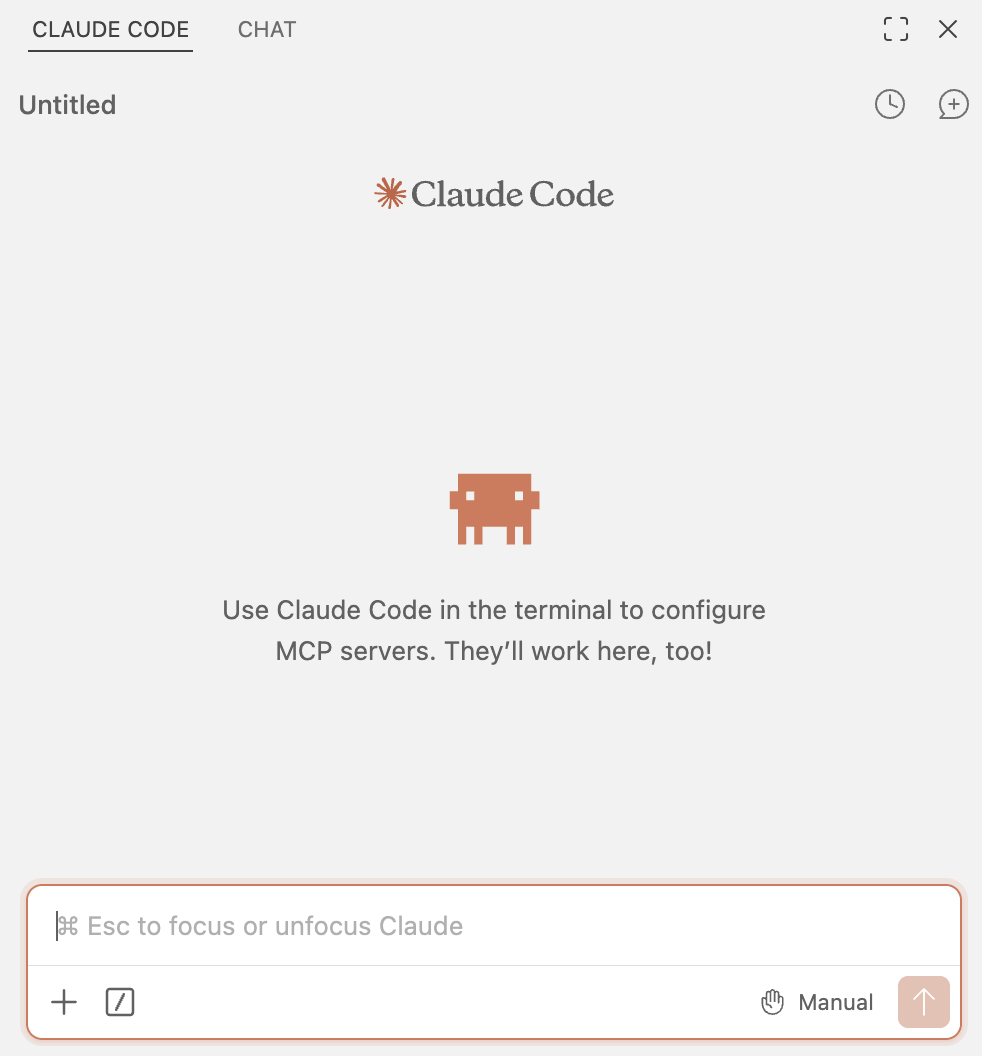
If the panel looks something like this, you’re good to go! The important thing is that you see a prompt box at the bottom of the panel, whereas the message shown in the center is just one of many “tips” Claude may show.
We just opened Claude Code as a tab in the editor, which is slightly different from opening it in the side bar, like we did last week.
First, let’s see again how to open it in the side bar instead:
- Open the “secondary side bar” by clicking the right-most icon in the top-right, which looks like a window split into two panes (see the screenshot on the right). This is a dedicated side bar for AI tools like Claude and GitHub Copilot.

- Because you activated GitHub Copilot in the previous lecture, both the Copilot tab (“
CHAT”) and the Claude tab (“CLAUDE CODE”) should be visible if the side bar is made wide enough:

The two key differences between these two ways of opening Claude Code are:
When it is open in the side bar, it will take up the full height of the window, whereas when it’s open as a tab in the editor, it will only take up the height of the editor pane, with the terminal below it.
When it is open as a tab in the editor, you can have multiple Claude tabs open at once: simply click the Claude icon again to open a new tab. This can be useful for going back-and-forth between two conversations.
The screenshot below demonstrates both of these differences, with two Claude tabs open in the editor, the side bar open to the right of them, and the terminal below the editor pane:

3 Basics of the interface
3.1 The prompt box
Most of what you’ll do with Claude starts from the prompt box:

We’ll go over the other buttons across the bottom of the box in more detail below — but briefly, from left to right:
+adds files as context to your prompt./opens the so-called command menu, which is really a collection of nearly all options and settings in Claude Code, including those that can be accessed with the other buttons. You’ll need this one least often.- Once Claude has responded, a clock icon with a number of minutes appears. This shows how long until the conversation’s “cache” expires, after which your next message will be more expensive,
Sonnet 5 Mediumis the current model and effort level. Keep it at that for now, and don’t select “Default (recommended)”, which switches to the much more expensive Opus.Manualis the current permission mode (what Claude is allowed to do), and you can click on it to change it.
3.2 Managing conversations
You can manage your conversations using buttons at the top of the panel, as shown in this screenshot:

In the bottom-right, the bookmark, clock/history, and new conversation buttons are shown.
From left to right:
- The bookmark icon lets you access specific answers from Claude that you previously bookmarked (using a similar icon that appears below an answer when you hover over it).
- The clock icon lists your previous conversations, in case you want to return to one3.
- The chat icon with a
+starts a new conversation. Start a new one for each new task (you’ll see why later).
For example, the bookmarking feature was added in a recent update. These screenshots were made just days before class, and are likely to reflect what we’ll see in class, but you may well see differences in a later version of the extension.
4 An example: Having Claude write a script
4.1 Ask Claude to write a script
Start a new conversation with the + icon, and submit the following prompt:
Write a script scripts/count_reads.sh that counts the number of reads in a gzipped FASTQ file. The FASTQ file should be an argument to the script. Keep it simple, I am a beginner in the shell
Claude will show you what it’s doing as it goes, and it will likely ask you for permission to run a command, like in the screenshot on the right, where it first wanted to check whether the scripts dir (where we asked it to put the script) exists, and create it if not.
Try to understand what it is proposing to do, and click Yes to let it run the command.
In general, Claude loves to use shell commands for many tasks, so what you’ve learned in this course gives you a leg up in understanding what it does.

It should then ask for permission to create the script file, and show the proposed contents in the “diff” format we’ve seen before:


You can accept the change, decline it, or decline it and tell Claude what to do differently. Take a quick look and accept it (you’ll take a closer look in the upcoming exercise).
(The screenshot above is from a run without the “Keep it simple” line, so your script is likely shorter and simpler.)
Claude may also ask to make the script executable with chmod +x, and if so, you can allow it to do that as well.
(Making scripts executable is not really necessary, so we didn’t practice with this in class. But it can be a convenience in some contexts — see this box from week 7 for more.)

When Claude is done, it may close the script in the editor pane, but it should provide a clickable link in the panel:

Exercise 1: Trying out Claude Code (breakout rooms)
To start, pick one person that will share their screen, then work through the below questions collaboratively.
Discuss the script Claude wrote:
Does the script look reasonable? Do you understand every line? It’s likely you don’t, because the script probably uses a few constructs that were only discussed in optional reading material (command substitution and bash arithmetic). You can ask Claude to explain any line you don’t understand.
If you’re not sharing your screen, check for differences with the script that you got, and discuss these.
Did Claude look at other files in your workspace before writing the script? If so, does that seem to have affected the way it wrote the script? If not, how does the script compare to the
fastqc.shscript we wrote in week 7, for example in terms of structure, header lines, and so on?
Click here for a hint
When I ran the prompt without the “Keep it simple” line, Claude reported finding the
fastqc.shscript in thescriptsdir, and said it would copy the style of that script:
The resulting script (shown in the screenshot further up) indeed very closely resembles the
fastqc.shscript in its structure. With the “Keep it simple” line, Claude seems more likely to write a shorter script without these bells and whistles. You can test this yourself in the self-study exercise below this one.Run the script on one of the FASTQ files, like
../garrigos/fastq/S63_R1.fastq.gz. Did it work and can you check whether the number it reports is correct?Click here for some hints
Here is how you can run the script for that file:
bash scripts/count_reads.sh ../garrigos/fastq/S63_R1.fastq.gzThe correct number of reads is 500,000, and this can be checked with
zcatandwc -l:zcat ../garrigos/fastq/S63_R1.fastq.gz | wc -l2000000The number of reads is the number of lines (2,000,000) divided by 4.
We realize that we want to get a read count for each of the FASTQ files, so it might be useful to have the script print the file name along with the read count. Assuming your script doesn’t already do that, ask Claude to change the script:
Change the output so it only prints the file name and the number of reads, separated by a space
As you’d expect, Claude will realize you’re talking about the script it just wrote, and if you have the script open, Claude will also automatically add it as explicit “context” to your prompt: its filename is shown below the prompt box (more on this below).

count_reads.shis automatically added as context to your prompt when you have the file open. The clock icon (4m) shows the time left before the cache expires (see Managing context and cost).Do you understand how Claude shows the proposed changes to the script? And do you understand the actual changes it made to the script?
Click here for some hints
The screenshot on the right is the “diff” it showed for me, for the script written without the “Keep it simple” line, with proposed deletions (all the logging lines) highlighted in red, and additions (a single replacement line) highlighted in green. Your script is likely simpler and your diff smaller, but changes are shown in the same way.
Those changes are in two separate places in the script, and each of them can be separately accepted or rejected by clicking the checkmark (✓) or backward arrow (↶) in the added gray boxes below them.
(On the other hand, if you click “Yes” in the Claude Code prompt box, it will accept all changes at once. That’s a more typical way of working, though it’s useful to know that you can accept or reject individual changes.)

Ask Claude to make one more change:
Make the script accept multiple FASTQ files, and print one line per file
Look at how Claude made the script accept multiple files, and try to understand this mechanism — you can ask Claude (or Gemini) to explain it. And does it use a
forloop like we did in week 7?Click here a possible script
It’s likely that it will loop over files with
"$@", which is a special variable that expands to all arguments given to the script. This is really handy when you don’t know how many files will be given to the script.scripts/count_reads.sh
#!/bin/bash # Usage: count_reads.sh <fastq.gz> [fastq.gz ...] # Loop over all FASTQ files given as arguments ("$@"). for fastq_file in "$@"; do # Each read in a FASTQ file takes up 4 lines, so divide the line count by 4. num_lines=$(zcat "$fastq_file" | wc -l) num_reads=$((num_lines / 4)) echo "$fastq_file $num_reads" doneWith a single command, run the script on all Garrigos R1 files at once.
Click here for the solution
bash scripts/count_reads.sh ../garrigos/fastq/*_R1.fastq.gzThis should print 22 lines, one for each sample.
Optional: Reflect on the difference between running the same task on many files with a
forloop inside the script (as Claude likely did here) versus outside the script (like we did in week 7).Click here for some hints
It’s probably clear that putting the loop in the script is more convenient in some ways: now, your script does all the heavy lifting, and you’ll be able to run it with a simple command (instead of having to write the loop outside of the script, potentially multiple times if you run the script multiple times).
While we haven’t practiced with that yet, I have mentioned that in many cases, we’ll eventually want to run scripts by submitting them as batch jobs. What would a key difference be in that case? Would it still be advantageous to have the loop inside the script?
Given that, when does it make sense to have the loop inside the script, and when does it make sense to have it outside?


Self-study exercise 1: Without “Keep it simple”
How much difference did the “Keep it simple” line in our prompt make? To find out, have Claude write the script again without that line.
Move your
count_reads.shscript out of the workspace, so that Claude won’t find it and copy its style:mv scripts/count_reads.sh ~Start a new conversation with the
+icon (otherwise, Claude would still “remember” the first script), and submit the original prompt with a different script name and without the “Keep it simple” line:Write a script scripts/count_reads2.sh that counts the number of reads in a gzipped FASTQ file. The FASTQ file should be an argument to the script.
Move your first script back, so you can look at both scripts side by side:
mv ~/count_reads.sh scripts/Compare the two scripts. Keep in mind that you changed
count_reads.shin Exercise 1, so focus on their overall style and structure:- Did Claude look at other files in your workspace this time?
- Which script is easier to read and understand?
- Run both scripts without any arguments: which one handles that better?
- Which one would you rather use in a research project?
They let us focus on understanding how the tool works, and see what it does when we’re not very specific about what we want. But if you know what you want, or have information that might help Claude help you figure that out, it’s often worth giving more context and detail, as discussed in the previous lecture.
5 Your files as context
5.1 Your workspace is the context
A key advantage of using AI inside your editor is that your files are readily available: you don’t need to upload or copy-and-paste them. Your entire workspace (the folder open in VS Code) is “implicit” context: when Claude thinks it’s useful, it will search and read files there by itself.
However, when you have a specific task and specific files in mind, it’s often better to point Claude to the relevant files explicitly. That’s faster and cheaper, and avoids Claude making assumptions about which files you mean.
5.2 Adding files and code to your prompt
The file that’s active in the editor is added automatically. You can see this below the prompt box (to remove the file as context, click the
xnext to it).
Because
count_reads.shis the active file in the editor, it’s been automatically added as context to the prompt.Selected lines in the editor are also added automatically. This is handy to ask about specific lines in a longer script:

Type
@followed by part of a file name to add any file in your workspace, including files in subdirs. You can also wait for the list to appear after typing@, as shown in the screenshot below.
When you switch to a different file in the editor, the automatically added file is swapped for the new one, so the previous file is no longer attached to your next prompt (though anything Claude already read is still part of the conversation). To add multiple files, type
@(see above), or press Alt/Option+K while in a file: this inserts an@-mention of that file (or of the selected lines) into your prompt, so it stays in context when you switch to another file.


+ button (Click to expand)
You can also add context with the + button below the prompt box. This also lets you upload files from your own computer.
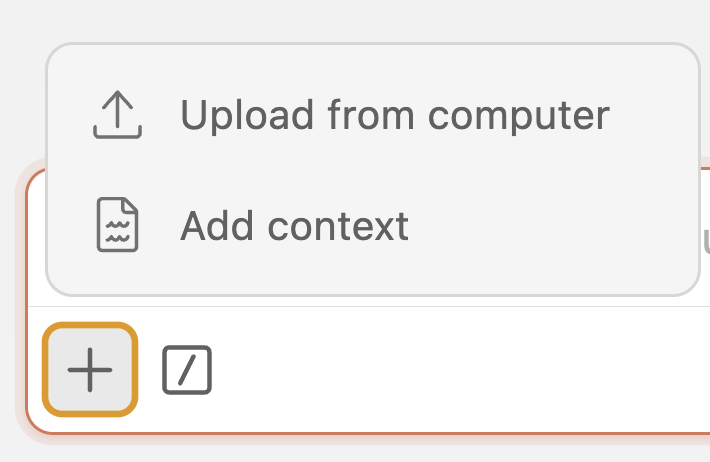
Exercise 2: Ask about your code
Start a new conversation. Then, open your
scripts/fastqc.sh(copied from week 7) in the editor, and ask Claude:Explain what this script does
Does its explanation match your own understanding?
First, predict whether your
fastqc.shwould still work if a FASTQ file name contained a space. Then, close all files in the editor, and ask Claude:Which scripts in this project would break if a FASTQ file name contained a space?
Watch how Claude finds the answer: which files does it look at? Does its answer match your prediction?
Optional: The command below “accidentally” passes the two arguments in the wrong order. Then run it:
bash scripts/fastqc.sh results/fastqc ../garrigos/fastq/S63_R1.fastq.gzCopy your command and the error message into the prompt box, with the script still open (you can add a question like “What went wrong”, but this doesn’t tend to be necessary). Does its explanation make sense?
Click here for the solution
The script treats the FASTQ file as the output dir, so
mkdir -ptries to create a dir../garrigos/fastq/S63_R1.fastq.gz. That fails withFile exists, because a file with that name already exists, andset -ethen stops the script before FastQC runs. The initial logging (Input FASTQ file: results/fastqc) is a strong clue to the cause. Claude may offer to add a check that the input file exists. That’s a reasonable improvement, but it’s your call whether to accept it.
6 Permission modes and running commands
6.1 Permission modes
The permission mode, shown at the bottom right of the prompt box, determines what Claude may do without asking you first. Click on it to switch between modes:
Manual: Claude asks permission for each file edit and for many commands (it runs simple read-only commands, like
ls,head, andgrep, without asking, as you should have noticed in the previous exercises).Edit automatically: Claude edits files without asking, but asks about running commands just like in Manual mode.
Auto: a separate AI model checks each action, whether it involves editing files or running commands, and Claude only asks you for permission for risky ones (see the box below).
Plan: Claude only writes a plan, which opens as a Markdown document that you can review and modify before Claude carries it out. This is useful for bigger tasks and is covered in more detail in the self-study page on Claude Code.
It’s slower-going, but you’ll see exactly what Claude does. Once you’re comfortable reviewing Claude’s work, though, the many permission requests can become tedious, and it’s easy to start clicking “Yes” without really reading what you approve.
At that point, “Auto mode” is a good alternative. In this mode, a separate AI model checks each action before it runs: routine actions, like editing files in your project, are permitted without asking, while risky ones, like deleting many files or doing things you didn’t ask for, are blocked.
6.2 Letting Claude run commands
We’ve already seen how Claude runs commands, for example to check whether a directory or certain files exist. As you might expect, then, we can also ask Claude directly to run commands on our behalf. Let’s try the following prompt:
Run count_reads.sh on all FASTQ files in ../garrigos/fastq, and tell me which sample has the fewest reads
Before running the script, Claude will show you the exact command and ask for permission, as we’ve seen before: approve its request. Here’s what I got in a test run: everything was done and interpreted correctly, including its inference that these reads were “subsampled to a fixed depth”:

In the example above, we’ve let Claude report a result directly, to see how it runs commands. For your research, this is not good practice, or at least it isn’t for producing final results you intend to report. Instead, your routine should be to have Claude write the code that produces your results, so that you can check, rerun, and keep it.
Self-study exercise 2: Let Claude fix a broken script
Create a new file
scripts/read_summary.shand paste the following into it. This script should count the number of reads in every FASTQ file in a dir, but it contains (at least) one error.Click here to see the script
scripts/read_summary.sh
#!/bin/bash set -euo pipefail # Copy the placeholder variables fastq_dir="$1" outfile="$2" # Initial logging echo "Starting script read_summary.sh" date echo "Input FASTQ dir: $fastq_dir" echo "Output file: $outfile" echo # Count the number of reads in each FASTQ file for fastq in "$fastq_dir/*.fastq.gz"; do n_lines=$(cat "$fastq" | wc -l) n_reads=$(( n_lines / 4 )) echo "$fastq $n_reads" >> "$outfile" done # Final logging echo "Successfully finished script read_summary.sh" dateRun the script, and take a look at the error:
bash scripts/read_summary.sh ../garrigos/fastq read_summary.txtIn a new conversation, ask Claude to fix the script:
I ran
bash scripts/read_summary.sh ../garrigos/fastq read_summary.txtand got [paste the error message here]Then watch what Claude does:
- Does it explain the cause of the error, and do you understand the explanation?
- Does it only fix the error you reported, or does it find and fix other problems too?
- Does it run the script to test its fix?
If Claude did not test the script, run it yourself. Then check the contents of
read_summary.txt: are the read counts correct? If the counts are not correct, tell Claude, and let it fix the script.
Click here for a partial solution
The script contains two errors:
The glob in the
forloop is inside double quotes ("$fastq_dir/*.fastq.gz"), so it is not expanded. The loop therefore runs only once, with the literal string../garrigos/fastq/*.fastq.gz, andcatfails because no file has that name. The fix is to keep the*outside the quotes:"$fastq_dir"/*.fastq.gz.The script uses
catinstead ofzcaton gzipped files. This doesn’t cause an error message:wc -lsimply counts the “lines” in the compressed data, so the script reports read counts that are far too low. This is the more dangerous of the two errors, because it silently produces wrong results.
Claude may have noticed the second error by reading the script, after running it and seeing suspicious read counts, or not at all. This shows why a script that runs without errors still needs to be checked, whether you or Claude wrote or fixed it.
Finally, because the script appends (>>) to the output file, running it multiple times will add the same files again to read_summary.txt. Claude may have noticed this when testing the script, and either removed the file between test runs or changed >> to something else.
6.3 Stopping, steering, and rewinding
Sometimes you need to adjust what Claude is doing while it’s working. You can do that in the following ways:
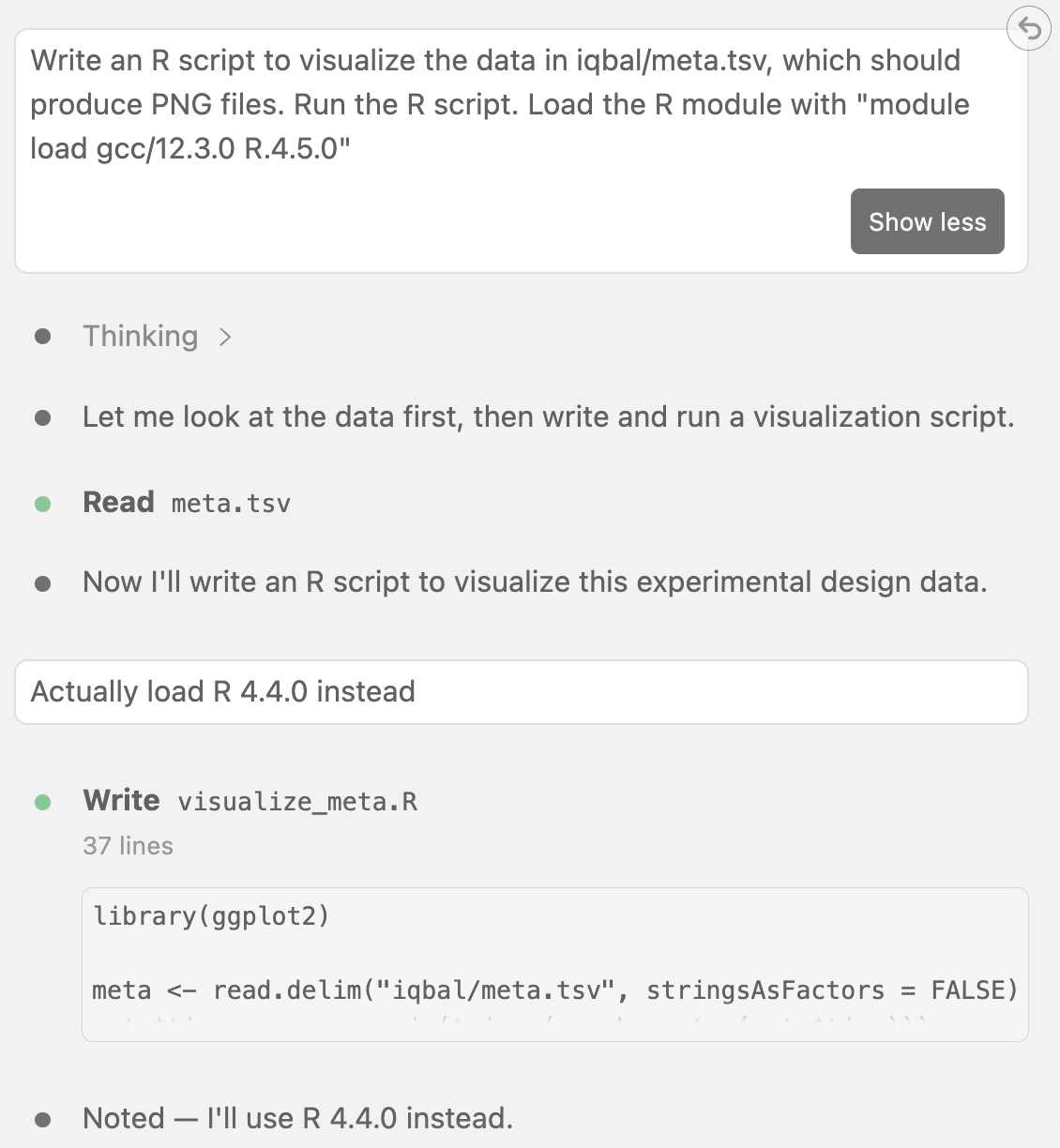
Steer it: When you realize your instructions were incorrect or incomplete in a minor way, or you can see from Claude’s intermediate output messages (it helps to keep an eye on these!) that it’s going down the wrong path, you can steer it. Type a new message while Claude is working, and it will take that into account after a few seconds. For example, give this prompt:
Write a script scripts/fastqc_all.sh that loops over all FASTQ files in ../garrigos/fastq and runs scripts/fastqc.sh on each one, with output going to results/fastqc
Then, as it’s working, send it a new message:
Actually, only do the R1 files
If you’re quick enough, it will take that into account before finishing the script. Otherwise, it will edit its script. Either way, you should see that it acknowledges your new instruction in its response, which it may do explicitly (by saying something like “Got it. Will only …” while working). Or it may do so implicitly, as shown below, where its final comments show it only loops over R1 files.

While Claude was still working, I sent it a new message to change its instructions.

It then takes these instructions into account after a few seconds. If it had finished the task in the meantime, it would then have edited the script to reflect the new instructions instead.
Click to see a screenshot for a different example
The message “actually load R 4.4.0 instead” was added while Claude was working, and you can see that it explicitly acknowledges the new instruction in a quick response:

Stop it: In other cases, you may simply want to stop Claude from continuing its current task. Perhaps your instructions were wrong, or you realize you want to do something else, or you can see that Claude is doing something you don’t want it to do at all. For example, in the same conversation, send:
Write a README.md for this project that documents both scripts in detail
Let’s say we don’t actually want it to do that: press Esc or click the stop button while it’s working:

“Interrupted” means that Claude stopped what it was doing, and will not continue.
Rewind: You can also go back to an earlier point in the conversation, and undo any file changes along the way. To do this, press Esc twice in quick succession, or hover over one of your earlier messages and click the rewind button. You can try this now if Claude already created a (partial) README file before you stopped it. (Alternatively, note that Claude is also good at undoing things when you simply ask it to do so.)

When you try to rewind to a point in the conversation after which Claude made changes to files,
it will ask you whether to undo those code changes, just the conversation, or both.




7 Persistent instructions with CLAUDE.md
7.1 Why persistent instructions?
Each new conversation with Claude starts with an empty context window: it doesn’t see what you discussed in earlier conversations. So you may find yourself repeatedly telling it the same things, such as:
- “Run programs with Apptainer containers, not by installing them”
- “Never modify the raw data in
../garrigos” - “Follow these script conventions: …”
Rather than constantly repeating yourself, and having to write long prompts, you can put these kinds of instructions in a file called CLAUDE.md to make them “persistent” across conversations.
7.2 What is CLAUDE.md, and what to include in it
CLAUDE.md is a Markdown file that Claude automatically reads at the start of every conversation in your project. There is no required format, but it should be concise and easy to read, for you as well as for Claude4. Typically, it’s placed in a project’s root dir, like our week09 dir:
week09
├── CLAUDE.md
└── scripts
├── count_reads.sh
├── fastqc_all.sh
└── fastqc.shSome useful things to include in a CLAUDE.md are:
- Project overview: the research question, organism, data type, and experimental design.
- Project file structure: where the raw data, scripts, and results are.
- Conventions: how you write scripts and name files.
- Software: how software is run (e.g., with containers) and which versions.
- Rules and pitfalls: things Claude should never do, or tends to get wrong.
CLAUDE.md with /init (Click to expand)
Instead of writing a CLAUDE.md from scratch, you can type the /init command in the prompt box: Claude then looks through your project and drafts a CLAUDE.md for you to review and edit. (If a CLAUDE.md already exists, /init will instead suggest updates to it.)
This can be a useful start in a larger existing project. But in a small project like our week09 dir, /init doesn’t have much to work with, so its draft would mostly describe the existing scripts — information Claude can also get by simply reading those scripts when needed. Even in larger projects, the most valuable parts of a CLAUDE.md are things only you know: what the project is about, where the data is, and how you want things done.
7.3 First example: pirate-speak
Create a new file CLAUDE.md in your week09 dir, and open it:
touch CLAUDE.mdTo see that Claude really reads this file, add the following line to it, and save the file:
CLAUDE.md
- Always answer in the style of a pirateThen, close the file (so we know it doesn’t just follow instructions based on explicit file context), start a new conversation, and ask:
What does
set -udo in a shell script?

Followed by:
Why are you talking like that?

7.4 Second example: more serious instructions
Here’s a more serious set of instructions — copy-paste this into your CLAUDE.md file (replacing the pirate line):
CLAUDE.md
# Practice RNA-Seq project
Practice project for the course PLNTPTH 5006, using RNA-Seq data from Garrigós et al.
(2025) on Culex pipiens mosquitoes infected with two avian Plasmodium species.
## Data
- FASTQ files are in `../garrigos/fastq`: paired-end, ~75-bp Illumina reads for
22 samples, subsampled to 500,000 reads per file
- Sample metadata is in `../garrigos/meta/metadata.tsv`
- Never modify, move, or delete anything in `../garrigos`
## Project structure
- `scripts/`: scripts
- `results/`: all output, in a separate subdir for each step (e.g. `results/fastqc`)
## Computing infrastructure
- We work at the Ohio Supercomputer Center (OSC)
- I haven't yet learned how to submit batch jobs, so don't propose to use these
(and therefore run programs with a single core/thread)
## Shell script conventions
- Start scripts with `#!/bin/bash` and `set -euo pipefail`
- Below that, add a comment block with the script's purpose and a usage line
(e.g. `# Usage: bash scripts/fastqc.sh <FASTQ file> <output dir>`)
- Copy arguments to descriptively named, lowercase variables (e.g. `fastq="$1"`);
use uppercase only for constants (e.g. `CONTAINER=...`)
- At the start, report the script name, the date, and the inputs;
at the end, report the program version, a success message, and the date
- Create output dirs with `mkdir -p` before writing to them
- Strike a balance between script functionality and robustness vs. simplicity and
readability: I am a shell beginner
- In script comments, briefly explain any non-obvious commands, options, and constructs
- Programs that aren't available in the system path should be run with Apptainer
containers from Seqera Containers (`oras://` URLs),
not with `module load` or by installing themYou know most of the conventions in the above CLAUDE.md file from week 7, but the comment block below the first two lines is new. It’s good practice because it lets you (or anyone else) see what a script does and how to run it, without having to read through the code. For example, for the FastQC script from week 7:
scripts/fastqc.sh (excerpt)
#!/bin/bash
set -euo pipefail
# Run FastQC on one FASTQ file to check its quality
# Usage: bash scripts/fastqc.sh <FASTQ file> <output dir>Check that it works
Close the file again and start another new conversation, so that Claude reads the updated CLAUDE.md, and ask:
Write a script that extracts the first 10,000 reads from a FASTQ file, and run it on the R1 file of sample S63
Notice that this prompt doesn’t say where the FASTQ files are, where the output should go, or how to write the script. Let’s all check what Claude did in response:
- Did it know where to find the FASTQ file, or did it have to search for it? And where did it put the output?
- Check whether the script follows each of the conventions we told it about in
CLAUDE.md.
We’ll also check whether the output file indeed contains 10,000 reads (40,000 lines) (adjust the path to wherever Claude put your output file):
zcat results/subset_fastq/S63_R1.fastq.gz | wc -l40000Click to see the response and script I got
Its initial script had a problem, which it realized as it ran the script, and it then fixed that problem:

The final script is quite good, and has some nice little explanations in the comments:
scripts/subset_fastq.sh
#!/bin/bash
set -euo pipefail
# Extracts the first N reads from a gzipped FASTQ file
# Usage: bash scripts/subset_fastq.sh <FASTQ file> <output dir> <number of reads>
# zcat/head/gzip are standard coreutils already present on the system,
# so no Apptainer container is needed here
# Copy the placeholder variables
fastq="$1"
outdir="$2"
n_reads="$3"
# Initial logging
echo "Starting script subset_fastq.sh"
date
echo "Input FASTQ file: $fastq"
echo "Output dir: $outdir"
echo "Number of reads: $n_reads"
echo
# Create the output dir if needed
mkdir -p "$outdir"
# Each FASTQ read spans 4 lines, so N reads = N*4 lines
n_lines=$(( n_reads * 4 ))
# Output file keeps the input's base name
outfile="$outdir"/$(basename "$fastq")
# Decompress, take the first n_lines lines, and re-compress.
# zcat is wrapped in "|| true" because head stops reading before zcat is done,
# which would otherwise make zcat exit with an error (SIGPIPE) under "set -o pipefail"
(zcat "$fastq" || true) | head -n "$n_lines" | gzip > "$outfile"
# Final logging
echo
echo "Output FASTQ file: $outfile"
echo "Successfully finished script subset_fastq.sh"
dateOne caveat: || true hides any zcat error, not just the harmless one. For example, if the input file doesn’t exist, the script creates an empty output file and still reports success.
CLAUDE.md (Click to expand)
Keep updating your CLAUDE.md
Start simple, and add to it whenever you notice yourself telling Claude the same thing again, or Claude making the same mistake again. Be mindful of its length, though: it’s read at the start of every conversation, so it uses up tokens each time.
Other locations for CLAUDE.md files
You can also put a CLAUDE.md in a parent dir, to apply to several related projects, or at ~/.claude/CLAUDE.md, to apply to all your projects. See the documentation on CLAUDE.md for details.
Instructions are not strict rules
CLAUDE.md contains instructions, which Claude will usually but not always follow. To strictly enforce rules, use permission rules. For instructions that you only need for specific tasks, see the self-study page on skills.
CLAUDE.md vs. Claude’s memory
Besides reading your CLAUDE.md, Claude also keeps memory notes for itself: when you correct it or tell it about your preferences, it may save a note, which is loaded into future conversations in the same project. You can also ask it directly to save memories, e.g. “Remember that I prefer …”. Like CLAUDE.md, memory notes are plain Markdown files, and they’re stored in your Home dir. Claude writes them itself, but it’s worth checking them now and then.
More broadly, memory notes are another big advantage of AI in your editor. While browser-based chatbots may remember general things about you, here you can save more extensive, specific information about your project and your preferences. You can check Claude’s memory notes by typing /memory in the prompt box. More details are on the self-study page.
8 Documenting your AI use
As discussed in the previous lecture, journals often require you to disclose how you used genAI, and you can’t count on getting the same answer when you ask the same thing again later. So it’s a good idea to keep a record as you go. Here are two complementary ways to do so.
Let’s start by creating a doc/ai dir in your project, to hold AI-related documentation:
mkdir -p doc/ai8.1 Save your conversations
Claude saves your conversations automatically, but in your Home dir rather than in your project, and in a format that’s not easy to read. To save a conversation in your project as a plain-text file, you can use the export slash-command, /export, in the prompt box. Let’s practice that now — still in your previous conversation, type:
/export extract-reads.txt
This will open a Save As dialog, with the suggested file name extract-reads.txt. Go ahead and save the file in your doc/ai dir.

Do this for conversations that helped you produce code you end up keeping, or helped you make decisions about the analysis steps. Consider committing these files to Git as well.
Exporting by hand is easy to forget. To save every conversation automatically, you can use a “hook”: a shell command that Claude Code runs at a specific moment, such as whenever Claude finishes responding. Hooks are run by Claude Code itself rather than by the model, so unlike instructions in CLAUDE.md, they always run.
A hook receives the location of Claude’s own file for the current conversation, which contains every message and tool call in a format that’s hard to read. The hook can then run a small script that converts this file into a readable Markdown file in your project, overwriting it each time so it stays up to date.
You don’t have to write this yourself — you can ask Claude to set it up, for example:
Add a Stop hook to this project’s
.claude/settings.jsonthat saves the current conversation as a Markdown file indoc/ai/. Name each file by the conversation’s start date and session ID, include my prompts and your responses, and summarize each tool call in one line.
Then, have a short conversation and check the resulting Markdown file. A few more tips:
- To use the hook in all your projects, ask Claude to put it in
~/.claude/settings.jsoninstead. - Claude deletes its own conversation files from your Home dir after 30 days. To keep them longer, set
cleanupPeriodDaysin~/.claude/settings.json. - See the hooks documentation for details.
8.2 Let Claude keep a diary
Exported conversations are complete but long. For a concise overview, you can let Claude keep a diary of key findings and decisions — add the following to the end of your CLAUDE.md file:
CLAUDE.md (excerpt)
## AI diary
- After completing a task, add an entry at the bottom of `doc/ai/ai-diary.md`
with the date, what I asked for, which files you created or changed,
and any key findings and decisions (including alternatives that were rejected)
- Keep entries shortThen, close the file, start a new conversation, and ask Claude to make a small change:
Make scripts/count_reads.sh print its output as a tab-separated table with a header line
Click to see some possible scripts
Here’s one script I got, which uses echo -e so that \t is printed as a tab:
scripts/count_reads.sh
#!/bin/bash
set -euo pipefail
# Count the number of reads in one or more FASTQ files and print the
# result as a tab-separated table.
# Usage: bash scripts/count_reads.sh <fastq.gz> [fastq.gz ...]
echo -e "file\tn_reads"
# Loop over all FASTQ files given as arguments ("$@").
for fastq_file in "$@"; do
# Each read in a FASTQ file takes up 4 lines, so divide the line count by 4.
num_lines=$(zcat "$fastq_file" | wc -l)
num_reads=$((num_lines / 4))
echo -e "$fastq_file\t$num_reads"
doneIn another test-run, it used printf instead of echo -e:
scripts/count_reads.sh
#!/bin/bash
# Usage: count_reads.sh <fastq.gz> [fastq.gz ...]
# Print a tab-separated header, then loop over all FASTQ files given as arguments ("$@").
printf "file\tnum_reads\n"
for fastq_file in "$@"; do
# Each read in a FASTQ file takes up 4 lines, so divide the line count by 4.
num_lines=$(zcat "$fastq_file" | wc -l)
num_reads=$((num_lines / 4))
printf "%s\t%s\n" "$fastq_file" "$num_reads"
doneAfter editing the script, Claude may ask you about a diary entry, like so — you can then simply type “Yes” to reply:

Alternatively, it may go ahead and add an entry itself, but should then mention that it did so. Let’s check whether the file exists, and if so, what it contains. Here’s what I got:
doc/ai/ai-diary.md
# AI diary
## 2026-10-21
Asked for: make `scripts/count_reads.sh` print output as a tab-separated table
with a header line.
Changed: `scripts/count_reads.sh` — added a `file\tn_reads` header,
switched the per-file output to tab-separated.
Also brought the script in line with project shell conventions
(`set -euo pipefail`, purpose/usage comment block) since it was missing those.Note the last two lines: interestingly, in this specific case, it looks like Claude initially overlooked two of the script conventions we told it about in CLAUDE.md, and it realized that while making the unrelated change to the output format: see also the box below!
Like any CLAUDE.md instruction, Claude will usually but not always follow it. And the diary is Claude’s own summary of what happened: read it, correct it where needed, and commit it to Git along with your code.
9 Managing context and cost
9.1 Agents fill up the context window quickly
Recall from the previous lecture that a model’s context window holds everything in the conversation, and that performance degrades as it fills up. With an agent, this happens much faster than with a chatbot: every file Claude reads and every command output it sees goes into the context too.
The size of the context window depends on the model. Current Claude models can hold up to 1 million tokens (very roughly 750,000 words), but some models and setups use a smaller window of 200,000 tokens.
To see how full the context window is, type /context in the prompt box. At the top, this shows which model you’re using, and how many tokens are in use out of that model’s context window size.

These categories are shown in the screenshot above:
- System prompt: Claude Code’s built-in instructions, the same in every conversation.
- Memory files: your
CLAUDE.mdfile(s), which are listed below the table, and Claude’s own memory notes, if any. - Skills: short descriptions of available “skills” (see this optional material to learn more about skills).
- Messages: everything in the conversation so far, including files Claude read and command output it saw. This grows as the conversation moves along: in every turn (new prompt and response), all previous messages are sent to the model again along with your new prompt, so each turn processes more tokens than the one before (see the box on caching below).
- Autocompact buffer: space reserved for summarizing the conversation once the context window is nearly full (see
/compactbelow). - Free space: what’s left.
Depending on your setup, you may also see other categories, like System tools: descriptions of the tools Claude can use, like reading files.
Models don’t remember anything, not even between individual rounds of prompts and answers (“turns”) in a conversation.
With every new prompt, the entire context (the system prompt, your CLAUDE.md, and all earlier messages, including files Claude read and command output) is sent to the model again and processed as input tokens.
To make this faster and cheaper, the part of the context that hasn’t changed since the previous turn is cached: temporarily stored, so that it doesn’t need to be fully reprocessed. Cached input tokens cost only a fraction of the regular price (for Sonnet, about one tenth). Only your new prompt and everything Claude does in response are processed at the full price.
However, the cache expires after it hasn’t been used for a while, and it’s specific to a model. After the cache expires or when you switch models, the next message reprocesses the entire conversation at the full price.
With an API key like ours, the cache expires after only 5 minutes without activity. The clock icon in the prompt box (e.g., 4m) shows how much time is left. (With a personal subscription, Claude Code keeps the cache for an hour instead: that costs more per cached token, which doesn’t matter with a fixed monthly fee but does when you pay per token.)
Some practical consequences:
- When you come back to a long conversation after a break of more than a few minutes, consider starting a new conversation instead, unless you really need what was discussed before.
- Choose your model at the start of a conversation, rather than switching back and forth during it.
- Even with caching, every turn in a long conversation costs more, sometimes significantly more, than one in a short conversation, which is another reason to start fresh often.
9.2 Start fresh often
Throughout this session, we’ve started a new conversation for each new task. That’s a good habit: Claude can get confused when you switch topics within a conversation, and a long conversation is slower and more expensive.
In a new conversation, Claude is at least in principle completely unaware of what was said in earlier ones. However, it does read your CLAUDE.md and its own memory notes, and it may read files like a diary (as discussed above), either on its own or because CLAUDE.md tells it to.
/clear and /compact slash commands (Click to expand)
Two slash commands related to this:
/clear(or/new) also starts a new conversation. It may look like it deletes the current conversation, because it doesn’t visibly switch to a new one like the+icon does, but the previous conversation is still available under the clock icon./compactreplaces the conversation so far with a summary, to free up space. Claude also does this automatically when the context window is nearly full. This is useful and clever behavior, though details can get lost in the process.
9.3 Models and effort levels
Click on Sonnet 5 Medium in the bottom-right of the prompt box to open the model and effort menu:

Models — The checkmark shows the model you’re currently using. Claude comes in four model “tiers”, listed here from most to least capable:
- Fable: the most capable and by far the most expensive model. Meant for very hard and long-running tasks, so you’re unlikely to need it in this course (I’ve never used it). Don’t use as part of this course.
- Opus: very capable, but slower and more expensive than Sonnet. Can be worth it for more complex questions. Generally avoid for this course.
- Sonnet: fast, capable, and much cheaper. Plenty for writing and editing scripts like ours. This is the default we’ve set in the settings file, and the one you should use most of the time.
- Haiku: the fastest and cheapest, for simple questions and quick edits.
The “Default (recommended)” entry at the top is not the model you set in your settings file. It is Claude Code’s own built-in default (currently Opus), which it would use if you hadn’t picked a model at all. Selecting it switches you to Opus, so you’ll use up your budget faster — not recommended except when you think you really need a more capable model.
Most entries say “Custom … model”. This is because our settings file specifies exactly which model version each tier should use (the
ANTHROPIC_DEFAULT_..._MODELlines).
Effort — How much the model “thinks” before responding: Low, Medium, High, Extra-high, or Max. More effort can give better answers to hard problems, but is slower and uses more tokens. Medium is a good default for our purposes.
Ultracode — keep this set to off (for more details, see the box below).
In summary, we’ll stick to our settings file’s default of Sonnet 5 Medium, but you now know how to change it if you want to try a different model or effort level.
Ultracode
A brand-new toggle that is separate from the effort level. When it’s on, Claude handles every substantial task with a so-called “workflow”: a script that runs many Claude “subagents” in parallel, for example one per file, plus agents that double-check each other’s work. This is meant for large jobs such as auditing or modifying hundreds of files, and it makes each request use many more tokens and take longer.
Thinking
Earlier versions of Claude Code had a separate toggle to turn “thinking” on or off, and you may still see it in online tutorials and videos. This toggle has disappeared because recent Claude models always think, and decide for themselves how much thinking each step needs. The effort level is now the way to control this: a lower effort level means less thinking, and a higher one means more.
9.4 Cost
Every token costs money, and your API key has a limited budget: an initial $10, which we may increase later in the semester if needed. That may sound like a lot, but even a basic question often costs tens of cents, and a longer agentic task considerably more.
Once the budget is used up, Claude will reply with a message like that shown below — if that happens, let us know.

Besides your choice of model and effort level (see above), some other things to know about costs of your conversations:
- Output tokens (Claude’s responses, including its “thinking”) cost several times more than input tokens.
- Agentic tasks can use many tokens, even when the visible conversation is short, because Claude reads files and command outputs behind the scenes (see also the section on context windows above).
- Large data files: Claude Code limits how much of a file or command output it takes in at once, and it’s smart about using commands like
headandgrepto look at data files. Still, large data files can quickly fill up the context window and cost a lot, so don’t ask it to “read” them5.
To see an estimate of what the current conversation has cost so far, type /usage — example output is shown in the screenshot on the right.
This information is somewhat limited, e.g. you can’t see usage for other conversations, or how much you’ve used in total for this API key.
(When you have a personal subscription, more detailed usage information is provided.)

Paying per token through an API key, as we do here, is much more expensive than a personal subscription to a service like Claude, which has a fixed monthly fee. A day of heavy agentic coding through an API can easily cost more than a month’s subscription.
If you want to try Claude for personal projects (and/or projects that don’t involve institutional data), a personal subscription is worth considering for this reason — though it will then be you who’s paying.
Personal accounts are not approved for institutional data, which includes your unpublished research data. But much of what an AI agent helps you with only involves your code. So you may be able to use a personal account in a research project, as long as you make sure that the AI can’t see your data:
Make Claude ignore files with a deny rule (see permission rules), such as
"Read(//fs/ess/PAS1234/myproject/data/**)". This blocks Claude’s own file reads as well as common commands likecatandhead, but not, for example, a script that opens the files by itself.Keep your data outside the workspace. Claude reads files in your workspace without asking, but asks for permission before accessing anything outside of it. This is at odds with our recommendation to keep everything for a project in one self-contained project dir, which you then open as your workspace. But you can keep that project structure and open only a subdir as the workspace: for example, open
myproject/scriptsrather thanmyproject, and decline any request to accessmyproject/data. The downside is that Claude can then also not freely see the rest of your project, such as your results and README.
Keep in mind that anything that ends up in the conversation is sent to the AI, including the output of commands it runs (e.g. a script that prints part of your data) and anything you paste into a prompt. And none of the above is watertight. When in doubt, check with your advisor, or use an OSU-approved tool.
10 Good habits when working with an agent
Getting good help
- Be explicit. Point Claude to the relevant files, and put your conventions and rules in
CLAUDE.md. - Start fresh for each new task, and keep conversations focused.
- Use it to raise your standards. Ask it for things that make code more robust but are easy to skip, like input checks, usage messages, comments, and a README (King et al. 2026).
Checking and keeping the results
- You own the result. Read every proposed edit and command before approving it.
- Verify, don’t trust. When Claude says something “works”, that may be a prediction rather than a test result. Run the code yourself, and check results independently.
- Results should come from code you can rerun. Let Claude help you write code that you review, run, and keep; don’t rely on numbers or conclusions it only reports in the chat.
- Commit before, review after. Use Git so that you can see and undo what Claude changed.
- Keep a record. Commit the code that Claude helped write, and document how you used AI, for example with exported conversations and a diary. You can’t count on getting the same answer if you ask again later.
Protecting secrets and data
- Keep secrets out of prompts. Never paste passwords or API keys into a prompt.
- Remember that Claude can see what you can see. In shared dirs like
/fs/ess/PAS3493, that may include other people’s files and data. Keep Claude’s workspace limited to your own project.
For general questions, like explaining a concept or a command, a browser-based chat like Gemini (through your OSU account) works just as well and doesn’t use your API key’s budget. Use Claude when it helps that it can see your files and run commands.
If you do ask Claude Code simpler questions that don’t require it to read files or run commands, it sometimes helps to explicitly tell it to “answer from your general knowledge” or “don’t read any files”.
Version control pairs very well with agentic AI: commit your work before asking Claude for a bigger change, review all of its changes afterwards with git diff or the Source Control panel, and undo anything you don’t want with git restore <file>. For more on this and other guardrails, such as permission rules that block specific actions, see the self-study page on Claude Code.
References
Footnotes
as before, use Ctrl/Cmd + click in the terminal, or click
File>Open File> type~/.claude/settings.json.↩︎or click the upward arrow in the bottom-right corner of the box.↩︎
Conversations are given a default name based on the first prompt you sent, as also visible in the screenshot above, but these names can be changed by clicking the pencil icon next to them.↩︎
Many other AI coding tools use a similar file called
AGENTS.md. Claude reads that file too, but by default only if there is noCLAUDE.md.↩︎As pointed out before: Claude should help you write code that reads and analyzes data, rather than reading and “analyzing” data itself.↩︎