Unix Shell basics
Part II of the pre-workshop learning session

1 Introduction
In this part, you’ll learn:
- What the Unix shell is and what you can do with it
- Why it can be beneficial to use a command-line interface in general and the shell specifically
- How Unix commands are stuctured
- How to navigate around your computer with Unix commands
1.1 Some terminology and concepts
Terminology around the Unix shell can be confusing, and some terms are used interchangeably. Let’s run by these terms going from more general ones to more specific ones:
| Term | Explanation |
|---|---|
| Command Line / Command Line Interface (CLI) |
A user interface where you type commands rather than clicking-and pointing like in a Graphical User Interface (GUI). This “interface” can be from anything from a specific bioinformatics program to your computer’s operating system. |
| Shell | A more specific term for a command line interface to your computer. |
| Unix shell | The type of shell on computers with Mac or Linux (i.e., Unix-based) operating systems. |
Also related is the word terminal: the program/app/window in which the shell is run.
1.2 Why use the Unix shell?
The Unix shell can be used for a wide variety of tasks, from “file browser” functionality to running specialized software. It has been around for a long time and may seem archaic. But astonishingly, a system largely built decades ago in an era with very different computers and datasets has stood the test of time, and the ability to use it is a crucial skill in computational biology.
Using the Unix shell rather than programs with GUIs has some of the general advantages of using code:
- Automation, fewer errors, and reproducibility
The shell allows you to repeat and automate tasks easily and without introducing errors, and it’s straightforward to keep a detailed record of what you have done.
There are also specific reasons to use the Unix shell when compared to languages like R and Python, such as:
- Software needs
Many programs used for omics data analysis have a CLI and are most easily run from the Unix shell. - Efficiency and convenience
Built-in shell tools are often faster in terms of coding and processing time, especially for simpler tasks. And when doing remote computing, your point of entry, and a universal interface, is the Unix shell.
2 First steps in the shell
You should already have a VS Code session with a Unix shell open! If not, click here to see instructions.
- Log in to OSC’s OnDemand portal at https://ondemand.osc.edu
- In the blue top bar, select
Interactive Appsand near the bottom, clickCode Server - Fill out the form as follows:
- Cluster:
pitzer - Account:
PAS3454 - Number of hours:
2 - Working Directory:”
/fs/scratch/PAS3454/people/<username>/pre(replace<username>with your actual user name) - App Code Server version:
4.8.3
- Cluster:
- Click
Launch - Click the
Connect to VS Codebutton once it appears - In VS Code, open a terminal by either:
- Clicking =>
Terminal=>New Terminal - Using the keyboard shortcut Ctrl+`
- Clicking =>
2.1 The shell’s prompt
Inside your terminal, the “prompt” indicates that the shell is ready for a command. What is shown exactly varies across shells and can also be customized, but our prompts at OSC should show something like this:
[jelmer@p0362 pre]$ Which represents the following pieces of information:
[<username>@<node-name> <working-dir>]$A <working-dir> is the directory that you are currently located in. Here, for brevity, it only shows the name of the dir you are directly located in (e.g. pre) rather than the entire path (e.g. /fs/scratch/PAS3454/people/jelmer/pre).
You type your commands after the dollar sign $, and then press Enter to execute the command. When the command has finished executing, you’ll “get your prompt back” and can type and execute a new command.
Code-formatted text between
<and>(such as<username>above) is commonly used to indicate not literal code but something that should be be replaced (such as by your personal user name in the<username>example).OSC prints welcome messages and storage quota information when you open a shell. To reduce the amount of text on the screen, I will clear the screen now, and regularly throughout. This can be done with the keyboard shortcut Ctrl+L.
~ as the working directory? (Click to expand)
If you see a ~ as the working-dir-part of your prompt, you are instead in your Home directory in /people/ and you will need to go to /fs/scratch/PAS3454/people/<user>/pre instead.
While you could navigate there with a simple Unix command, we will instead use the “Open Folder” functionality in VS Code, so that the entire program (and not just the terminal) moves to the correct dir.
To do so: click File > Open Folder in VS Code and then type/select that dir. When you then open a Terminal again, the correct dir should be displayed.
2.2 A few simple commands
The Unix shell comes with hundreds of commands: small programs that perform specific actions1. Let’s start with a few simple commands:
The
datecommand prints the current date and time:dateWed Jul 8 13:37:55 EDT 2026The
pwd(Print Working Directory) command prints the path to the directory you are currently located in:pwd/fs/scratch/PAS3454/people/jelmer/preThe
echocommand simply prints the text you provide it with, typically between double quotes “ 2.echo "Welcome to this genAI workshop"Welcome to this genAI workshop
All these commands provided us with some output. That output was printed to screen, which is the default behavior for nearly every Unix command.
3 Options, arguments, and help
3.1 The cal command — and options & arguments
The cal command is another example of a command that simply prints some information to the screen, in this case a calendar. It’s not a particularly useful command in this day and age 🙃, but we’ll use it as a low-stakes example to learn about command options and arguments.
Just running cal will print a calendar for the current month:
cal July 2026
Su Mo Tu We Th Fr Sa
1 2 3 4
5 6 7 8 9 10 11
12 13 14 15 16 17 18
19 20 21 22 23 24 25
26 27 28 29 30 31 (It should also highlight today in your terminal.)
Examples of using command options
Use the option -j (a dash - and then a j) to instead print a Julian calendar, which has year-wise instead of month-wise numbering of days:
# Make sure to leave a space between `cal` and `-j`!
cal -j
July 2026
Sun Mon Tue Wed Thu Fri Sat
182 183 184 185
186 187 188 189 190 191 192
193 194 195 196 197 198 199
200 201 202 203 204 205 206
207 208 209 210 211 212 Use the -3 option to show 3 months (adding the previous and next month):
cal -3 June 2026 July 2026 August 2026
Su Mo Tu We Th Fr Sa Su Mo Tu We Th Fr Sa Su Mo Tu We Th Fr Sa
1 2 3 4 5 6 1 2 3 4 1
7 8 9 10 11 12 13 5 6 7 8 9 10 11 2 3 4 5 6 7 8
14 15 16 17 18 19 20 12 13 14 15 16 17 18 9 10 11 12 13 14 15
21 22 23 24 25 26 27 19 20 21 22 23 24 25 16 17 18 19 20 21 22
28 29 30 26 27 28 29 30 31 23 24 25 26 27 28 29
30 31 You can use multiple options at once – for example:
cal -j -3 June 2026 July 2026 August 2026
Sun Mon Tue Wed Thu Fri Sat Sun Mon Tue Wed Thu Fri Sat Sun Mon Tue Wed Thu Fri Sat
152 153 154 155 156 157 182 183 184 185 213
158 159 160 161 162 163 164 186 187 188 189 190 191 192 214 215 216 217 218 219 220
165 166 167 168 169 170 171 193 194 195 196 197 198 199 221 222 223 224 225 226 227
172 173 174 175 176 177 178 200 201 202 203 204 205 206 228 229 230 231 232 233 234
179 180 181 207 208 209 210 211 212 235 236 237 238 239 240 241
242 243 To save you some typing, options can be “pasted together” like so:
# [Output not shown - same as above]
cal -j3#
Any text that comes after a # is considered a comment instead of code! Comments are not executed but are ignored by the shell:
# This entire line is a comment - you can run it and nothing will happen
cal # If you run this line, 'cal' will be executed but everything after the '#' is ignored
Options summary
Options are specified with a dash - (or two dashes --, as you’ll see later). The examples so far have involved the kind of option that is also called a flag, which changes functionality in an ON/OFF way, such as:
- Turning a Julian calender display on with
-j - Turning a 3-month display on with
-3.
We’ll see more complex types of options later. Generally speaking, options change the behavior of a command.
Arguments
Arguments typically tell a command what to operate on. Most commonly, these are file or directory paths. Admittedly, cal is not the best illustration of this pattern — when you give it one argument, this is the year to show a calendar for:
cal 2020 2020
January February March
Su Mo Tu We Th Fr Sa Su Mo Tu We Th Fr Sa Su Mo Tu We Th Fr Sa
1 2 3 4 1 1 2 3 4 5 6 7
5 6 7 8 9 10 11 2 3 4 5 6 7 8 8 9 10 11 12 13 14
12 13 14 15 16 17 18 9 10 11 12 13 14 15 15 16 17 18 19 20 21
19 20 21 22 23 24 25 16 17 18 19 20 21 22 22 23 24 25 26 27 28
26 27 28 29 30 31 23 24 25 26 27 28 29 29 30 31
# [...output truncated, entire year is shown...]You’ll see examples of commands operating on files or dirs soon. Finally, you can also combine options and arguments:
cal -j 2020 2020
January February
Sun Mon Tue Wed Thu Fri Sat Sun Mon Tue Wed Thu Fri Sat
1 2 3 4 32
5 6 7 8 9 10 11 33 34 35 36 37 38 39
12 13 14 15 16 17 18 40 41 42 43 44 45 46
19 20 21 22 23 24 25 47 48 49 50 51 52 53
26 27 28 29 30 31 54 55 56 57 58 59 60
# [...output truncated, entire year is shown...]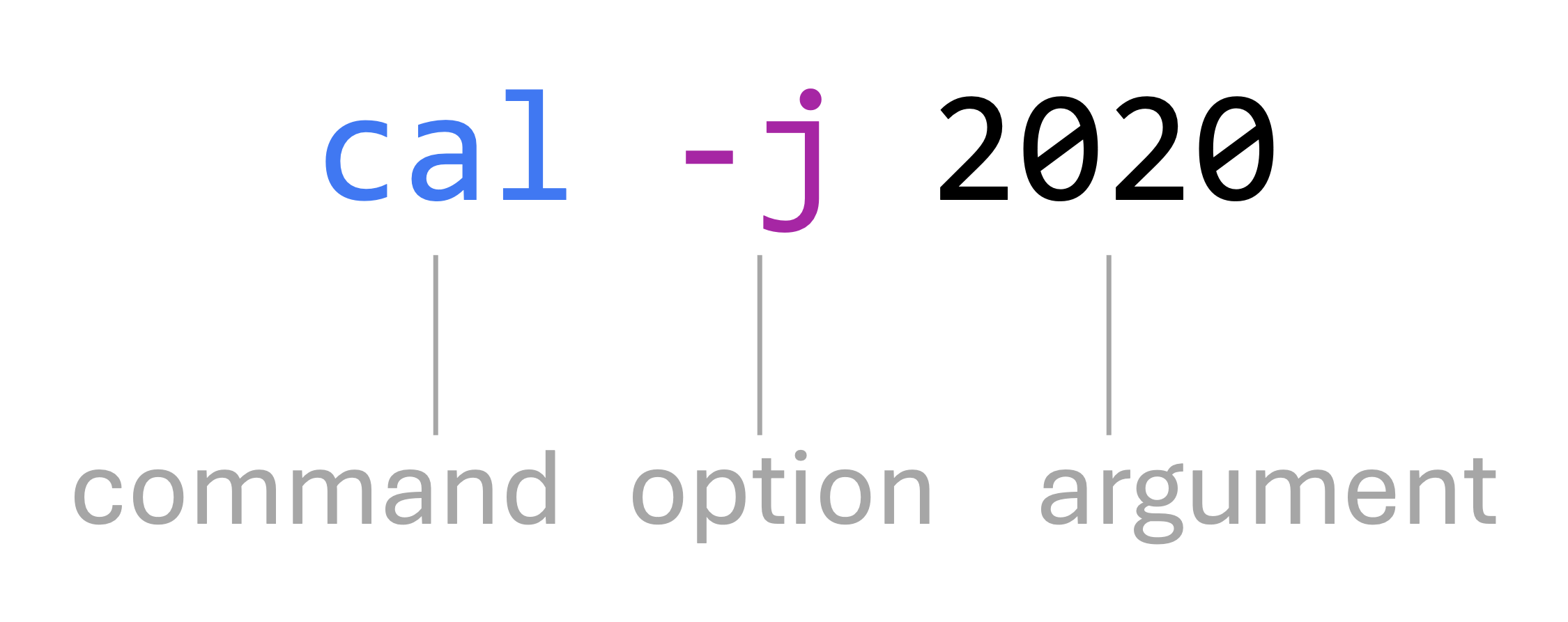
Note that regrettably, the most common way to refer to this entire line is also “command”. Therefore, the term “command” can either refer to just a command like
cal or a full command-line expression that includes options and arguments like cal -j 2020.3.2 Getting help
Many Unix commands have a -h option for help, which usually gives a concise summary of the command’s syntax, such as its available options and arguments:
cal -h
Usage:
 cal [options] [[[day] month] year]

Options:
 -1, --one        show only current month (default)
 -3, --three      show previous, current and next month
 -s, --sunday     Sunday as first day of week
 -m, --monday     Monday as first day of week
 -j, --julian     output Julian dates
 -y, --year       show whole current year
 -V, --version    display version information and exit
 -h, --help       display this help text and exit
In this case, we learn that each option to cal can be referred to in one of two ways:
- A short-form notation: a single dash followed by a single character (e.g.
-s) - A long-form notation: two dashes followed by a keyword (e.g.
--sunday)
Exercise: Interpreting the help output
Look through the options listed when you ran
cal -h, and try an option we haven’t used yet. (You can also combine this new option with other options, if you want.)Click to see a solution
- To print a calendar with Monday as the first day of the week (instead of the default, Sunday):
cal -mSeptember 2025 Mo Tu We Th Fr Sa Su 1 2 3 4 5 6 7 8 9 10 11 12 13 14 15 16 17 18 19 20 21 22 23 24 25 26 27 28 29 30Try using one or more options in their “long form” (with
--). Can you think of an advantage of using long form over short form options?Click to see a solution
For example:
cal --julian --mondaySeptember 2025 Mon Tue Wed Thu Fri Sat Sun 244 245 246 247 248 249 250 251 252 253 254 255 256 257 258 259 260 261 262 263 264 265 266 267 268 269 270 271 272 273The advantage of using long options is that they are less cryptic and more descriptive. Therefore, it is much more likely that any reader of the code (including yourself next week) will immediately understand what these options are doing.
Note that long options cannot be “pasted together” like short options.
4 Navigation
4.1 cd and command “actions”
All commands so far “merely” provided some information, which was printed to the screen. But many commands perform another kind of action.
For example, the command cd will change your working directory. But first, check again where you are:
pwd/fs/scratch/PAS3454/people/jelmer/preNow, use cd to move to another directory by specifying the path to that dir as an argument:
cd /fs/scratch/PAS3454# Double-check that you moved:
pwd/fs/scratch/PAS3454In summary:
- Like
cal,cdaccepts an argument. Unlikecal, this argument takes the form of a path that the command should operate on (which is very typical among Unix commands). cdgives no output when it successfully changed the working directory. This is very common behavior for Unix commands that perform operations: when they succeed, they are silent.
Let’s also see what happens when cd does not succeed — it gives an error:
cd /fs/scratch/pas3454-bash: cd: /fs/scratch/pas3454: No such file or directoryWhat went wrong here? And what does that imply?
- We spelled
pasin lowercase letters, while the actual dir is spelledPAS3454in uppercase letters. - It appears that the shell is case-sensitive — it treats uppercase and lowercase letters as different characters.
4.2 Path shortcuts
A number of “shortcuts” exist for paths:
| Symbol/shortcut | Represents… |
|---|---|
~ (a tilde) |
Your Home directory. |
. (a single period) |
The current working directory (we’ll see why this is useful later) |
.. (two periods) |
The directory “one level up” from your working dir, i.e. towards the computer’s root dir. |
.. to move up in the directory hierarchy
Some examples of ..:
Use
..to go up one level in the dir hierarchy:# Start by reminding yourself of where you are: pwd/fs/scratch/PAS3454# Move one level up: cd .. # Check where you are now: pwd/fs/ess/You can “continue” a path like usual after
.., e.g.:cd ../scratch/PAS3454Therefore, you can also move up multiple levels at once, e.g.:
# Move up to levels
cd ../..

pwd
/fs
If the relative paths with .. are confusing to you, perhaps this diagram helps:
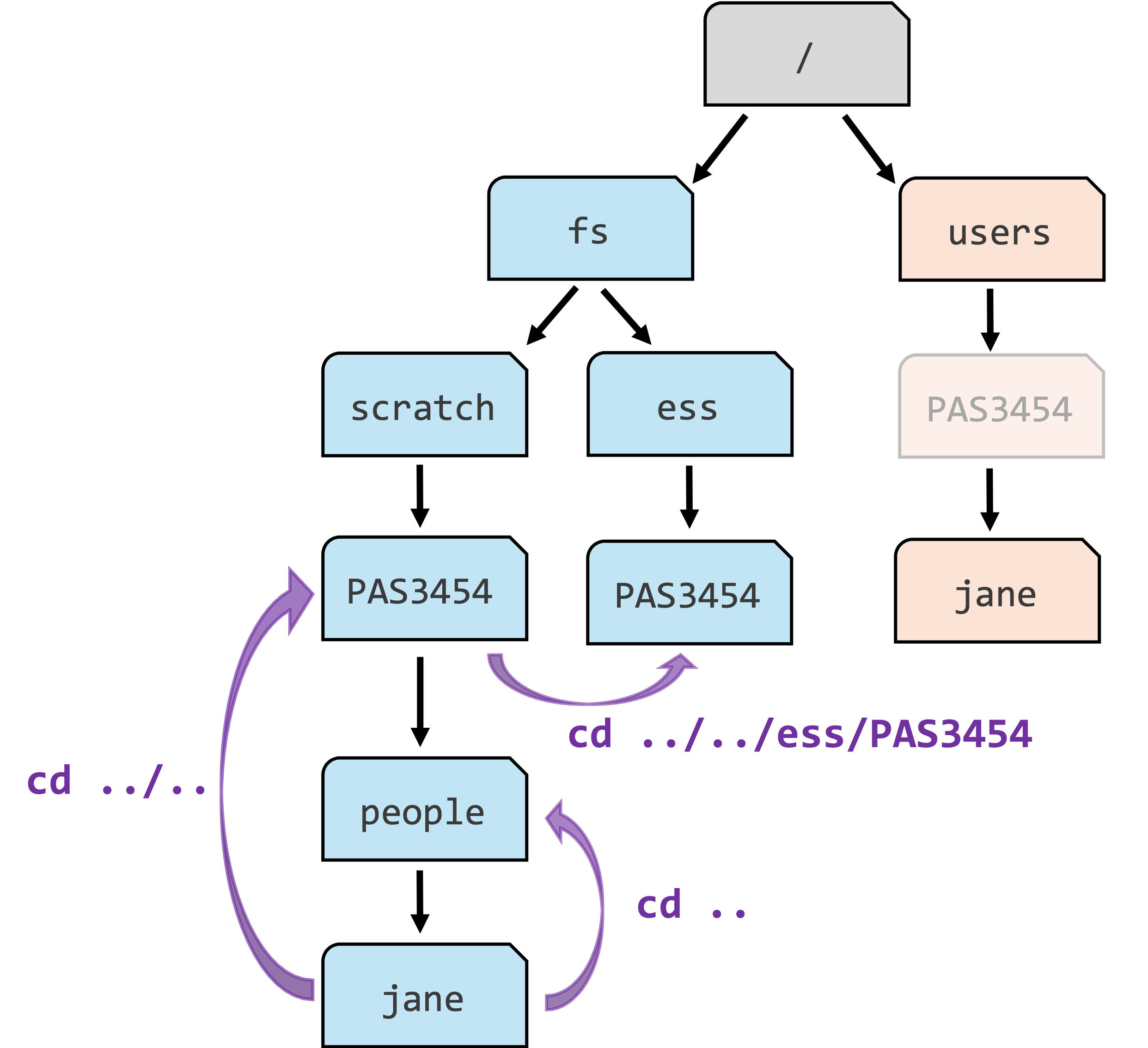
PAS3454 box in the Home dir is faded, because your Home dir may be in a differently named dir, and also because it is important to realize that this dir is not associated with any OSC Project other than in name. Example commands to navigate (partially) upwards with relative paths are shown in purple.5 Keyboard shortcuts
Using keyboard shortcuts help you work more efficiently in the shell. Here are some of the most useful ones:
Command history —
Up/Downarrow keys to cycle through your command history.Tab completion — The shell will auto-complete file paths (or commands) when you press Tab.
Cancel/stop/abort — If your prompt is “missing”, the shell is still busy executing your command, or you typed an incomplete command. To abort, press Ctrl+C and you will get your prompt back.
Let’s try Tab completion together
In the shell, whenever you type something and press Tab, the shell will try to autocomplete what you typed based on the available commands and files/dirs in your current working dir. This is incredibly useful, because it saves you from typing long paths and also helps you avoid typos.
| Type this | Expected response |
|---|---|
/f => Tab |
Autocompletes to /fs/ |
Add s (to /fs/scratch/) => Tab |
Autocompletes to/fs/scratch/ |
Add PAS (to /fs/scratch/PAS) => Tab |
Nothing happens because there are many options |
| Tab twice | Prints Display all 815 possibilities? (y or n) |
Type n to answer no |
Prompt goes back to /fs/scratch/PAS |
Add 345 (/fs/scratch/PAS3454) => Tab twice |
Displays the 6 dirs that start with PAS3454 |
Add 4 (/fs/scratch/PAS3454) => Enter |
Prints bash: /fs/scratch/PAS3454/: Is a directory |
Why did we get an error here?
Basically, everything you type in the shell should start with a command. Just typing a path will not make the shell print some info about, or the contents of, this dir or file. Instead, since a path is not a command, you will get an error.| Type this | Expected response |
|---|---|
| ⇧ (Up arrow) | You get the path back on the prompt |
| Ctrl+A | Cursor moves to the start of the line |
Prepend cd (to cd /fs/scratch/PAS3454/) => Enter |
You are now in the PAS3454 dir |
Your cursor can be anywhere in a line (not just at the end) when you press Enter to execute a command!
Bonus exercise: canceling
To simulate a long-running command that you may want to abort, we’ll use the sleep command, which makes the computer wait for a specified amount of time before it gives your prompt back.
Run the below command and instead of waiting for the full 60 seconds, press Ctrl + C to get your prompt back sooner!
sleep 60sAs another example of a situation where you might have to use Ctrl + C, simply type an opening parenthesis ( and press Enter:
(When you do this, nothing is executed and you are not getting your prompt back: you should see a > on the next line. This is the shell wanting you to “complete” you command. Why would that be?
Click to see the solution
This is an incomplete command by definition: any opening parenthesis should have a matching closing parenthesis.Press Ctrl + C to get your regular prompt back.
6 Listing files with ls
The Unix shell has a lot of commands for dealing with files and directories. We’ll only cover the most basic one here: ls, which lists files and directories.
First, let’s move to a dir which has some files we can display:
# Recall to use Tab completion!
cd /fs/scratch/PAS3454/data/iqbal
By default, ls lists files and dirs in your current working directory:
lsREADME.md fastq meta.tsv refls uses different colors to indicate different types of files:
- Entries in blue are directories (
fastqandrefabove) - Entries in black are regular files (
README.mdandmeta.tsvabove) - Entries in red are compressed files (we’ll see examples of this soon).
Some colors depend on the color scheme of your terminal / VS Code. E.g., white for regular files in dark themes.
You can use an argument to change the dir (or file) that ls operates on, and you can use options to change how it shows the output. Let’s start with two very commonly used options -l (lowercase L) and -h, which can be combined as -lh:
ls -lhtotal 1.5K
-rw-r--r-- 1 jelmer PAS3454 0 Jul 6 14:59 README.md
drwxr-x--- 2 jelmer PAS3454 4.0K Jul 6 13:03 fastq
-rw-r----- 1 jelmer PAS3454 532 Jul 6 13:03 meta.tsv
drwxr-x--- 2 jelmer PAS3454 4.0K Jul 6 13:03 refThe same items as before were printed, but now in a different format: one item per line, with information such as the date and time that each file was last modified, and file sizes (directly to the left of the date).
ls output (Click to expand)
The following image shows what each column in long-format ls represents:
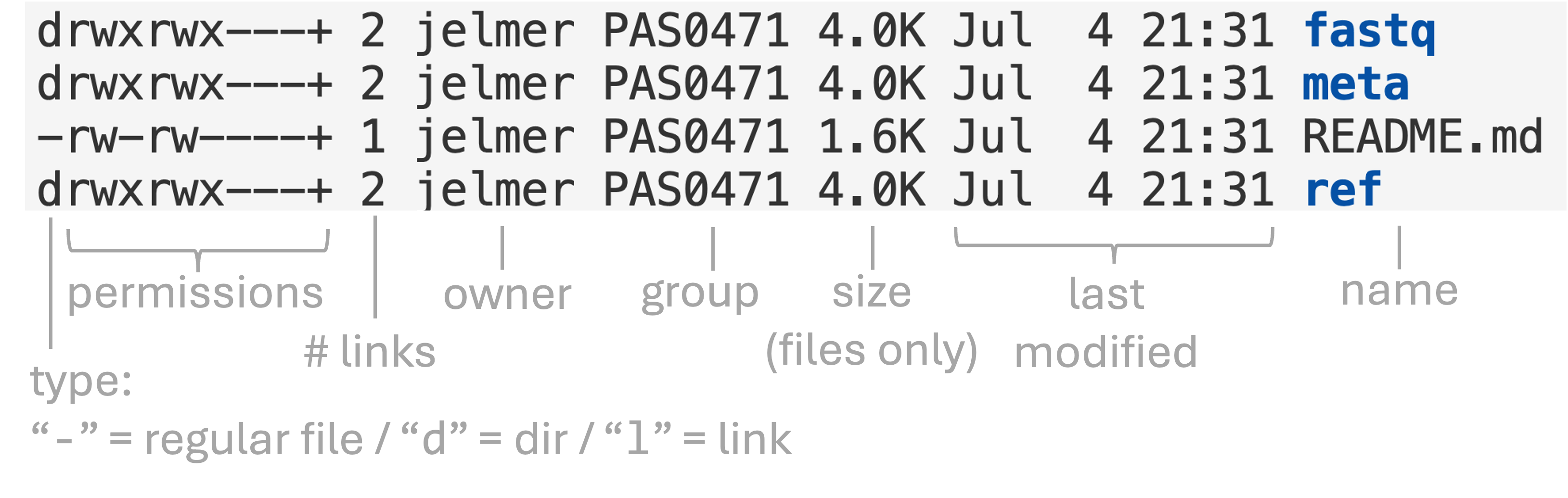
Moving on to argument(s) — we can list the contents of custom dirs by specifying one or more as arguments:
ls fastqSRR31869590_1.fastq.gz SRR31869592_1.fastq.gz SRR31869594_1.fastq.gz SRR31869596_1.fastq.gz SRR31869600_1.fastq.gz SRR31869602_1.fastq.gz SRR31869604_1.fastq.gz SRR31869606_1.fastq.gz SRR31869608_1.fastq.gz
SRR31869590_2.fastq.gz SRR31869592_2.fastq.gz SRR31869594_2.fastq.gz SRR31869596_2.fastq.gz SRR31869600_2.fastq.gz SRR31869602_2.fastq.gz SRR31869604_2.fastq.gz SRR31869606_2.fastq.gz SRR31869608_2.fastq.gz
SRR31869591_1.fastq.gz SRR31869593_1.fastq.gz SRR31869595_1.fastq.gz SRR31869597_1.fastq.gz SRR31869601_1.fastq.gz SRR31869603_1.fastq.gz SRR31869605_1.fastq.gz SRR31869607_1.fastq.gz SRR31869609_1.fastq.gz
SRR31869591_2.fastq.gz SRR31869593_2.fastq.gz SRR31869595_2.fastq.gz SRR31869597_2.fastq.gz SRR31869601_2.fastq.gz SRR31869603_2.fastq.gz SRR31869605_2.fastq.gz SRR31869607_2.fastq.gz SRR31869609_2.fastq.gzAnd like you saw earlier with cal, options and arguments can be combined:
ls -lh fastqtotal 1.4G
-rw-r----- 1 jelmer PAS3454 38M Jul 6 13:03 SRR31869590_1.fastq.gz
-rw-r----- 1 jelmer PAS3454 39M Jul 6 13:03 SRR31869590_2.fastq.gz
-rw-r----- 1 jelmer PAS3454 38M Jul 6 13:03 SRR31869591_1.fastq.gz
-rw-r----- 1 jelmer PAS3454 39M Jul 6 13:03 SRR31869591_2.fastq.gz
-rw-r----- 1 jelmer PAS3454 38M Jul 6 13:03 SRR31869592_1.fastq.gz
# [...output truncated...]The files have a .gz extension and are red, which indicates they have been compressed with gzip.
Exercise: Listing a single file
If you want to check the size of a single file, it may not be convenient to list all of a dir’s contents. Can you figure out how to use ls to show you the file size only for the SRR31869590_1.fastq.gz file?
Click to see the solution
The argument to ls can be a path of any kind, including to a file rather than to a dir:
ls -lh fastq/SRR31869590_1.fastq.gz-rw-r-----+ 1 jelmer PAS3454 38M Jul 6 13:03 fastq/SRR31869590_1.fastq.gz