
# (Don't run this)
x <- 5
x[1] 5Part V of the pre-workshop learning material
Variables are ubiquitous in programming. If you don’t know what they are, think of them as placeholders for values that you can use in your scripts. We’ll start with some examples.
To assign a value to a variable in the shell, use the notation variable_name=value:
# Assign the value "beach" to a variable with the name "location":
location=beach

# Assign the value "200" to a variable with the name "nr_samples":
nr_samples=200=)!
To reference a variable (i.e., to access its value):
$ in front of its name."...") its name.We’ll use the echo command to see what values our variables contain:
echo "$location"beachecho "$nr_samples"200Conveniently, you can use variables in lots of contexts, as if you had directly typed their values:
input_file=data/SRR31869590_1.fastq.gz

ls -lh "$input_file"
-rw-r----- 1 jelmer PAS3454 38M Jul 6 13:03 data/SRR31869590_1.fastq.gzVariables are typically used for items that:
These tend to be settings like the paths to input and output files, and parameter values for programs. Using variables makes it easier to change such settings (only a single instead of multiple replacements) and makes it possible to write scripts that are flexible depending on user input.
Assigning and printing the value of a variable in R:
# (Don't run this)
x <- 5
x
[1] 5[1] 5Assigning and printing the value of a variable in the Unix shell:
x=5
echo $x5Difference are that in the Unix shell:
= in x=5.$ prefix to reference (but not to assign) variables in the shell1.echo command, a general command to print text, to print the value of $x (cf. in R).In the shell, variable names:
.), dashes (-), or other special symbols2.Try to make your variable names descriptive, like $input_file above, as opposed to say $x and $myvar.
There are multiple ways of distinguishing words in the absence of spaces, such as $inputFile and $input_file: I prefer the latter, which is called “snake case”.
When you run a script, you can pass arguments to it, such as a file to operate on. This allows you to make scripts that are flexible when it comes to inputs, outputs, and possibly other settings.
Executing a script with arguments is much like when you provide a command like ls with arguments:
ls with or without arguments:# Run ls without arguments:
ls
# Pass 1 filename as an argument to ls:
ls sampleA.fastq
# Pass 2 filenames as arguments to ls:
ls sampleA.fastq sampleB.fastq# Run scripts without arguments:
bash fastqc.sh
# Pass an argument to a script:
bash fastqc.sh sampleA.fastq
# Pass 2 arguments to a script:
bash printname.sh John DoeAny command-line arguments you pass to a script are automatically available in it as variables. Specifically:
$1$2$3, and so on. In the calls to fastqc.sh and printname.sh above, what are these variables and their values?
bash fastqc.sh sampleA.fastqA single argument sampleA.fastq, is passed to the script, and will be assigned to $1.
bash printname.sh John DoeTwo arguments are passed to the script:
John) will be stored in $1Doe) will be stored in $2.However, even though they are made available, these variables are not automatically used. Therefore, let’s work our way backwards to use the argument passed to the script. A FASTQ filename was passed to the script, so let’s use that in the script to run FastQC on that file:
#!/bin/bash

echo "This script will run FastQC"

fastqc --outdir results/fastqc "$1"
Now, let’s actually run the script with a filename argument — we’ll use one of the example dataset FASTQ files:
bash fastqc.sh data/SRR31869590_1.fastq.gzThis script will run FastQC
application/gzip
Started analysis of SRR31869590_1.fastq.gz
Approx 5% complete for SRR31869590_1.fastq.gz
Approx 10% complete for SRR31869590_1.fastq.gz
Approx 15% complete for SRR31869590_1.fastq.gz
# [...output truncated...]Yes, that’s a good choice, because it allows you to run the same script on many different FASTQ files without having to modify the script itself.
While you could use the $1-style variables throughout your script, I highly recommend copying these to more descriptively named variables — for example:
#!/bin/bash

echo "This script will run FastQC"

fastq_file="$1"

fastqc --outdir results/fastqc "$fastq_file"
Using descriptively named variables in your scripts has several advantages, such as:
Loops are another universal element of programming languages, and are used to repeat operations. Here, we’ll only cover the most common type of loop: the for loop.
A for loop iterates over a collection of items, such as a list of files, and allows you to perform one or more actions for each of these items. In the example below, the collection is just a short list of numbers (1, 2, and 3):
for a_number in 1 2 3; do
    echo "In this iteration of the loop, we are working with number $a_number"
    echo "--------"
done
In this iteration of the loop, we are working with number 1
--------
In this iteration of the loop, we are working with number 2
--------
In this iteration of the loop, we are working with number 3
--------The indented lines between do and done contain the code that is being executed as many times as there are items in the collection: in this case 3 times, as you can tell from the output above.
What was actually run under the hood is the following:
# (Don't run this)
a_number=1
echo "In this iteration of the loop, the number is $a_number"
echo "--------"

a_number=2
echo "In this iteration of the loop, the number is $a_number"
echo "--------"

a_number=3
echo "In this iteration of the loop, the number is $a_number"
echo "--------"
Here are two key things to understand about for loops:
In each iteration of the loop, one item in the collection is being assigned to the specified variable. Above, we used a_number as the variable name, which then 1 when the loop ran for the first time, 2 when it ran for the second time, and so on.
The loop runs sequentially for each item in the collection, and will run as many times as there are items in the collection.
for loop syntax (Click to expand)
On the first and last, unindented lines, for loops contain the following mandatory keywords:
| Keyword | Purpose |
|---|---|
for |
After for, we set the variable name (an arbitrary name; above we used a_number) |
in |
After in, we specify the collection (list of items) we are looping over |
do |
After do, we have one ore more lines specifying what to do with each item |
done |
Tells the shell we are done with the loop |
Let’s now loop over all FASTQ files in the data dir, and submit your fastqc.sh script for each file. In this case, there’s merely 2 files, but the same approach would work for hundreds of files.
First, note that you can select multiple files with a wildcard pattern (* matches any string of characters and will attempt to match file names in this context):
ls data/*fastq.gzdata/SRR31869590_1.fastq.gz data/SRR31869590_2.fastq.gzYou can use this wildcard pattern in a for loop to submit your script for each FASTQ file:
for fastq in data/*fastq.gz; do
    bash fastqc.sh "$fastq"
done
Submitted batch job 12431942
Submitted batch job 12431943Using loops in combination with scripts that submit with sbatch is incredibly useful. Because we’re using a supercomputer with many nodes and cores, you may be able to run up to hundreds of jobs at the same time, speeding up your analysis tremendously.
Recall that earlier, we copied only two of the FASTQ files from the Iqbal dataset to the data dir. These files are located in the dir /fs/scratch/PAS3454/data/iqbal/fastq.
for fastq in /fs/scratch/PAS3454/data/iqbal/fastq/*fastq.gz; do
    bash fastqc.sh "$fastq"
done
This should submit 18 jobs, since there are 18 FASTQ files in that dir.
As mentioned previously, many programs needed for omics data analysis are not available through OSC modules, and you need an alternative way to access these. Conda and containers are both great options — here, we will go over containers.
To find container images for bioinformatics software, I strongly recommend the Seqera Containers repository. It allows you to select:
Then, it will see if a container with your exact requirements is already available and if not, it will build it and make it available (!).
Here is a step-by-step procedure to find a container image — again using FastQC version 0.12.1 as the example, but the procedure would be the same for any other program:
Go to https://seqera.io/containers.
In the search box below “Containers”, type fastqc.
After waiting for the list to populate, the top hit should be bioconda::fastqc, with version 0.12.1 selected (the most recent version is always selected by default).
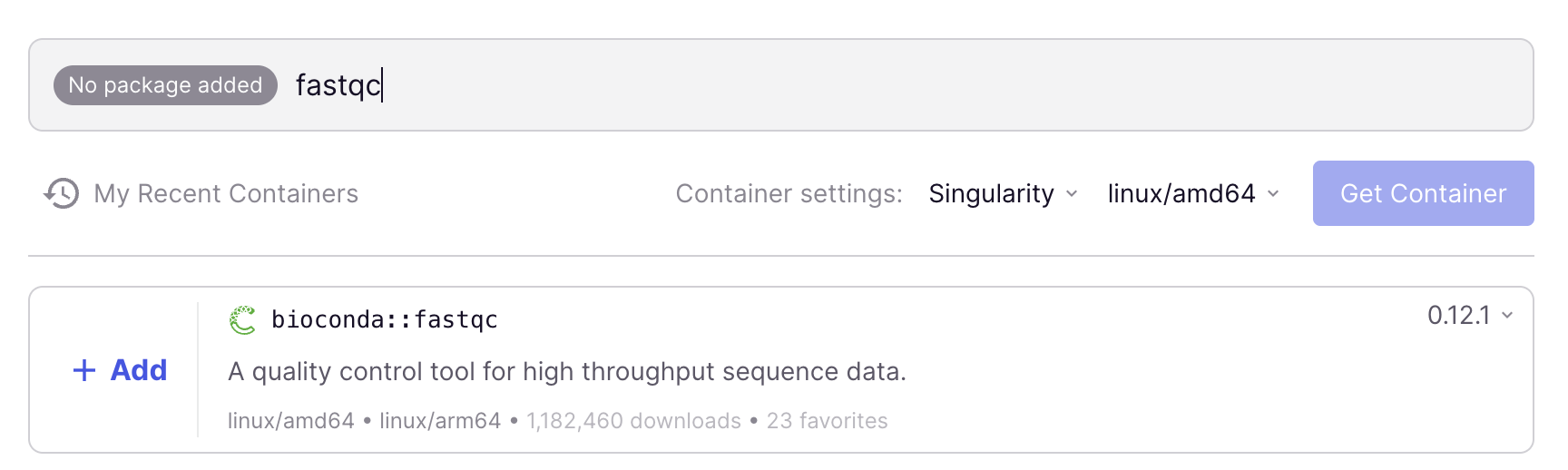
Add FastQC to your container request by clicking the blue + Add button. At this point, you could add additional programs, but for this example, we are happy with a container with only FastQC.
In “Container settings” below the search box, change from Docker to Singularity3 (and leave the other dropdown as is – linux/amd64 should be selected).
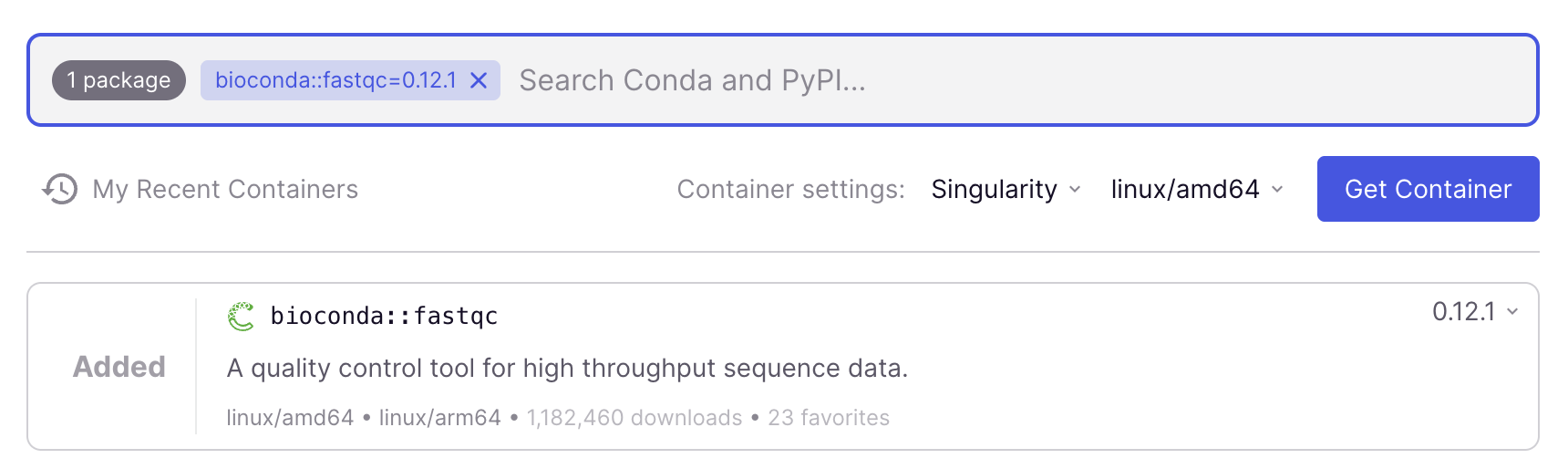
Get a link to the container image by clicking the blue Get Container button.
Copy the link to the container image that should appear immediately (use the copy icon on the far left):
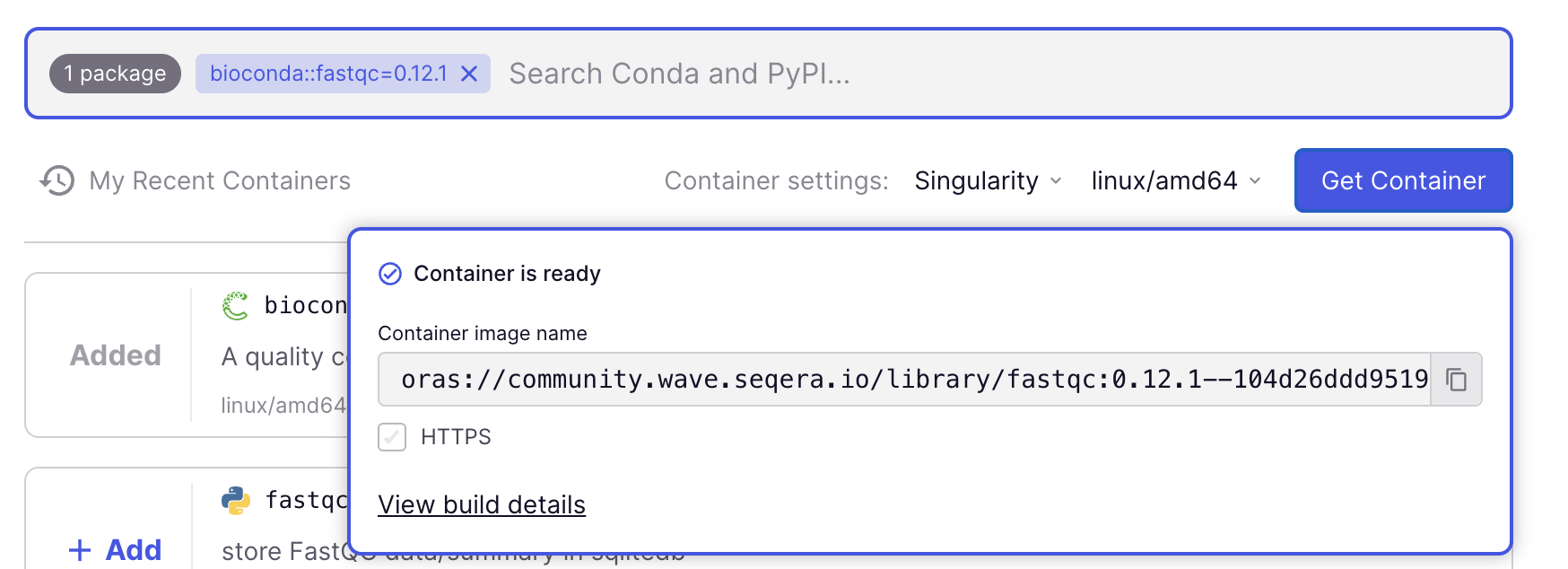
In this case, after we clicked Get Container, the pop-up box should have immediately said “Container is ready”. That means the container image was already available in the repository.
In other cases, however, the container may still need to be built, and the box should say “Fetching container” for a while. This could take one or a few minutes, and even though the URL is made available immediately and won’t change, you can only download/use the container once the “Container is ready”.
If you use an URL before the container is ready, you get this error:
apptainer exec oras://community.wave.seqera.io/library/multiqc_trim-galore:15a1e9f26daf266f \
    multiqc -v
FATAL: Unable to handle oras://community.wave.seqera.io/library/multiqc_trim-galore:15a1e9f26daf266f uri: failed to get checksum for oras://community.wave.seqera.io/library/multiqc_trim-galore:15a1e9f26daf266f: GET https://community.wave.seqera.io/v2/library/multiqc_trim-galore/manifests/15a1e9f26daf266f: MANIFEST_UNKNOWN: manifest unknown; map[Tag:15a1e9f26daf266f]To run a command (program) that’s in a container, the general syntax is:
apptainer exec <container-URL> <command>For example, if the command you want to run is fastqc -v:
apptainer exec <container-URL> fastqc -vFinally, with the actual link to the container:
apptainer exec oras://community.wave.seqera.io/library/fastqc:0.12.1--104d26ddd9519960 fastqc -vINFO: Downloading oras image
384.0MiB / 384.0MiB [======================================================================================================================] 100 % 51.8 MiB/s 0s
INFO: gocryptfs not found, will not be able to use gocryptfs
FastQC v0.12.1So, when running a program that’s in a container, you need to preface your “regular” command with apptainer exec <container-URL>.
The first time you run this command, the container image will be downloaded to a default location (see box below), as you can see in he output above — this will take a minute or so. When you run the same command again, it will use the cached version of the container image.
You will keep seeing the gocryptfs not found warning message, but this is nothing to worry about.
The easiest way to run a container image you already downloaded is to simply keep re-use the exact same command with the URL to the container. Apptainer will realize that the image has already been downloaded and automatically use the downloaded version:
apptainer exec oras://community.wave.seqera.io/library/fastqc:0.12.1--104d26ddd9519960 fastqc -vINFO: Using cached SIF image
INFO: gocryptfs not found, will not be able to use gocryptfs
FastQC v0.12.1Using cached SIF image line tells you that it is using a previously-downloaded SIF fileBy default, containers are downloaded to a hidden directory in your Home dir, ~/.apptainer/cache.
Because of this, anytime you see a word/string that starts with a $ in the shell, you can safely assume that it is a variable.↩︎
Compare this with the situation for file names, which ideally do not contain spaces and special characters either, but in which - and . are recommended.↩︎
Singularity is the previous name of Apptainer, which is the software we use at OSC to run containers.↩︎