Command-line software
Part III of the pre-workshop learning session

1 Introduction
To analyze omics data sets, especially in genomics and transcriptomics, a typical workflow includes running a sequence of specialized bioinformatics software/programs/tools (I will use these terms interchangeably). Most commonly, these are command-line interface (CLI) programs that you run in a Unix shell.
For example, below is a diagram of a typical RNA-Seq analysis workflow, where each step is associated with a specific program (gray text):
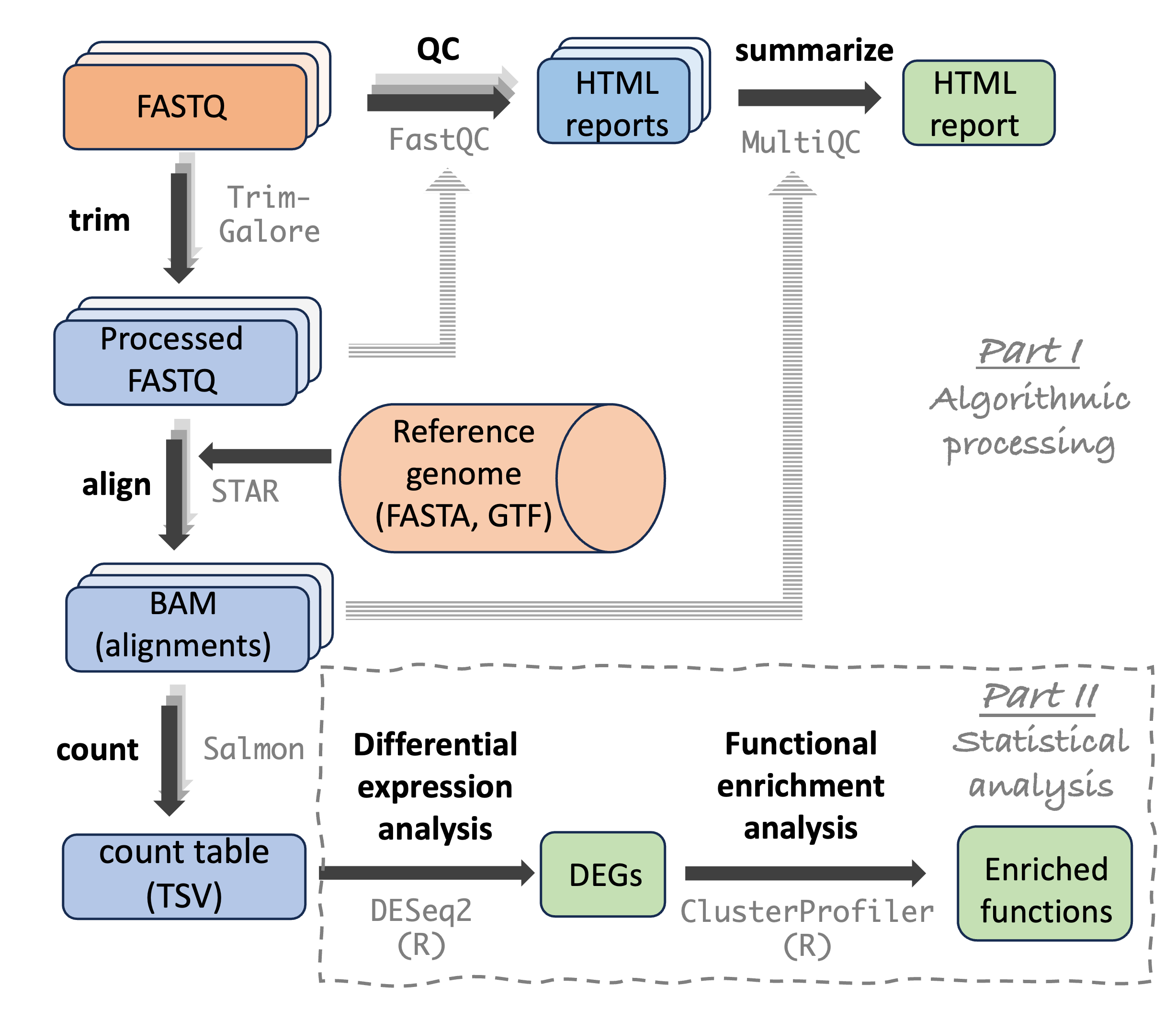
Two main questions arise:
- How do we get access to such programs, in particular at OSC?
- How do we run such programs?
That’s what we’ll cover in this session, and in the next session about shell scripts and Slurm.
Here, we’ll only cover free and open-source software. As such, “getting access” refers only to processes like installation.
Luckily, if you’re willing to use the command line, there is a wealth of such software available for omics data analysis. At the CFAES Bioinformatics Core, for example, we don’t currently have a need for any commercial software for omics data analysis.
Setting up
In the VS Code terminal, still connected to OSC:
Navigate to the
predirectory in your scratch space:# Replace <user> with your own username # Recall to use Tab completion! cd /fs/scratch/PAS3454/people/<user>/preCreate a new dir
data:mkdir dataCopy two FASTQ files from the workshop’s example data set to your
datadir:# -v option makes `cp` (copy) print the names of the files it copies cp -v /fs/scratch/PAS3454/data/iqbal/fastq/SRR31869590_*.fastq.gz data/'/fs/scratch/PAS3454/data/iqbal/fastq/SRR31869590_1.fastq.gz' -> 'data/SRR31869590_1.fastq.gz' '/fs/scratch/PAS3454/data/iqbal/fastq/SRR31869590_2.fastq.gz' -> 'data/SRR31869590_2.fastq.gz'The
*wildcard in the command above matches any characters, so it copies both the_1and_2FASTQ files for the same sample (files with forward and reverse reads, respectively).
2 The FastQC software
As an example piece of bioinformatics software, we will use FastQC (Andrews 2010) in this session.
FastQC is a ubiquitous tool for quality control of FASTQ files, the files that contain reads from a high-throughput sequencing (HTS) experiment. Running FastQC or a similar program is the first step in nearly any project with HTS data. FastQC is also a good introductory example of a CLI tool.
If you don’t know what FASTQ files are, take a look at this and the following slides, until slide 11.
For each FASTQ file that it analyzes, FastQC outputs an HTML report with about a dozen graphs showing different QC (Quality Control) metrics. For example, a per-base quality score graph:
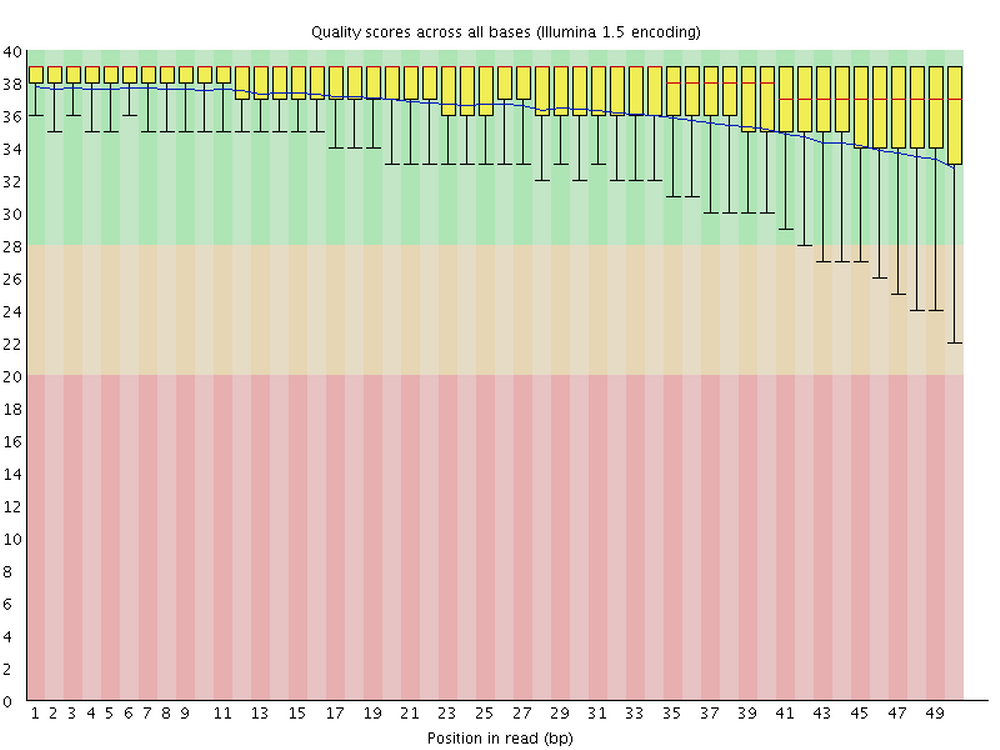
The command to run FastQC is simply fastqc — though, like most Unix commands, fastqc has many options, and we can pass (FASTQ) files as arguments.
To see if FastQC is available, simply run fastqc -v, which uses the -v option to print the FastQC version:
fastqc -vbash: fastqc: command not found...
Failed to search for file: GDBus.Error:org.freedesktop.DBus.Error.NameHasNoOwner: Could not activate remote peer.The error above indicates that FastQC is not available to us — at least not yet.
3 Software management at OSC
3.1 Loading software with “modules”
At OSC, there are system-wide installations of a number of bioinformatics programs, including FastQC. But we need to “load modules” with these programs before we can use them1. Here, we will talk about that process.
Not all software has to be loaded: besides the basic Unix commands we have used so far, very widely used software like Git, Python, and Apptainer is available without the need to load anything.
You can load, unload, and search for available software modules using the module command and its sub-commands (for searching and exploring, note that OSC also has a “Module Browser” on OnDemand).
For example, the module spider command can be used to search for modules, such as a potential module for fastqc (the search is case-insensitive):
module spider fastqc--------------------------------------------------------------------------------
fastqc: fastqc/0.12.1
--------------------------------------------------------------------------------
This module can be loaded directly: module load fastqc/0.12.1
Help:
A quality control tool for high throughput sequence data.We can see that fastqc is available, namely version 0.12.1 (that is, the module is printed as <software>/<version>).
Now we need to load the module with the module load command suggested by the module spider output:
module load fastqc/0.12.1And then check once again whether we can use FastQC:
fastqc -vFastQC v0.12.1Success! 🥳
Module loading does not persist across shell sessions. Whenever you are in a fresh shell session (including but not limited to after you log into OSC again), you’ll have to reload any modules you want to use!
Exercise: Modules
Search for the program MultiQC2 – is it available?
Click to see the solution
No, it isn’t available!
module spider multiqcLmod has detected the following error: Unable to find: "multiqc".Search for the program STAR3 – is it available?
Click to see the solution
Yes, it’s available, and there are two different versions:
module spider star---------------------------------------------------------------------------------------------------------- star: ---------------------------------------------------------------------------------------------------------- Versions: star/2.7.10b star/2.7.11b ---------------------------------------------------------------------------------------------------------- For detailed information about a specific "star" package (including how to load the modules) use the module's full name. Note that names that have a trailing (E) are extensions provided by other modules. For example: $ module spider star/2.7.11b ---------------------------------------------------------------------------------------------------------- ---------------------------------------------------------------------------------------------------------- starccm:Load the STAR module with the most recent version of STAR and test whether you can use the program by running
STAR— in this case, without adding any options4.Click to see the solution
module load star/2.7.11b
STAR
Usage: STAR [options]... --genomeDir /path/to/genome/index/ --readFilesIn R1.fq R2.fq Spliced Transcripts Alignment to a Reference (c) Alexander Dobin, 2009-2022 STAR version=2.7.11b STAR compilation time,server,dir=2025-05-15T10:25:22-04:00 cardinal-rw02.ten.osc.edu:/tmp/kkoepcke/spack/stage/spack-stage-star-2.7.11b-bvgy4jcfuw4lbeigwgzlulagqmvz5o65/spack-src/source For more details see: <https://github.com/alexdobin/STAR> <https://github.com/alexdobin/STAR/blob/master/doc/STARmanual.pdf> To list all parameters, run STAR --help
3.2 Other options to get software
OSC’s collection of bioinformatics programs is not comprehensive, so we need an additional way to get access to bioinformatics programs. But installing software like you are used to on your own computer is not really possible at a supercomputer center like OSC. Instead, the two best approaches are:
- The Conda software management program, which installs software in “environments” you can load.
- Containers, self-contained software environments with (typically) pre-installed software.
In the workshop, we’ll show some examples of using containers, and if you want to learn a bit about that in advance, see the optional homework page.
4 A practical example: running FastQC
To analyze a FASTQ file with default FastQC settings, the command is simply fastqc followed by the FASTQ file path — and we could use one of the FASTQ files from the workshop’s example data set:
# [Don't run this]
fastqc data/SRR31869590_1.fastq.gz
However, an annoying default behavior of FastQC is that it writes its output files in the same dir that contains the input FASTQ files. This means mixing your raw data with your results, which is not good practice.
4.1 Changing the output directory?
To figure out how to change that behavior, let’s try to get help with -h just like we did with the cal command:
fastqc -h FastQC - A high throughput sequence QC analysis tool
SYNOPSIS
fastqc seqfile1 seqfile2 .. seqfileN
fastqc [-o output dir] [--(no)extract] [-f fastq|bam|sam]
[-c contaminant file] seqfile1 .. seqfileN
# [...output truncated...]Exercise: FastQC help and output dir
Look at FastQC’s help info, and figure out which option can be used to specify a custom output directory.
Click for the solution
The option to do this is -o/--outdir:
fastqc -h -o --outdir Create all output files in the specified output directory.
Please note that this directory must exist as the program
will not create it. If this option is not set then the
output file for each sequence file is created in the same
directory as the sequence file which was processed.4.2 The final FastQC command
With the added --outdir (or -o) option, try to run the following FastQC command:
fastqc --outdir results/fastqc data/SRR31869590_1.fastq.gzSpecified output directory 'results/fastqc' does not existWhat appears to the problem and how could we fix this? (Click to see the answer)
As the message suggests, the problem is that the output dir results/fastqc does not exist yet. And oddly enough, FastQC does not create the output dir for us5.
So, we’ll have to fix this by creating the output dir ourselves before running FastQC. We can create it with the mkdir command (short for “make directory”):
# the -p option is needed because we are creating a nested dir (results/fastqc)
mkdir -p results/fastqc
4.3 Trying one more time
Now, you should be able to run the exact same FastQC command again –– you can e.g. practice with pressing the up arrow to recall the previous command:
fastqc --outdir results/fastqc data/SRR31869590_1.fastq.gzStarted analysis of SRR31869590_1.fastq.gz
Approx 5% complete for SRR31869590_1.fastq.gz
Approx 10% complete for SRR31869590_1.fastq.gz
Approx 15% complete for SRR31869590_1.fastq.gz
[...truncated...]
Analysis complete for SRR31869590_1.fastq.gzSuccess! Above, FastQC printed some “logging” information to screen, telling us about its progress. The main output, however, is in the output dir we specified:
- A
.zipfile, which contains tables with FastQC’s data summaries - An
.html(HTML) file, which contains the graphs we’d like to see
ls -lh results/fastqctotal 1.5M
-rw-r--r-- 1 jelmer PAS0471 614K Jul 6 15:19 SRR31869590_1_fastqc.html
-rw-r--r-- 1 jelmer PAS0471 856K Jul 6 15:19 SRR31869590_1_fastqc.zipExercise: Another FastQC run
Run FastQC for another FASTQ file.
Click for the solution
For example, to run FastQC on the R2 (reverse-read) file for the same sample:
fastqc --outdir results/fastqc data/SRR31869590_2.fastq.gzStarted analysis of SRR31869590_2.fastq.gz
Approx 5% complete for SRR31869590_2.fastq.gz
Approx 10% complete for SRR31869590_2.fastq.gz
Approx 15% complete for SRR31869590_2.fastq.gz
[...truncated...]
Analysis complete for SRR31869590_2.fastq.gzls -lh results/fastqctotal 2.1M
-rw-r--r-- 1 jelmer PAS0471 614K Jul 6 15:19 SRR31869590_1_fastqc.html
-rw-r--r-- 1 jelmer PAS0471 856K Jul 6 15:19 SRR31869590_1_fastqc.zip
-rw-r--r-- 1 jelmer PAS0471 619K Jul 6 15:19 SRR31869590_2_fastqc.html
-rw-r--r-- 1 jelmer PAS0471 864K Jul 6 15:19 SRR31869590_2_fastqc.zipNow, we have four files: two for each of our preceding successful FastQC runs.
Bonus Exercise: Download the output HTML files and explore them
Click to expand
Unfortunately, it’s tricky to view HTML files in VS Code – or at least it is in the current Code Server version at OSC.
Therefore, to look at the FastQC HTML files, you should first download them to your computer.
We’ll cover more scalable methods for downloading files from and uploading them to OSC in a couple of weeks, but here is a quick method when you just need one or few files: in the VS Code file explorer in the side bar, you can download a file by right-clicking on it and then selecting the “Download…” option.
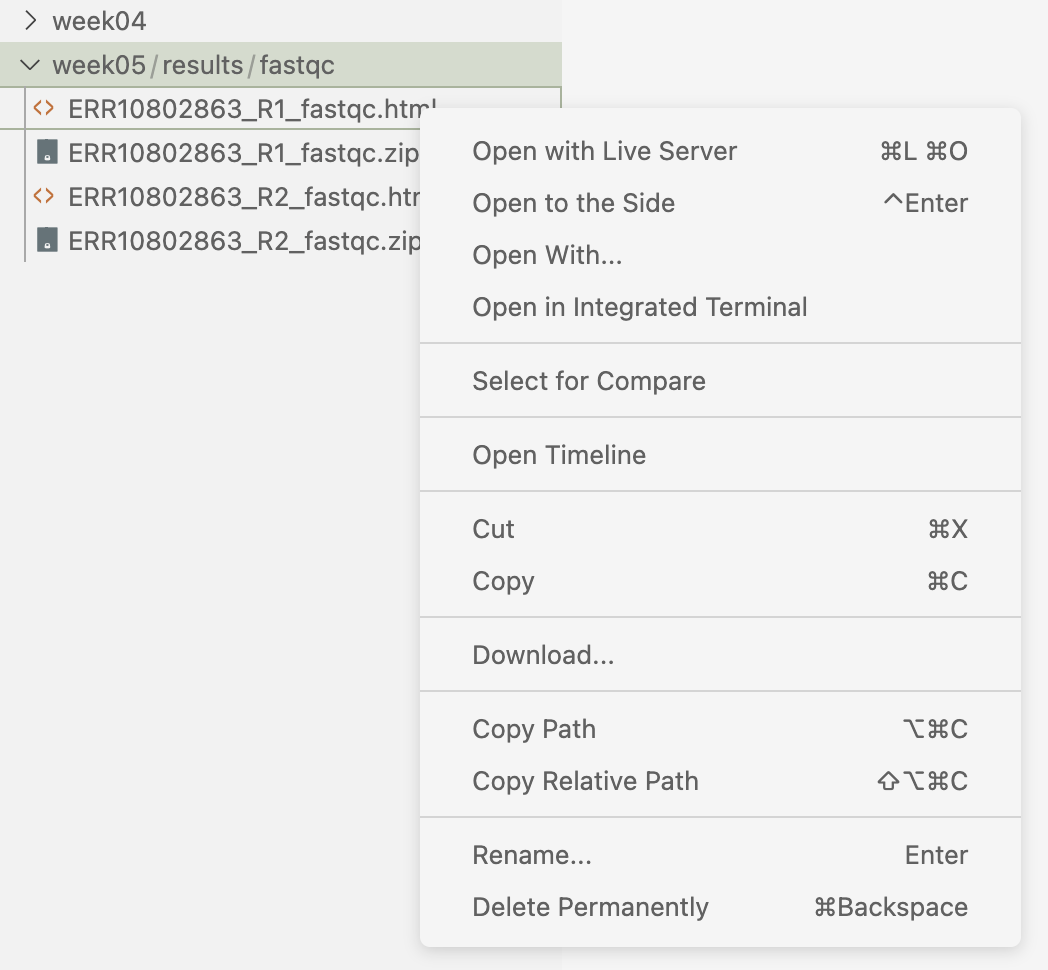
Your turn:
Download the two FastQC HTML files to your computer.
In your computer’s file browser, navigate to the folder you downloaded the files to, and click on each of them. This should open the files in your default web browser.
Explore the files. Which graphs do you and which do you not understand?
Are there noticeable differences between the two files (i.e. between the forward and reverse reads for the same sample)?
References
Footnotes
That may seem like a drag, but this practice enables the use of different versions of the same software, and of mutually incompatible software, on a single system.↩︎
MultiQC summarizes the outputs of FastQC and many other bioinformatics programs.↩︎
STAR is an RNA-Seq aligner that we will use to align the reads from our example dataset to our reference genome.↩︎
Unfortunately, not all programs have the same way to pull version information, and so on. ↩︎
Many bioinformatics tools do create output dirs for you as needed, but FastQC is not one of them.↩︎