Version control: Remote repositories on GitHub
Week 5 – Lecture C

1 Introduction
1.1 Overview & context
In the previous lecture, you learned how to create and maintain version control repositories with Git. One of the advantages of doing so is the ease with which you can then share your code and other relevant files — here, you’ll learn to do so with GitHub.
1.2 Learning goals
In this lecture, you will learn to:
- Create and explore version control repositories on the GitHub website.
- Set up GitHub authentication, so you can connect your Git repo at OSC to its online counterpart on GitHub.
- Keep your local and online (remote) repositories in sync.
- Use GitHub Issues, which is how you’ll hand in upcoming assignments.
1.3 Getting ready
Start a VS Code session like you’ve done before.
Click here to see the instructions
Log in to OSC’s OnDemand portal at https://ondemand.osc.edu.
In the blue top bar, select
Interactive Appsand near the bottom, clickCode Server.Fill out the form as follows (as necessary — should be prefilled now!):
- Cluster:
pitzer - Account:
PAS3493 - Number of hours:
2 - Working Directory:
/fs/ess/PAS3493/people/<user>(replace<user>with your user name) - App Code Server version:
4.129.0
- Cluster:
Click
Launch, and in the next page, click theConnect to VS Codebutton once it appears.In VS Code, open a terminal by either:
- Clicking →
Terminal→New Terminal - Using the keyboard shortcut Ctrl+`
- Clicking →
Check that you are in
/fs/ess/PAS3493/people/$USERby typingpwdin the terminal.
Open the
week05/evodir you created last class. Since you’ve opened this folder this before, the easiest way to do so is to click onevounderRecentin theWelcomedocument:Or: open the folder manually (Click to expand)
Click →
File→Open Folder.Type/select
/fs/ess/PAS3493/people/<user>/week05/evo, replacing<user>with your user name. This will cause VS Code to reload.
Open a new terminal and check that you are in the
evodir:pwd/fs/ess/PAS3493/people/jelmer/week05/evo

The Welcome document in VS Code, with its “Recent” section: here, click on evo to open our folder from the last class.
2 Remote repositories
2.1 Introduction
You have created a local Git repository for the mock evo project. As discussed in the intro slides, a typical next step is to keep an online counterpart of your repo (a “remote repository” or simply “remote”), which allows you to share your work, have an online backup, and collaborate with others1. While there are several options for hosting remote repositories, here, we’ll use the most common choice, GitHub.
We’ll practice with two additional Git commands that are useful for working with remote repos:
git remote— to add and manage connections between local and remote repos.git push— to upload (“push”) changes from local to remote.
git pull— to download (“pull”) changes from remote to local (needed when you collaborate, or when you work on the same repo from multiple computers, e.g. your laptop and OSC).git clone— to download a copy of a remote repo that you don’t yet have locally (you already used this in week 4).
2.2 One-time setup: GitHub authentication
Anyone can download a public GitHub repo, but only you should be able to change yours. So, before you can upload to your remotes from the command line, you need to set up GitHub authentication: a way to prove to GitHub that you are you. There are two options for this (see below) — we will use SSH access with an SSH key.
Use the
ssh-keygencommand to generate a public-private SSH key pair2:ssh-keygen -t ed25519You’ll be asked three questions, and for all three, you can accept the default simply by pressing Enter3:
Generating public/private ed25519 key pair. Enter file in which to save the key (/users/PAS0471/jelmer/.ssh/id_ed25519): Enter passphrase (empty for no passphrase): Enter same passphrase again: Your identification has been saved in /users/PAS0471/jelmer/.ssh/id_ed25519. Your public key has been saved in /users/PAS0471/jelmer/.ssh/id_ed25519.pub. The key fingerprint is: SHA256:KO73cE18HFC/aHKIXR7nf9Fk4++CiIw6GTk7ffG+p2c jelmer@p0133.ten.osc.edu The key's randomart image is: +--[ED25519 256]--+ | ... | | . . | | + o.o| | . + = *.+o| | ... S * B oo.| | .+. .o = .o| | .*.o.+.. . +| | .= +o+ o E ...| | o= o..+* ..| +----[SHA256]-----+If you’re instead told that
id_ed25519“already exists” and asked whether to overwrite it, answern: you already have an SSH key, and can simply continue with step 3 to use that key.Now, you have two new files in
~/.ssh: your public keyid_ed25519.puband your private keyid_ed25519(never share this one!). Next, you’ll put your public key on GitHub. Print the file with your public SSH key to your screen usingcat:cat ~/.ssh/id_ed25519.pubssh-ed25519 AAAAC3NzaC1lZDI1NTE5AAAAIBz4qiqjbNrKPodoGyoF/v7n0GKyvc/vKiW0apaRjba2 jelmer@p0133.ten.osc.eduCopy the entire line that was printed to screen to your clipboard.
In a new browser tab, go to your GitHub personal settings page at https://github.com/settings and log in.
Click on
SSH and GPG keysin the sidebar on the left.Click the green
New SSH keybutton (top right).Fill out the form as follows (see also the screenshot below):
- Give the key an informative Title of your choice, e.g. “OSC” to indicate that you’ll use this key at OSC.
- Key type should already be correctly set to “Authentication Key”.
- Paste the public key, which you copied to your clipboard earlier, into the Key box.
- Click the green
Add SSH keybutton.
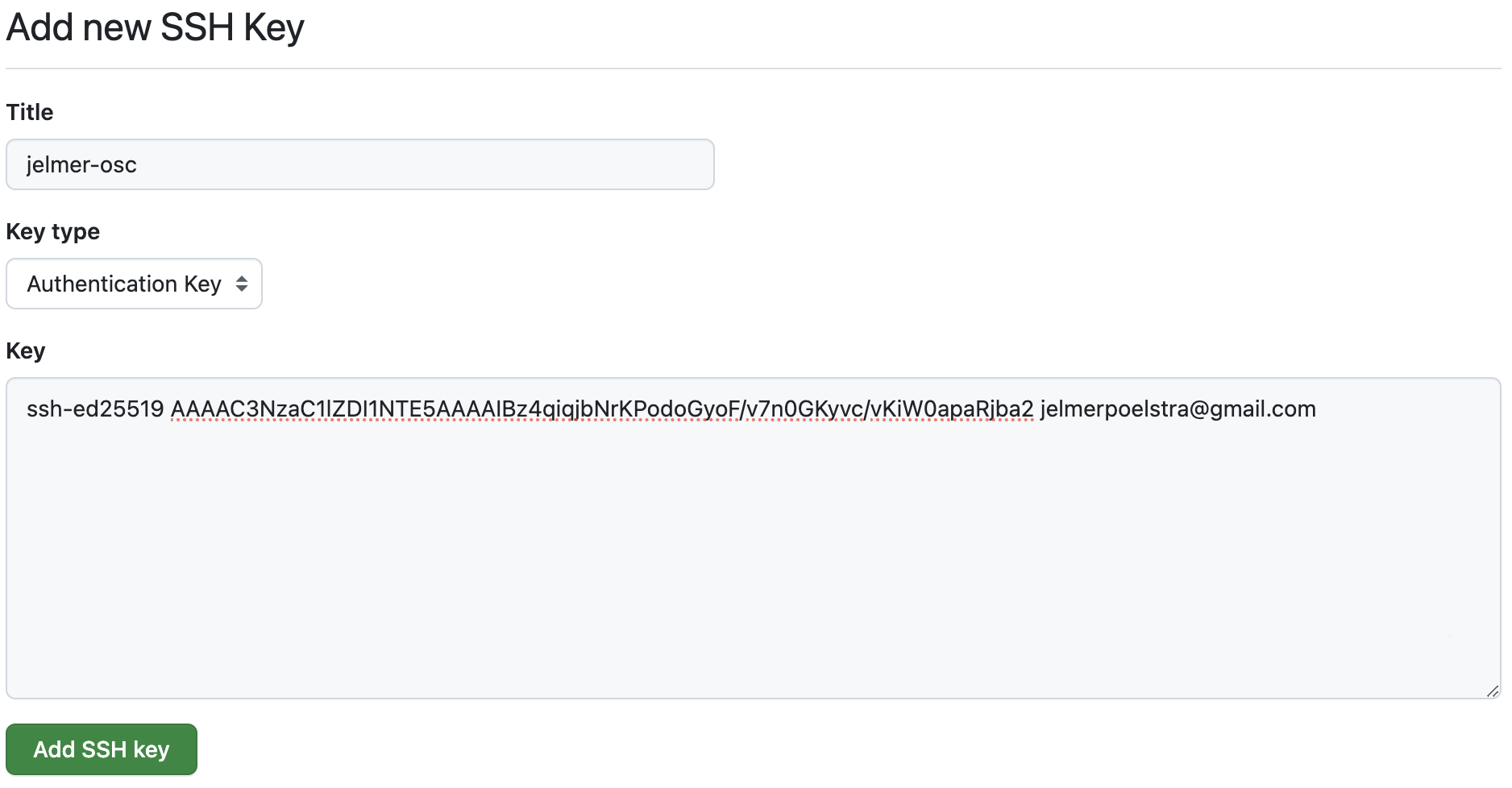
The “Add new SSH key” dialog box on GitHub, where you can paste your public SSH key.
Test whether authentication works:
ssh -T git@github.comThe first time you connect to GitHub from OSC, you’ll get a message like this: type
yesand press Enter.The authenticity of host 'github.com (140.82.114.4)' can't be established. ED25519 key fingerprint is SHA256:+DiY3wvvV6TuJJhbpZisF/zLDA0zPMSvHdkr4UvCOqU. This key is not known by any other names. Are you sure you want to continue connecting (yes/no/[fingerprint])?Then, you should see:
Hi jelmerp! You've successfully authenticated, but GitHub does not provide shell access.That might seem like an error or a warning, but it’s actually a success message: it means that GitHub accepted your key and you are now authenticated.
If you instead got
Permission denied (publickey), GitHub didn’t accept your key: check that you pasted the entire contents ofid_ed25519.pubinto GitHub.
With SSH authentication, you create a matching pair of keys. Think of the public key as a padlock, and the private key as the only key that opens it: you install the padlock on your GitHub account, and whenever you push from OSC, Git proves it’s you by opening that padlock with your private key. This is why you can share your public key freely, but should never share your private key.
Authentication and GitHub URLs
The two options to authenticate to GitHub when connecting with remotes are:
SSHaccess with an SSH key (which we have just set up)HTTPSaccess with a Personal Access Token (PAT)4
These two options are associated with separate URLs for your repos on GitHub. For interacting with your repo on the command line, you should make sure to select the URL type corresponding to your authentication type. Since you have set up SSH but not HTTPS authentication, you must use URLs with the SSH format, which look like this:
git@github.com:<USERNAME>/<REPOSITORY>.git(HTTPS URLs are in the more familiar-looking format https://github.com/<USERNAME>/<REPOSITORY>.git.)
2.3 Create a remote repository
While we can interact with online repos using Git commands, we can’t create a new online repo with the Git CLI. Therefore, go to the GitHub website to create a new online repo:
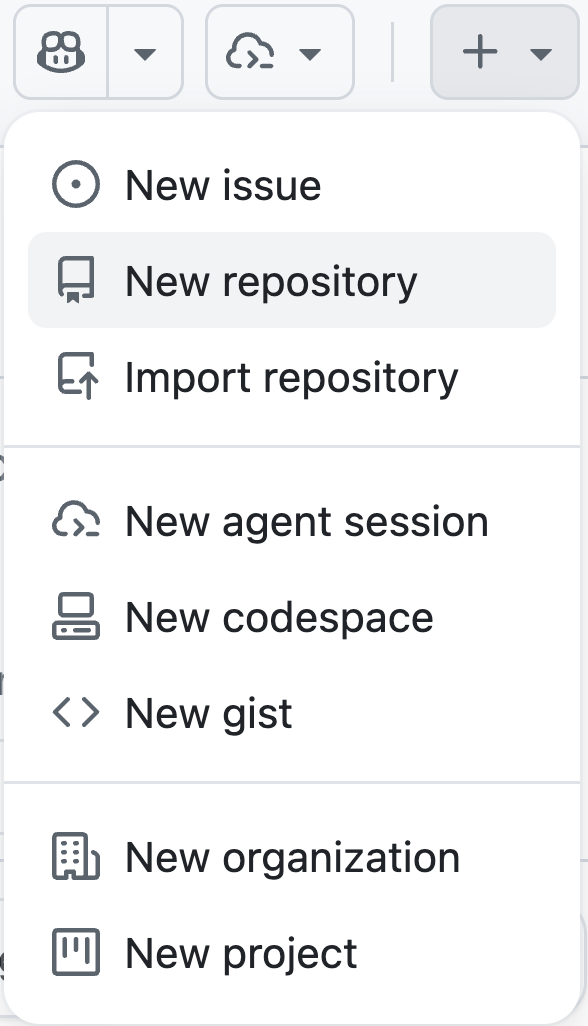
On the GitHub website, click the
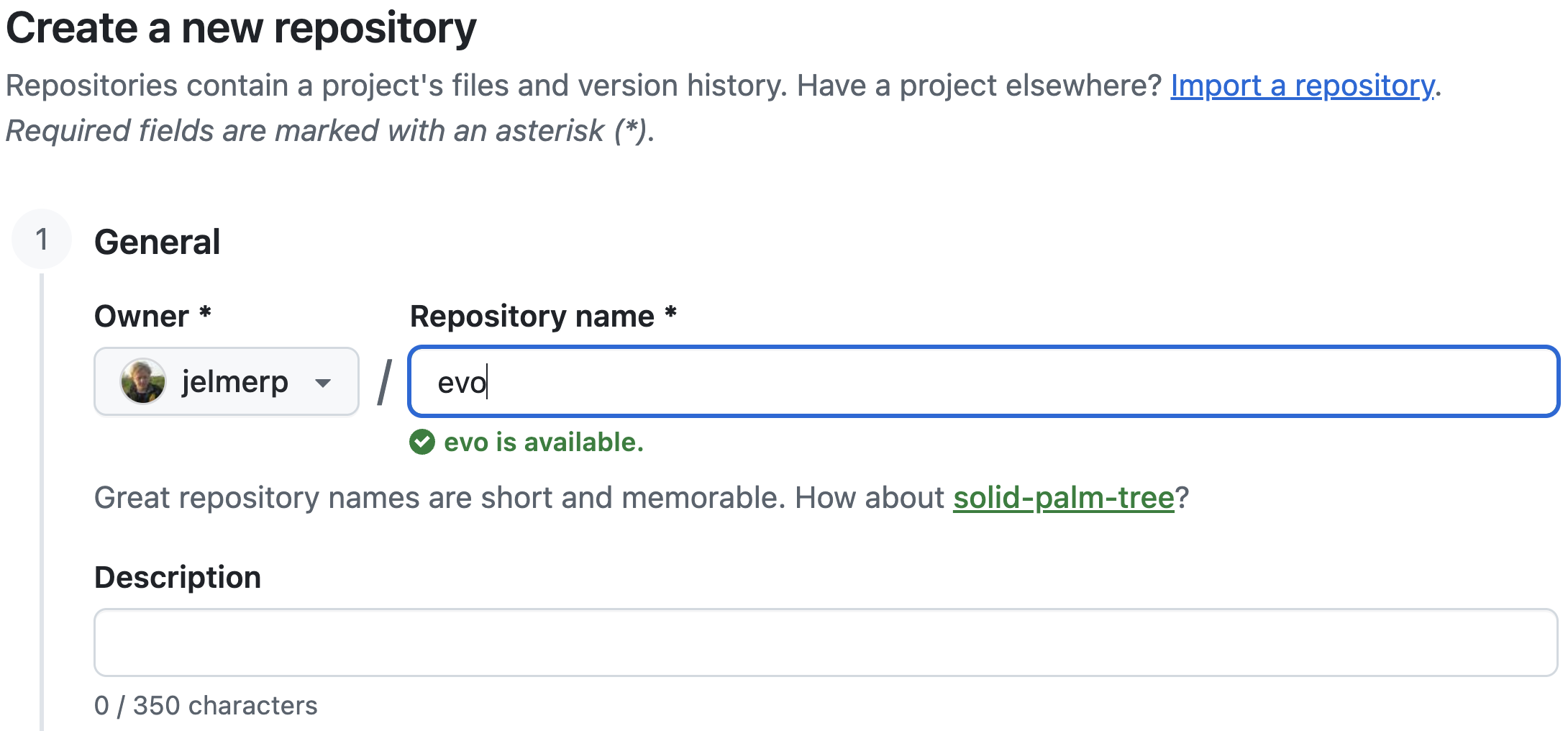
+in the top bar and in the resulting menu, select “New repository” (see the screenshot on the right).In the resulting form (see the screenshot below), in the box “Repository name”, use the same name as that of your local dir:
evo(though note that these names don’t have to match). You can leave the Description empty.
- Leave these options all unchanged:
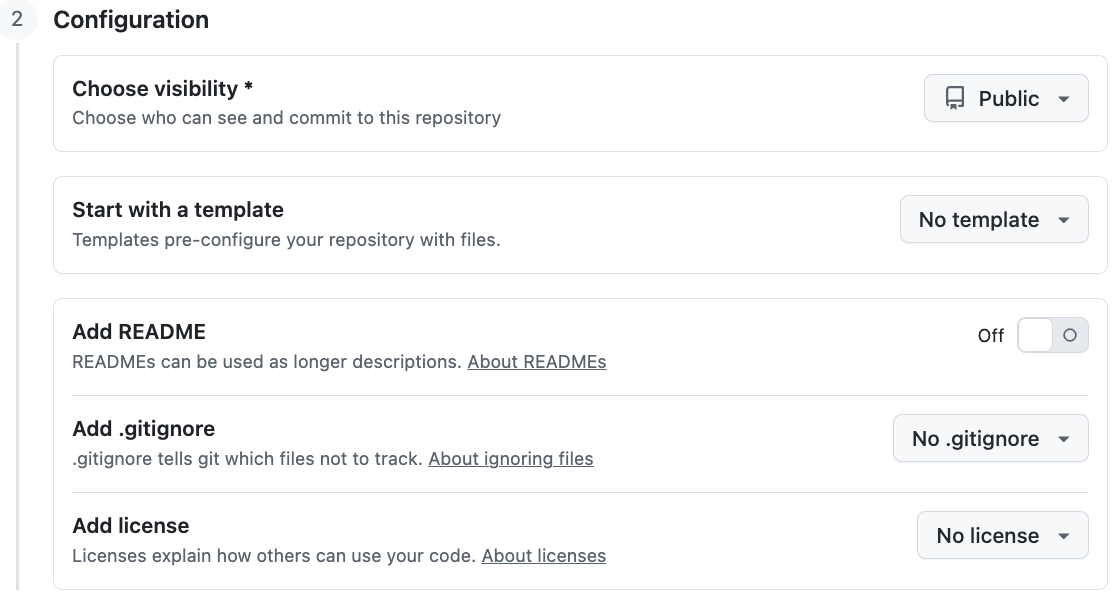
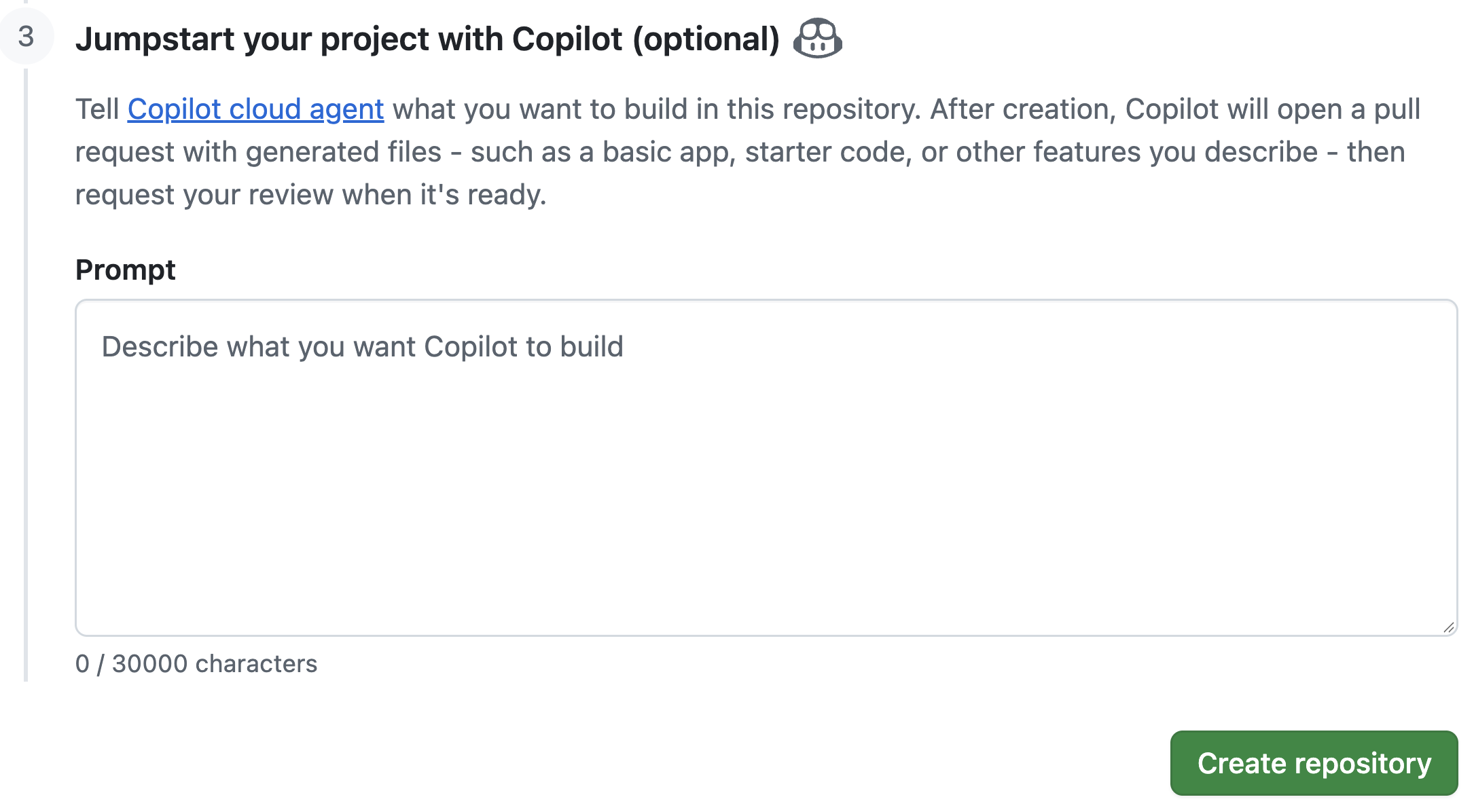
- Leave the “Jumpstart your project with Copilot” option5 empty and click the green button “Create repository”:
Public vs. private repositories
If you have code you are not (yet) willing to share with the world, but you still want an online backup and/or to collaborate, you can set a repository’s visibility to “Private”. For the assignments in this course, make your repositories “Public” so we can see them — or, if you prefer to keep a repository private (e.g. for your final project), add GitHub usersjelmerpandkstarr791as collaborators (in the repo’sSettings>Collaborators). Also keep in mind that everything in a public repo is visible to anyone — including your full commit history. So if you commit and push something that shouldn’t be shared (unpublished data, a password), removing it in a later commit does not remove it from the repo.Adding files in this interface
In this case, you don’t want to add a README or.gitignore, since you already have a.gitignorein your local repo and will create a README below. In general, it’s best to not add or edit any files in your repo on GitHub: do this locally, then upload to GitHub by pushing (as you’ll see below). If you do change files on GitHub, the remote will have a commit that your local repo doesn’t, and Git will reject your next push (fixing that requiresgit pull, which we don’t cover in class). The same happens if you accidentally let GitHub add a README when creating the repo. In that case, the easiest fix is to delete the new GitHub repo (in itsSettings, all the way at the bottom) and create it again.Description
For real-world projects, you may want to add a brief Description. But you can also do that after creating the repo.
2.4 Link the local and remote repositories
- Open a VS Code session as per usual.
- Either open your
week05/evodir in VS Code as a whole, or just navigate to it in the terminal. - In a separate browser tab, go to
evoyour GitHub repo page (should be athttps://github.com/<your-username>/evo).
After you click “Create repository”, a page similar to this screenshot should appear, which provides commands we can use to set up a connection between the remote and local repositories:
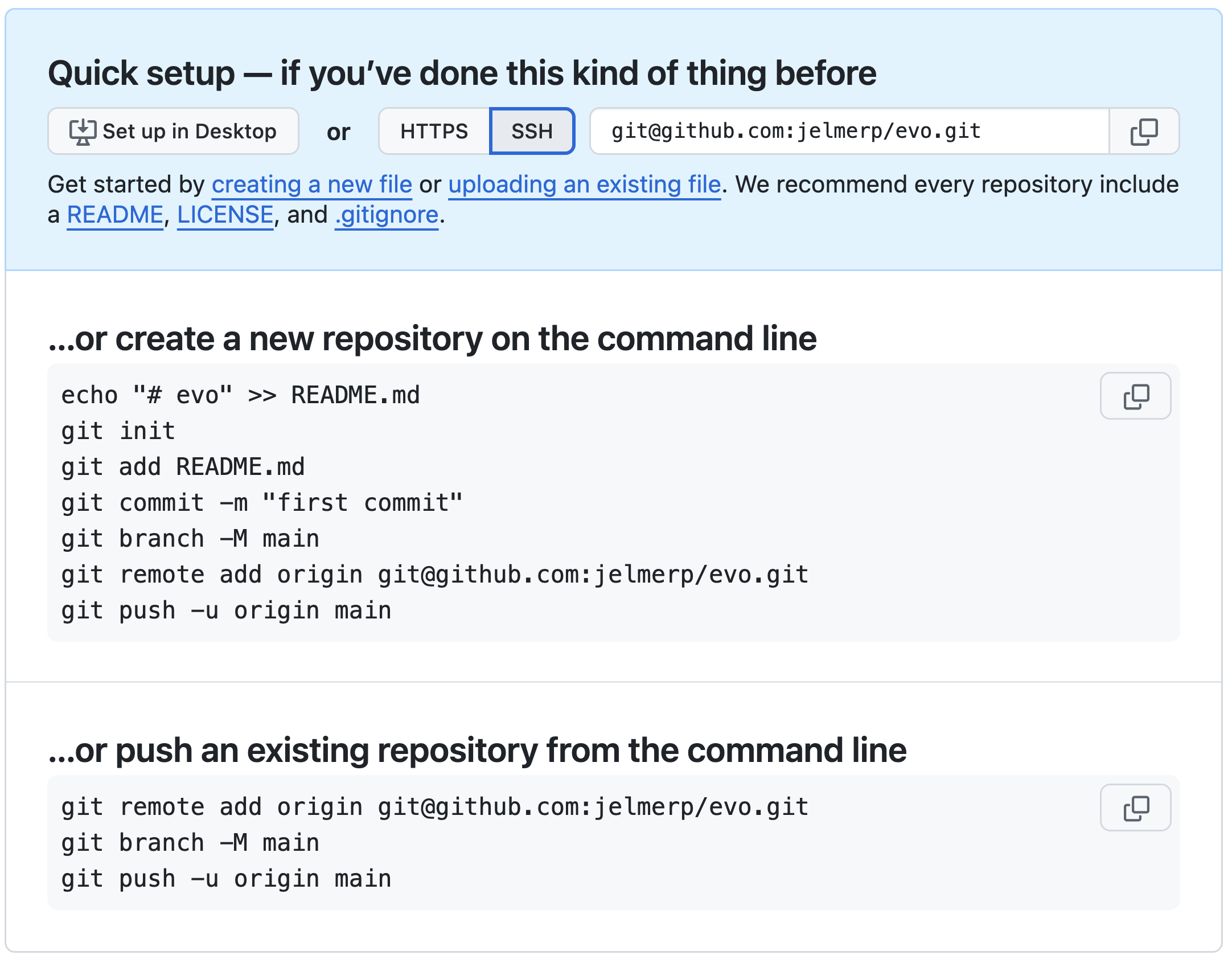
Click the SSH button in the blue section to make sure the URL in the commands is in SSH format.
Then, go back to VS Code, where we’ll run the commands that GitHub provided under the “…or push an existing repository from the command line” heading shown in the screenshot above (but skipping the second one, git branch -M main, since our branch is already called “main”):
Tell Git to add a remote connection with
git remote, providing three pieces of information:add— because we’re adding a remote connection.origin— the nickname for the connection (could be anything but is usually called “origin” by convention).- The URL to the GitHub repo, which should now be in SSH format:
# git remote add <remote-nickname> <URL> # (Replace <github-username> with yours, or copy the command from the GitHub page) git remote add origin git@github.com:<github-username>/evo.gitUpload (“push”) your local repo to remote using
git push. The first time you push a repository, use the-uoption to set up a default “upstream” counterpart for your local branch:# syntax: git push -u <remote-nickname> <branch> git push -u origin mainWarningDo you get asked for a user name and password? (Click to expand)If you accidentally used the HTTPS URL,
git pushwill ask for your GitHub user name and password, and then fail even if you enter them correctly.You can fix this by running
git remote set-urlto change the URL but change the URL withgit remote set-url(see the box “Check or change the remote connection” below).Check the output, which should look similar to this:
Enumerating objects: 28, done. Counting objects: 100% (28/28), done. Delta compression using up to 40 threads Compressing objects: 100% (17/17), done. Writing objects: 100% (28/28), 2.41 KiB | 2.41 MiB/s, done. Total 28 (delta 3), reused 0 (delta 0), pack-reused 0 remote: Resolving deltas: 100% (3/3), done. To github.com:jelmerp/evo.git * [new branch] main -> main branch 'main' set up to track 'origin/main'.
Because we have set up the upstream counterpart with the -u option, from now on, running git push without arguments will push:
- From the currently active branch in your local repo (for us, that’s
main— our only branch)6 - To the corresponding branch in the remote connection (
origin) we just set up
Therefore, from now on, you can push additional local commits to the remote repo simply by running:
git pushVS Code can do everything we just did (creating the GitHub repo, setting up the remote connection, and pushing) with one button. Whenever you open a Git repo that does not yet have a remote, the Source Control side bar shows a blue Publish Branch button.
The first time you click it, VS Code walks you through logging in to GitHub:
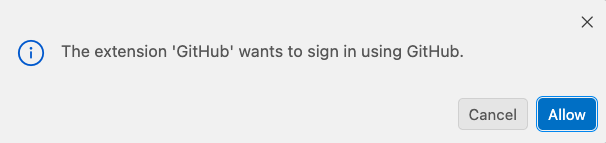
When the “GitHub” extension asks to sign in, click Allow:

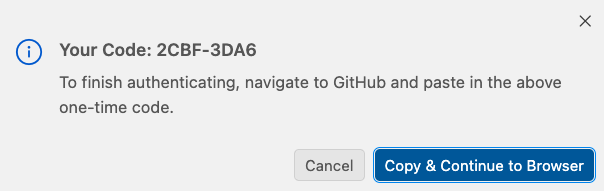
VS Code shows a one-time code — click Copy & Continue to Browser, which copies that code to your clipboard:

Click Open to let code-server open the GitHub login page in a new tab:

If no tab opens, go to https://github.com/login/device yourself — the notification in the bottom-right corner of VS Code reminds you of the address and of your code:

On the GitHub page, paste your one-time code. Then, on the resulting page, click the green Authorize button at the bottom:

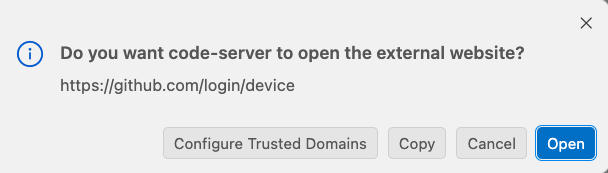
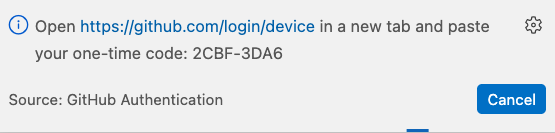
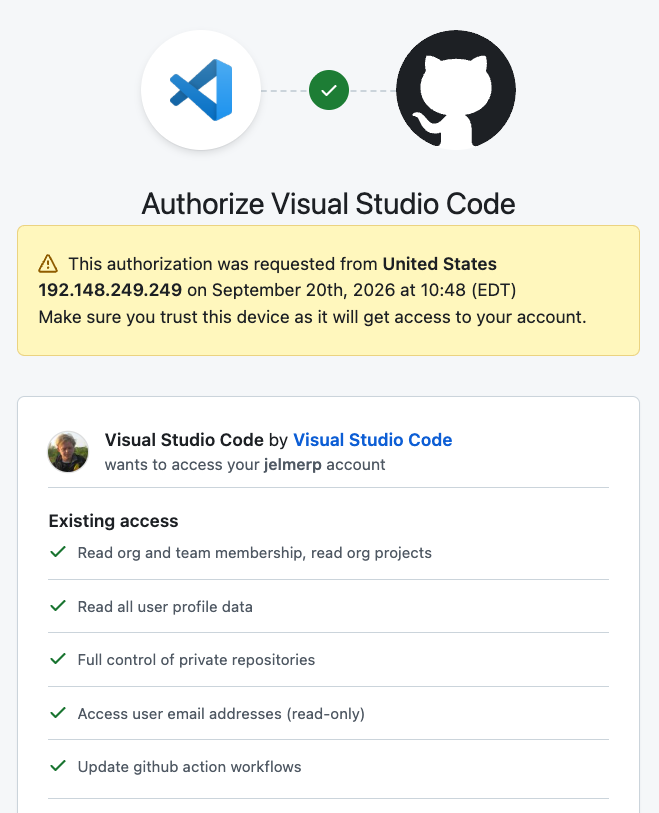
After you’ve logged in, VS Code asks for a repository name and whether to publish to a public or a private repository (for this course, pick public), and then creates the repo on GitHub and pushes your commits to it. Your login is remembered, so for later repos it really is just a few clicks.
Two things to keep in mind if you use this:
VS Code sets up the remote with an HTTPS URL (as you can check with
git remote -v) rather than an SSH one, and handles the authentication for you.The SSH key you set up above is still worth having: it lets you push from any terminal at OSC — also outside of VS Code, and from inside scripts — whereas the VS Code login only works inside a VS Code session.
You can check your remote connection settings for a repo with git remote -v:
git remote -vorigin git@github.com:jelmerp/evo.git (fetch)
origin git@github.com:jelmerp/evo.git (push)If you need to change the URL of your connection, you can use:
git remote set-url origin <NEW_URL>git clone sets up a remote for you (Click to expand)
In week 4, you downloaded the garrigos repository with git clone. Besides downloading the repo, including its full history, git clone automatically sets up the online repo as a remote called origin. You can see this in the garrigos dir:
cd ../../garrigos
git remote -v
cd ../week05/evoorigin https://github.com/cfaes-bioinfo/garrigos (fetch)
origin https://github.com/cfaes-bioinfo/garrigos (push)Note that this is an HTTPS URL, even though you haven’t set up HTTPS authentication. That’s fine, because downloading a public repo doesn’t require authentication — you would only need it to push, which you can’t do for this repo anyway, since it isn’t yours.
2.5 Explore the repository on GitHub
Back at GitHub on your repo page, refresh the browser page, and you should see something like the below — that’s basically your repo’s “home page”, where you can see the files you just uploaded from your local repo:
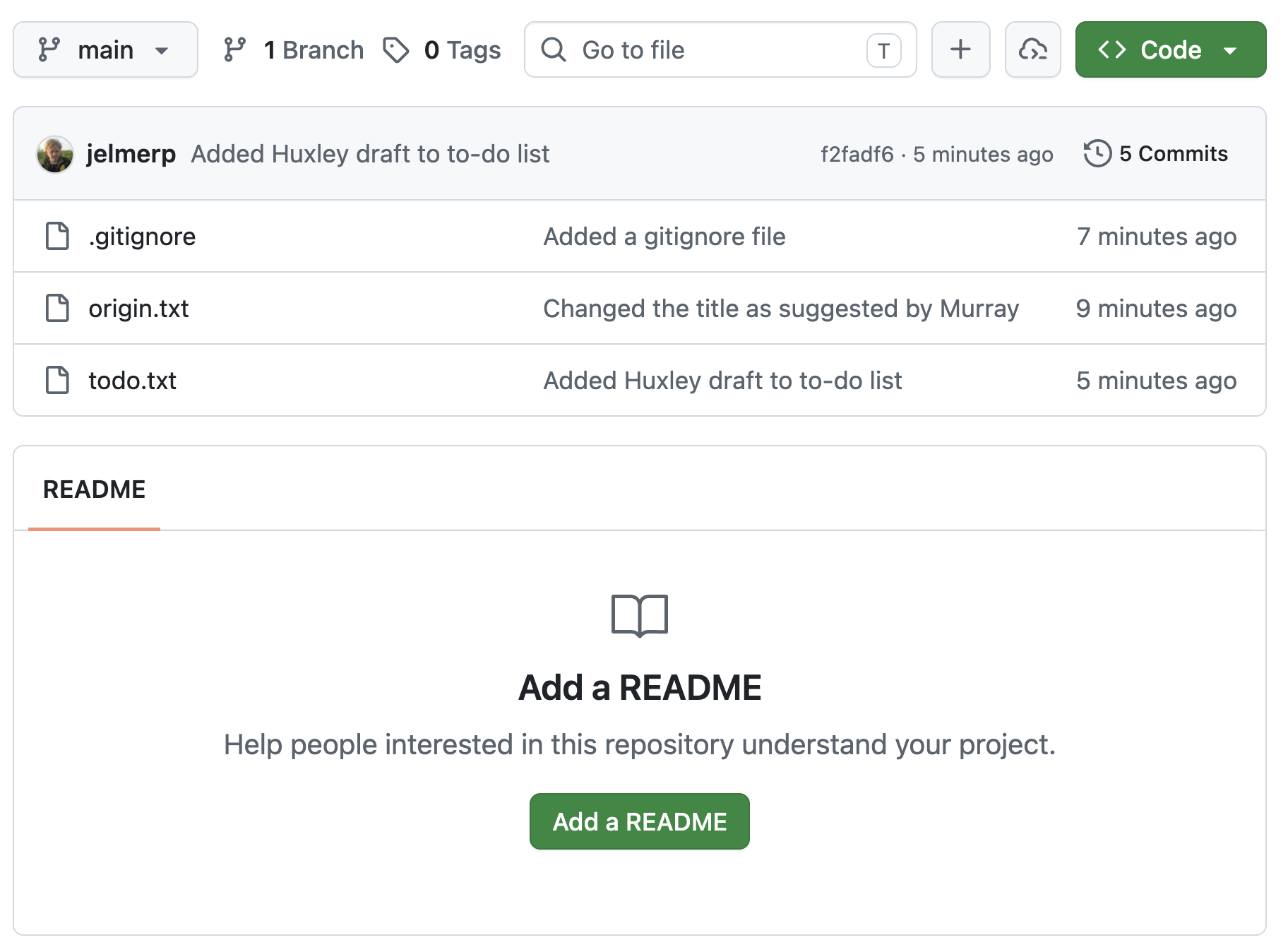
In the gray bar towards the top, GitHub shows the number of commits made to the repo, and the most recent commit’s ID and time (as a relative time, e.g. “3 hours ago”):

If you followed along exactly in the previous class, this should say 5 commits (but it’s OK if you have a different number). Click on the 5 commits (or similar) link to get an overview of the commits you made, similar to git log’s output:
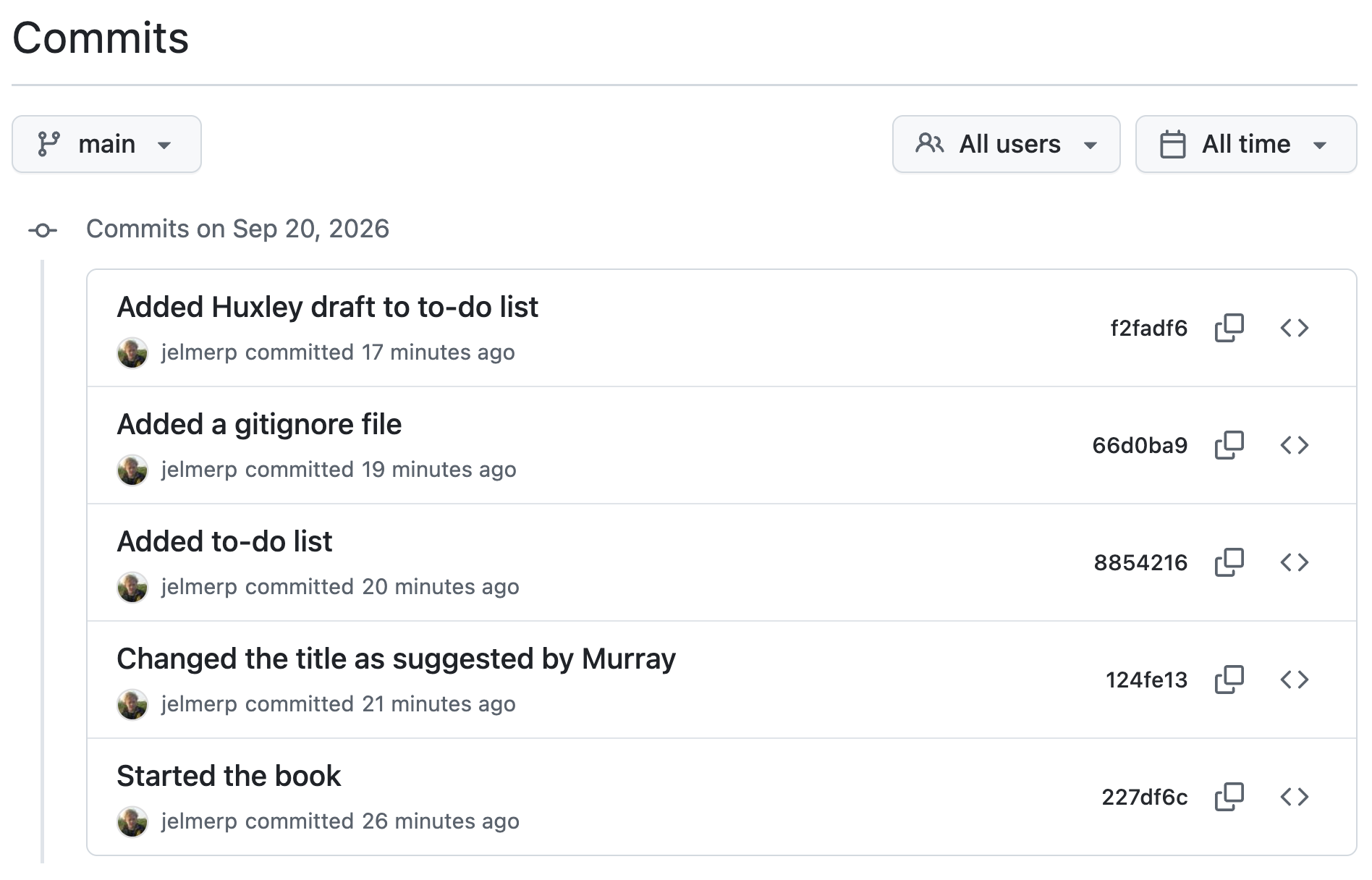
If your commits show a generic gray icon instead of your avatar, the email address in your Git configuration (
git config --global user.email) isn’t associated with your GitHub account. You can fix this by adding that address as a secondary email on GitHub.If you’d like your avatar to be a custom profile picture instead of the default GitHub icon, you can set that up on your GitHub profile page.
If you click on a commit message, you’ll see the changes made by that commit — let’s click on the most recent one:
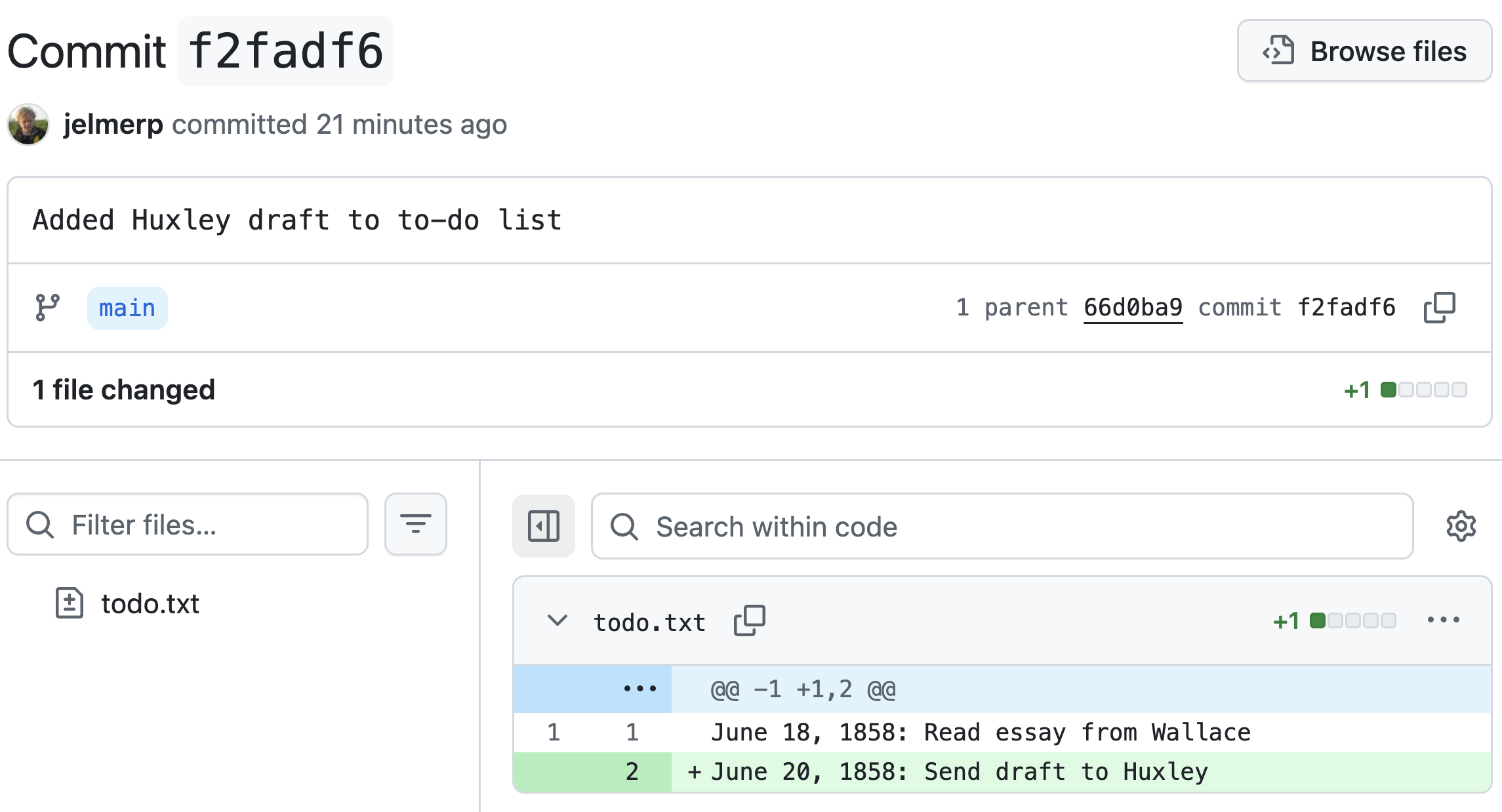
Go back to the previous page, the overview of commits. On the right-hand side, a < > button next to each commit allows you to see the state of the entire repo (all files in the project) at the time of that commit:
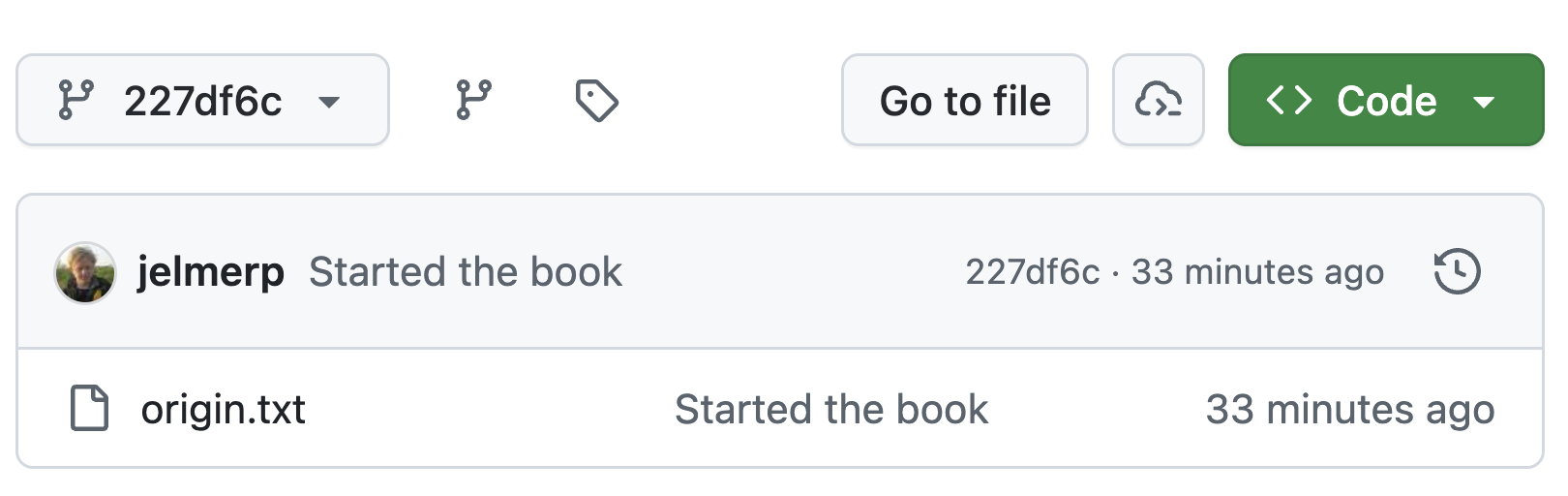
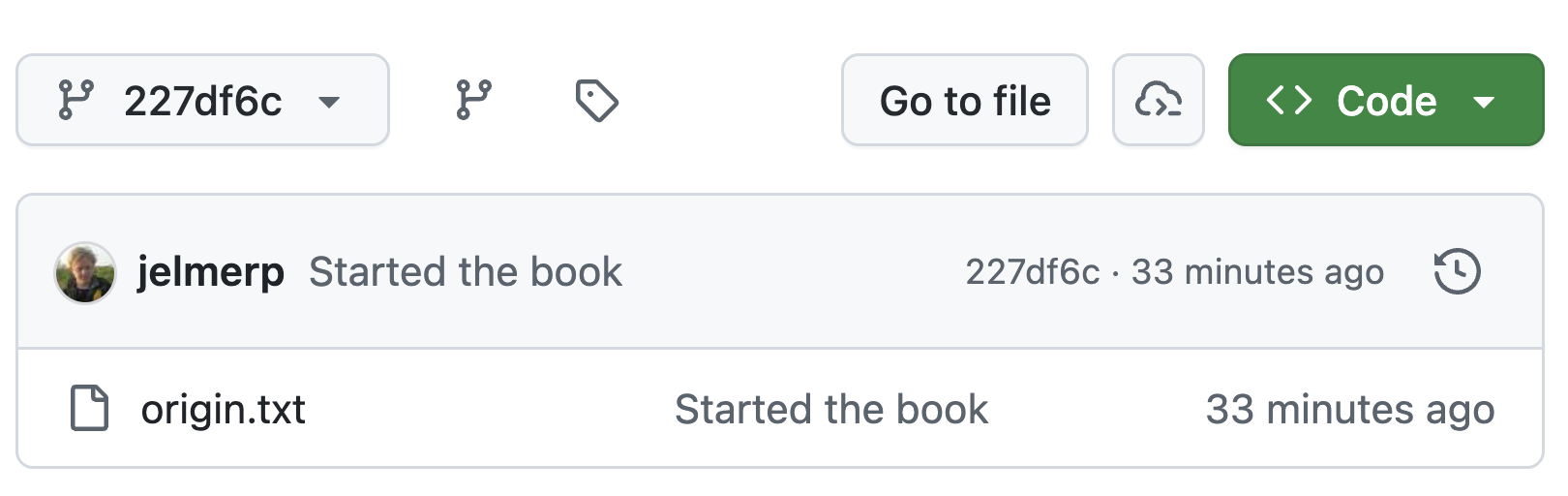
On the commit overview page, scroll down all the way and click the < > for the first commit — you’ll see the repo’s “home page” again, but now with only the origin.txt file, since that was the only file in your repo at the time:
2.6 GitHub “Issues”
Each GitHub repository has an “Issues” tab. GitHub Issues are mainly used to track bugs and other (potential) problems with a repository, both among collaborators and between users and the repository maintainers (in public repos, anyone with a GitHub account can open an issue to report a problem or ask a question).
In this course, you will use GitHub Issues to communicate with the instructors that you have completed an assignment and that your repository is ready for grading.
To go to the Issues tab for your repo, click on Issues towards the top of the page:
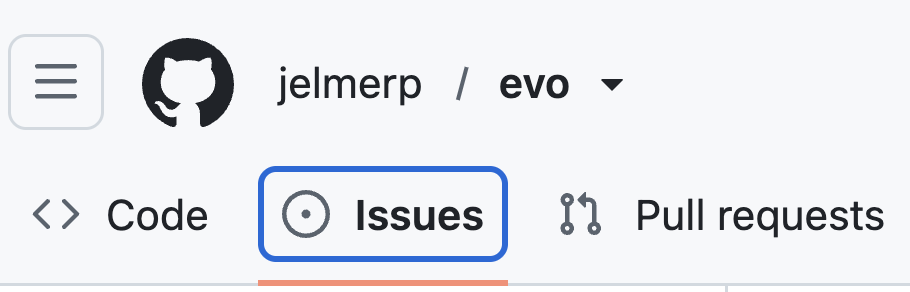
You should see a page like this, where you can open a new issue with the “New Issue” button:
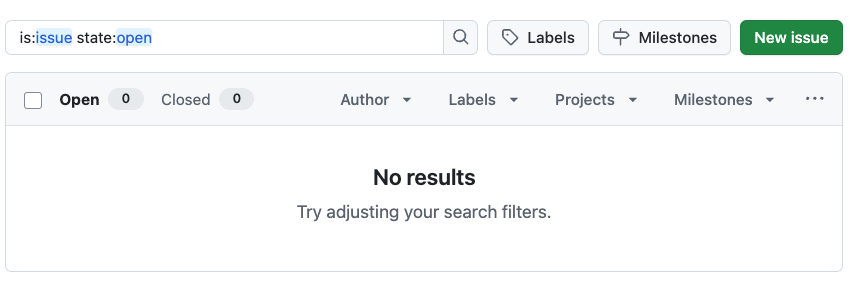
In an issue, you can use Markdown formatting, and you can reference specific commits and people. In next week’s exercises, you’ll practice tagging the instructors in an issue, and in future assignments, you’ll use this to let the instructors know you have finished an assignment.
3 Remote repo workflows
We’ll go over the typical Git + GitHub workflow with a single user, i.e., without someone collaborating with you on the repository. (The optional self-study page on version control covers collaboration with Git and GitHub, i.e. multi-user workflows.)
3.1 Single-user workflow: conceptual overview
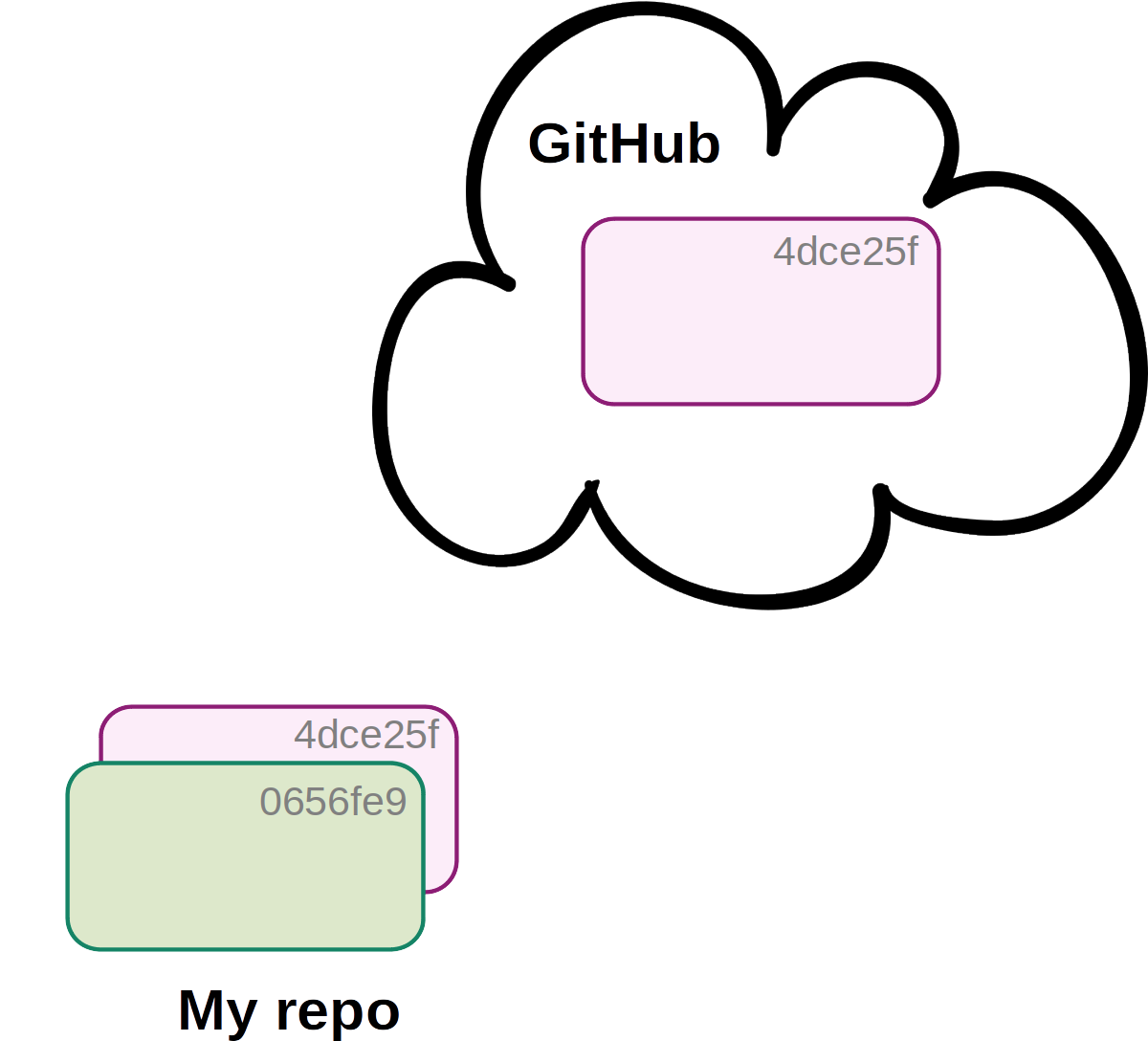
In a single-user workflow, all changes are typically made in a single copy of the local repository, and the remote repo is simply periodically updated (pushed to). So, the interaction between local and remote is unidirectional (unless you work on the repo from multiple computers, in which case you’d also need git pull):
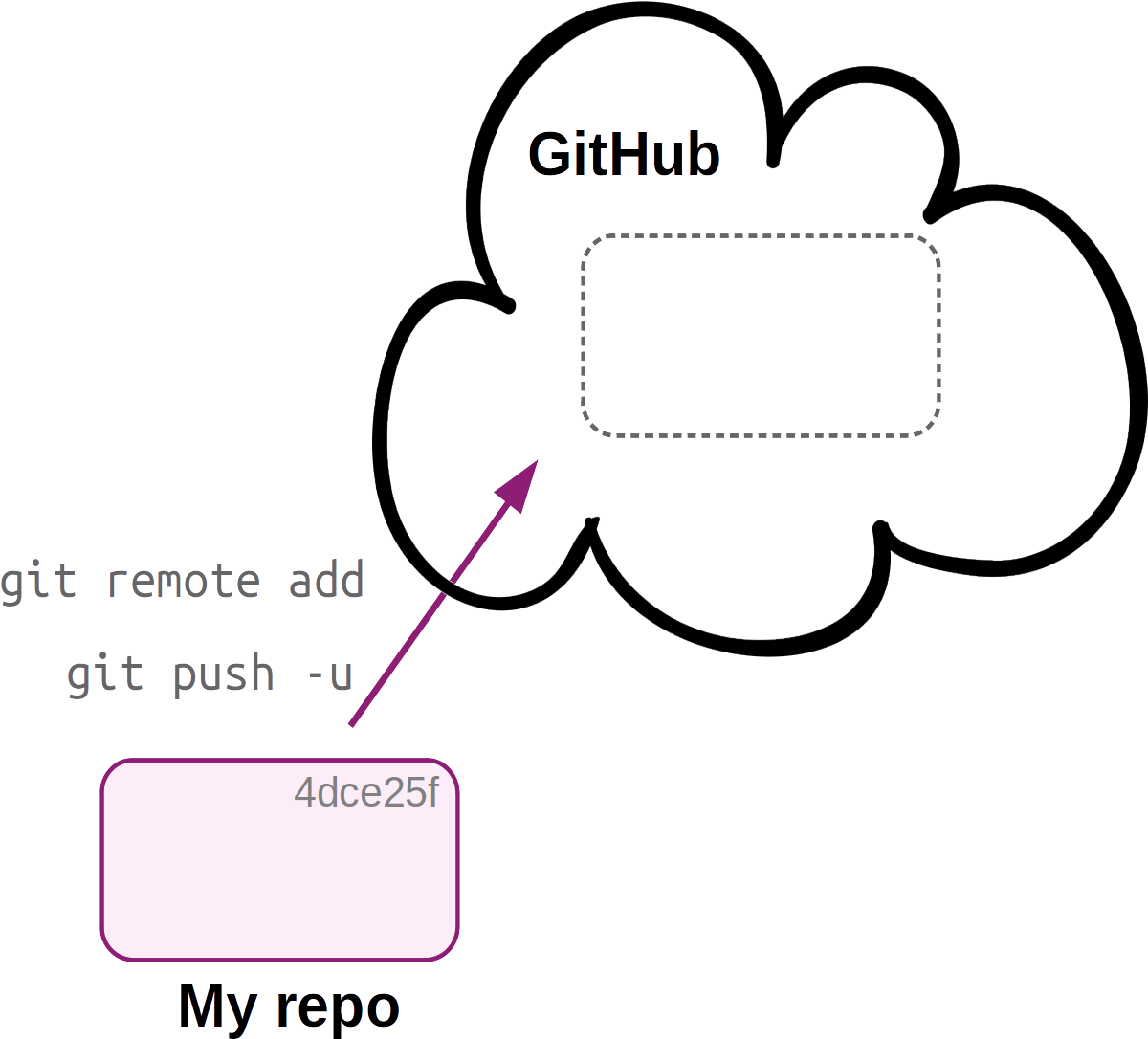
When pushing to remote for the first time, you first set up the connection with
git remote and use the -u option to git push.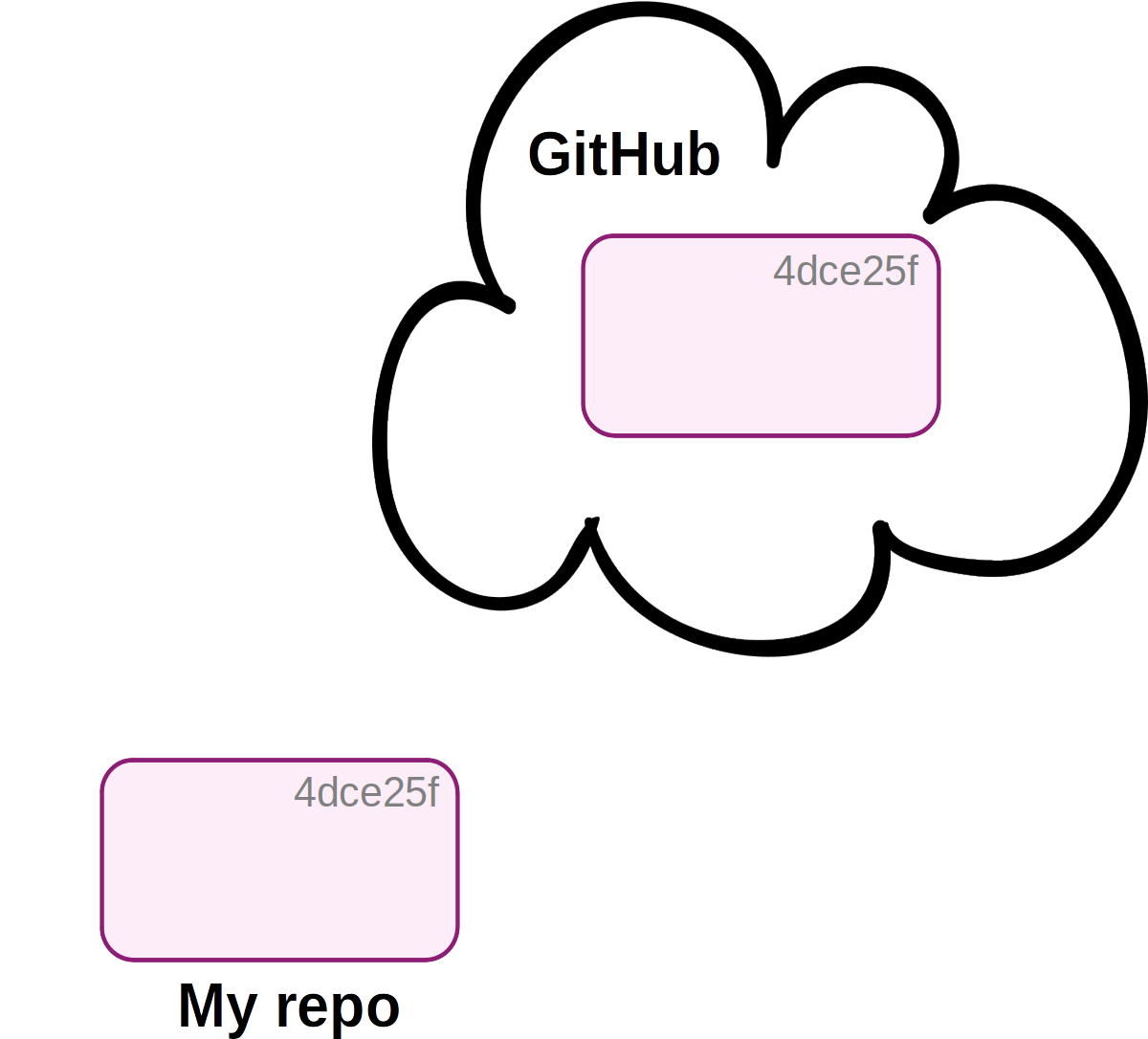
Now, the local (“My repo”) and remote (“GitHub”) are in sync.
Next, you’ve made a new commit locally: the local and remote are out of sync.
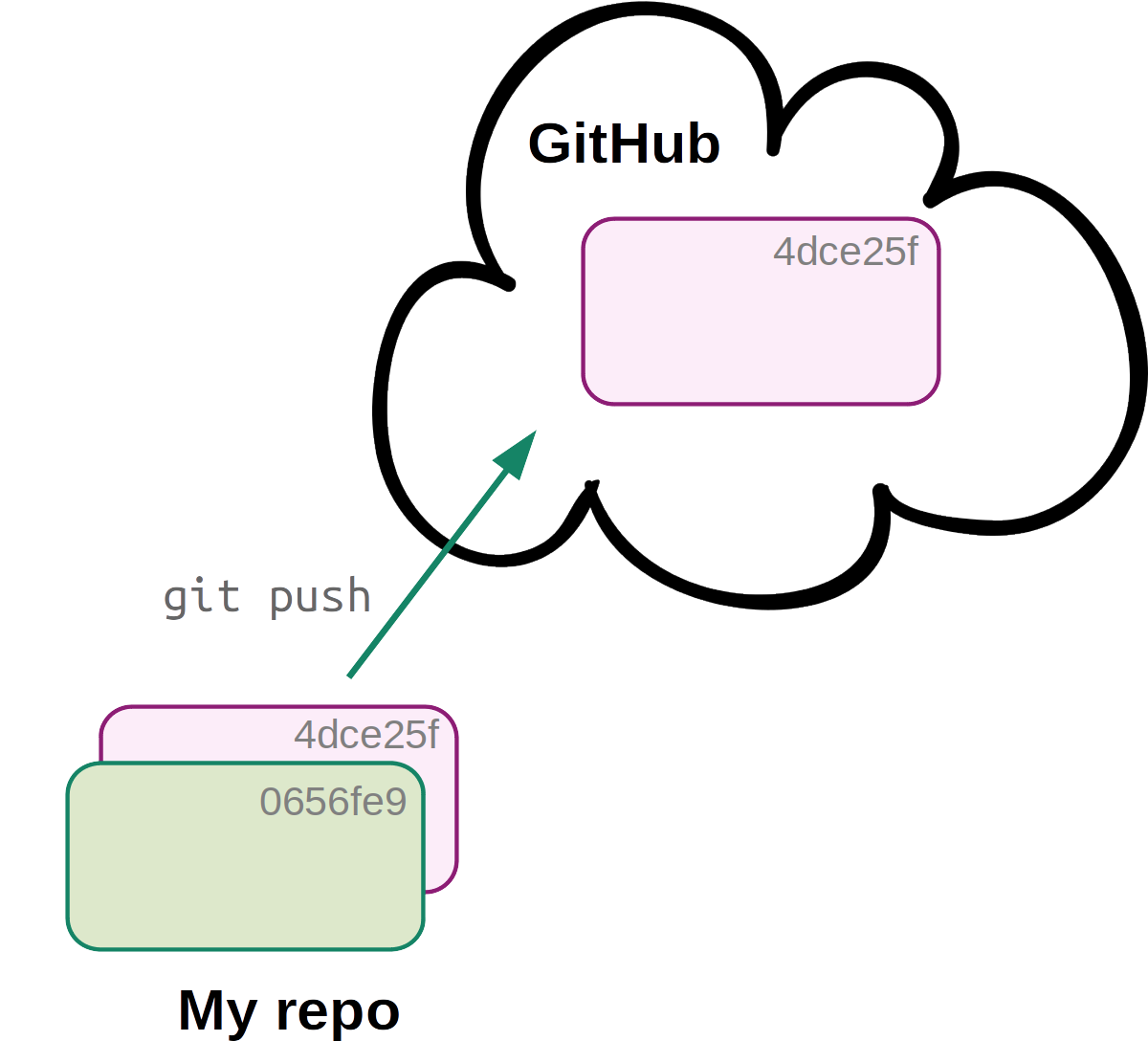
You simply use
git push to update the remote, after which the local and remote will be back in sync (latter not shown).In a single-user workflow with a remote, you commit just like you would without a remote in your day-to-day work, and in addition, push to remote occasionally.
3.2 Single-user workflow: in practice
Let’s practice this workflow by making a new commit and pushing it to the remote on GitHub.
Create a
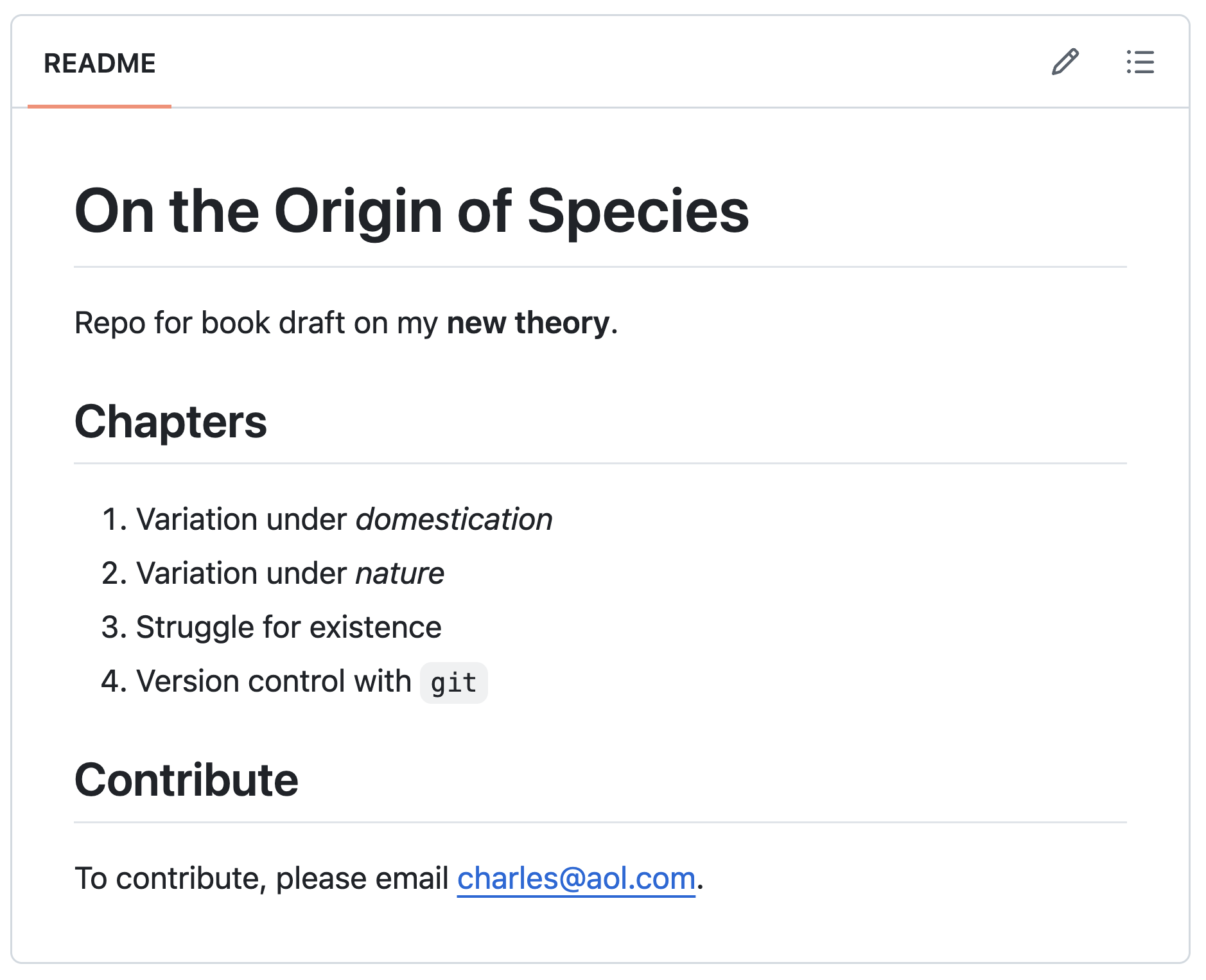
README.mdfile for your repo:touch README.mdOpen the file in the VS Code editor and copy the following text into it — we’ll include quite a bit of Markdown formatting, so we can later see how GitHub automatically renders Markdown files:
Add and commit the file:
git add README.md git commit -m "Added a README file"[main 63ce484] Added a README file 1 file changed, 14 insertions(+) create mode 100644 README.mdCheck the status — Git knows that your local repo is now one commit “ahead” of its remote counterpart:
git statusOn branch main Your branch is ahead of 'origin/main' by 1 commit. (use "git push" to publish your local commits) nothing to commit, working tree cleanAs you know by now, Git doesn’t do much automatically, so we have to push to the remote ourselves:
git pushEnumerating objects: 4, done. Counting objects: 100% (4/4), done. Delta compression using up to 40 threads Compressing objects: 100% (3/3), done. Writing objects: 100% (3/3), 404 bytes | 404.00 KiB/s, done. Total 3 (delta 0), reused 0 (delta 0), pack-reused 0 To github.com:jelmerp/evo.git 4968e62..63ce484 main -> main
Go back to GitHub and refresh your repo page, where you should now see the latest commit and the new README.md file listed. Moreover, GitHub automatically renders Markdown files and automatically shows any README.md file in a repo’s root dir on repo’s home page (!):
Self-study exercise: Commit and push again
Add the first chapter title, “Variation under domestication”, to
origin.txt, and commit this change. Then, add a line of your choice totodo.txt, and commit that change separately.Click for the solution.
echo "Variation under domestication" >> origin.txt git add origin.txt git commit -m "Added chapter 1 title" echo "Find a publisher" >> todo.txt git add todo.txt git commit -m "Added publisher to to-do list"Predict which message you will see if you check the status of your repo. Then, see if your prediction was correct by running
git status.- Your branch is up to date with ‘origin/main’.
- Your branch is ahead of ‘origin/main’ by 1 commit.
- Your branch is ahead of ‘origin/main’ by 2 commits.
- Your branch is behind ‘origin/main’ by 2 commits.
Click for the solution.
The correct answer is c: you made two local commits that are not yet on GitHub. (“Behind” would mean that the remote has commits that your local repo doesn’t have, which can happen when you collaborate.)
Before pushing, append another line to
todo.txt, but don’t commit it. Predict: after you push, will that line show up intodo.txton GitHub?Click for the solution.
No:
git pushonly uploads commits. Changes that you haven’t committed exist only in your working tree, so they aren’t pushed (and aren’t backed up online either!).Push your changes to GitHub. Then, on the GitHub website, check that your two new commits are there, and whether your prediction in part 3 was right.
Click for the solution.
git pushThen, on GitHub, click on the number of commits: your two new commits should be at the top. When you click on
todo.txtin the repo’s file listing, the line you added in part 3 is not there. (You can now commit and push that change, or discard it withgit restore todo.txt.)
GitHub will refuse a push that includes any file larger than 100 MB. It will do so even if you have since removed the file or added it to your .gitignore: once a file has been committed, it is part of your repository’s history, and git push uploads that history. Fixing this requires rewriting your repository’s history, which we don’t cover in this course.
So, make sure that large data files, like FASTQ files, never get committed by setting up your .gitignore file appropriately, checking git status before committing, and being careful with git add --all.
4 Git and GitHub recap
A single-user Git workflow, with a GitHub remote, consists at its core of the following steps:
- Work on your research and change files in the repo.
- Stage changes with
git add. - Commit changes with
git commit. - Push commits with
git push.
Additional Git functionality we have seen:
- Start a new repo with
git init. - Add untracked files to the repo also with
git add. - Make sure Git ignores files with a
.gitignorefile. - Check the current status of your repo with
git status— e.g. what files have changed since your last commit. - See the specific changes you have made to files with
git diff(or with VS Code’s “Source Control” panel). - Get an overview of your past commits with
git log. - Undo uncommitted changes to files with
git restore. - Set up and manage the connection to a remote on GitHub with
git remote. - Download a copy of an online repo with
git clone. - Do one-time Git setup (name, email, default branch name) with
git config.
Footnotes
We will not cover collaboration workflows in class, though — see the optional self-study material for this.↩︎
GitHub’s own documentation adds the option
-C "your_email@example.com"to this command. That only stores your email address as a label inside the key file, and is not needed: without it,ssh-keygenlabels the key with your user name and the computer you created it on.↩︎For the passphrase questions, this means that your key has no passphrase, so you won’t have to type one each time you push. The flip side is that anyone who gets into your OSC account could use the key.↩︎
See this GitHub page to set this up instead of or in addition to SSH access.↩︎
This uses GitHub’s AI assistant Copilot to generate starter files (e.g. code and a README) based on a short description of your project.↩︎
To learn more about branches, see the Git bonus material.↩︎